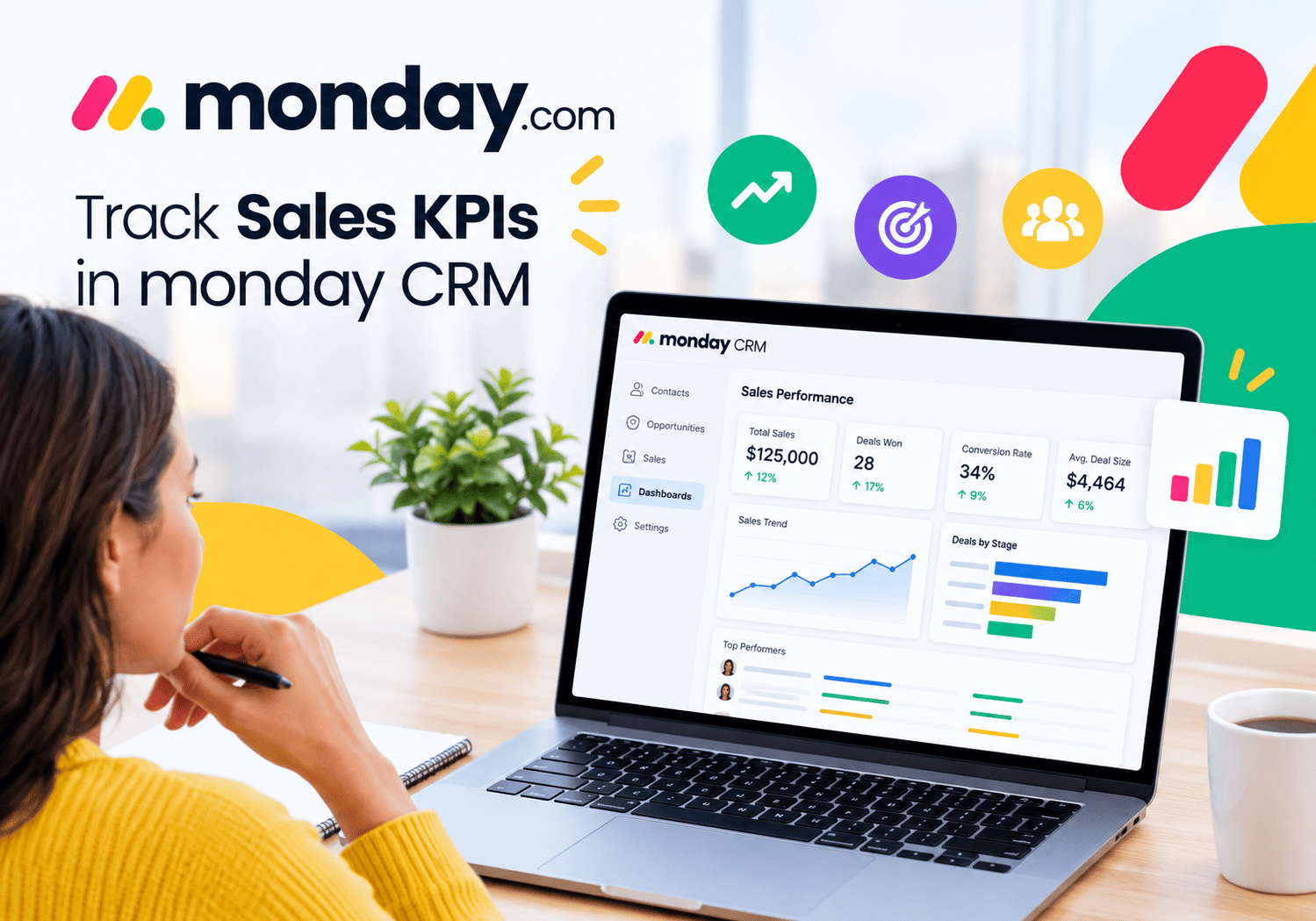
Advanced Filtering in Pipedrive: Tips and Tricks

How to slice and dice your CRM data to uncover insights that drive smarter sales decisions.
Sales teams drown in data every single day — open deals, stalled contacts, overdue activities, and pipeline stages all compete for attention. Without precise filtering, that data becomes noise rather than intelligence. Pipedrive gives sales professionals one of the most flexible filtering systems available in any CRM, yet most users barely scratch the surface of what it can do. This guide walks through advanced filtering techniques — from building multi-condition logic to saving filters for your entire team — so that your Pipedrive data works for you rather than against you.
Table of Contents
- Quick Summary
- What Is Filtering in Pipedrive and Why Does It Matter?
- What Is the Difference Between Basic and Advanced Filters?
- How Do You Build a Powerful Advanced Filter in Pipedrive?
- What Are the Most Valuable Advanced Filtering Use Cases?
- How Do You Save, Share, and Manage Filters Across a Team?
- How Does Advanced Filtering Connect to Pipedrive Reports and Insights?
- What Are the Best Pro Tips and Tricks for Pipedrive Filtering?
- Conclusions: What Does Mastering Pipedrive Filtering Unlock for Your Team?
- Frequently Asked Questions
- How Can Solution for Guru Supercharge Your Pipedrive Data Strategy?
Quick Summary
Pipedrive’s advanced filtering system lets sales teams create multi-condition queries across deals, contacts, organisations, activities, and custom fields — transforming raw CRM data into actionable insights. By combining AND/OR logic, date-range conditions, and custom field filters, managers and reps can surface exactly the deals that need attention, identify at-risk pipeline segments, and generate segmentation lists for targeted outreach. Saving and sharing filters across teams eliminates duplicated effort and ensures everyone works from the same data view.
What Is Filtering in Pipedrive and Why Does It Matter?
How does Pipedrive’s filter engine actually work?
Pipedrive stores every deal, contact, organisation, activity, and product as a structured record with dozens of associated fields. The filter engine reads those field values and returns only the records that match the conditions you define. Essentially, you ask Pipedrive a question — “show me all deals above €10,000 in Stage 3 that have had no activity in the past 14 days” — and the filter answers it instantly by scanning every relevant record in your database.
What makes Pipedrive’s filter system particularly powerful is that it applies across all major sections of the platform. You can filter the Deals list view, the Contacts list, the Organisations list, and the Activities view independently. Each view stores its own set of saved filters, meaning a sales manager might keep a “Deals at Risk” filter on the Deals view while simultaneously maintaining a “High-Value Prospects — No Meeting Scheduled” filter on the Contacts view.
Furthermore, Pipedrive‘s filters work in real time. As new data enters the CRM — a rep logs a call, a deal moves pipeline stages, or a contact’s job title updates — the filter results refresh automatically. You always see a live snapshot of the data matching your conditions, not a static export from last week.
How does filtering help you slice and dice data for real insights?
The phrase “slice and dice” describes exactly what advanced filtering achieves: it cuts your entire dataset along multiple dimensions simultaneously to isolate the precise segment you need to examine. A pipeline of 500 open deals tells you very little on its own. However, filtering that same pipeline to show only deals owned by a specific rep, in a specific stage, with a close date in the next 30 days, and a value above your average deal size — that tells you everything you need to prepare for a meaningful sales review conversation.
Pipedrive enables this kind of multi-dimensional slicing through its layered condition system. Each condition narrows the dataset further, and combining multiple conditions with AND or OR logic lets you construct highly specific queries without writing a single line of code. Sales operations professionals, revenue analysts, and frontline managers all use these capabilities to extract insights that would otherwise require exporting data to a spreadsheet and manually applying formulas.
Why this matters: According to Salesforce’s State of Sales report, high-performing sales teams are 2.8× more likely to use CRM data to guide their daily priorities. Advanced filtering is the mechanism that surfaces that guidance inside Pipedrive.
What Is the Difference Between Basic and Advanced Filters?
What are filter conditions, AND logic, and OR logic?
Basic filtering in Pipedrive typically involves selecting a single field and a single value — for example, filtering deals by owner or by pipeline stage. These quick filters work well for day-to-day browsing but fall short when you need to combine multiple criteria. Advanced filtering builds on the same foundation but lets you chain multiple conditions together using two logical operators: AND and OR.
AND logic narrows results by requiring every condition to be true simultaneously. A filter that reads “Stage = Proposal Sent AND Deal Value > €5,000 AND Expected Close Date = This Month” returns only deals that satisfy all three criteria at once. Each additional AND condition makes the result set smaller and more specific.
OR logic broadens results by returning records that match any one of the conditions. A filter reading “Owner = Maria OR Owner = James” returns deals owned by either person. OR logic proves especially useful when you want to group similar values — multiple pipeline stages, several team members, or a range of product categories — into a single view without creating separate filters for each.
Pipedrive also supports mixing AND and OR logic within a single filter by grouping conditions into condition sets. One set might use AND logic internally while the overall filter connects multiple sets with OR logic, enabling highly sophisticated queries.
| Logic Type | Effect on Results | Best Use Case | Example |
|---|---|---|---|
| AND | Narrows — all conditions must match | High-specificity deal segments | Stage = Demo AND Value > €10k AND No activity in 7 days |
| OR | Broadens — any condition can match | Grouping similar values or team members | Owner = Ana OR Owner = Ben OR Owner = Clara |
| Mixed AND/OR | Combines specificity and breadth | Complex segmentation across multiple dimensions | (Stage = Proposal OR Stage = Negotiation) AND Value > €5k |
How do custom fields expand your filtering power?
Every Pipedrive account ships with standard fields like deal name, value, owner, and stage. However, most sales teams add custom fields to capture business-specific data — industry vertical, lead source, product category, contract type, or customer tier, for example. The crucial point is that Pipedrive makes every custom field available as a filter condition, meaning your filtering system scales directly with the richness of the data your team collects.
A SaaS company might add a custom “Subscription Tier” field to deals and then filter by “Subscription Tier = Enterprise AND Stage = Negotiation” to prioritise high-value renewals. A consulting firm might filter contacts by a custom “Industry” field combined with “Last Contact Date = More than 90 days ago” to identify warm prospects who have gone cold. The more intentionally a team designs its custom fields, the more powerful its filtering — and therefore its insight generation — becomes.
Pro Tip: Before building advanced filters, audit your custom fields. Fields with inconsistent values (e.g., “SaaS”, “saas”, “Software-as-a-Service” all meaning the same thing) will produce incomplete filter results. Standardise picklist options and enforce field completion through Pipedrive’s required fields feature first.
How Do You Build a Powerful Advanced Filter in Pipedrive?

What is the step-by-step process for creating a multi-condition filter?
Building an advanced filter in Pipedrive takes less than two minutes once you understand the interface. Navigate to the Deals list view (or whichever section you want to filter) and click the filter icon in the top toolbar. From there, follow this process:
- Click “Add filter” and select “Create new filter” from the dropdown. Pipedrive opens the filter builder panel.
- Choose your first condition. Select the field (e.g., “Deal stage”), the operator (e.g., “is”), and the value (e.g., “Proposal Sent”).
- Add a second condition by clicking “Add condition.” Select whether this new condition connects with AND or OR logic relative to the previous one.
- Continue adding conditions until your filter captures exactly the data segment you need. There is no practical limit to the number of conditions you can stack.
- Add a condition set if you need mixed AND/OR logic. Condition sets let you define a group of AND conditions that connects to other groups via OR logic.
- Name the filter clearly — for example, “High-Value Deals Stalled > 14 Days” — and save it. Choose whether to keep it private or share it with your team.
- Apply the filter and review the results. Adjust conditions as needed until the result set matches your intent precisely.
When should you use filter sets instead of single filters?
Single filters work well when all your conditions share the same logic — either all AND or all OR. However, many real-world sales scenarios require mixed logic that a single condition chain cannot express cleanly. This is where filter sets become indispensable.
Consider a scenario where a sales manager wants to see all deals that meet either of two separate criteria: (1) high-value deals in the Proposal stage with no activity in 10 days, or (2) any deal whose expected close date has already passed. Expressing this as a single chain of conditions is impossible because the two groups use completely independent AND logic internally. A filter set solves this elegantly: Set 1 contains the three AND conditions for stalled high-value deals; Set 2 contains the single condition for overdue close dates; and the two sets connect via OR logic. The result shows exactly the deals needing urgent attention, regardless of which scenario applies.
What Are the Most Valuable Advanced Filtering Use Cases?

How can filtering reveal pipeline health at a glance?
Pipeline health monitoring represents one of the highest-value applications of advanced filtering in Pipedrive. Rather than scrolling through hundreds of deals in the kanban view, a well-constructed filter surfaces the exact deals that require intervention — and hides everything else.
The most useful pipeline health filters include:
- Stalled deals — Filter by “Last Activity Date is more than X days ago” combined with “Stage is not Won or Lost.” This identifies deals that reps have neglected, often before they realise it themselves.
- Overdue close dates — Filter by “Expected Close Date is before Today” and “Status = Open.” These deals are slipping the forecast and need immediate attention.
- High-value deals near close — Filter by “Value > [threshold]” AND “Expected Close Date = This Month” AND “Stage = Negotiation or Proposal Sent.” This gives managers a weekly priority list for deal support.
- New deals without activities — Filter by “Created Date = Last 7 Days” AND “Number of Activities = 0.” These deals entered the pipeline but received no follow-up yet.
| Health Signal | Filter Conditions | Action Triggered |
|---|---|---|
| Stalled deals | Last Activity > 14 days ago + Status = Open | Rep follow-up or manager review |
| Overdue close date | Expected Close < Today + Status = Open | Forecast update or deal review |
| High-value near close | Value > €X + Close = This Month + Stage = Negotiation | Executive involvement, discount approval |
| No-activity new deals | Created < 7 days ago + Activities = 0 | Assign first touch activity |
| Deals without next step | Next Activity Date = None + Status = Open | Schedule follow-up immediately |
How do activity filters help managers coach their teams?
Pipedrive’s activity filtering gives sales managers unprecedented visibility into rep behaviour without micromanaging every conversation. By filtering the Activities view rather than the Deals view, managers shift from lagging indicators (won/lost outcomes) to leading indicators (the behaviours that predict those outcomes).
A manager might filter activities by “Type = Call AND Outcome = Completed AND Owner = [Rep Name] AND Date = This Week” to review the volume and quality of a specific rep’s outbound calling. Comparing this filter across multiple reps immediately surfaces who is hitting activity targets and who needs coaching. Similarly, filtering for “Type = Meeting AND Status = Scheduled AND Date = Next 7 Days” gives a manager a forward-looking view of the team’s upcoming engagement — useful context before a Monday morning pipeline review.
Activity filters also integrate powerfully with Pipedrive’s smart contact data and email sync. If your team logs email activities automatically, filtering by “Activity Type = Email AND Date = Last 30 Days” connected to specific deal stages reveals whether reps are nurturing deals at the right cadence or letting conversations go cold.
How do contact and organisation filters power segmentation?
Most Pipedrive users spend the majority of their filtering time in the Deals view, but Contacts and Organisations filtering unlocks an entirely different class of insights — particularly for marketing-sales alignment and account-based strategies.
Contact filtering lets teams build precise outreach lists without exporting data. For example, filtering contacts by “Job Title contains ‘VP’ OR Job Title contains ‘Director'” AND “Organisation size = 100–500 employees” AND “Last contacted > 60 days ago” produces an immediately actionable list of senior decision-makers due for re-engagement. This filter replaces what would otherwise require a manual data export and spreadsheet pivot table.
Organisation filtering adds another layer for account-based sales teams. Filtering organisations by “Industry = Financial Services” AND “Number of open deals = 0” AND “Number of people > 5” surfaces high-potential accounts that the team has contact records for but no active pipeline against — a goldmine for prospecting campaigns. Pipedrive stores all of these attributes natively, making this analysis accessible to any rep in minutes rather than requiring a dedicated analyst.
How Do You Save, Share, and Manage Filters Across a Team?
Building a great filter once and discarding it represents a missed opportunity. Pipedrive lets you save every filter with a custom name and decide whether to make it private (visible only to you) or shared (visible to your entire company). Shared filters appear in every team member’s filter list immediately after you save them, creating a single source of truth for how the team interprets and segments its data.
Effective filter management at the team level involves several deliberate practices:
- Establish a naming convention. Names like “MGMT – Stalled Deals > 14 Days” or “SDR – New Contacts No Activity” make it immediately clear who owns each filter and what it shows. Avoid vague names like “My Filter 3.”
- Assign filter ownership. Each shared filter should have a designated owner — usually the manager or ops team member who created it — responsible for updating conditions when the business context changes.
- Audit filters quarterly. Delete outdated filters that reflect old pipeline stages, former team members, or past campaigns. Cluttered filter lists frustrate users and erode CRM adoption.
- Create a filter library by role. Structure shared filters into logical groups: pipeline management filters for managers, prospecting filters for SDRs, renewal filters for account managers. Pipedrive does not natively group filters, but a consistent naming convention achieves the same result.
Common mistake: Sharing unfinished or experimental filters with the whole team creates confusion. Build and test new filters as private first, then share them only after you confirm the results accurately reflect the intended data segment.
How Does Advanced Filtering Connect to Pipedrive Reports and Insights?
Filtering and reporting work as two sides of the same coin inside Pipedrive. While filters give you a live, interactive list view of your data, the Insights module transforms that data into visual charts, dashboards, and trend analyses. Importantly, many Insights reports accept filters as input, meaning the same conditions you build in the list view can power the charts your leadership team reviews each week.
Pipedrive Insights supports several chart types — bar charts, line graphs, conversion funnels, and revenue forecasts — and each accepts deal, contact, or activity filters to scope the analysis. A revenue forecast filtered to “Stage = Negotiation OR Proposal Sent AND Expected Close = Next Quarter” gives finance teams a more accurate picture of near-term revenue than an unfiltered forecast that includes every open deal regardless of stage or probability.
The conversion funnel report particularly benefits from advanced filtering. By applying a lead source filter, you can compare conversion rates between deals originating from paid search versus inbound referrals versus outbound prospecting — revealing which acquisition channels produce the highest-quality pipeline. This insight directly informs marketing budget allocation and SDR prioritisation decisions. Pipedrive surfaces this analysis natively, provided the team has captured lead source data consistently in the relevant custom or standard field.
| Insight Report Type | Filter to Apply | Business Decision Enabled |
|---|---|---|
| Revenue forecast | Stage = Proposal/Negotiation + Close = Next Quarter | Accurate short-term revenue projection |
| Conversion funnel | Lead Source = [specific channel] | Marketing channel ROI comparison |
| Average deal duration | Industry = [vertical] + Deal Size tier | Realistic sales cycle benchmarking per segment |
| Activity completion rate | Owner = [rep name] + Date = Last 30 days | Individual rep coaching and performance review |
| Won deal analysis | Status = Won + Close Date = Last Quarter | Identifying patterns in successful deals |
What Are the Best Pro Tips and Tricks for Pipedrive Filtering?

Beyond the fundamentals, several advanced techniques separate power users from casual Pipedrive users. These tips help teams extract maximum value from the filtering system with minimal additional effort.
Which lesser-known filter conditions deliver the most insight?
Most Pipedrive users know they can filter by owner, stage, and value. Fewer discover the more nuanced conditions that unlock genuinely actionable insights:
- “Number of activities” equals zero. This condition instantly surfaces deals or contacts that have never received any follow-up — critical for pipeline hygiene.
- “Last activity date” combined with a relative date operator. Relative dates like “more than X days ago” or “in the last X days” update dynamically every day, so a saved filter always reflects current staleness without manual adjustment.
- Label filters. Pipedrive’s label field (available on deals, contacts, and organisations) lets teams tag records with custom categories. Filtering by label enables flexible, ad-hoc segmentation that bypasses the need for new custom fields.
- “Follower” conditions. Filter deals or contacts by which team members follow them to identify cross-functional collaboration patterns or ensure important accounts have adequate internal sponsorship.
- Email and phone filters. Filtering contacts who have no email address recorded helps data quality teams identify gaps before a campaign launch.
How do relative date operators transform filter usefulness?
Static date filters — “close date = 31 March 2025” — require manual updates as time passes, making them fragile for ongoing use. Relative date operators solve this problem elegantly. Operators like “is in the next,” “is in the last,” “is before today,” and “is more than X days ago” calculate dynamically based on the current date each time the filter runs.
A saved filter using “Expected Close Date is in the next 30 days” always shows the next 30 days of pipeline, regardless of when you open it. A filter using “Created Date is in the last 7 days” always shows this week’s new deals. Building your core pipeline management filters around relative dates means they remain accurate and useful for months without any maintenance — a significant productivity multiplier for busy sales operations teams.
Advanced trick: Combine a relative date condition with a “No activity since” condition to automatically identify deals that entered the pipeline recently but have already gone cold. For example: “Created Date = Last 14 days AND Last Activity Date = More than 7 days ago.” This catches neglected new deals before they fall completely through the cracks.
How do bulk actions work with filtered results?
One underused feature in Pipedrive is the ability to perform bulk actions directly on filtered results. After applying a filter, you can select all matching records and update a field, reassign ownership, add a label, or export to CSV in a single operation. This makes filtered results immediately actionable — not just informative.
A practical example: filter all contacts whose “Last Contacted” date is more than 90 days ago and whose associated deal status is “No deal.” Select all results, bulk-assign them to an SDR for re-engagement, and add a “Re-engagement Q4” label — all in under 60 seconds. Without the filter, this task would require scrolling, manual selection, and multiple individual updates.
Conclusions: What Does Mastering Pipedrive Filtering Unlock for Your Team?
Pipedrive‘s advanced filtering system transforms an already capable CRM into a precision instrument for sales intelligence. When teams invest time in building well-designed filters — combining AND/OR logic, leveraging custom fields, using relative date operators, and sharing filters consistently — they eliminate the guesswork that costs deals and slows revenue growth.
The core takeaways from this guide are straightforward:
- Pipedrive’s multi-condition filter builder supports virtually any data segmentation need, from simple ownership views to complex cross-dimensional pipeline analysis.
- AND logic narrows results for precision; OR logic broadens them for coverage; mixed filter sets handle the complex scenarios that real sales teams encounter daily.
- The most valuable filters focus on pipeline health signals: stalled deals, overdue close dates, no-activity new deals, and high-value opportunities approaching close.
- Saving and sharing filters as a team resource multiplies their impact — every rep and manager benefits from a consistent, well-maintained filter library rather than building duplicate views individually.
- Connecting filter logic to Pipedrive Insights reports converts list views into visual trend analyses that inform strategic decisions about hiring, marketing spend, and product direction.
- Relative date operators keep saved filters perpetually current, turning one-time setup work into durable, low-maintenance operational infrastructure.
Ultimately, the teams that win with Pipedrive are those that treat their CRM data as a strategic asset. Advanced filtering is the key that unlocks that asset — and partners like Solution for Guru help teams build the filtration architecture that makes it work reliably at scale.
Frequently Asked Questions
Yes. Pipedrive’s filter conditions include a “Pipeline” field, and you can combine multiple pipeline values using OR logic. For example, a filter reading “Pipeline = Enterprise Sales OR Pipeline = SMB Sales” returns deals from both pipelines in a single list view. This proves especially useful for senior managers overseeing multiple revenue streams who want a consolidated view of all high-value deals approaching close, regardless of which pipeline they sit in.
Alternatively, if you need to compare pipelines visually rather than in a merged list, Pipedrive’s Insights module lets you create side-by-side pipeline performance charts using pipeline as a grouping dimension — complementing the list-view filtering approach with visual analytics.
Pipedrive filters update in real time whenever you open or refresh the list view. The filter conditions re-evaluate against live CRM data every time you load the page, so you always see the current set of records matching your criteria. This is particularly valuable for filters using relative date conditions — a “Close Date = Next 30 Days” filter always reflects the correct 30-day window based on today’s date, with no manual adjustment needed.
However, Pipedrive does not push automatic notifications when a filter’s results change. If you want to receive alerts — for example, when a new deal matches your “High-Value Deals No Activity” filter — you need to configure automation rules using Pipedrive’s Automations feature or a third-party integration tool, which can send email or Slack notifications when specific conditions trigger.
How Can Solution for Guru Supercharge Your Pipedrive Data Strategy?
Partnering With Solution for Guru
Mastering Pipedrive‘s filter system requires more than reading documentation — it demands a clear understanding of your sales process, clean and consistent data, and a filter architecture designed around how your team actually sells. Solution for Guru specialises in exactly this work: helping sales teams configure, optimise, and scale their Pipedrive environments so that every filter, report, and dashboard delivers reliable insight.
Their Pipedrive experts work with teams to:
- Audit and clean existing CRM data — standardising field values, removing duplicates, and ensuring the custom field structure supports the advanced filters your team needs.
- Design a filter library by role — building and documenting a complete set of shared filters for pipeline managers, SDRs, account managers, and executives so every team member has an immediately useful view of their data.
- Connect filters to Insights dashboards — mapping your key business questions to specific Pipedrive report configurations that refresh automatically using your saved filter logic.
- Train your team on advanced filtering techniques — turning the tips in this article into live, hands-on workflows embedded in your team’s daily selling habits.
- Integrate Pipedrive with external tools — connecting your CRM to marketing automation, data warehouses, or BI tools so that filtered Pipedrive segments flow seamlessly into broader revenue analytics.
Working with Solution for Guru means your team stops treating Pipedrive as a record-keeping system and starts using it as a genuine sales intelligence platform. Explore Solution for Guru →
Recommended:
- Pipedrive Web Chat and LeadBooster: Generate More Leads from Your Website
- CRM Ecosystem Explained: Business and Technical Roles You Need
- What is CRM System Proficiency?
- How Should You Structure Your CRM Team for Maximum Success?
- Using Salesforce to Build a 360° Customer View
- What Should Investors Know About Salesforce Stock?
- What KPIs Should Every Business Track in Their CRM System?
- What is CRM Database?
- How Can CRM Analytics Transform Your Salesforce Experience?
- CRM Management
- Getting Started With Pipedrive
- What is Pipedrive CRM?
- Choosing the best low-cost CRM
- Top Microsoft Dynamics Alternatives and Competitors
- CRM Cost Comparison of Top Platforms