Data Governance in Zoho CRM: Security and Access Control

Modern businesses generate enormous amounts of customer data every single day. Without a clear framework to manage, protect, and control that data, organizations expose themselves to compliance risks, security breaches, and operational chaos. Data governance provides exactly that framework — and Zoho CRM delivers a rich set of tools to implement it effectively. This article explores how Zoho CRM approaches data governance, covering everything from role-based access controls and field-level security to audit trails, IP restrictions, and compliance best practices. Whether you run a small sales team or a large enterprise, understanding these capabilities will help you build a secure, well-governed CRM environment.
Table of Contents
- Quick Summary
- What Is Data Governance and Why Does It Matter in CRM?
- What Is Data Governance in Zoho CRM?
- How Do Role-Based Access Controls Work in Zoho CRM?
- What Are Profiles and How Do They Shape User Permissions?
- How Does Zoho CRM Protect Data at the Field Level?
- What Security Features Safeguard Your Zoho CRM Data?
- How Does Zoho CRM Handle Audit Trails and Compliance Logs?
- What Data Sharing Rules Can You Configure in Zoho CRM?
- How Do Territory Management and Data Segmentation Work?
- What IP Restrictions and Session Controls Does Zoho CRM Offer?
- How Can You Integrate Zoho CRM With Third-Party Security Tools?
- What Best Practices Should You Follow for CRM Data Governance?
- Summing up
- Frequently Asked Questions
- How Does Solution for Guru Help You Master Data Governance in Zoho CRM?
Quick Summary
| Area | Key Capability | Benefit |
| Access Control | Role hierarchy + profiles | Granular permission management |
| Field Security | Field-level permissions | Prevent unauthorized data exposure |
| Audit Trails | Full activity logging | Compliance and forensic readiness |
| Data Sharing | Sharing rules + groups | Flexible collaboration without overexposure |
| Security Policies | IP restrictions, 2FA, sessions | Reduced attack surface |
| Territory Mgmt | Territory hierarchies | Segmented access for large teams |
What Is Data Governance and Why Does It Matter in CRM?
Data governance refers to the set of policies, processes, standards, and responsibilities that define how an organization manages, uses, and protects its data assets. In the context of a CRM platform, data governance determines who can see which records, who can edit them, how long you retain them, and how you track every action taken on them.
Consequently, without solid governance, sales teams can accidentally overwrite each other’s records, customer data can leak to unauthorized parties, and auditors find no clear trail of who did what. Furthermore, global regulations like GDPR, CCPA, and HIPAA impose heavy penalties on companies that fail to demonstrate control over personal data. Therefore, investing in CRM data governance is not optional — it is a business imperative.
Zoho CRM addresses this need comprehensively. Its governance architecture covers user permissions, data visibility, security authentication, compliance logging, and integration with external security systems. Moreover, Zoho CRM’s modular design means you can progressively activate and fine-tune governance controls as your organization grows.
What Is Data Governance in Zoho CRM?
Zoho CRM is a cloud-based customer relationship management platform trusted by over 250,000 businesses globally. Within Zoho CRM, data governance encompasses four interconnected pillars: access control, data integrity, security enforcement, and compliance monitoring.
Access control determines who can view, create, edit, or delete records. Zoho CRM achieves this through a layered model combining organizational roles, user profiles, data-sharing rules, and field-level permissions. Each layer adds precision, so you can grant a junior sales representative read access to leads while restricting them from viewing revenue figures or competitor data.
Data integrity mechanisms ensure information stays accurate and consistent. Zoho CRM enforces mandatory field validations, data deduplication tools, and workflow automation that catches errors before they propagate. Additionally, security enforcement covers authentication policies, session management, IP allowlisting, and encryption — all designed to keep unauthorized actors out.
Finally, compliance monitoring through audit logs, activity reports, and data retention policies gives administrators the visibility they need to prove governance effectiveness to regulators and executive stakeholders alike.
How Do Role-Based Access Controls Work in Zoho CRM?

What is the role hierarchy in Zoho CRM?
Zoho CRM structures user permissions through a role hierarchy that mirrors your organizational chart. You define roles — such as CEO, VP of Sales, Regional Manager, and Sales Representative — and arrange them in a parent-child tree. By default, higher roles inherit visibility into records owned by roles beneath them. This means a Regional Manager automatically sees all leads and deals owned by the Sales Representatives in their region.
This inheritance model dramatically reduces administrative overhead. Rather than configuring individual record permissions, you simply assign users to the appropriate role and the system applies the correct visibility rules automatically. Additionally, Zoho CRM allows you to disable upward data rollup for specific roles when confidentiality requires it.
How do you assign and manage roles effectively?
Administrators manage roles through the Setup panel under the Users and Control section. You can create as many roles as needed, nest them to any depth, and move users between roles without data loss. A best practice is to map roles directly to your actual reporting structure, so governance reflects real-world accountability rather than arbitrary access tiers.
Furthermore, Zoho CRM lets you combine roles with groups. Groups are flat collections of users who need shared access to specific records regardless of their role hierarchy position — for example, a cross-functional product launch team. This dual-axis approach gives administrators fine-grained control over complex organizations.
| Role Level | Default Visibility | Typical User |
| CEO / Top Level | All records across org | C-suite, owners |
| VP / Director | All records in division | Divisional heads |
| Manager | Own records + direct reports | Team leads, managers |
| Representative | Own records only | Sales reps, support agents |
What Are Profiles and How Do They Shape User Permissions?
What is the difference between roles and profiles?
While roles control which records a user can see, profiles control what actions a user can perform. Profiles are collections of module-level and feature-level permissions that determine whether a user can create records, delete them, import data, run reports, configure automation, or access administrative settings. Zoho CRM ships with standard profiles like Administrator, Standard, and Guest, and you can create unlimited custom profiles.
For example, you might create a “Read-Only Analyst” profile that grants access to reports and dashboards but prevents any data modification. Alternatively, you could create a “Senior Sales” profile that allows bulk data import and export, while the standard “Sales Rep” profile restricts these to protect against accidental mass changes.
How do you configure custom profiles in Zoho CRM?
Navigate to Setup > Users and Control > Profiles and click New Profile. Zoho CRM presents a comprehensive permission matrix covering every module and administrative function. You toggle permissions on or off, then assign the profile to users. Changes apply immediately without requiring users to log out. Importantly, assigning a profile to a user does not affect their role or their data visibility — both layers operate independently and additively.
This combination of roles and profiles is one of Zoho CRM’s greatest governance strengths. It lets administrators answer two distinct questions: “What data can this user see?” (role) and “What can they do with it?” (profile). Together, these answers define a complete access control policy for every user in the system.
How Does Zoho CRM Protect Data at the Field Level?

What is field-level security and why does it matter?
Field-level security adds a third dimension to Zoho CRM‘s access control model. Even when a user’s role allows them to see a record and their profile permits editing it, field-level permissions can hide or lock specific fields on that record. This is critical for sensitive data like salary figures, social security numbers, contract values, or proprietary pricing.
Consider a scenario where your inside sales team needs to view contact records but must not see the negotiated discount percentages visible to account managers. Field-level security solves this elegantly: you configure the Discount field as hidden for the Inside Sales profile while keeping it visible and editable for Account Managers.
How do you configure field permissions in Zoho CRM?
Administrators access field permissions through Setup > Modules and Fields > [Module Name] > Field Permissions. For each profile, you can set any field to one of three states: Read/Write (full access), Read Only (visible but not editable), or Hidden (completely invisible). Zoho CRM applies these permissions consistently across record detail views, list views, reports, and API responses.
Additionally, Zoho CRM supports conditional field visibility through layout rules. You can configure a field to appear only when another field holds a specific value — for example, showing a “Government Contract Number” field only when the Account Type is set to “Government.” This dynamic behavior reduces clutter and prevents users from inadvertently entering data in irrelevant fields.
| Field Permission | Visibility | Editability | Use Case |
| Read/Write | Visible | Yes | Standard fields for active users |
| Read Only | Visible | No | Sensitive data for reference only |
| Hidden | Not visible | No | Confidential fields by role or profile |
What Security Features Safeguard Your Zoho CRM Data?
How does Zoho CRM handle authentication and multi-factor security?
Zoho CRM supports multiple authentication methods to prevent unauthorized logins. Administrators can enforce two-factor authentication (2FA) across the entire organization, requiring users to verify their identity through an authenticator app, SMS code, or hardware token in addition to their password. This single step eliminates the majority of credential-based attack vectors.
Furthermore, Zoho CRM integrates with Zoho OneAuth, SAML-based single sign-on (SSO) providers, and OAuth 2.0, enabling enterprises to connect their existing identity management infrastructure. If your organization uses Okta, Azure AD, or Google Workspace for identity, Zoho CRM can delegate authentication to those systems entirely.
What password and session policies can you enforce?
Through the Security Control section in Setup, administrators configure password complexity requirements, minimum length, expiration intervals, and history restrictions that prevent password reuse. Session management settings control how long inactive sessions remain valid before automatic logout, reducing risk from unattended workstations.
Zoho CRM also allows administrators to set concurrent session limits. Restricting users to a single active session at a time prevents credential sharing — a common governance gap in sales environments where teams sometimes share login credentials to avoid paying for additional licenses.
How Does Zoho CRM Handle Audit Trails and Compliance Logs?
What does Zoho CRM log automatically?
Zoho CRM maintains comprehensive audit logs that capture every significant action within the system. These logs record who performed an action, what record they acted upon, what change they made, and when the action occurred. Covered events include record creation, updates, deletions, exports, login attempts, and configuration changes to roles, profiles, and security settings.
These audit trails serve multiple purposes. For security teams, they provide forensic data to investigate suspicious activity. For compliance officers, they demonstrate adherence to data handling policies. As for sales managers, they surface coaching opportunities by revealing how representatives interact with CRM records day to day.
How do you access and use audit reports?
Administrators access audit logs through Setup > Audit Log. The interface allows filtering by user, module, action type, and date range, making it straightforward to investigate a specific incident or generate a period report for compliance review. Zoho CRM retains audit logs for a configurable duration, and enterprise-tier plans extend retention periods significantly.
Moreover, you can export audit log data in CSV format for ingestion into external SIEM tools like Splunk, IBM QRadar, or Microsoft Sentinel. This integration capability ensures Zoho CRM audit data flows seamlessly into your broader security monitoring infrastructure rather than sitting in an isolated silo.
What Data Sharing Rules Can You Configure in Zoho CRM?
What are organization-wide default sharing settings?
Zoho CRM’s organization-wide defaults (OWD) set the baseline visibility for each module across all users. You can configure each module independently to one of three settings: Private (users see only their own records), Public Read Only (all users can view but only owners can edit), or Public Read/Write (all users can view and edit). These defaults establish the most restrictive possible access floor from which you then selectively grant exceptions.
Starting with Private settings and carefully opening access upward is a data governance best practice. It ensures you never accidentally expose data more broadly than intended. Zoho CRM applies OWD settings instantly across all records in the module, making it easy to tighten security organization-wide in response to a policy change or incident.
How do sharing rules expand access selectively?
On top of OWD settings, sharing rules grant additional visibility to specific roles, groups, or individual users without changing their profile or role. For example, you might set Contacts to Private by default but create a sharing rule that grants Read Access to your Customer Success team for contacts owned by Sales Representatives. This allows CS agents to serve customers effectively without giving them edit rights or access to sales-only fields.
Zoho CRM supports both criteria-based sharing rules (“share all records where Industry = Healthcare with the Healthcare Specialists group”) and manual sharing on individual records. Manual sharing is particularly useful for one-off collaborations, such as sharing a single deal with a consultant during due diligence.
How Do Territory Management and Data Segmentation Work?
What is territory management in Zoho CRM?
Territory management provides an alternative or complement to the role hierarchy for organizations with complex, geography-based or segment-based sales structures. Rather than relying solely on record ownership and role inheritance, territories let you define overlapping or non-overlapping data regions and assign multiple users to each territory.
For instance, a software company might create territories for North America Enterprise, North America Mid-Market, EMEA Enterprise, and APAC. Sales representatives assigned to North America Enterprise can access all accounts meeting that territory’s criteria, even if they do not personally own those records. This enables team selling without collapsing access controls.
How do territories integrate with governance policies?
Territory assignments work alongside profiles and roles rather than replacing them. A user still needs appropriate profile permissions to edit records in their territory, and the role hierarchy still governs manager visibility. Territory management adds a spatial or segmental dimension to record access that purely hierarchical role structures cannot achieve.
Administrators configure territories through Setup > Territory Management. They define territory criteria — such as account country, annual revenue, or industry — and assign users and forecasting hierarchies. Zoho CRM then automatically segments records into territories based on those criteria, updating assignments dynamically as record data changes.
What IP Restrictions and Session Controls Does Zoho CRM Offer?

How do IP allowlists reduce your attack surface?
Zoho CRM’s IP restriction feature lets administrators define a whitelist of approved IP address ranges from which users can log in. Attempts to access Zoho CRM from any IP address outside the approved list receive an automatic block, regardless of whether the user provides valid credentials. This control is especially powerful for office-based teams, since it makes credential theft largely ineffective — a stolen password is useless without network access from an approved location.
You configure IP restrictions at the organization level through Setup > Security Control > Allowed IPs. You can enter individual addresses or CIDR-notation ranges. Zoho CRM applies these restrictions to both browser and API access, closing off programmatic attack vectors that bypass the login page entirely.
What additional session security controls are available?
Beyond IP restrictions, Zoho CRM provides several session-level controls. Administrators can define the maximum number of concurrent sessions per user, the duration of session inactivity before automatic logout, and whether mobile app sessions receive different timeout rules than browser sessions. These settings appear in Setup > Security Control > Session Management.
Additionally, Zoho CRM records all login events — successful and failed — in the audit log, including IP address, device type, and browser. Monitoring this data helps security teams identify brute-force attempts, suspicious login locations, and compromised accounts before damage occurs.
| Security Control | Location in Setup | Primary Purpose |
| IP Allowlisting | Security Control > Allowed IPs | Block access from untrusted networks |
| Two-Factor Auth | Security Control > Two-Factor Auth | Prevent credential-only breaches |
| Session Timeout | Security Control > Session Management | Reduce exposure from idle sessions |
| Concurrent Sessions | Security Control > Session Management | Prevent credential sharing |
| Password Policy | Security Control > Password Policy | Enforce strong credentials |
How Can You Integrate Zoho CRM With Third-Party Security Tools?
What integration options does Zoho CRM provide for security?
Zoho CRM exposes a comprehensive REST API that security tools can query to pull event data, user activity, and record change histories. This API integration forms the backbone of connecting Zoho CRM to external security information and event management (SIEM) platforms, identity providers, and data loss prevention (DLP) solutions.
Zoho Marketplace also offers pre-built connectors for many popular security and compliance tools. Furthermore, Zoho CRM’s support for webhooks enables real-time event streaming — for example, firing an alert whenever a user exports more than 500 records in a single session, which could signal a data exfiltration attempt.
How does GDPR compliance work in Zoho CRM?
Zoho CRM includes built-in GDPR compliance features, recognizing the regulation’s impact on customer data management for European and global organizations. Administrators can enable GDPR features through Setup > Compliance Settings. Once activated, Zoho CRM tracks consent for each contact, captures the consent source, and allows contacts to exercise their right to access or deletion through automated workflows.
Additionally, Zoho CRM‘s data portability tools let you export all data associated with a specific contact in machine-readable format — a direct requirement under GDPR Article 20. These features, combined with audit logging and field-level security, give compliance teams the tools to demonstrate GDPR adherence to supervisory authorities.
What Best Practices Should You Follow for CRM Data Governance?

How should you design your initial governance structure?
Building effective data governance in Zoho CRM starts with a clear mapping exercise. Before touching any CRM settings, document your organizational structure, data sensitivity tiers, regulatory obligations, and user workflows. Identify which data is most sensitive — financial records, personal contact information, proprietary pricing — and determine the smallest set of users who legitimately need access to it.
From this map, design your role hierarchy and profile set. A common mistake is creating too many roles with overlapping permissions, which creates confusion and maintenance burden. Instead, aim for the simplest hierarchy that accurately reflects your actual reporting structure, then use profiles and sharing rules to handle exceptions.
What ongoing governance practices matter most?
- Conduct quarterly access reviews to identify users with more permissions than their current role requires.
- Deactivate user accounts immediately upon employee departure — within hours, not days.
- Test sharing rules and field permissions in a Zoho CRM sandbox before deploying them to production.
- Monitor audit logs weekly for unusual export volumes, off-hours logins, or mass record deletions.
- Document every governance decision, including the business justification, so future administrators understand the intent behind each configuration.
- Train users on data handling policies — technical controls work best when users understand why they exist.
Furthermore, schedule a full governance review whenever your organization undergoes significant change: a merger, a new product line launch, a sales team restructuring, or the adoption of new regulatory requirements. CRM governance is not a one-time project — it is an ongoing operational discipline.
Summing up
Data governance in Zoho CRM is a multi-layered discipline that combines role-based access control, profile permissions, field-level security, sharing rules, territory management, authentication policies, and compliance logging into a coherent framework. Each layer serves a distinct purpose, and together they enable organizations to use Zoho CRM confidently without compromising data security or regulatory compliance.
Zoho CRM’s governance architecture scales from small teams needing simple role hierarchies to large enterprises requiring territory management, SIEM integration, and GDPR automation. The platform provides all the tools necessary — but implementing them correctly requires careful planning, ongoing maintenance, and genuine expertise.
Ultimately, investing in data governance is not just about preventing breaches or passing audits. It is about building a CRM environment where your team trusts the data they work with, where managers have the visibility they need, and where leadership can demonstrate to customers and regulators alike that your organization handles data responsibly. Zoho CRM, properly configured, delivers all of this — and partners like Solution for Guru ensure you get there efficiently and sustainably.
Frequently Asked Questions
Yes. When an administrator deactivates a Zoho CRM user account, the system immediately terminates all active sessions for that user and blocks new login attempts. Additionally, you can configure Zoho CRM workflows to trigger account deactivation automatically based on HR system signals through API integration. Best practice is to deactivate accounts within the same hour an employee departure occurs, since delayed deactivation represents one of the most common sources of insider data exposure.
Zoho CRM offers data residency options that let organizations specify the geographic region where their CRM data is stored and processed. Available regions include the European Union, United States, Australia, India, and others. This capability directly addresses GDPR data transfer restrictions, ensuring personal data on EU residents remains within EU borders. Additionally, Zoho publishes detailed data processing agreements and security certifications — including ISO 27001, SOC 2 Type II, and GDPR compliance documentation — that compliance teams can include in their regulatory filings.
At minimum, organizations should review their Zoho CRM governance configuration quarterly. These reviews should examine whether any users hold excessive permissions relative to their current role, whether sharing rules still reflect current team structures, whether audit logs reveal any unexpected access patterns, and whether new Zoho CRM features offer governance improvements worth adopting. Additionally, you should trigger an immediate ad-hoc review whenever a significant organizational change occurs — such as a team restructuring, a new regulatory requirement, a security incident, or a major platform update. Working with a specialist partner like Solution for Guru makes these reviews more systematic and less time-consuming for your internal team.
How Does Solution for Guru Help You Master Data Governance in Zoho CRM?
Configuring Zoho CRM‘s data governance features correctly requires deep platform expertise and a clear understanding of your organization’s specific risk profile. Solution for Guru is a specialized Zoho CRM implementation and consulting partner that helps businesses design, deploy, and maintain governance frameworks that are both secure and practical.
What specific services does Solution4Guru provide?
Solution for Guru begins every engagement with a comprehensive governance audit. Their consultants review your existing Zoho CRM configuration, identify permission gaps, over-privileged accounts, misconfigured sharing rules, and audit log blind spots. They then deliver a prioritized remediation roadmap with clear implementation steps.
Beyond auditing, Solution for Guru designs custom role hierarchies and profile structures tailored to your organization. They implement field-level security policies, configure territory management for complex sales organizations, set up GDPR compliance workflows, and integrate Zoho CRM audit data with external SIEM platforms.
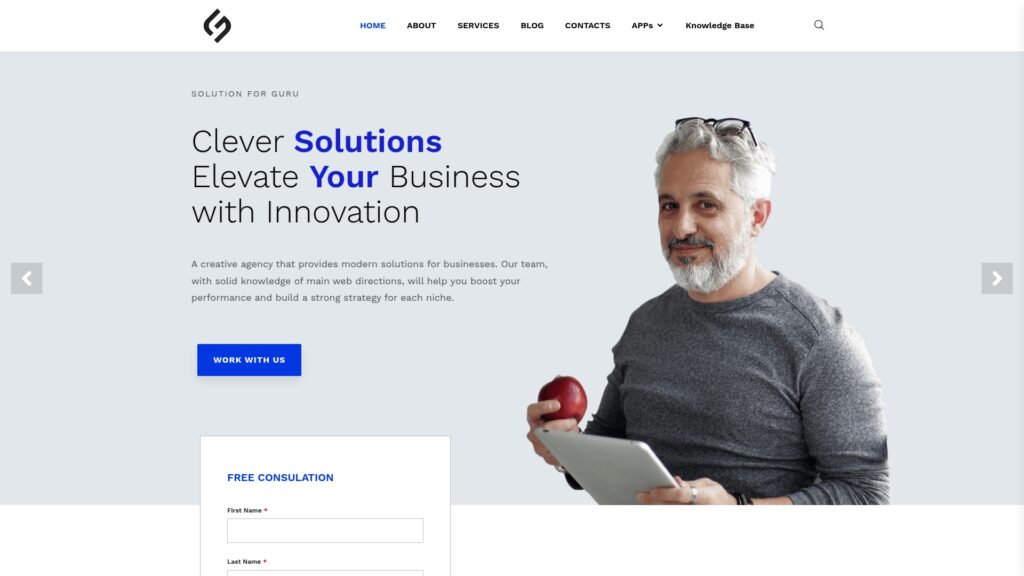
Moreover, Solution for Guru‘s ongoing managed service offering means you always have an expert available when regulatory requirements change, your team grows, or Zoho releases new governance features that you want to leverage. Their proactive approach transforms CRM governance from a reactive problem-solving exercise into a competitive advantage.
Recommended:
- How to Build Powerful Sales Reports in Pipedrive
- Zoho Projects + Zoho CRM: Managing Sales-to-Project Workflows
- Advanced Filtering in Pipedrive: Tips and Tricks
- Pipedrive Web Chat and LeadBooster: Generate More Leads from Your Website
- CRM Ecosystem Explained: Business and Technical Roles You Need
- What is CRM System Proficiency?
- How Should You Structure Your CRM Team for Maximum Success?
- Using Salesforce to Build a 360° Customer View
- What Should Investors Know About Salesforce Stock?
- What KPIs Should Every Business Track in Their CRM System?
- What is CRM Database?
- How Can CRM Analytics Transform Your Salesforce Experience?
- CRM Management
- Getting Started With Pipedrive
- What is Pipedrive CRM?