Maximizing Engagement: How to Create Social Media Clips with Riverside’s AI
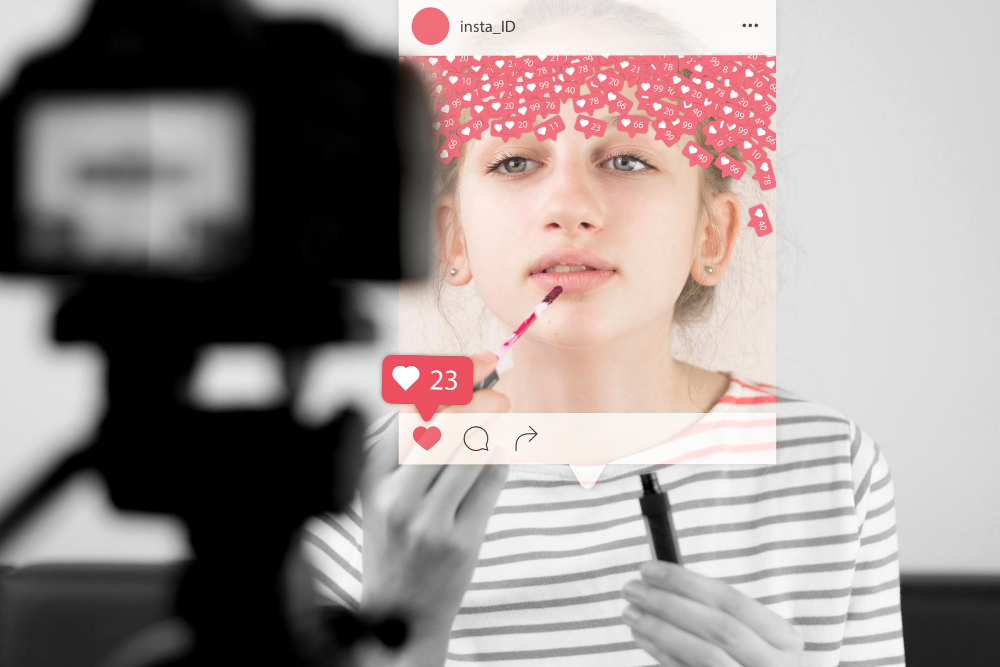
Short-form video now dominates every major social platform. TikTok, Instagram Reels, YouTube Shorts, and LinkedIn Video all reward creators who publish consistently, but producing high-quality clips from long-form content has traditionally required hours of manual editing. Fortunately, that barrier no longer exists. Riverside, an AI-powered content editing and recording platform, makes it remarkably straightforward to transform full-length recordings into polished, platform-ready social media clips — often in just a few clicks.
In this article, we walk through exactly how to use Riverside‘s Magic Clips feature and segment tools to build a repeatable, efficient content promotion workflow. Whether you run a podcast, produce webinars, host interviews, or create branded video content, you will find actionable strategies here that directly translate to stronger engagement and wider reach.
Table of contents
Quick Summary
Before diving in, here is a brief overview of the key topics this guide addresses:
| Topic | Key Takeaway |
| What is Riverside? | An AI-powered recording, editing, and content repurposing platform trusted by leading creators and brands worldwide. |
| Magic Clips Feature | AI automatically identifies highlight moments from your recordings and generates short, shareable clips for social platforms. |
| Segment Feature | Lets you manually select and trim specific portions of your content for precise, custom clip creation. |
| Best Practices | Tips on clip length, captions, branding, and platform-specific formatting to maximize engagement. |
| Social Promo Workflow | A step-by-step process for turning one long recording into multiple social-ready assets. |
What Is Riverside, and Why Does It Stand Out as an AI Content Editing Platform?

Riverside is a professional-grade recording and AI content editing platform built for podcasters, marketers, businesses, and creators who demand studio-quality output regardless of where participants are located. Founded by brothers Nadav and Gideon Keyson, Riverside emerged from a real frustration: remote recording tools consistently produced choppy audio, pixelated video, and laggy connections. Their solution was to record each participant’s audio and video locally on their own device, then sync everything in the cloud — a fundamentally different approach that delivers consistently crisp, high-resolution results.
Today, Riverside serves an impressive roster of users that includes Spotify, The New York Times, NPR, TED, Microsoft, and Gary Vaynerchuk’s team, among many others. The platform covers the full content lifecycle — from live recording sessions and async recordings to AI-assisted editing, transcription, caption generation, audio enhancement, and, most relevantly for social media marketers, automated clip creation.
What Makes Riverside Different from Standard Video Tools?
Unlike conventional video conferencing or screen recording tools, Riverside captures each track independently at up to 4K resolution and 48 kHz audio. This separation matters enormously in post-production because editors can adjust individual participants without affecting others. Beyond recording quality, Riverside’s AI suite transforms the platform from a simple recorder into a full content repurposing engine.
The platform’s key AI features include Magic Clips for automated short-form clip generation, Magic Audio for one-click audio enhancement, AI-powered transcription, animated caption overlays, AI Show Notes generation, AI Translation, and an AI Co-Creator tool for script and content ideation. Together, these features dramatically compress the time between recording and publishing — a critical advantage for teams managing active social media calendars.
This article focuses specifically on two features most relevant to social media promotion: Magic Clips and the manual segment selection tool. Both work together to give content teams complete control over how they extract and present highlight moments from longer recordings.
How Does Riverside’s Magic Clips Feature Work to Automate Social Clip Creation?
Magic Clips represents one of the most practical applications of AI in modern content production. Rather than forcing creators to scrub through hours of footage hunting for quotable moments, Riverside’s AI does that analytical work automatically. The result is a list of suggested clips, ready for review and customization, available within minutes of a recording ending.
How Does the AI Identify the Best Moments in a Recording?
Once a recording ends inside Riverside, the platform’s AI immediately begins analyzing the full transcript. It scans for keyword density, sentiment shifts, speaker energy levels, and narrative peaks — the kinds of moments audiences most frequently share and engage with. The AI then marks these moments as suggested clips on the video timeline, giving creators a visual map of where the most compelling content lives.
Importantly, this process does not lock you into the AI’s choices. Riverside presents suggestions, but you retain full editorial control. You can review each suggestion, adjust the clip’s start and end points by editing the transcript directly, accept it as suggested, or discard it entirely. The transcript-based editing interface means you edit clips by reading and selecting text rather than dragging timeline handles — a significantly faster and more intuitive workflow, particularly for creators who are more comfortable with words than with video timelines.
From a single one-hour recording, Riverside typically generates between 10 and 20 clip suggestions of varying lengths. Some run under 60 seconds, ideal for Instagram Reels or TikTok. Others run two to three minutes, better suited to YouTube Shorts or LinkedIn Video. This variety gives content teams flexibility without requiring additional editing sessions.
What Customization Options Does Magic Clips Provide?
Once you select which clips to generate, Riverside gives you a rich set of customization tools before you finalize and export. These options ensure every clip looks intentional and on-brand, not like a raw excerpt pulled from a longer video.
| Customization Option | What You Can Do | Why It Matters |
| Clip Title & Description | Add a custom title and description to each clip’s dedicated page. | Improves SEO and context for viewers who discover the clip independently. |
| Custom Thumbnail | Upload or select a thumbnail image for each clip. | Thumbnails dramatically affect click-through rates across all platforms. |
| Animated Captions | Automatically add word-by-word animated captions to clips. | Up to 85% of social media videos play without sound; captions drive engagement. |
| Aspect Ratio | Switch between 16:9, 9:16, and 1:1 formats. | Ensures clips display natively on YouTube, TikTok/Reels, and square-format feeds. |
| Logo & Branding | Add your brand logo and brand colors to each clip. | Reinforces brand recognition and makes clips identifiable without sound. |
| Background Music | Add background music tracks to clips. | Enhances mood and production value for clips shared on music-forward platforms. |
| Call-to-Action (CTA) | Add a CTA button or text overlay to the clip page. | Drives viewers toward a desired action, such as subscribing or visiting a site. |
These customization options transform Magic Clips from a simple extraction tool into a lightweight production suite. You effectively move from raw recording to polished, branded, platform-optimized social content without ever opening a separate video editor.
How Should You Optimize Clip Length for Different Social Platforms?
One of the most common mistakes creators make when repurposing content is using a one-size-fits-all clip length. Each platform has a different audience expectation and algorithm behavior. Riverside lets you specify preferred clip lengths during the Magic Clips generation process, so it is worth understanding the optimal ranges before you start.
| Platform | Recommended Clip Length | Ideal Aspect Ratio | Key Format Tip |
| TikTok | 15–60 seconds (sweet spot: 30–45s) | 9:16 vertical | Fast hook in first 3 seconds; use captions always. |
| Instagram Reels | 15–90 seconds | 9:16 vertical | Front-load value; include a trending audio layer if possible. |
| YouTube Shorts | Under 60 seconds | 9:16 vertical | Strong title card; end with a subscribe CTA. |
| LinkedIn Video | 30 seconds–3 minutes | 16:9 or 1:1 | Thought leadership framing; professional tone; captions essential. |
| X (Twitter) | Under 2 minutes 20 seconds | 16:9 or 1:1 | Punchy text overlay; direct and conversational. |
| Facebook Reels | 15–60 seconds | 9:16 vertical | High visual energy; works well with music background. |
How Does the Riverside Segment Feature Give You Precise Control Over Clip Creation?
While Magic Clips handles automated highlight detection brilliantly, not every valuable moment surfaces through AI analysis alone. Sometimes the most shareable clips come from a specific exchange, a perfectly timed punchline, a data point that resonates with your audience, or a product demonstration that your sales team needs for outreach. Riverside‘s manual segment selection feature gives you that precise control without sacrificing speed.
How Do You Create Custom Clips Using the Segment Tool?
The segment tool works directly within Riverside’s transcript-based editor. After your recording finishes processing, navigate to the editor view. The full transcript appears on screen, synchronized with the video playback. To create a custom clip, you simply highlight the text corresponding to the section you want, then select the option to create a clip from that selection. Riverside captures exactly the video and audio that corresponds to your chosen text — no timeline scrubbing required.
This transcript-first approach benefits creators who work in content-heavy environments. Journalists extracting quotes, marketers pulling product testimonials, educators highlighting key explanations, and event producers cutting speaker highlights all benefit from being able to read a transcript and click to clip, rather than spending time navigating a visual timeline. The segment tool also lets you define the clip’s metadata, aspect ratio, and caption settings before exporting — giving you the same customization options available through Magic Clips.
What Is the Recommended Workflow for Combining Magic Clips and Segment Selection?
The most efficient social media clip workflow combines both tools strategically rather than relying exclusively on one. Here is a practical process you can implement immediately after each recording:
- Run Magic Clips immediately after the recording ends. Review the AI-generated suggestions while they process, typically within 2–5 minutes for a standard hour-long recording.
- Accept the strongest Magic Clip suggestions. These represent the moments the AI flagged as high-energy or high-engagement — a reliable starting point for your clip library.
- Read through the full transcript. Note any moments the AI missed that align with your specific marketing objectives, product talking points, or audience interests.
- Use the segment tool to manually clip those moments. Even two or three additional manual clips per recording can significantly expand your content output.
- Customize all clips before export. Set aspect ratios by platform, add captions, apply your logo, write descriptive titles, and set any CTAs appropriate to each clip’s goal.
- Export and schedule across platforms. Use Riverside’s direct publishing integrations where available, or download the clip files for upload into your social scheduling tool.
Following this workflow consistently means each recording session produces a minimum of 10 to 20 distribution-ready clips, multiplying the value of every hour you invest in content creation.
What Are the Best Practices for Maximizing Engagement with Riverside Clips?

Creating clips is only half the equation. How you present, caption, brand, and distribute those clips determines whether they drive meaningful engagement or disappear into the feed. The following best practices draw from what creators and marketers consistently find effective across social platforms.
Why Do Captions Make Such a Difference for Social Media Clips?
Research consistently shows that the majority of social media video content plays in silence. Viewers scroll with their sound off by default, and many watch in environments where audio is not appropriate. Riverside’s animated caption feature addresses this directly by overlaying word-by-word captions that sync precisely with the speaker’s delivery — not static text blocks, but dynamic captions that follow the rhythm of speech and guide the viewer’s eye.
Beyond accessibility, animated captions serve as a visual engagement signal. They give viewers something to follow on screen, which increases average watch time — one of the most important metrics for algorithmic distribution on TikTok, Instagram, and YouTube. When you generate clips through Riverside, always activate the auto-caption feature before export. The incremental effort is near zero, and the impact on performance is consistently positive.
Riverside also lets you customize caption style, font, and positioning, which means your captions can align with your brand identity rather than looking like generic overlay text. This consistency across clips reinforces brand recognition as your content spreads across platforms.
How Can You Use Riverside Clips Specifically for Social Media Promotions?
Social media clips work especially well as promotional content when they tease full episodes, drive event registrations, or support product launches. Here are specific promotional use cases where Riverside’s tools deliver strong results:
| Promotional Goal | Clip Strategy | Riverside Feature to Use |
| Drive podcast episode listens | Create a 30–45s clip of the most provocative or insightful moment. Add a CTA to ‘listen to the full episode.’ | Magic Clips + CTA overlay |
| Promote an upcoming webinar | Clip a preview segment from a previous related recording. Frame it as a taste of what attendees will learn. | Segment tool + custom thumbnail |
| Build brand authority | Extract expert insights, data points, or unique opinions. Share as standalone value clips with no hard CTA. | Magic Clips + branded captions |
| Generate leads | Clip a product demonstration or testimonial moment. Direct viewers to a landing page via CTA. | Segment tool + CTA button |
| Promote an event speaker | Pull a compelling 60-second highlight from a speaker’s previous talk. Tag the speaker for amplification. | Segment tool + logo overlay |
| Repurpose evergreen content | Re-run older recording clips with updated thumbnails and captions for seasonal relevance. | Magic Clips on uploaded files |
How Does Consistent Branding Across Clips Strengthen Your Social Presence?
Every clip you publish represents a point of first contact for potential new audience members. Many viewers encounter a clip before they ever find your main channel, website, or podcast feed. Consequently, each clip needs to communicate who you are, what you stand for, and where to find more — all within a few seconds of visual context.
Riverside enables consistent branding by letting you embed your logo, apply brand color schemes, and set default caption styles across all clips generated from a recording. Once you configure your brand settings, they apply automatically to every new clip — which means brand consistency scales with your output rather than requiring manual attention. Additionally, creating a recognizable visual format for your clips, such as a consistent intro card, caption color, or background treatment, helps audiences identify your content instantly as they scroll. Over time, this visual signature becomes as recognizable as your logo itself.
What Advanced Techniques Help Experienced Creators Get More from Riverside?

How Can You Use Riverside’s AI Translation Feature to Expand Clip Reach?
One of Riverside’s more powerful but underutilized features is AI Translation. After generating a clip, you can translate both the transcript and the caption overlay into multiple languages, enabling you to distribute the same clip to non-English-speaking audiences without re-recording or hiring human translators. For brands with global audiences or those expanding into new markets, this capability multiplies the value of every piece of content produced.
The translation feature integrates seamlessly with the caption system, so translated text appears as animated captions in the target language, maintaining the same visual polish as your original clips. Currently, Riverside supports translations across dozens of languages, making it particularly valuable for creators in multilingual markets or businesses with international customer bases.
How Does Riverside’s Async Recording Feature Create New Clip Opportunities?
Riverside‘s asynchronous recording feature allows participants to record their contributions on their own schedule, without requiring a live session. The host creates a recording prompt and sends a link; participants record when convenient. Riverside then combines all contributions into a synchronized recording that you can edit and clip exactly like a live session.
For social media purposes, async recording opens up new content formats. You can collect video responses from multiple guests or customers, combine them into a single discussion recording inside Riverside, and then use Magic Clips to extract the most compelling individual responses as standalone social clips. This approach works particularly well for customer testimonial videos, expert roundups, and community Q&A content — formats that consistently drive high engagement but traditionally require significant coordination to produce.
What Integrations Make Riverside Part of a Larger Content Production Stack?
Riverside integrates with several professional tools that content teams already use, allowing it to fit naturally into existing workflows rather than demanding a complete process overhaul.
- Adobe Premiere Pro and Final Cut Pro: Import Riverside recordings directly for advanced post-production editing.
- Adobe Audition: Export separate audio tracks for dedicated audio post-processing workflows.
- Zoho Flow and Zapier: Automate workflows between Riverside and other tools in your marketing or CRM stack.
- Direct social publishing: Some Riverside plans support direct publishing to social platforms, eliminating the download-and-upload step.
These integrations mean that Riverside clips can flow directly into your existing distribution infrastructure, whether that means a social media scheduling tool, a content management system, or a CRM-driven distribution workflow.
What Conclusions Can We Draw About Creating Social Media Clips with Riverside?
Riverside fundamentally changes the economics of social media content production. Before platforms like Riverside existed, extracting and polishing clips from long-form recordings required professional editing software, dedicated post-production time, and often a specialized team member. Today, Riverside’s AI handles the analytical and mechanical work — identifying highlights, generating clips, adding captions, and formatting for multiple platforms — while creators focus on strategy, branding, and distribution decisions.
The Magic Clips feature delivers genuine time savings. What previously took a skilled editor two to three hours per episode now takes a creator 15 to 30 minutes of review and customization work, with Riverside’s AI handling the rest. At scale, this difference represents dozens of hours saved per month — time that content teams can redirect toward strategic work, audience engagement, or simply producing more content.
Furthermore, Riverside‘s approach to clip customization — captions, branding, CTAs, aspect ratios, thumbnails — ensures that automated efficiency does not come at the expense of quality or brand integrity. The clips Riverside generates look intentional and professional, not machine-made. For social media audiences who make judgment calls about credibility within seconds of encountering new content, this visual quality matters enormously.
Ultimately, the creators and brands that will gain the most from Riverside are those who commit to a consistent workflow: record regularly, run Magic Clips immediately after each session, supplement with manual segment selections, and publish across platforms on a defined schedule. That discipline, combined with Riverside’s AI capabilities, creates a compounding advantage — more content, better quality, faster production, and stronger audience growth over time.
Frequently Asked Questions
No. Magic Clips specifically exists to eliminate the need for traditional video editing skills. The entire process — from clicking the Magic Clips button to downloading a finished, captioned, branded clip — happens inside Riverside’s browser-based interface without requiring any external software or technical knowledge. The transcript-based editing approach means you work with text, not timelines, which feels natural even to people with no prior editing background. For teams that want additional control, Riverside also integrates with professional editing tools like Adobe Premiere Pro and Final Cut Pro, but those integrations are entirely optional.
The number of clips Riverside‘s AI generates depends on the length and content density of your recording. For a typical one-hour podcast or interview, expect between 10 and 20 AI-suggested clips of varying lengths. You can also create unlimited additional manual clips using the segment selection tool, selecting any portion of the transcript you want. In practice, many content teams produce 15 to 25 distribution-ready clips from a single 60-minute recording session — enough to sustain a daily posting schedule for two to three weeks across multiple platforms.
Absolutely. Riverside offers both individual plans and Business plans designed for teams. The Business tier provides features like multi-seat access, team workspaces, shared brand asset libraries, and advanced administrative controls. This makes Riverside equally practical for a solo podcaster managing their own channel and a marketing department producing video content across multiple brands or product lines. Teams working with Solution for Guru benefit further from customized onboarding and integration support that individual creators typically do not need but larger organizations find essential for smooth adoption at scale.
Why Should You Work with Solution for Guru to Implement Riverside in Your Content Strategy?
Solution for Guru is a specialized IT and digital solutions consulting firm with deep expertise in helping businesses implement and optimize the software tools that power their operations. When it comes to platforms like Riverside, Solution for Guru provides something that documentation and tutorials simply cannot: experienced, strategic guidance tailored to your specific team, workflow, and content objectives.
Many organizations adopt tools like Riverside with enthusiasm but struggle to integrate them effectively into their existing production workflows. Teams miss critical features, underutilize automation capabilities, or fail to connect Riverside with the broader marketing and CRM tools they depend on. Solution for Guru bridges those gaps through structured discovery, implementation support, and knowledge transfer that actually sticks.
What Specific Benefits Does Solution for Guru Deliver for Riverside Implementations?
| Benefit | What Solution for Guru Does |
| Workflow Audit | Analyzes your current content production process to identify where Riverside delivers the greatest efficiency gains. |
| Custom Integration Setup | Configures Riverside’s integrations with your existing tools — CRM, social scheduling, project management — so content flows without manual friction. |
| Team Training | Delivers hands-on training sessions focused on Magic Clips, segment editing, branding configuration, and publishing workflows. |
| Content Strategy Alignment | Helps you define clip formats, posting cadences, and platform-specific approaches that align with your marketing objectives. |
| Ongoing Optimization | Monitors workflow performance and updates your Riverside setup as the platform evolves and your content needs grow. |
| Scalability Planning | Designs an automation architecture that scales with your team, so adding new shows, series, or formats does not create operational bottlenecks. |
Working with Solution for Guru means you do not simply get Riverside set up — you get Riverside working intelligently within a content production system built around your goals. The firm’s consulting approach starts with thorough discovery, moves through implementation and testing, and concludes with knowledge transfer that leaves your team genuinely capable of running and evolving the system independently.
For organizations that rely on content marketing as a primary growth driver, this kind of expert implementation partnership pays for itself quickly. Faster clip production, better distribution coverage, and stronger engagement metrics all contribute directly to marketing ROI — and Solution for Guru helps you achieve those results without the trial-and-error period that typically accompanies new tool adoption.
Recommended:
- How Riverside’s AI Tools Can Slash Editing Time for Podcasters
- When to Use Riverside and When to Use Complementary Tools (e.g., Descript, Premiere)?
- From Solo Podcaster to Global Audience with Riverside AI
- Riverside vs Traditional Editors (Premiere, Audacity, etc.) — Pros and Cons
- How AI Editing Tools Like Riverside Are Reshaping Content Production
- What is Riverside – AI Content Editing Software?