
SnelStart Receipt Scanning: Capture, Check and Organise Your Receipts
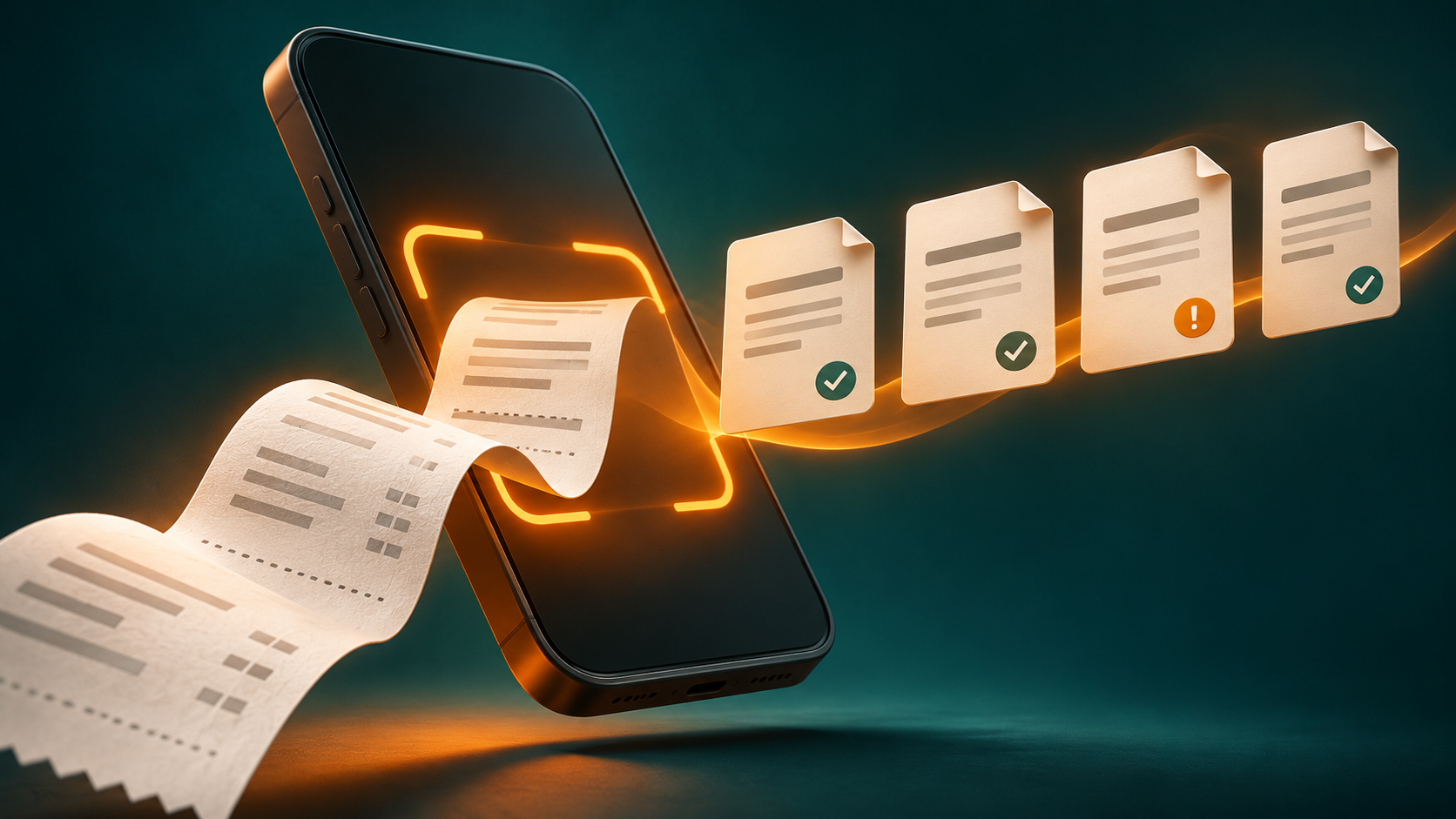
Receipt scanning works best when capture is followed by a deliberate review. In SnelStart, choose a capture route that matches the document, compare the recognised details with the source, and agree who completes the accounting review. This guide explains that workflow for English-speaking freelancers and small businesses using a Netherlands-based administration.
What SnelStart Receipt Scanning Achieves
SnelStart’s receipt scanning tools help Dutch freelancers and small businesses digitise and organise receipts and purchase invoices. You can use a mobile app, file upload or an invoice mailbox to add documents to your online administration. Optical character recognition (OCR) reads details such as supplier names and amounts. Review the resulting entry against the source document; recognition alone does not establish that a record is complete or correctly classified.
Supported Scope and Requirements
- You need an online SnelStart administration, meaning the online company accounts you are working in. The SnelStart app works on iPhone, iPad and Android.
- File upload via SnelStart Web supports PDF, PNG, JPG/JPEG and UBL formats. Confirmed for Web upload only; other methods may differ.
- The mailbox guidance states a maximum of 10 MB per file and one invoice per email.
- According to SnelStart’s Scan & Herken page, the feature is included in its packages; the underlying SnelStart licence is still paid. Compare the full subscription with your needs.
- Interface labels may differ over time; English equivalents are paraphrased for clarity in this guide.
- This guide is for Netherlands-based administrations using SnelStart.
How to Capture Receipts: App, Upload or Mailbox?
You can choose among three routes to add a receipt or invoice to SnelStart:
- App photo: Use your mobile device camera within the SnelStart app to photograph and upload a receipt or invoice. Best for paper receipts you have physically.
- File upload: Add an existing digital file to SnelStart Web. Suitable for digital receipts or scanned documents.
- Invoice mailbox: Forward invoices from your email to the SnelStart-generated intake address. This is configured in your administration and can restrict allowed senders. Ideal for digital invoices received by email.
The official onboarding guide describes these three intake routes. Choose one route for each document so you can track what has already been submitted.
Decision Table: Choosing a Capture Method
| Scenario | Suggested route | Reasons/Considerations |
|---|---|---|
| Paper slip immediately in hand | App photo | Capture while the document is available; inspect the image before moving on |
| PDF or image files stored digitally | Web upload | Use the existing source file rather than photographing your screen |
| Email with 1 invoice attached | Invoice mailbox | Streamlines intake for recurring suppliers, keeps email workflows clean |
| Multiple invoices in one email | Web upload (individual files) | Mailbox treats a single email as one booking, risking confusion |
| Unusual file format | Web upload (supported formats only) | Obtain a supported source file; check the current route-specific guidance |
| Inconsistent photo quality | App photo with care | Retake until you can read the document yourself; check the extracted fields afterwards |
Editorial Recommendation: If incoming invoice volume is low and most receipts are paper, the app is efficient. For digital invoices, start with the mailbox and supplement with Web upload as needed, following the specified file and sender controls.
What OCR Does and Does Not Establish
Optical character recognition (OCR), as implemented in SnelStart Scan & Herken, attempts to extract information such as supplier names, amounts and invoice details from each document. SnelStart’s help documentation describes recognition as an aid that still requires checking. An automatically created purchase entry can exist before that review is complete. OCR:
- Documented behaviour: automatic Web upload creates a purchase entry with the document attached and a status indicating that it needs checking.
- Review rule: do not treat populated fields as proof of correct amounts, a unique document, or the right accounting classification. Check those separately.
For inStap users in particular, the vendor describes a case where an invoice leaves the user’s checking list but remains for the accountant to review. Agree who finishes that work.
Capture Quality Recommendations
- Take photos in good light; avoid glare and shadows
- Align receipt edges with the camera frame to maximise readable area
- Check that text is sharp and the entire document is visible before uploading/submitting
- Flatten folds where possible; if part of the text is obscured, obtain a clearer source rather than guessing
- For multi-page PDFs, ensure all pages are included
Step-by-Step Practical Workflow
- Decide on the most suitable intake route: app, Web upload, or invoice mailbox.
- Capture or submit each receipt/invoice in the supported format. One invoice per mailbox email.
- Verify that the document reached the intended administration. For automatic Web upload, look for the purchase entry awaiting review.
- Review each entry: verify supplier, date, totals, and VAT if displayed. Make corrections where OCR did not read correctly or key details are missing.
- Resolve duplicates and unreadable items. Check whether a suspected duplicate represents the same invoice before removing anything. Keep an unreadable item unresolved and request a clearer copy; do not discard it as unnecessary.
- Complete the checks available to your role and package, or leave a clear note for the person who can resolve the issue. Keep a correction or exclusion log in your agreed working records; this recommendation does not assume a dedicated audit-log feature.
- After your review, notify your bookkeeper or accountant of entries ready for accounting review and assignment if required. Never assume a self-service intake completes accounting steps.
Capture and Review Checklists
Receipt Capture Checklist
- Physical receipt in hand? Use app photo, check lighting and document edges.
- Use the original digital file when available. Confirm the chosen route accepts it; send one invoice per mailbox email.
- Ensure source is readable; repeat capture if necessary.
- Keep access to the source while resolving questions. Agree the ongoing storage policy with your adviser; completing a scan is not a disposal instruction.
Intake Review Checklist
- Supplier name: Correct and matches real vendor?
- Total and VAT: Matches document?
- Date: Accurately captured?
- Is this document a duplicate of another already entered?
- Unreadable or missing information? Hold and request resubmission.
- Document attached in entry for future retrieval?
Illustrative Worked Example: Six-Document Audit
Every business, supplier and document in this example is entirely invented and created strictly to explain review controls—not to test or imply SnelStart performance or accuracy. Outputs and corrections are plausible but synthetic.
The six-document table below contains the full worked example. A reproducible CSV and the calculation notes are saved with the editorial research files.
| ID | Type | Supplier (Source/Extracted) | Source Total (€) | Extracted Total (€) | Review Action | Reason |
|---|---|---|---|---|---|---|
| R01 | Paper receipt | North Quay Supplies / North Quay Supplies | 12.50 | 12.50 | Accept | No correction |
| R02 | PDF invoice | Harbor Workshop / Harbor Workshop | 48.40 | 43.40 | Correct | Amount differs by €5.00 |
| R03 | Paper receipt | Cedar Stationery / Cedar Stationary | 119.00 | 119.00 | Correct | Supplier name transcription differs |
| R04 | PDF invoice | Field Office / Field Office | 25.00 | 25.00 | Accept | No correction |
| R05 | Forwarded PDF | Harbor Workshop / Harbor Workshop | 48.40 | 48.40 | Duplicate | Same invoice reference as R02; exclude |
| R06 | Unreadable photo | Unknown / Unknown | Hold | Request clearer source; exclude from totals |
Sum only non-duplicate, readable documents (R01, R02-corrected, R03-corrected, R04). Before correcting R02, the simulated extracted amounts total €199.90. Comparing those same four documents with their invented source values gives €204.90: €12.50 + €48.40 + €119.00 + €25.00. The difference is €5.00. After correcting R02 from €43.40 to €48.40, the reviewed amount total is €204.90. Correcting R03’s supplier spelling does not change that total. One duplicate (R05) was excluded; one unreadable (R06) held for resolution. This is for explanatory illustration only.
Run a Small Pilot in Your Own Administration
Before changing your whole process, choose a small set of genuine documents you are authorised to handle: a paper receipt, an emailed invoice and an existing digital file are useful starting points. This is a test you can run, not a claim that we have already measured SnelStart.
- Write down the source values first. Note the document reference, supplier, date, currency and total without relying on recognition.
- Submit each genuine purchase once. Assign one route per document. Do not create extra accounting entries just to test duplicate behaviour.
- Compare the entry with your notes. Record fields that needed correction and any document that failed to arrive. Keep actual errors separate from missing permissions or incomplete setup.
- Check the handoff. Ask your bookkeeper to confirm what they still need to do after your checks.
- Adjust one part of the process. Improve capture, sender settings or responsibility assignment, then review the next batch.
If you track time, include resubmission, correction and handoff—not just the moment the file uploads. A small batch can expose workflow problems, but it cannot establish a reliable product-wide accuracy or time-saving claim.
Troubleshooting and Common Mistakes
The official mailbox help covers allowed senders, failed-message feedback and configuration rights. If a message fails, check that feedback before repeatedly resending. Standard-role users cannot configure the mailbox; ask the main user or an administrator.
| Issue | Action |
|---|---|
| Unreadable scan/photo | Retake in better light or rescan; check for focus and visibility. Hold entry until corrected. |
| Duplicate invoice detected during review | Exclude the duplicate; confirm only the unique entry. Note reason for exclusion. |
| Incorrect amount or supplier in OCR field | Update details from the document manually. Confirm after correction. |
| Multiple invoices in one mailbox email | Check what was already created before resending. Then separate distinct invoices into individual emails and reconcile the resulting entries. |
| Sender not authorised for mailbox | Add sender to allowed list if appropriate; otherwise, submit via app or upload. |
| File exceeds the documented 10 MB mailbox limit | Obtain a smaller, readable source file. Avoid splitting a single invoice into unrelated bookings. Consult the route-specific help if it still fails. |
| Receipt disappears from review list but not in accounts | Ask the accountant whether further classification is pending; inStap owner review may not complete the accountant’s work. |
Owner and Bookkeeper Handoff Checklist
Use this suggested division of responsibilities to make unresolved work visible. Adapt it to your package, permissions and arrangement with your bookkeeper.
- Owner/submitter captures and reviews each receipt or invoice as above
- Owner documents all corrections made and exclusions (duplicates, unreadable, etc.)
- Once reviewed, owner notifies bookkeeper/accountant
- Bookkeeper reviews for proper accounting code assignment, VAT handling and compliance if required
- Confirm together that any remaining accounting work has been completed; use a shared checklist if helpful
- Agree how source documents and unresolved questions will be stored and retrieved
For a separate document-processing integration workflow, see our guide to connecting Whitevision to accounting software. That guide concerns Whitevision rather than SnelStart’s built-in scanner.
Tip: Run a pilot with a small, mixed batch to train the workflow before scaling up. Use the synthetic CSV as a safe checklist template.
Suitability and Limitations
For wider software-selection context, browse our accounting software guides.
- SnelStart receipt scanning suits small businesses and freelancers receiving mixed digital and paper receipts for a Netherlands-based administration, and those able to carry out reviews themselves or in close collaboration with a bookkeeper.
- This article is in English, but the referenced product instructions are Dutch. Check interface language availability with SnelStart if English support is a requirement.
- Receipt OCR does not automate accounting decisions or legal validation; care is required for review and final booking.
- If high-volume, high-automation intake or complex integration with other platforms is needed, current documentation should be reviewed for fit.
- Choose the subscription for the complete accounting workflow, not the scan feature alone. Check current package rights and the route-specific help before committing.
FAQs: SnelStart Receipt Scanning
Check the fields against the document. The vendor’s help explicitly requires review.
No. Send distinct invoices separately: the mailbox treats one email as one booking. Keep supporting material for the same invoice together.
The main user or an additional administrator; standard-role users cannot configure it.
See the Web-upload formats in the requirements above and check the current route-specific limits before submitting.
No. SnelStart can create an entry during automatic intake, but review and classification may still be outstanding. Check the entry and agree who completes the remaining work.
How This Guide Was Prepared
This guide was produced by reviewing official SnelStart Dutch documentation and public product resources as of 20 November 2026. Product facts are attributed to vendor sources; capture tips, process suggestions and suitability judgements are editorial analysis. These recommendations have not been independently benchmarked. No hands-on product test, measurement or certification was performed. The synthetic example dataset is created by the publisher for instructional purposes only and does not indicate observed SnelStart results. Questions of legal sufficiency, tax treatment or record retention are beyond this article’s scope; users should consult their own adviser in those matters.