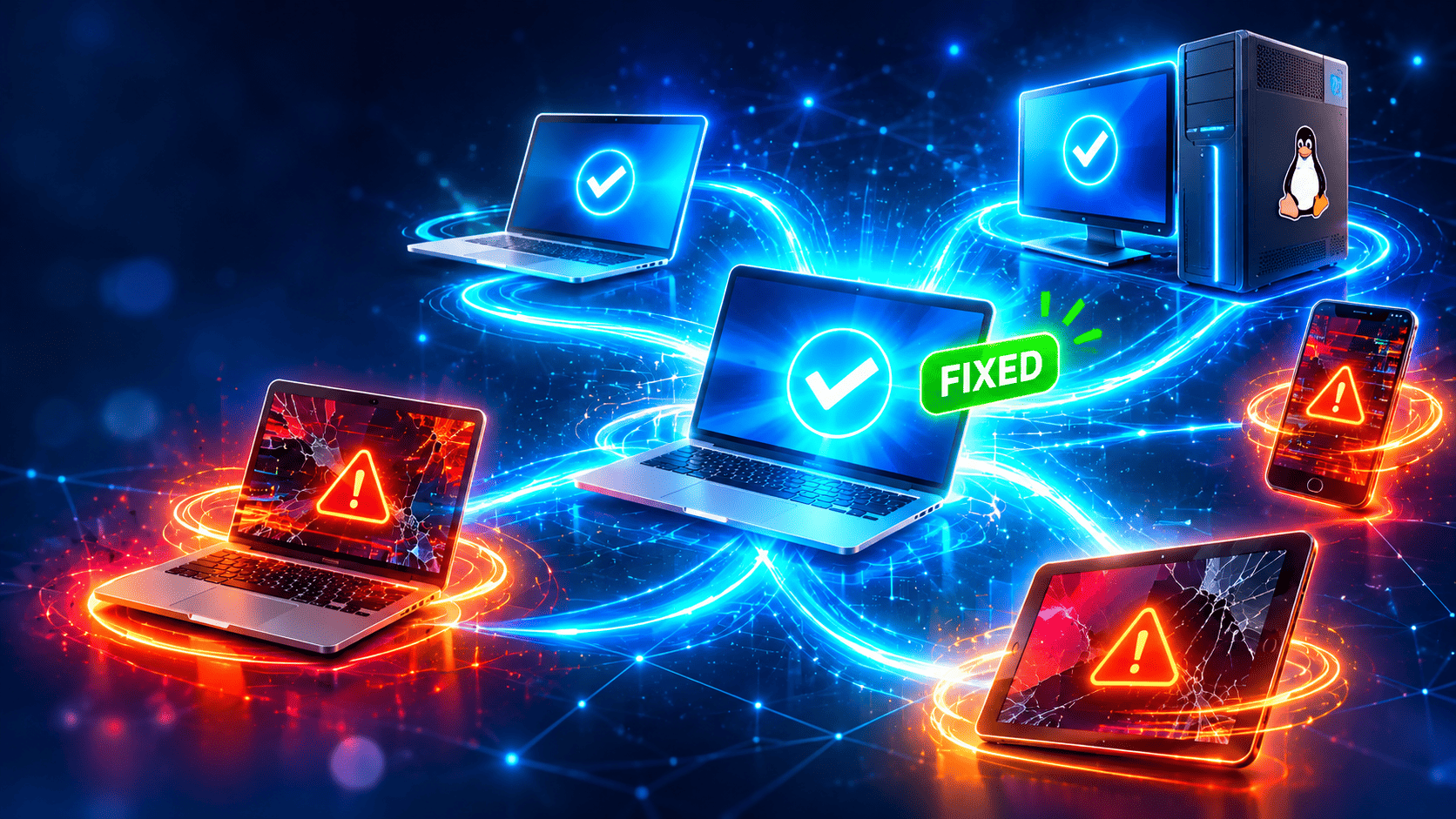
Using Zoho Assist During Employee Onboarding
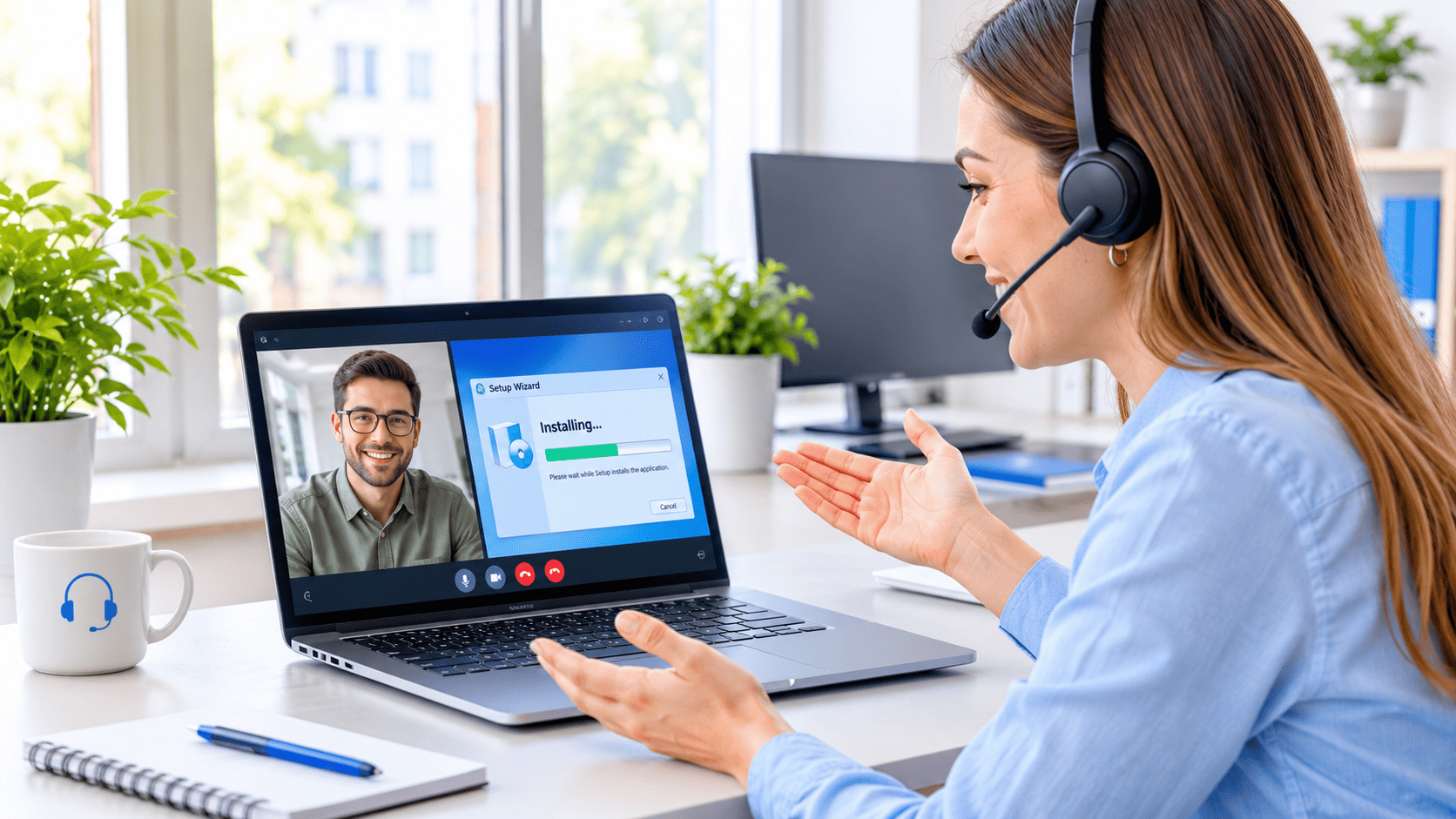
The first week at a new company shapes how an employee feels about the job for a long time. Yet many new hires still spend their first morning waiting for a laptop, a password, or a missing software license. When teams work remotely or across several offices, these small delays grow into real frustration for the employee, the manager, and the IT team.
Remote access software solves much of this problem. In this guide, you will learn how ZOHO Assist – Remote Access Software supports every stage of onboarding, from device setup to training. You will also find practical steps, security advice, and a checklist you can apply right away.
Table of contents
Quick Summary
In short, Zoho Assist lets IT staff and trainers connect to a new hire’s computer or mobile device from anywhere. They can configure software, fix problems, and guide the employee in real time, without sending anyone to the employee’s desk. The result is a faster, smoother, and more consistent start.
| Topic | Key Point |
|---|---|
| What it is | Cloud-based remote support and remote access software |
| Main onboarding use | Remote device setup, troubleshooting, and guided training |
| Who benefits | New hires, IT teams, HR teams, and managers |
| Typical session types | On-demand support and unattended access |
| Main advantage | Faster setup with fewer in-person visits |
| Main risk | Weak access controls if you skip security basics |
| Best practice | Combine clear policies, consent, and session logging |
Keep reading for a deeper look at each point.
What Is Employee Onboarding and Why Does It Matter?

What Does Onboarding Include?
Onboarding covers everything that turns a signed offer into a productive team member. It starts before the first day and often continues for several months. Typical tasks include:
- Preparing hardware, accounts, and access rights
- Installing software and security tools
- Introducing company policies and culture
- Training the employee on tools and processes
- Checking progress through regular conversations
HR teams usually own the overall plan, while IT teams own the technical steps. Both groups must work closely together, because a gap in either area slows the new hire down.
Why Does Onboarding Quality Affect Results?
A strong start builds confidence and loyalty. Gallup research has reported that only a small share of employees strongly agree that their organization does a great job of onboarding. In other words, most companies still have room to improve. Meanwhile, the Society for Human Resource Management (SHRM) regularly publishes guidance showing that structured onboarding supports engagement and retention.
Technology plays a central role here. When the laptop works on day one, the employee can focus on learning the job instead of chasing support tickets. Consequently, the technical side of onboarding deserves as much attention as the social side.
What Makes Remote Onboarding Harder?
Remote and hybrid work add several obstacles. Employees live in different cities or countries, so IT staff cannot walk over to fix a problem. New hires often use personal networks, unfamiliar devices, and tools they have never seen before. Furthermore, they may feel reluctant to ask for help because they do not want to look inexperienced.
These factors make a reliable remote support tool essential. Without one, IT teams rely on long email threads, screenshots, and phone calls that describe problems instead of solving them.
What Is Zoho Assist?

What Is Zoho Assist and How Does It Work?
ZOHO Assist – Remote Access Software is a cloud-based tool that lets technicians view and control another computer or mobile device over the internet. The technician starts a session, the employee joins through a simple link or an installed agent, and the technician then sees the screen and, with permission, takes control.
Because the tool runs in the cloud, teams do not need to set up a dedicated server or a complicated virtual private network just to provide support. This lightweight design makes it attractive for small and mid-sized companies, as well as for larger teams with distributed staff.
Which Features Matter Most for Onboarding?
Zoho Assist offers a range of features. The exact set depends on your plan, so check the vendor’s current documentation before you decide. The following features usually matter most during onboarding:
- On-demand remote support: The employee joins a session with a code or link, and the technician helps right away.
- Unattended access: The technician connects to a pre-configured device without waiting for the employee to be present.
- File transfer: Staff can send installers, templates, and documents directly to the device.
- Chat and voice communication: The technician can explain each step while working.
- Multi-platform support: Sessions can cover common desktop and mobile operating systems.
- Session reports and recordings: Teams can review what happened during a session.
- Integrations: The tool can connect with help desk and IT service platforms.
What Is the Difference Between Attended and Unattended Access?
Attended access means the employee sits at the device and approves the session. This mode works best for live training and troubleshooting because the employee can watch each action and ask questions.
Unattended access lets the technician connect to a device without anyone present, after the employee or administrator installs the agent. IT teams use this mode for after-hours software updates and for preparing a device before the employee starts. Choose the mode that matches the task, and always inform the employee when you access their device.
How Does Zoho Assist Relate to Employee Onboarding?
Onboarding involves many technical hand-offs, and each one can fail without support. Zoho Assist connects those hand-offs in one workflow. IT can remotely prepare a device, solve problems on day one, and later join short training sessions to show the employee how to use internal tools.
In practice, the software acts as a bridge between the IT team and the new hire. Instead of describing a problem in writing, the employee shows it on the screen. Instead of reading a long instruction document, the employee watches a technician perform each step. As a result, onboarding becomes faster, clearer, and more personal, even when the two people sit thousands of kilometers apart.
What Can You Do With Zoho Assist at Each Onboarding Stage?
The table below maps common onboarding stages to practical uses of the software.
| Onboarding stage | Typical task | How Zoho Assist helps |
|---|---|---|
| Before day one | Prepare the device and accounts | Connect remotely to configure settings and install software |
| Day one | Log in, connect to networks, open email | Guide the employee through each step in a live session |
| Week one | Install role-specific tools | Transfer files and install applications remotely |
| Weeks two to four | Fix errors and answer questions | Resolve issues on screen without a site visit |
| First 90 days | Advanced training and process coaching | Share screens and demonstrate workflows |
What Happens Before Day One?
Preparation prevents most onboarding problems. When the company ships a laptop to a remote employee, IT can use unattended access to finalize the setup after the device arrives and connects to the internet. The team installs required applications, applies security settings, and checks that the user accounts work.
This step reduces the number of tasks the employee must perform alone. Moreover, it lets IT spot problems, such as a failed update or a missing driver, before the employee starts.
What Happens on Day One?
On the first day, the employee needs quick wins. A short live session with IT can cover login steps, multi-factor authentication, email, chat tools, and access to shared drives. The technician watches the screen, fixes small errors immediately, and answers questions on the spot.
This personal contact also helps new hires feel welcome. They see a real person who cares about their success, instead of a ticket number in a queue.
What Happens During the First Weeks?
During the first weeks, new hires discover gaps. They may need specialized software, extra permissions, or help with a confusing setting. Because the technician can join a session within minutes, small issues stay small. Teams can also transfer files, scripts, and installers quickly, which keeps the employee productive.
How Do You Set Up Remote Onboarding Sessions Step by Step?
What Are the Steps for a Remote Device Setup?
Follow this simple process to prepare a device for a new employee:
- Create a checklist of required software, settings, and accounts for each role.
- Ship or deliver the device with a short instruction sheet.
- Ask the employee to connect to the internet and join the session with the code or link you provide.
- Confirm consent, explain what you will do, and start the session.
- Install and configure the applications from your checklist.
- Test the logins, network connections, and security tools.
- Document the results and close the session.
- Collect feedback from the employee after the setup.
A clear checklist keeps every setup consistent. It also helps new technicians learn the process quickly.
How Should You Communicate With the New Hire?
Communication shapes how the employee experiences the session. Send a short message before the appointment and explain the purpose, expected duration, and steps the employee must take. During the session, describe each action in simple language, avoid technical jargon, and pause regularly to ask whether everything makes sense.
Always respect privacy. Ask the employee to close personal windows and private messages before the session begins. Tell the employee what you will access, and stop immediately if they ask you to.
How Can You Use Zoho Assist for Live Training?
Remote access software works well for teaching. A trainer can share a screen, demonstrate a workflow, and then hand control to the employee for practice. This hands-on method helps people remember the steps better than a long document or a recorded video alone.
Managers and team leads can also use the tool to coach new hires on internal systems, such as customer databases, project boards, or accounting tools. Because both people see the same screen, misunderstandings drop, and learning speeds up.
How Does Zoho Assist Help IT and HR Teams Work Better?

How Does It Reduce the Workload on IT?
IT teams often juggle onboarding with daily support, security tasks, and projects. Remote sessions remove travel time and let one technician handle several new hires in a single day. Staff can also reuse session notes and checklists, which makes the process more consistent.
In addition, session reports give managers a clear view of what the team does. They can see how long each setup takes, which problems appear most often, and where the process needs improvement.
How Does It Support HR Goals?
HR teams care about engagement, retention, and compliance. A smooth technical start supports all three. Employees who feel supported in the first week tend to ask more questions and settle in faster. HR can also work with IT to include a short remote session in the standard onboarding plan, so every new hire receives the same quality of help.
What Are the Main Benefits of Using Zoho Assist for Onboarding?
The table below summarizes the most important advantages and the value behind each one.
| Benefit | What it means in practice |
|---|---|
| Faster setup | IT configures devices without waiting for in-person visits |
| Lower costs | Fewer trips, less downtime, and less overtime for IT |
| Better consistency | Every employee follows the same checklist |
| Stronger engagement | New hires receive personal help from day one |
| Scalability | One team can support many hires in different locations |
| Better records | Reports and logs document what changed on each device |
How Can You Keep Remote Onboarding Secure?

Why Does Security Matter So Much?
Remote access tools give technicians deep control over a device. That power helps in support work, but it also attracts attackers. The Cybersecurity and Infrastructure Security Agency (CISA) regularly warns organizations about the misuse of remote access tools, so every company should treat this topic seriously.
Therefore, security should shape how you configure and use the software from the start. A secure setup protects the employee, the company, and your customers.
Which Security Practices Should You Apply?
The NIST Cybersecurity Framework offers a useful structure for managing these risks. Based on that guidance and common industry practice, apply these measures:
- Require multi-factor authentication for every technician account
- Give technicians only the access they need for their role
- Ask for the employee’s consent before each attended session
- Keep session logs and review them regularly
- Update the software and the operating systems on all devices
- Remove unattended access agents when they are no longer needed
- Train technicians to spot phishing and social engineering attempts
Additionally, review the vendor’s security documentation and confirm that its practices meet your internal policies and any legal requirements in your region.
How Do You Protect Employee Privacy?
Employees deserve transparency. Write a short policy that explains when IT may connect to a device, what data the tool records, and how long the company keeps logs. Share the policy during onboarding and ask the employee to acknowledge it. This openness builds trust and reduces concern about monitoring. If you operate in the European Union, check data protection rules with your legal advisor, because laws such as the GDPR affect how you handle personal data.
What Challenges Can Appear, and How Can You Solve Them?

What Technical Problems Might Occur?
No tool works perfectly in every situation. Slow internet connections, firewall rules, and outdated operating systems can interrupt a session. New hires may also struggle to install the agent or enter the session code correctly.
To reduce these problems, test the connection before the appointment, send clear instructions with screenshots, and keep a phone number or chat channel ready as a backup. Also build a short troubleshooting guide for the most common errors.
What Human Factors Should You Consider?
Some employees feel uneasy when someone controls their screen. Others may not know how to join the session. Address these concerns with patience and clear explanations. Offer a short test session, where nothing important happens, so the employee can practice the process.
It also helps to explain why you use the tool. When employees understand that remote access saves time and solves problems faster, they usually welcome it.
What Are the Limitations of Remote Access Software?
Remote access cannot replace everything. It cannot repair broken hardware, deliver a package, or replace the human connection of a team meeting. Therefore, combine it with video calls, mentoring, and social activities. Think of the software as one important part of a broader onboarding program, not the entire program.
How Can You Measure the Success of Your Onboarding Process?
Good teams track results. Measurement shows whether remote sessions actually improve onboarding, and it points to areas for improvement. The following metrics offer a practical starting point.
| Metric | What it shows | How to collect it |
|---|---|---|
| Time to first login | How quickly the employee can start working | Compare the start time with the first successful login |
| Setup duration | How long IT needs per device | Review session reports |
| Number of support tickets in week one | How many problems the employee faces | Check the help desk system |
| New hire satisfaction | How supported the employee feels | Send a short survey after week one |
| Time to productivity | How fast the employee reaches full output | Ask managers to rate progress at 30, 60, and 90 days |
Review these numbers every quarter. If setup takes too long, improve the checklist. If the number of tickets stays high, add a short training session or a better instruction guide.
What Is a Practical Onboarding Checklist With Zoho Assist?
Use this checklist as a starting point and adapt it to your company:
- Confirm the employee’s start date, device, and role requirements
- Prepare accounts, licenses, and access rights
- Configure the device remotely before day one when possible
- Schedule a live session for the first morning
- Send clear instructions and the session link in advance
- Explain the remote access policy and collect the employee’s acknowledgment
- Install role-specific software and test every login
- Offer a follow-up session within the first week
- Collect feedback and update the checklist
- Remove unneeded access when the setup ends
This list keeps the process organized, and it makes it easier to train new IT staff. Over time, you can refine each step based on real results.
Key Takeaways
What Should You Remember About Zoho Assist and Onboarding?
Onboarding succeeds when new hires feel prepared, supported, and productive from the start. Technical delays work against that goal, especially in remote and hybrid teams. ZOHO Assist – Remote Access Software helps close the gap by letting IT staff prepare devices, resolve issues, and teach tools in real time, no matter where employees work.
To get the best results, pair the software with a clear checklist, a transparent privacy policy, and strong security practices such as multi-factor authentication and session logging. Measure the results, collect feedback, and improve the process regularly.
What Is the Next Step?
Start small. Pick one upcoming hire, build a short checklist, and run a remote setup session. Then review the outcome with the employee and your IT team. If you want expert help with planning, security, or rollout, consider cooperating with Solution for Guru, so your onboarding program grows on a solid foundation.
Frequently Asked Questions
Yes. Because the software works over the internet, a technician can support an employee in another city or country. Check your internet quality, time zones, and any local data rules before you schedule sessions.
Remote access is safe when configured correctly. Use multi-factor authentication, ask for consent, limit technician permissions, and review session logs. Follow guidance from sources such as CISA and NIST, and review the vendor’s own security documentation.
No. Most employees only need to open a link or enter a code, and the technician handles the rest. Send simple instructions with screenshots in advance, and offer a short test session if the employee feels unsure.
What Are the Benefits of Cooperating With Solution for Guru?
A tool delivers value only when the team uses it well. Planning the workflow, configuring the security settings, and training the staff all take time and expertise. This is where a consulting partner such as Solution for Guru can make a real difference.
How Can Solution for Guru Support Your Onboarding Project?
Solution for Guru helps companies review their current onboarding process, find the gaps, and choose tools that fit their size and goals. The team can compare remote access options, including ZOHO Assist – Remote Access Software, and recommend a setup that matches your budget, security needs, and team structure. Instead of testing tools by trial and error, you receive guidance based on experience.
What Practical Benefits Can You Expect?
Cooperation with the company typically brings these advantages:
- A clear plan: A structured onboarding workflow that links IT and HR tasks.
- Faster rollout: Help with configuration, testing, and employee communication.
- Stronger security: A review of access rules, consent steps, and logging practices.
- Trained staff: Guidance that helps technicians and managers use the tool with confidence.
- Continuous improvement: Regular reviews that adjust the process as your company grows.
These benefits matter most for companies without a large internal IT department. You can learn more on the Solution for Guru website.
Recommended:
- Remote Troubleshooting for Windows, Mac, Linux, and Mobile Devices with Zoho Assist
- How Does Zoho Assist Improve First-Call Resolution?
- Zoho Assist for Cross-Border Support: Cloud-Based Access Without Network Restrictions
- How Does Zoho Assist Help Reduce Support Costs?
- Supporting Hybrid Employees Using Zoho Assist
- What Are the Best Use Cases for ManageEngine Remote Access Plus in Enterprise IT?
- How Does Zoho Assist Support Android Endpoints Remotely for Mobile Device Support?
- How Does Zoho Assist Help Remote Customer Support Teams Run Attended Sessions Without Installations?
- What Are the Best Practices for MSPs Using ManageEngine Remote Access Plus?
- Why Businesses Choose ManageEngine Remote Access Plus Instead of Traditional Remote Desktop
- ManageEngine Remote Access Plus Review
- Why Businesses Choose Zoho Assist for Remote Support
- Zoho Assist – Review, Feedback, Price, Pros and Cons
- 12 Jobs You Wouldn’t Have Without Remote Access Software
- What Are the Use Cases of Remote Access Software Across Different Industries?
- ManageEngine Remote Access Plus: Is This the Best Enterprise Remote Support Tool in 2026?
- Remote Access Security Model: Encryption and Compliance — What Does Every Enterprise Need to Know?
- Remote Access Software for Enterprise IT Support