How Does Zoho Assist Help Remote Customer Support Teams Run Attended Sessions Without Installations?

Customers rarely enjoy tech support. They want the problem fixed, and they don’t want to download programs, create accounts or read a ten-step guide. Support teams feel the same pressure from the other side, because every extra step in a session adds minutes, frustration and ticket backlog.
Attended remote support tackles this problem head-on. The customer stays at the screen, the agent joins remotely, and both work on the issue together. In this article, you will learn how Zoho Assist – Remote Access Software handles these sessions, what “without installation” really means in practice, and how your team can build a faster, safer support workflow around it. You will also see how a technology partner like Solution for Guru can speed up the rollout.
Table of contents
What Should You Know at a Glance?
Here is a quick overview before we dive into the details.
- Attended sessions need the customer present. The customer starts or accepts the session, and the agent solves the problem live.
- Zoho Assist keeps the setup minimal. Customers join through an emailed link, a session code or a website widget. Zoho describes these sessions as requiring no prior installation.
- Browser-based joining exists. Zoho’s Cobrowse feature lets customers join from a web browser without downloading anything.
- Desktop sessions use a lightweight file. Customers who share a full desktop typically run a small application, not a full install.
- Security features protect each session. Encryption, customer consent, multi-factor authentication and session recording all apply.
- Teams gain speed and consistency. Faster connections shorten handling time and improve first-contact resolution.
- A partner can shorten setup. Solution for Guru helps with integration, automation and strategy around tools like this.
What Is Zoho Assist and How Does It Relate to Attended Remote Support?

Zoho Assist – Remote Access Software is a cloud-based platform for remote support and remote access. Technicians use it to connect to customers’ computers or mobile devices, view the screen, take control with permission and fix problems without a site visit. It belongs to the Zoho ecosystem, which also includes CRM, help desk and other business applications.
The topic of this article, attended sessions without installations, sits at the heart of the product. According to Zoho’s own documentation, a remote support session, also called an on-demand session, needs the customer to be present, and it does not require prior installation on the customer’s computer. That description matches what support teams need most: a fast, low-friction way to reach a person who already has a problem.
What Does “Attended” Mean in Practice?
An attended session happens while the customer sits at their device. The customer sees what the agent does, can chat, and can end the session at any time. By contrast, an unattended session lets a technician reach a computer when nobody sits in front of it, which suits server maintenance and after-hours patching.
Zoho Assist supports both modes in one platform. Zoho notes that teams do not need separate tools for different types of support delivery. For customer-facing teams, though, the attended mode does most of the daily work.
Which Devices Does Zoho Assist Cover?
Support teams rarely serve a single operating system. Zoho states that its attended remote desktop support covers Windows, Mac, Linux, iOS, Android and Chromebook devices. That range matters, because a customer base that mixes laptops, phones and tablets needs one workflow, not five.
Why Do Installations Slow Down Customer Support?
Before you judge any tool, ask what problem it solves. Traditional remote support often begins with a small obstacle course: find the download page, choose the correct version, wait for the file, approve permissions and enter an ID. Every step gives the customer a chance to stall.
How Much Friction Do Downloads Really Add?
Each extra action costs time, and it also costs trust. Customers who feel confused often abandon the session or call back angry. Agents then spend the first ten minutes of a call giving instructions instead of diagnosing the issue. Over hundreds of tickets, those minutes add up to real staffing costs.
Locked-down environments make it worse. Many corporate laptops block installations for good security reasons. A customer who wants to cooperate still cannot install anything without the IT department’s approval. In those cases, a browser-based option removes the roadblock entirely.
Why Do Customers Hesitate to Install Support Software?
Customers worry about privacy and about leaving software behind on their devices. Recent years have also brought many scams that abuse remote access tools, so cautious customers hesitate before running unknown files. The US Cybersecurity and Infrastructure Security Agency (CISA) has published guidance on securing remote access software, which shows how seriously security agencies take the risk. A support tool that asks for less from the customer and explains itself clearly helps ease that anxiety.
How Do Attended Sessions Work in Zoho Assist Step by Step?
The workflow stays simple, and that simplicity makes it easy to train new agents. Here is how a typical session unfolds.
What Steps Does the Technician Follow?
- Log in. The agent signs in to the Zoho Assist dashboard or technician app.
- Start a session. The agent opens the remote support tab and starts a new session.
- Invite the customer. The agent sends an email invitation or shares a link or code. Zoho’s documentation says the agent can also guide users to enter a session code on the join page.
- Wait for consent. The customer accepts the invitation.
- Diagnose and fix. The agent views the screen, chats and requests control when needed.
- Close the session. Both parties end the connection, and the agent logs notes.
What Does the Customer Experience?
The customer clicks a link or types a code. For desktop sessions, Zoho explains that a simple, lightweight runtime application downloads when the customer joins and shares their screen automatically. In plain terms, the customer does not run a formal installation. They open a small file that starts the session.
For an even lighter route, Zoho’s Cobrowse feature applies. Customers can join remote sessions directly from a web browser without downloading or installing software, creating accounts, or holding administrator privileges. Cobrowse focuses on browser-based sessions, so it suits web-app issues and guided walkthroughs better than full desktop control.
Which Joining Method Fits Which Situation?
The table below compares the main joining options.
| Joining method | What the customer does | Best for |
|---|---|---|
| Email or SMS invite link | Clicks a link and accepts | Scheduled or follow-up sessions |
| Session code on the join page | Types a short code | Phone-based support where the agent talks the customer through it |
| Website widget | Clicks a button on your site | Self-service entry from your support page |
| Browser-based Cobrowse | Joins inside the browser | Locked-down devices and web-app issues |
| Lightweight desktop runtime | Runs a small file | Full desktop diagnosis and control |
Choose the lightest method that still solves the problem. Doing so protects both speed and customer confidence.
Which Zoho Assist Features Matter Most for Support Teams?

A long feature list looks impressive, but support leaders care about the handful of tools that change daily work. According to Zoho’s product pages and the Google Workspace Marketplace listing, the following features stand out.
What Tools Do Agents Use Inside a Session?
Agents rely on a practical toolkit during each call:
- Screen sharing and remote control. The agent sees the desktop and, with permission, takes control.
- File transfer. The agent sends drivers or patches and retrieves logs.
- Chat and voice. The agent explains each step while working.
- Monitor selection. The agent switches between screens on multi-monitor setups.
- Reboot and reconnect. The agent can restart a machine and rejoin the session without losing the connection, which helps a lot with updates and driver fixes.
- Multi-technician collaboration. Several technicians can join one session in real time, so a tier-1 agent can call in a specialist without transferring the customer.
How Does Branding Improve the Customer Experience?
Customers trust what looks familiar. Zoho Assist lets you rebrand your account, use a customer widget on your website and map a custom domain. These options keep your brand identity visible throughout the session. A customer who sees your logo and your web address feels safer than one who lands on an unfamiliar third-party page.
What Reporting Can Managers Expect?
Managers need evidence, not guesses. The platform offers session reports and audit trails so leads can review who connected, when and for how long. Those records help with quality reviews, coaching and compliance checks. They also give you the data needed to spot patterns, for example a product feature that generates repeated remote sessions.
How Secure Are Attended Sessions Without Installations?
Security deserves its own section, because remote access tools carry real risk when teams misuse them. Fewer installations do not mean weaker protection, but you should still verify the controls yourself.
What Security Controls Does Zoho Assist Offer?
According to Zoho’s instant support page, every session runs under SSL and 256-bit AES encryption, and the platform adds multi-factor authentication, inactive session timeouts and session recording. The same page adds that every session requires the customer’s explicit consent before the technician connects. Consent matters most in attended support, because it keeps the customer in control.
What Should Your Team Add on Top of Vendor Controls?
Vendor features only work when your team applies them. Build a short internal policy that covers these points:
- Enforce multi-factor authentication for every agent account.
- Give each agent the minimum permissions their role requires.
- Record sessions where local law and your privacy notice allow it.
- Train agents to explain every action before they take it.
- Review session logs on a regular schedule.
- Tell customers exactly how to verify that a session invitation comes from you.
The National Institute of Standards and Technology (NIST) offers guidance on remote access and telework security that supports this kind of layered approach. Use it as a reference when you write your policy.
How Do You Help Customers Spot Fake Support Requests?
Scammers imitate support teams, so teach customers your legitimate process. State on your website and in your emails that agents never ask for passwords or payment details during a session. Use your branded widget and domain, and remind customers that they can end any session immediately.
How Does Zoho Assist Compare with Traditional Support Methods?
Comparing methods side by side shows where the value comes from. The table below sets out the differences that matter most to support managers.
| Factor | Phone-only troubleshooting | Full-install remote tools | Zoho Assist attended session |
|---|---|---|---|
| Customer setup effort | None, but slow explanations | High: download and install | Low: link, code or browser |
| Time to first diagnosis | Long | Medium | Short |
| Agent visibility | Depends on customer description | Full | Full, with consent |
| Works on locked-down devices | Yes | Often blocked | Browser option helps |
| Audit trail | Call notes only | Varies | Reports and session recording |
When Is Phone-Only Support Still Enough?

Simple questions, such as “Where do I find the reset button?”, may not justify a remote session. Use judgment. A quick call resolves many basic issues, and a remote session becomes worthwhile once the agent needs to see the screen.
When Do Full-Install Tools Make More Sense?
Long-term relationships with managed devices benefit from installed agents. If you maintain a customer’s computers on a schedule, unattended access saves effort. Zoho Assist covers that need too, so many teams use attended sessions for tickets and unattended access for maintenance.
How Can You Build a Support Workflow Around Attended Sessions?
Buying a tool does not fix a process. Teams get the most from Zoho Assist – Remote Access Software when they design the workflow first and configure the tool second.
How Should You Structure the Support Journey?
Map the customer’s path from problem to resolution. A practical structure looks like this:
- Triage. The agent decides whether the issue needs a remote session.
- Invitation. The agent sends the link or code and explains what will happen.
- Connection. The customer joins, and the agent confirms they see the right screen.
- Resolution. The agent fixes the issue and explains each step.
- Confirmation. The customer verifies that the problem is gone.
- Documentation. The agent logs the fix in the ticket.
How Do You Train Agents for Remote Sessions?
Technical skill matters, but communication matters more. Train agents to narrate their actions, ask permission before taking control and keep the customer informed. Practice with role-play sessions, because a nervous customer needs a calm and confident guide. Also teach agents to fall back gracefully. If the customer cannot join with one method, the agent should switch to the next without fuss.
How Do You Connect Sessions to Your Ticketing System?
Remote sessions produce data, and that data belongs in your ticket. Zoho Assist integrates with other Zoho products and with several third-party help desk and CRM platforms. Linking sessions to tickets saves agents from retyping details and gives managers a single view of each case. Check the current integration list on Zoho’s website before you plan, since options change over time.
What Business Benefits Can You Expect?

Leaders want numbers, but honest expectations matter more than bold promises. The benefits below reflect what teams commonly report from remote support tools in general, and your own results will depend on your setup.
How Does Faster Connection Affect Resolution Time?
Every minute saved at the start of a session helps the rest of the call. Zoho positions the product around quick joins, and its remote desktop page says end users join attended sessions from their browser with no prior download, so technicians reach the machine within seconds of a ticket being raised. Treat that claim as a vendor statement, and measure your own time-to-connect during a pilot.
How Does Remote Support Reduce Costs?
Remote sessions replace many on-site visits and long phone chases. Remote tools help businesses cut downtime and deliver real-time IT support without visiting the site. Travel time, vehicle costs and idle waiting all shrink. Even a small team can serve customers in more regions without extra offices.
How Does It Improve Customer Satisfaction?
Customers value quick fixes and a respectful process. A branded, consent-based session with clear communication feels professional. Over time, that experience builds loyalty and reduces repeat contacts. You can track the effect with satisfaction scores and first-contact resolution rates.
How Can You Pilot Zoho Assist Before a Full Rollout?
A pilot lowers risk and builds internal support. Start small, measure carefully and expand only when the numbers justify it.
What Should a Pilot Include?
A good pilot lasts two to four weeks and covers a limited group of agents and ticket types. Include these elements:
- A clear goal, such as shorter handling time for a specific issue category.
- A baseline measurement taken before the pilot starts.
- A feedback form for both agents and customers.
- A checklist for security settings.
- A review meeting at the end.
Which Metrics Should You Track?
| Metric | Why it matters |
|---|---|
| Time to connect | Shows how much friction remains |
| Average handling time | Reflects overall efficiency |
| First-contact resolution | Shows whether sessions fix problems on the first try |
| Customer satisfaction score | Captures the customer’s view |
| Session failure rate | Reveals join problems or device restrictions |
Compare these numbers with your baseline, then decide whether to expand, adjust or stop.
What Are the Key Takeaways?
Attended remote support works best when it feels effortless for the customer. Zoho Assist – Remote Access Software supports that goal with session links, codes, website widgets and a browser-based option. Desktop sessions usually rely on a lightweight application instead of a full installation, and Cobrowse removes downloads entirely for browser-based help. Agents gain screen sharing, file transfer, chat, reboot and reconnect, and multi-technician collaboration, while customers keep control through explicit consent.
Success depends on more than features. Build a clear workflow, train agents to communicate well, enforce security policies and run a pilot with real metrics. Teach customers how to recognise your legitimate sessions so scammers find it harder to imitate you.
Finally, consider expert help. A partner like Solution for Guru can integrate the tool with your existing systems, automate repetitive steps and guide your strategy, so your team spends less time on setup and more time helping customers. Explore Zoho Assist – Remote Access Software with a small pilot, and review the results before you scale.
What Questions Do Support Teams Ask Most About Zoho Assist?
Not a full installation. Zoho states that attended sessions need no prior installation, and desktop sessions typically start through a small runtime application that the customer runs after accepting the invitation. For browser-only help, the Cobrowse feature lets customers join without downloading anything. Confirm which option fits your use case during a trial.
It can be, provided the tool and your process include the right controls. Zoho describes encryption, multi-factor authentication, session recording and mandatory customer consent. As a customer, join sessions only from invitations you requested and end the session if anything feels wrong. As a business, follow security guidance from sources such as CISA and NIST.
Yes. The platform supports attended sessions for live customer help and unattended access for maintenance on managed computers. Teams can therefore use one tool for two workflows, which reduces training and licensing overhead.
How Can Solution for Guru Support Your Remote Support Project?
Tools succeed or fail through implementation. Teams often underestimate the work required to integrate, configure and train around a new platform. A specialist partner closes that gap.
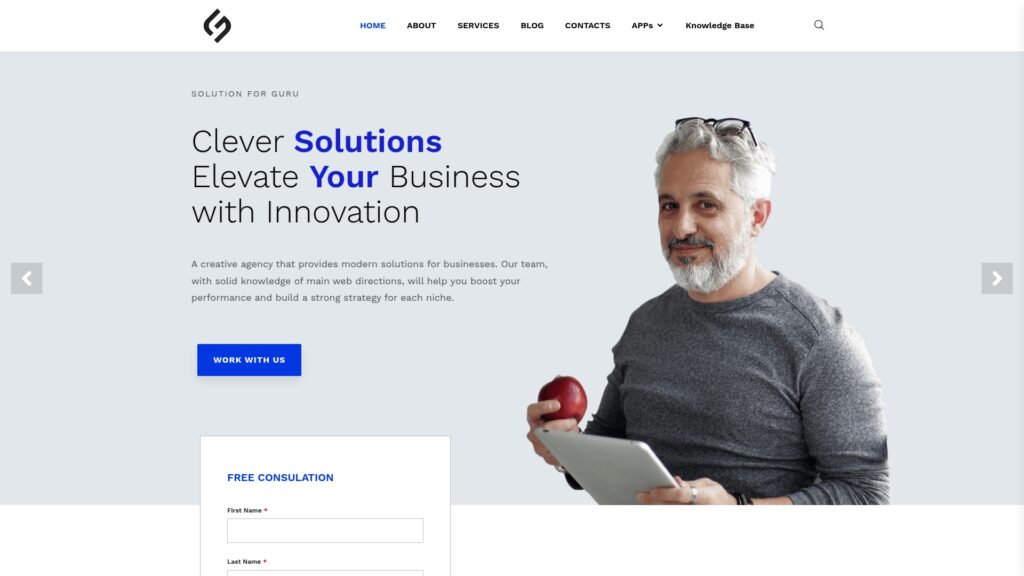
Solution for Guru is a technology solutions company. Its website lists services such as custom web development, UI/UX design, SEO and digital marketing, AI and automation, CRM and SaaS integrations, cybersecurity and data protection, and tech consulting and strategy. The company also works with a wide range of business platforms, including CRM, service desk and payroll tools. Those areas overlap directly with a remote support rollout.
What Are the Benefits of Working with Solution for Guru?
- Integration support. The team can connect your remote support tool with your CRM, help desk and other systems so data flows without manual entry.
- Automation. Solution for Guru’s automation focus helps you trigger session invitations, log outcomes and route tickets automatically.
- Web and widget integration. Its web development skills help you place a session-join widget on your support page and keep the design consistent.
- Security awareness. Its cybersecurity and data protection services help you review access controls and privacy practices around remote sessions.
- Strategic guidance. Tech consulting helps you decide which tools to adopt, which to skip and how to phase the rollout.
- Content and visibility. SEO and digital marketing services help you publish clear support guides that customers can find.
- Free consultation. The website offers a consultation form, so you can discuss your goals before you commit.
When Should You Bring in a Partner?
Bring in a partner when your team lacks time, when you must connect several systems, or when you handle sensitive customer data. Keep an internal owner for the project, however. A partner speeds up the work, but your team must still own the process and decisions.
Recommended:
- What Are the Best Practices for MSPs Using ManageEngine Remote Access Plus?
- Why Businesses Choose ManageEngine Remote Access Plus Instead of Traditional Remote Desktop
- ManageEngine Remote Access Plus Review
- Why Businesses Choose Zoho Assist for Remote Support
- Zoho Assist – Review, Feedback, Price, Pros and Cons
- 12 Jobs You Wouldn’t Have Without Remote Access Software
- What Are the Use Cases of Remote Access Software Across Different Industries?
- ManageEngine Remote Access Plus: Is This the Best Enterprise Remote Support Tool in 2026?
- Remote Access Security Model: Encryption and Compliance — What Does Every Enterprise Need to Know?
- Remote Access Software for Enterprise IT Support
- Secure Remote Access for Corporate Networks
- Zero Trust and Remote Access: A Perfect Match?
- What Is the Role of Remote Access Software in IT Support and Help Desk Operations?
- Common Challenges in Implementing Remote Access Software — and How to Overcome Them
- Performance Optimization Tips for Remote Access Connections
- Remote Access in Secure Operations: Professions Where It’s Mission-Critical
- How AI and Automation Are Shaping the Future of Remote Access