How Does Zoho Assist Support Android Endpoints Remotely for Mobile Device Support?
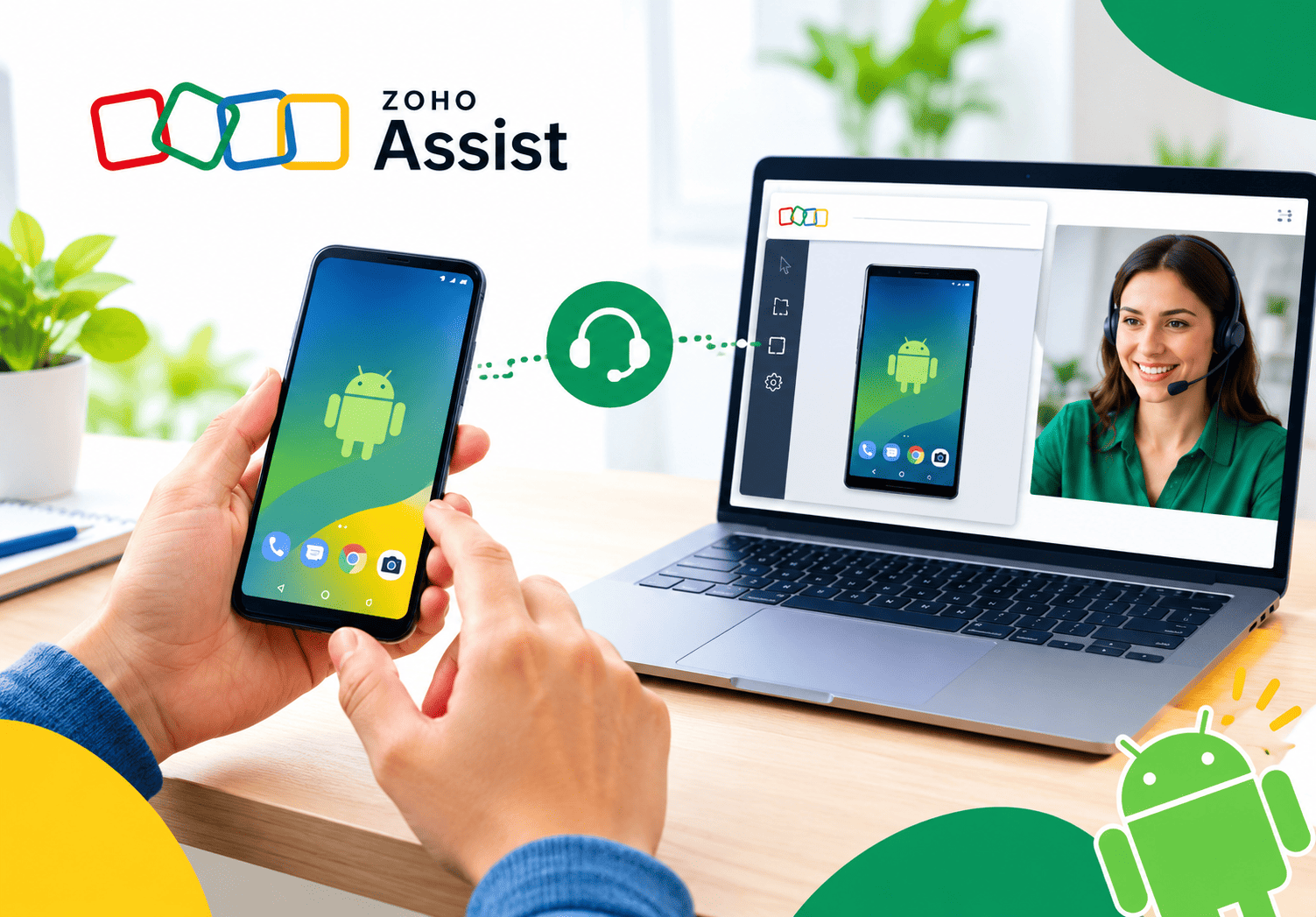
Android devices now run field service, sales, logistics, and customer service. When a scanner freezes or a sales app crashes, employees cannot wait for a technician to travel across town. IT teams need a way to view the screen, guide users, and fix problems within minutes. Zoho Assist offers exactly that: a remote support platform with dedicated Android tools for screen sharing, remote control, and unattended access. This guide explains how the platform works, which Android devices it supports, and how to deploy it at scale. It also covers security, troubleshooting, and best practices for support teams.
Table of contents
Quick Summary
- What it is: Zoho Assist is cloud-based remote support software that connects technicians to Android phones, tablets, and rugged enterprise devices.
- Two apps: Customers install the Customer app, while technicians use the Technician app or a web console.
- Support modes: Attended sessions use a session key or invitation link, whereas unattended access uses a one-time enrollment through a deployment link.
- Remote control limits: Full control works on supported brands, such as Samsung, Sony, Lenovo, and Zebra. Other devices usually allow screen sharing only.
- Scale: Mass deployment and a mobile SDK help IT teams enroll fleets and embed support into custom apps.
- Security: The customer grants permission, can pause sharing at any moment, and can revoke unattended access later.
- Next step: Test your device models first, then roll out enrollment in stages.
What Is Zoho Assist and How Does It Relate to Android Remote Support?

Resources ZOHO Assist – Remote Access Software describes a cloud-based tool from Zoho Corporation that lets technicians reach remote computers and mobile devices over the internet. Help desks, managed service providers, and internal IT teams use it to run support sessions, manage unattended machines, and hold online meetings. The platform works across Windows, macOS, Linux, iOS, and Android, so one tool covers most of your environment.
Why does Android need dedicated remote support?
Android differs from a desktop because the operating system restricts how one app can view or control another. Consequently, remote support tools need special permissions and, for full control, manufacturer-level integration. Zoho Assist addresses this challenge through a purpose-built Customer app. The app uses Android’s Device Administrator permission to enable screen sharing and remote control, according to its Google Play listing.
How does Zoho Assist connect to the topic of this article?
Mobile endpoint support is now a core IT task, and Zoho Assist handles it directly. Technicians can view an Android screen, chat with the user, transfer files, and, on supported devices, take control. Moreover, IT admins can enroll devices for unattended access and support them without any user action. The next sections show how each capability works.
Why Do Businesses Need to Manage Android Endpoints Remotely?
Mobile devices spread quickly across organizations, yet support resources rarely grow at the same pace. Remote management closes this gap.
What problems does remote Android support solve?
Remote support removes several costly bottlenecks:
- Travel time. Technicians fix issues without visiting branches, warehouses, or client sites.
- Downtime. Rugged scanners and point-of-sale tablets return to work faster.
- User frustration. Employees stop describing problems over the phone and simply show them.
- Inconsistent settings. Technicians correct misconfigured apps, Wi-Fi profiles, and permissions directly.
Who benefits most from Android remote support?
| Team | Typical Android use | Remote support benefit |
|---|---|---|
| Field service | Job apps on phones and tablets | Fast fixes without returning to the office |
| Logistics and warehousing | Handheld scanners | Less downtime on the floor |
| Retail and hospitality | Tablets for orders and payments | Quick recovery during business hours |
| Managed service providers | Client-owned devices | One console for many customers |
| Software vendors | Customer-facing Android apps | In-app support inside the product |
Because each team faces different constraints, you should match the session type to the device’s role. The following sections explain those choices.
How Does Zoho Assist Work on Android Devices?
Zoho Assist splits the experience into two sides. The end user runs the Customer app, and the technician runs either the Technician app or the browser-based console.
How does an attended support session start?
A technician starts a session and sends the customer an invitation link or a session key. The customer installs the Customer app from Google Play, opens the link or enters the key, and grants permission to share the screen. From that moment, the technician sees the device display in real time. Meanwhile, both parties can chat inside the app.
What can the technician do during a session?
According to Zoho’s mobile support page, technicians can view the customer’s device as if it sat in front of them. They can also annotate the screen to highlight a button or setting. Customers can pause and resume sharing whenever they want, which protects their privacy during sensitive moments. In addition, either side can end the session with a single tap.
Can technicians work from a phone too?
Yes. The Technician app for Android and iOS lets support staff run sessions from a mobile device. They can start or schedule sessions, chat, transfer files, take screenshots, and invite colleagues to an ongoing session. Consequently, on-call engineers can resolve urgent issues without opening a laptop.
Which Android Devices Support Remote Control in Zoho Assist?
Screen sharing works broadly on Android. Full remote control, however, depends on the device brand and the manufacturer’s supported interfaces.
Which brands allow full remote control?
Zoho’s documentation and app listings name several manufacturers whose devices support remote control. Samsung and Sony appear in the longest-standing lists, and Lenovo, Zebra, and other enterprise brands appear in newer material. Zoho’s Google Play update notes also state that support teams can view and control Zebra enterprise devices through the Customer app.
What happens on unsupported brands?
On other devices, the session usually falls back to screen sharing. The technician sees the screen and guides the user by voice, chat, or on-screen annotation, but the user performs the taps. Zoho’s own guidance notes that some Android versions or brands support only screen sharing instead of full control.
How should you check compatibility?
| Capability | Typical availability |
|---|---|
| Screen sharing | Most Android phones and tablets |
| Chat and file transfer | Available in the app |
| Full remote control | Supported brands only (for example, Samsung, Sony, Lenovo, Zebra) |
| Unattended access | Enrolled devices through the deployment link |
Because manufacturer support changes over time, confirm your exact models against Zoho’s current documentation. Better still, test two or three devices from each model family in a pilot before you commit.
What Is Unattended Access and How Does It Help IT Teams?

Attended sessions require the user to be present, but many Android devices operate without one. Kiosks, digital signage, shared tablets, and warehouse scanners often sit idle for hours. Unattended access lets you reach them anyway.
How does enrollment work?
The technician or admin shares a deployment link. The device owner opens the link and enrolls the device with a single action, as the Customer app listing describes. After enrollment, the technician can connect at any time without further input from the user.
Who controls the access?
The device owner keeps control. Zoho’s app description says users can enable or disable unattended access whenever needed, and they can remove the permission entirely. This design balances convenience with trust, and it gives employees confidence that IT will not monitor devices without their knowledge.
When does unattended access make the most sense?
- Company-owned shared devices, such as kiosks and tablets in stores
- Rugged handhelds that workers cannot pause for a support call
- Overnight maintenance windows when devices sit unused
- Remote sites with no on-site technician
However, always document who may access which devices and under what conditions. Clear internal policy prevents misunderstandings and supports privacy compliance.
How Do You Deploy Zoho Assist Across a Fleet of Android Devices?
A pilot with five devices differs greatly from a rollout to five hundred. Zoho Assist offers mass deployment tools to make the second scenario manageable.
What does mass deployment do?
Zoho states that its mass deployment feature configures unattended remote access for Android phones in just a few clicks. Admins generate a deployment link, distribute it to users, and monitor enrollment from the console. As a result, the team avoids visiting each device individually.
What steps should a rollout follow?
- Inventory your devices. List brands, models, and Android versions.
- Check remote control support. Compare the list with Zoho‘s supported brands.
- Run a pilot. Enroll a small group and test every session type you plan to use.
- Prepare communication. Tell employees why IT enrolls devices, what technicians can see, and how to pause or revoke access.
- Distribute the deployment link. Use email, a messaging app, or your device management platform.
- Verify enrollment. Confirm that every device appears in the console and connects.
- Train the help desk. Show technicians how to start sessions, use chat, and handle permission prompts.
- Review and expand. Fix issues from the pilot, then extend the rollout in waves.
Does Zoho Assist replace mobile device management?
No. Mobile device management (MDM) tools enforce policies, push apps, and wipe lost devices. Zoho Assist complements MDM by adding live, interactive support. Many teams use both, with MDM handling configuration and Zoho Assist solving problems in real time.
How Can You Embed Remote Support Inside Your Own Android App?
Software vendors and businesses with custom apps can go one step further. Zoho Assist offers a Mobile Software Development Kit (SDK), and Zoho’s Android support page says developers can embed remote assistance into their Android apps.
What does the SDK enable?
With the SDK, a user can request help directly from inside your app. The support session starts without a separate download or session key, so users avoid extra steps. This approach shortens resolution time and improves the customer experience. Additionally, your support team sees the exact screen where the problem occurs.
Which organizations benefit most?
- SaaS and app vendors that support customers on mobile
- Banks and insurers with branded mobile apps
- Logistics providers whose drivers use a custom delivery app
- Field-service companies with proprietary job management tools
What should developers consider first?
Plan the user consent flow carefully. Users must always understand when a session begins and what the technician can see. Furthermore, involve your legal and security teams early, because in-app support touches privacy law in many regions.
How Secure Is Remote Access to Android Devices With Zoho Assist?
Remote access raises legitimate security questions, particularly on personal or regulated devices. Zoho Assist addresses several of them through design choices and controls.
What protections does the platform provide?
Zoho’s mobile support page lists 128-bit AES encryption for remote sessions and states that sessions work beyond major firewalls. The Customer app also requires explicit permission from the device owner, and it uses the Device Administrator permission only to enable sharing and control. Zoho’s documentation further explains that remote control needs the device owner to grant the necessary permission for the session. Since Zoho may update its encryption and compliance details, check its security documentation for current specifications.
What can you do on your side?
| Control | Recommended action |
|---|---|
| Access policy | Define who may connect to which devices |
| Consent | Require user approval for attended sessions |
| Authentication | Turn on multi-factor authentication for technician accounts |
| Auditing | Review session logs regularly |
| Offboarding | Revoke unattended access when employees leave |
| Training | Teach staff to recognize fake “support” requests |
How do you protect users from support scams?
Scammers often impersonate help desks and ask users to share their screens. Therefore, tell employees that IT will always announce sessions through official channels first. Encourage them to decline any session they did not expect and to report suspicious requests immediately.
What Are the Best Practices for Supporting Android Devices Remotely?

Good tools still need good habits. The following practices help support teams deliver fast, consistent results.
How should technicians run a session?
First, confirm the user’s identity and the device model. Next, explain what you plan to do before you touch anything. Then, work in small steps and narrate them, so the user learns for next time. Finally, summarize the fix and close the session politely.
Which habits improve first-contact resolution?
- Keep a checklist of common Android issues, such as storage, permissions, and battery settings.
- Use chat to send links or copyable text instead of reading them aloud.
- Take screenshots of successful fixes and add them to your knowledge base.
- Note the Android version and device model in every ticket.
- Escalate to a specialist only after you exhaust the standard checks.
What should you measure?
| Metric | Why it matters |
|---|---|
| Average session length | Shows whether processes work efficiently |
| First-contact resolution rate | Reflects technician skill and tool fit |
| Sessions per device model | Reveals problem devices worth replacing |
| Enrollment coverage | Shows how many devices you can reach unattended |
| Customer satisfaction | Confirms the human side of support |
How Do You Troubleshoot Common Zoho Assist Android Problems?
Even a well-planned setup runs into occasional issues. Most problems fall into a few predictable categories.
What should you check when remote control does not work?
Start with the device brand, because unsupported models allow only screen sharing. Then confirm that the user granted the required permissions, including accessibility and screen sharing permissions, as Zoho’s guidance recommends. If the problem persists, restart the support app and the Android device. In many cases, that simple step restores the connection.
What if the session will not connect at all?
Check the internet connection on both sides first. Next, verify that the invitation link or session key remains valid, since expired keys fail. Finally, confirm that the user runs a supported Android version, because Zoho’s app notes list minimum requirements and recent compatibility updates, such as support for Android 16.
Which quick fixes solve most cases?
- Reinstall the Customer app and grant permissions again.
- Generate a fresh session key or invitation.
- Disable battery optimization for the app on aggressive power-saving devices.
- Re-enroll the device if unattended access stops working.
- Update the app and the operating system to current versions.
When these steps fail, contact Zoho support with the device model, Android version, and a description of the exact error.
Conclusions: Is Zoho Assist the Right Tool for Managing Android Endpoints Remotely?
Android endpoints will keep multiplying, and support teams need tools that keep pace. Resources ZOHO Assist – Remote Access Software gives them a practical answer. It combines attended screen sharing, remote control on supported brands, unattended access for shared devices, mass deployment, and an SDK for in-app support. Technicians can also work from their own phones, which speeds up response times.
Success, however, depends on preparation. Verify which of your devices allow full remote control, pilot the rollout, and communicate clearly with users about privacy and consent. In addition, pair remote support with your MDM platform and a strong security policy. If you follow these steps, you will resolve Android issues faster, reduce travel, and keep your mobile workforce productive.
Frequently Asked Questions
Not every one. Screen sharing works on most Android devices, but full remote control depends on the manufacturer. Zoho lists brands such as Samsung, Sony, Lenovo, and Zebra as supported for control. On other devices, technicians typically guide users while viewing the screen. Always test your specific models before rollout.
For a standard session, yes, because the user must share the screen and grant permission. For unattended access, the user enrolls the device once through a deployment link. After that, an authorized technician can connect without the user’s involvement, and the owner can revoke that permission at any time.
Yes. Zoho provides a Technician app for Android and iOS. With it, technicians can start sessions, chat, transfer files, take screenshots, and access unattended computers from a phone or tablet. Therefore, on-call staff can respond quickly even when they are away from a desk.
Why Work With Solution for Guru on Your Remote Support Setup?
Buying a tool is easy, but configuring it well takes experience. Solution for Guru is a CRM and software implementation consultancy that helps businesses select, configure, and integrate their business platforms, including remote support software.
What benefits can you expect?
- Right-fit selection. Consultants compare your device mix and support workflows against tool capabilities before you buy.
- Structured deployment. The team plans pilots, enrollment waves, and user communication, so rollouts run smoothly.
- Integration with your systems. Specialists connect remote support with your CRM, ticketing, and other platforms to keep records in sync.
- Security and policy guidance. Advisors help you define access rules, consent flows, and offboarding steps.
- Training and adoption. Hands-on sessions teach technicians how to use each feature confidently.
- Continued support. A long-term partner helps you adjust your setup as devices, staff, and needs change.
How do you get started?
Visit solution4guru.com to describe your Android support challenges. A short consultation can clarify which configuration, integrations, and rollout plan fit your organization.
Recommended:
- How Does Zoho Assist Help Remote Customer Support Teams Run Attended Sessions Without Installations?
- What Are the Best Practices for MSPs Using ManageEngine Remote Access Plus?
- Why Businesses Choose ManageEngine Remote Access Plus Instead of Traditional Remote Desktop
- ManageEngine Remote Access Plus Review
- Why Businesses Choose Zoho Assist for Remote Support
- Zoho Assist – Review, Feedback, Price, Pros and Cons
- 12 Jobs You Wouldn’t Have Without Remote Access Software
- What Are the Use Cases of Remote Access Software Across Different Industries?
- ManageEngine Remote Access Plus: Is This the Best Enterprise Remote Support Tool in 2026?
- Remote Access Security Model: Encryption and Compliance — What Does Every Enterprise Need to Know?
- Remote Access Software for Enterprise IT Support
- Secure Remote Access for Corporate Networks
- Zero Trust and Remote Access: A Perfect Match?
- What Is the Role of Remote Access Software in IT Support and Help Desk Operations?
- Common Challenges in Implementing Remote Access Software — and How to Overcome Them
- Performance Optimization Tips for Remote Access Connections
- Remote Access in Secure Operations: Professions Where It’s Mission-Critical
- How AI and Automation Are Shaping the Future of Remote Access