Smartsheet Automations 101: Alerts, Approvals, and Reminders Explained
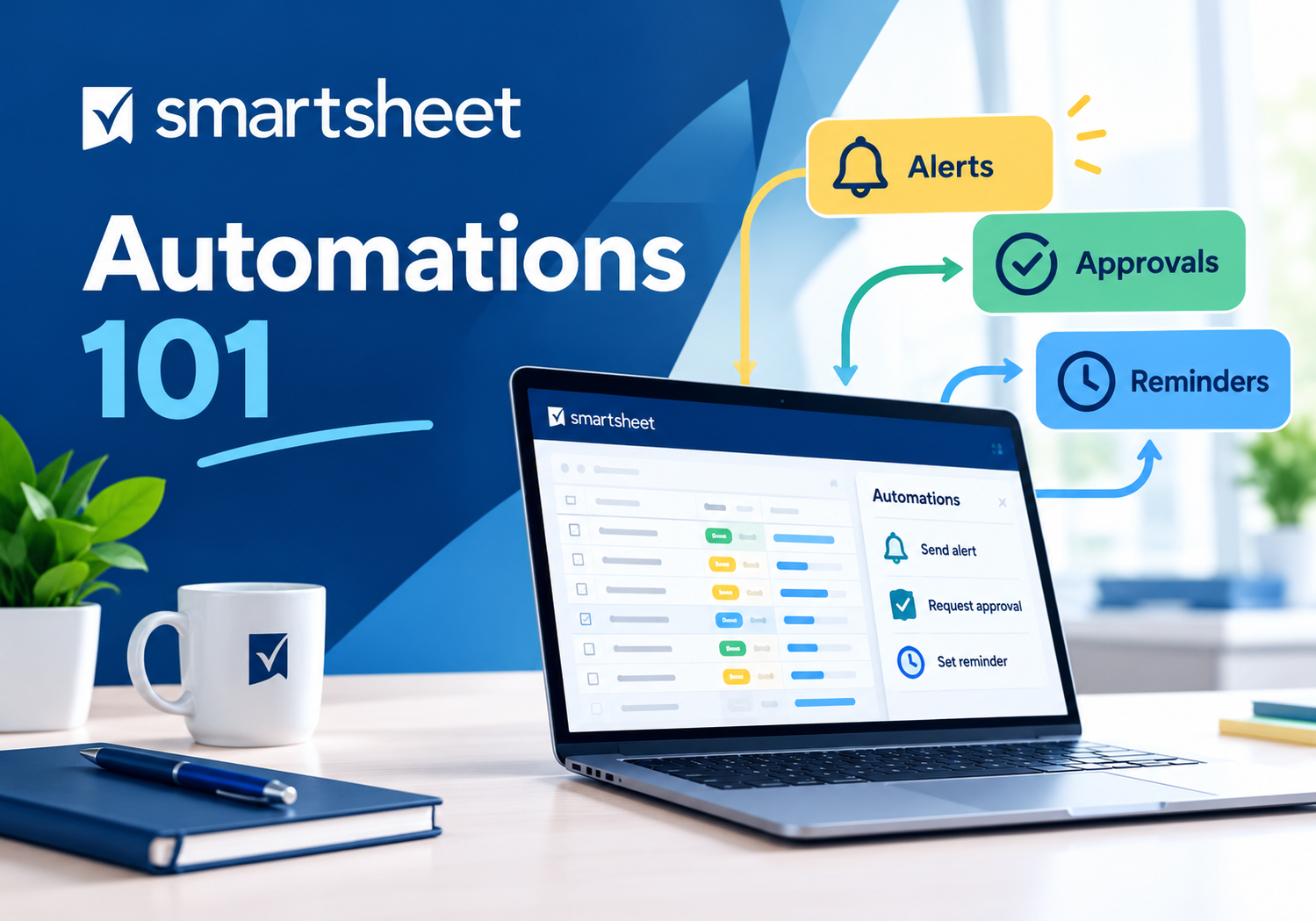
Manually chasing status updates, sending reminder emails, and tracking down approvals consumes hours that most teams simply do not have to spare. Smartsheet’s automation engine exists precisely to eliminate this kind of repetitive administrative work. This article walks through how Smartsheet automations function, the main types available, and how to build them correctly so that alerts, approvals, and reminders run reliably in the background.
Table of contents
What Are Smartsheet Automations, and Why Do They Matter?
Smartsheet automations are no-code workflows that trigger specific actions—such as sending a notification, requesting an approval, or updating a cell—whenever certain conditions are met within a sheet. Instead of a project manager manually emailing every stakeholder about a deadline, an automation can send that reminder automatically based on a date field or status change.
Because these workflows run continuously and without manual intervention, they reduce the administrative burden on project managers while also improving consistency. A rule set up once continues applying correctly to every new row added to the sheet, which matters considerably as projects scale in size and complexity.
Quick Summary: What Should You Know Before Building Your First Workflow?
Here is a condensed overview of what Smartsheet automation covers:
| Automation Type | Primary Function |
|---|---|
| Alerts | Notify specific people when a condition is met |
| Approval Requests | Route rows to designated approvers for sign-off |
| Reminders | Send recurring or one-time nudges based on dates |
| Update Requests | Prompt assignees to fill in specific fields |
| Row Actions | Move, copy, or lock rows automatically |
Each of these building blocks can be combined into more elaborate workflows, which is part of what makes Smartsheet’s automation engine flexible enough for both small teams and enterprise-scale operations.
How Does Smartsheet Project Management Relate to Automation?

Automation does not exist in isolation—it is deeply tied to how Smartsheet Project Management functions as a whole. Project schedules, dependencies, and resource assignments generate the very data that automation rules rely on to trigger alerts, approvals, and reminders.
For example, when a task’s due date approaches within a project plan, an automated reminder can notify the assigned owner without anyone needing to check the schedule manually. Similarly, when a milestone reaches 100 percent completion, an automation can trigger an approval request to a stakeholder, keeping the project moving without requiring the project manager to track every milestone by hand.
Consequently, automation acts as the connective tissue that keeps Smartsheet Project Management responsive in real time, rather than relying on periodic manual check-ins to catch issues or move work forward.
How Do Alerts Work Within Smartsheet?
Alerts are the simplest and most commonly used automation type, designed to notify people the moment a defined condition occurs.
What Triggers Typically Start an Alert?
Alerts can be configured to fire based on several different triggers:
- A new row being added to a sheet
- A specific column value changing, such as status shifting to “Blocked”
- A date field reaching or approaching a set threshold
- A row being changed in any way, if broader monitoring is needed
Because these triggers can be combined with conditional logic, alerts can be narrowly targeted—for instance, notifying only a project lead when a high-priority task becomes overdue, rather than notifying the entire team for every minor change.
Who Receives Alert Notifications, and How Are They Customized?
Alert recipients can be defined in multiple ways. One option is a fixed list of email addresses. Another is the person listed in an “Assigned To” column. Recipients can even come from a contact list stored elsewhere in the sheet. Additionally, the message content itself can be customized. It can include specific column values from the sheet. This makes notifications more informative than a generic “something changed” email.
Since alerts can also be set to include a direct link back to the relevant row, recipients can jump straight into the sheet to review or act on the update, which shortens response times considerably.
How Do Approval Workflows Function in Smartsheet?
Approval requests extend basic alerts by requiring the recipient to take a specific action—usually approving or declining—before the workflow proceeds.
What Does a Typical Approval Workflow Look Like?
A standard approval workflow generally follows this sequence:
- A trigger condition is met, such as a task reaching “Ready for Review” status
- Smartsheet sends an approval request to the designated approver
- The approver reviews the relevant row and selects Approve or Decline directly within the notification or sheet
- Based on the response, a subsequent action fires—such as updating the status column or notifying the requester
Because this entire sequence happens automatically, approval bottlenecks caused by forgotten emails or unclear next steps become far less common.
How Can Multi-Step Approvals Be Structured?
More complex processes often require sequential or parallel approvals rather than a single sign-off. Smartsheet supports this by allowing multiple approval steps to be chained together, so a request might first go to a team lead, then automatically route to a department head only after the first approval is granted.
Furthermore, branching logic can be added so that declined requests trigger a different path—such as notifying the original requester with the approver’s comments—rather than the workflow simply stalling. This flexibility makes Smartsheet suitable for approval chains found in procurement, marketing sign-off, and change management processes.
How Do Reminders Help Teams Stay on Schedule?
Reminders differ slightly from alerts in that they are typically tied directly to dates, ensuring deadlines are not missed regardless of whether any other field has changed.
What Types of Reminders Can Be Set Up?
Common reminder configurations include:
- One-time reminders sent a specific number of days before a due date
- Recurring reminders sent daily, weekly, or monthly regardless of date fields
- Overdue reminders triggered automatically once a date has passed without completion
- Custom interval reminders, such as notifying someone every three days until a task is marked complete
Because these reminders run independently of manual oversight, they are particularly useful for recurring compliance tasks, routine check-ins, or any process where consistency matters more than judgment calls.
How Do Reminders Reduce Missed Deadlines?
Reminders work best when paired thoughtfully with realistic lead times. Sending a reminder only one day before a deadline, for instance, leaves little room for the assignee to address any blockers. By contrast, staggering reminders—one a week out, another a day out—creates a more effective early-warning system.
Additionally, since reminders can be tied to any date column, they are not limited to due dates alone; they can also be used for contract renewals, budget review cycles, or recurring maintenance tasks tracked within the same sheet used for broader project management.
How Do Update Requests Complement Alerts and Reminders?
Update requests serve a slightly different purpose: rather than simply notifying someone, they actively prompt the recipient to fill in specific information.
What Makes Update Requests Different from Standard Alerts?
While an alert simply informs, an update request opens an interactive form-like view where the recipient can directly edit selected columns without needing full access to the entire sheet. This is particularly useful when gathering status updates from team members who should not see or edit unrelated project data.
Moreover, update requests can be scheduled to recur automatically—for example, requesting a weekly status update from every task owner—without a project manager needing to manually request each one.
How Can Update Requests Improve Reporting Accuracy?
Because update requests standardize exactly which fields recipients are asked to complete, the resulting data tends to be more consistent than information gathered through informal emails or chat messages. This consistency, in turn, improves the reliability of dashboards and reports that pull from the same sheet, since incomplete or inconsistent updates are less likely to slip through.
How Should Teams Build Reliable Automation Workflows?

Building automations that work smoothly requires more than simply setting a trigger and an action; thoughtful design prevents both notification fatigue and missed conditions.
What Common Mistakes Should Be Avoided?
Several mistakes tend to recur when teams first build automations:
- Overly broad triggers, such as alerting on every row change rather than specific, meaningful changes
- Missing conditional logic, which can cause irrelevant notifications to reach the wrong people
- Redundant workflows, where multiple automations unintentionally send duplicate alerts for the same event
- Ignoring recipient fatigue, by sending too many reminders that eventually get ignored altogether
Avoiding these pitfalls generally requires reviewing automation logic periodically rather than assuming a workflow built months ago still matches current processes.
How Can Automations Be Tested Before Full Rollout?
Before deploying an automation broadly, it is worth testing it first. Test it on a small subset of rows or with a limited group of recipients. This approach reveals whether the trigger conditions behave as expected. It also shows whether the notification content is clear enough for recipients to act on immediately.
Additionally, review Smartsheet’s automation history log after testing. This helps confirm that workflows fired at the correct times. Doing so prevents surprises once the automation is applied across an entire project or portfolio.
What Are the Broader Benefits of Automating Alerts, Approvals, and Reminders?

Looking beyond individual workflows, automation delivers organizational-level benefits that compound over time as more processes are automated.
How Does Automation Improve Overall Project Visibility?
Automated alerts and reminders keep information flowing continuously. As a result, project managers spend less time chasing updates. They can instead focus more time on addressing actual risks or blockers. This shift in focus tends to improve overall project visibility. Issues surface through timely notifications rather than being discovered during periodic manual reviews.
How Does Automation Support Scaling Smartsheet Project Management Across Teams?
Organizations are expanding their use of Smartsheet Project Management across multiple departments. As they do, manually managing status checks and approvals becomes increasingly impractical. Automation allows these processes to scale consistently. The same alert, approval, or reminder logic can be replicated across sheets and teams. This happens without requiring proportional increases in administrative effort.
What Should You Take Away About Smartsheet Automations?
Smartsheet’s automation capabilities include alerts, approvals, reminders, and update requests. Together, they transform manual, repetitive administrative work into a reliable, self-running system. When configured thoughtfully, these workflows keep teams informed. They also accelerate approval chains and ensure deadlines are not missed. All of this happens without requiring constant oversight from project managers.
At the same time, building automations that scale effectively across an organization benefits significantly from experienced guidance. Partnering with Solution For Guru ensures that automation design aligns with real business processes, avoiding both notification fatigue and redundant workflows. For any team serious about maximizing the value of Smartsheet Project Management, mastering automation is not optional—it is central to using the platform effectively.
Frequently Asked Questions
No, Smartsheet automations are built using a visual, no-code workflow builder. Users select triggers, conditions, and actions from dropdown menus rather than writing scripts, which makes the feature accessible to project managers and team leads without technical backgrounds.
The number of automations allowed depends on the subscription plan. Lower tiers, such as Pro, often cap the number of automation runs per month, while higher tiers like Business typically offer unlimited automations. Reviewing current plan limits directly on Smartsheet’s pricing page is recommended before designing extensive workflows.
If an approval request goes unanswered, most workflows can be configured to send follow-up reminders after a set period or to escalate the request to an alternate approver. Building these fallback steps in from the start prevents a single unresponsive approver from stalling an entire project timeline.
Why Should You Partner with Solution For Guru to Build Smarter Automations?
While Smartsheet’s automation builder is designed to be accessible without coding knowledge, designing workflows that are efficient, non-redundant, and aligned with actual business processes still requires expertise. This is where collaborating with Solution For Guru offers clear advantages.

What Value Does Solution For Guru Add to Automation Design?
Solution For Guru’s consultants specialize in translating real-world approval chains, notification needs, and reminder schedules into well-structured Smartsheet workflows. Rather than building automations through trial and error, organizations working with Solution For Guru benefit from:
- Process mapping before automation, ensuring workflows reflect actual business logic rather than assumptions
- Avoidance of notification overload, through carefully scoped triggers and conditions
- Multi-step approval design, for complex sign-off chains spanning multiple departments
- Ongoing workflow audits, catching redundant or outdated automations before they cause confusion
- Training for internal teams, so staff can confidently maintain and adjust workflows after implementation
How Does This Partnership Reduce Long-Term Administrative Overhead?
By designing automations correctly from the outset, Solution For Guru helps organizations avoid the common cycle of building a workflow, discovering it causes confusion or duplicate notifications, and then rebuilding it later. This proactive approach reduces long-term administrative overhead and ensures that alerts, approvals, and reminders genuinely support—rather than clutter—daily operations within Smartsheet Project Management.
Recommended:
- Smartsheet Pricing Explained: Plans, Costs, and Hidden Add-Ons
- What Is Smartsheet? A Complete Overview of Features and Use Cases
- Zoho Projects API Integration Guide: How Can You Connect Your Business Tools Effectively?
- Security and Role Management in Zoho Projects
- How Do You Successfully Manage Large Enterprise Projects in Zoho Projects?
- How Can You Integrate Zoho Projects with Slack, Microsoft Teams, and Email to Maximize Team Productivity?
- PMP Certification: Is It Worth It in 2026?
- Project Performance Analytics: Driving Data-Backed Decisions in Project Management
- Zoho Projects Data Structure
- KPIs Every U.S. Project Manager Should Track
- How Can You Automate Task Assignments and Notifications in Project Management?
- How Does Time Tracking and Billing Automation Transform Project Management?
- Resource Allocation and Capacity Planning in Project Management: How Do You Build Teams That Consistently Deliver?
- How Project Management Improves ROI for U.S. Businesses
- Most In-Demand Project Management Skills in the U.S. Job Market
- Zoho Projects Implementation for Software Development Teams
- Zoho Projects + Zoho CRM: Managing Sales-to-Project Workflows