7 Zapier Workflow Examples to Copy, Plus AI Governance Tips

This article provides categorized, ready-to-build Zapier workflow examples across marketing, sales, support, and operations, including at least one AI-powered Zap. Jump to the shortlist below to find a workflow matching your function, then use the build checklist and templates referenced throughout, to launch it.
TL;DR:
- For sales Zaps, explicitly map lead source, owner, and deal stage; defaults can break downstream reporting, while assignment can use territory, deal size, or workload.
- A customer case found AI triage resolved nearly 28% of help desk tickets automatically and saved more than 600 hours monthly when steps were chained.
- Use real sample records, map every field explicitly, add failure alerts, and test outputs before launch; then monitor task history during initial runs.
- Before scaling AI steps, pass customer identifiers and relevant history into prompts, restrict actions through managed connections, and limit messages to approved domains.
- Zapier recommends combining related actions in one multi step Zap, which reduces task usage and simplifies auditing, rollback, and troubleshooting.
Table of Contents
- 1. Top Zapier workflow examples by business function
- 2. Marketing and content workflows
- 3. Sales and lead management workflows
- 4. Customer support and help desk workflows
- 5. AI-powered Zap examples and governance
- 6. How to build a simple multi-step Zap
- 7. Resilient design and best practices
- 8. Author perspective: DIY versus agency implementation
- 9. Solution4Guru: automation and integration services
- FAQ
- Sources
1. Top Zapier workflow examples by business function
Before building anything custom, it helps to scan what already works. These recipes cover the trigger and action apps involved, so you can judge fit before investing setup time. Many map directly to templates in the Zapier Templates gallery.
- Form submission to AI-drafted email: a Google Forms or Typeform entry triggers ChatGPT to draft a response, which lands in a Gmail draft for review.
- Lead capture to CRM with assignment: a new form lead creates or updates a CRM contact, then routes to a rep based on territory or deal size.
- Content publish to social crosspost: a new blog post in your CMS triggers posts to Buffer, Hootsuite, or directly to social platforms.
- Support ticket triage with AI classification: an incoming email or form is scored for sentiment and urgency, then filed as a ticket and flagged in Slack.
- New file backup: files added to one storage location automatically copy to Google Drive for redundancy.
- Task creation from meeting notes: a new row in a notes app or transcript tool creates a task in Asana, Trello, or ClickUp.
- Social mention monitor to Slack: a brand mention or keyword match posts an alert to a dedicated Slack channel for fast response.
Each of these works as a single Zap or as a stage inside a longer, multi-step workflow. The sections below break down the marketing, sales, and support versions in more detail, including field-mapping notes and the AI steps worth adding first.
2. Marketing and content workflows
Marketing teams generally automate two things: getting content out faster and keeping a clean record of what was published. These four patterns cover most of that need.
- Auto-posting on publish: connect your CMS to Buffer, Hootsuite, or a native social integration so every new post triggers a scheduled or immediate share.
- Content library logging: a new post record writes a row to Google Sheets or a Notion database, capturing title, URL, author, and tags for later reporting.
- Newsletter curation from RSS: an RSS feed or a tagged Sheets row feeds a weekly digest into Mailchimp or HubSpot for send.
- Approval routing before publish: a draft post notifies an editor in Slack and waits for a reaction or field update before the publish Zap fires.
When mapping fields, keep names consistent across apps (title, URL, author, tags) so later Zaps referencing the same record do not break. A mismatched field name is the most common reason a downstream automation silently fails.
3. Sales and lead management workflows
Lead response speed is one of the clearest wins automation delivers, and the patterns here are largely plug-and-play once your CRM fields are mapped correctly.
- Capture and enrich: a form or landing page submission triggers enrichment (reverse-IP lookup or firmographic data), then creates or updates the CRM contact.
- Round-robin assignment: enriched leads route to reps based on territory, deal size, or current workload, with a Slack or Teams alert on assignment.
- AI-assisted scoring: an AI step reviews lead details against your ideal customer profile and tags high-priority leads before they reach a rep’s queue.
- Stale lead reminders: a lead untouched for a set number of days triggers a follow-up task automatically.
Mapping tips matter here. Required CRM fields like lead source, owner, and deal stage need explicit values set in the Zap, not left to defaults, or reporting breaks downstream. One enterprise case documented by Zapier’s AI integration guide describes a sales team using an AI assistant connected through Zapier MCP to generate morning ranked lead briefs automatically, which improved how quickly agents worked their queues. For teams managing this inside Pipedrive specifically, our Pipedrive automation examples for sales teams walks through comparable CRM-specific patterns.
4. Customer support and help desk workflows
Support teams tend to automate triage first, since it is the highest-volume, lowest-judgment task in the queue.
- Classify and ticket: an incoming email or form is scored for sentiment and priority, then filed into Zendesk or Notion with the right tags.
- AI-drafted replies for review: a classified ticket triggers an AI-generated response saved as a Gmail draft, so a human approves before sending.
- Channel alerts for urgent cases: high-priority tickets post immediately to a dedicated Slack channel rather than waiting in a general queue.
- Interaction logging: every resolved ticket writes a row to a Table or database for audit trails and later analytics.
The impact of adding an AI classification step can be substantial. One Zapier customer case reported nearly 28% of help desk tickets resolving automatically after adding AI triage, saving the team more than 600 hours per month, according to Zapier’s AI integration guide. That scale of saving generally only shows up once classification, routing, and drafting are chained into a single multi-step Zap rather than run as separate pieces.
5. AI-powered Zap examples and governance
AI steps turn a basic Zap into something that can make judgment calls, not just move data. AI by Zapier and Zapier MCP let you add AI actions or connect an AI assistant that can act across thousands of connected apps, covering tasks like sentiment analysis, ticket classification, and drafting personalized responses without standing up separate developer accounts.
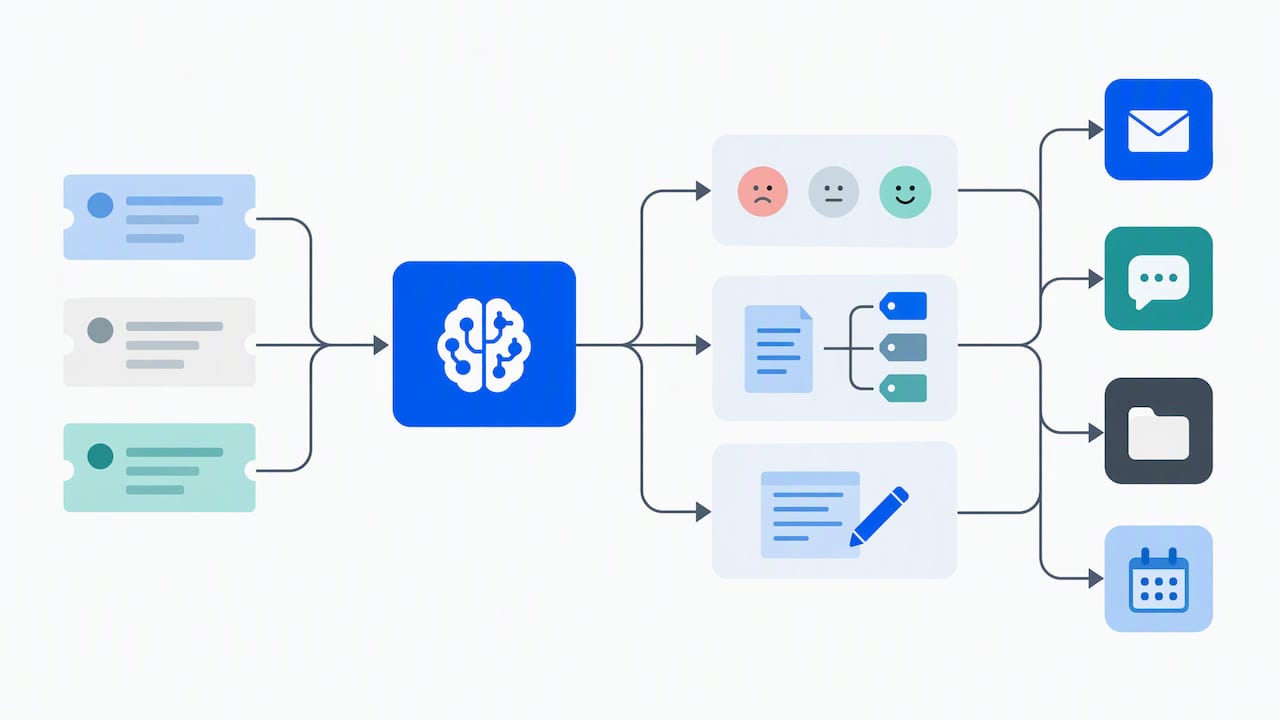
A concrete starting point: the form-to-ChatGPT-to-Gmail-draft tutorial from Zapier shows exactly how to wire a Google Forms trigger to a ChatGPT action and a Gmail Create Draft action, including tips for mapping fields so the output stays consistent.
Before scaling any AI Zap, a few governance habits pay off:
- Map explicit context fields (customer ID, recent interactions, relevant knowledge base snippets) into the AI prompt so outputs stay auditable.
- Use action restrictions and managed connections to limit what an AI step can touch, especially in shared workspaces.
- Apply domain restrictions so AI-driven emails or messages only reach approved recipients.
Without governance controls, scaling automation widely increases security exposure, which is why action restrictions and managed connections exist as standard enterprise guardrails, as described in reporting on Zapier’s expanded AI governance controls. For CRM-specific AI connections, our piece on how AI assistants connect to your CRM through Pipedrive MCP covers the same pattern from the CRM side.
6. How to build a simple multi-step Zap
Most Zaps fail not because the idea is wrong but because a field was mapped loosely or no one tested with real data first. This checklist covers the sequence that avoids both problems.
- Pick your trigger app and event, then capture the exact fields you will need downstream.
- Create one test record so you have real sample data to work with, not placeholder text.
- Add your action steps and map each field explicitly, including any AI step prompt inputs.
- Insert a filter or a path where the workflow should branch based on a condition.
- Add an error notification step so a failed run alerts you instead of silently disappearing.
- Test the Zap with your sample record, confirm the output, then turn it on and watch the task history for the first few runs.
Pro Tip: Build the simplest version first, get it running reliably, then add the AI or branching steps on top.
7. Resilient design and best practices
A Zap that works once is not the same as a Zap that holds up over months of real traffic. Zapier’s own guidance on Zap workflow concepts recommends consolidating related steps into a single multi-step Zap rather than running several single-action Zaps, since that lowers task usage, cuts complexity, and makes auditing and rollback simpler.
- Combine related actions into one multi-step Zap instead of chaining separate single-step Zaps together.
- Use filters to block bad data and paths to branch logic cleanly instead of stacking conditional steps.
- Add error alerts so failures surface immediately rather than getting discovered days later.
- Govern AI steps with managed connections and action restrictions, particularly once more than one person can edit the Zap.
Pro Tip: Roll out a new Zap to a small slice of traffic first and watch the task logs for 72 hours before trusting it with everything.
8. Author perspective: DIY versus agency implementation
A single-trigger Zap, like logging form submissions to a sheet, is a reasonable weekend project for almost any team. The calculation changes once you are chaining multiple apps, adding AI judgment calls, or running at a volume where one mapping error cascades into a compliance problem. At that point, governance and testing discipline matter more than the build itself, and that is where a specialist typically earns their time, including through services like our own automation and CRM integration work.
— Vadim
9. Solution4Guru: automation and integration services
We build and manage multi-step Zapier workflows for teams that have outgrown DIY setups, pairing automation with CRM, HubSpot, and AI integration services.
If your current Zaps are breaking under real volume or you need AI steps implemented with proper access controls, our services page outlines how we approach HubSpot and CRM integration projects, and a short consultation is the fastest way to scope what a rebuild would involve.
FAQ
What is the easiest Zapier workflow to start with?
A single-trigger Zap, like saving new form submissions to a spreadsheet or creating a task from a new email, is the simplest starting point. It involves one trigger and one action, so there is little to debug if something goes wrong.
Can Zapier use AI to write responses automatically?
Yes. AI by Zapier lets you add an AI action to a Zap, and a documented example shows wiring a Google Forms trigger to ChatGPT and then to a Gmail draft, so a human still reviews the message before it sends.
How do I avoid common Zapier workflow mistakes?
The most frequent issues are loose field mapping, missing error alerts, and running too many single-step Zaps instead of consolidating them. Zapier’s own workflow guidance recommends combining related steps into one multi-step Zap to reduce both complexity and task usage.
What should I check before adding an AI step to a Zap?
Map explicit context fields, such as customer ID or recent interaction history, directly into the AI prompt so the output stays consistent and auditable. For shared workspaces, apply action restrictions and managed connections to limit what the AI step can touch, as outlined in reporting on Zapier’s AI governance controls.
When does a Zapier workflow need professional implementation help?
Once a workflow spans several apps, includes AI judgment calls, or runs at high volume where a single mapping error affects many records, the setup benefits from specialist review and testing. Simple, single-path automations generally remain fine to build and maintain in-house.