5 Salesforce Workflow Automation Examples Admins Can Build Today

Admins get the fastest return from a short list of automations: notification alerts, task creation, record updates, cross-object record creation, and scheduled batch jobs. Flow Builder is Salesforce’s supported automation platform going forward, and the sections below walk through concrete examples, build recipes, and a rollout checklist for each.
TL;DR:
- Workflow Rules and Process Builder reached end of support on December 31, 2025; migrate active automations to Flow Builder, Salesforce’s only actively supported platform.
- Keep Get, Create, Update, and Delete Records elements outside loops; collect changes with Assignment elements, then perform one bulk operation after each loop finishes.
- Add a fault path to every data operation, capture the FaultMessage, and route errors to a monitoring email or logging object.
- Build and test in a sandbox with defined assertions, then have a peer review any flow that is scheduled or involves multiple objects before deployment.
- Check AppExchange for a connector before building custom integrations; packaged tools handle authentication, retries, and data mapping, while flows connecting outside systems need testing.
Table of Contents
- Practical automation examples by business function
- Flow Builder recipes: record-triggered, scheduled, autolaunched, and screen flows
- Best practices for reliable, maintainable automation
- Implementation checklist: plan, build, test, deploy, monitor
- Workflow Rules vs. Process Builder vs. Flow Builder
- Connecting Salesforce automation to outside systems
- What admins consistently get wrong on real projects
- How we help with Salesforce automation projects
- FAQ
- Sources
Practical automation examples by business function
Every flow starts with the same three questions: what triggers it, what criteria must be true, and what actions it should take. The examples below follow that structure so you can adapt them directly in your own org.
Sales automations tend to deliver the clearest wins first, because sales teams feel the lag between a new lead and a follow-up task most acutely.
- Lead follow-up task creation: a record-triggered flow fires when a lead record is created, checks that the lead source and status fields are populated, and creates a task assigned to the lead owner with a due date set a day or two out. Trailhead’s record-triggered flow guidance shows this exact pattern: a flow that creates a task automatically whenever a new lead lands in the system.
- Opportunity-stage email alerts: a record-triggered flow watches for a change in the
StageNamefield and sends an email alert to the account executive when an opportunity reaches a late stage, so nothing stalls quietly in the pipeline. - Renewal reminders: a scheduled flow runs weekly, retrieves opportunities or contracts closing within a set window, and creates reminder tasks for the account owner before the renewal date arrives.
Watch for two pitfalls here: a lead flow that fires on every field edit, not just creation, will duplicate tasks, and a renewal flow without a null check on the close date field will throw errors on incomplete records.
Service automations protect response times on the accounts and cases that matter most.
- Large-account case notifications: a record-triggered flow checks the related account’s revenue or tier field when a case is created and sends an immediate notification to a support lead if the account qualifies as high priority.
- SLA escalation automation: a scheduled flow runs hourly, finds open cases where the time since creation exceeds the SLA threshold, and updates the case owner or priority field, with a parallel notification to a queue.
- Auto-close low-priority cases: a scheduled flow identifies cases with low priority and no activity for a set number of days, then updates the status to closed, often with a comment logged for the audit trail.
The common caution across all three: scheduled service flows that touch large case volumes need bulk-safe design, meaning no direct database operations inside a loop, a pattern covered in the recipe section below.
Marketing automations keep lead data clean and campaigns relevant without manual list management.
- Form-submission to campaign member: an autolaunched flow, invoked from a web-to-lead or form integration, creates a campaign member record tying the new lead to the right campaign automatically.
- Unsubscribe suppression: a record-triggered flow checks the
HasOptedOutOfEmailfield and removes the contact from active marketing campaign members, or flags them so future sends skip the record. - Lead scoring updates: a scheduled flow recalculates a lead score field nightly based on engagement fields like email opens or page visits, then updates the lead or contact record.
The main caution for marketing flows is required-field validation. A campaign member flow that assumes a campaign ID is always present will fail silently or throw governor errors when the field is blank.
IT and HR automations reduce the manual load on system administrators handling routine lifecycle events.
- Scheduled deactivation for inactive users: a scheduled flow runs monthly, finds user records with no login activity for a set period, and deactivates or flags them for review.
- Onboarding record creation: a record-triggered flow fires when a new employee or contact record is created in an HR-linked object and automatically generates onboarding tasks, equipment requests, or access records.
- Software request routing: an autolaunched flow, called from a screen flow or a case, routes a software request to the correct approver based on department or cost center fields.
As with service automations, Salesforce’s guidance on schedule-triggered flows recommends running these as daily or nightly batch jobs rather than real-time triggers, since bulk record scans belong in scheduled context, not on every save.
Flow Builder recipes: record-triggered, scheduled, autolaunched, and screen flows
Each flow type in Salesforce follows a repeatable build pattern. Knowing the pattern before you open Flow Builder saves rework later.
- Record-triggered flow recipe: start with the trigger object and condition (created, updated, or deleted), add a decision element to check your minimal criteria, then choose between immediate actions (before the record saves) and actions that run after save. Use Flow Builder Tests to simulate record changes and confirm the flow behaves as expected before activation.
- Scheduled flow recipe: define the schedule (daily, weekly, or a specific date formula), use a Get Records element to pull the target records, then loop through the collection with Assignment elements to build up changes in a collection variable, and finish with a single Update Records element placed outside the loop. Trailhead’s loop module walks through exactly this sequence for a scheduled flow that closes stale opportunities.
- Autolaunched or subflow pattern: build small, modular flows with clearly named input and output variables, then call them as subflows from larger flows or from Apex. This keeps logic reusable instead of duplicated across multiple automations.
- Screen flow pattern: define required fields explicitly, name variables descriptively, and keep the flow focused on one task. Trailhead’s guidance on agent-ready flows recommends limiting returned fields to what is actually needed, which also makes a flow easier to reuse in an agent action later.
Avoid Governor Limit Errors and Handle Flow Faults Properly
The most common build mistake is placing a Get Records, Create Records, Update Records, or Delete Records element inside a loop. Each of those elements inside a loop runs once per record, which burns through SOQL and DML governor limits fast on any batch of meaningful size. The fix, confirmed in Trailhead’s loop-building module, is to collect the records or changes you need inside the loop using Assignment elements, then perform one bulk Get or Update outside the loop, after it finishes.
Fault paths are the piece admins skip most often, and the one that causes the most support tickets later. Add a fault path to every Get, Create, Update, and Delete element, and have it capture the FaultMessage global variable so you can see what actually went wrong. For repeated logic, build a reusable fault-handling subflow once and call it from every flow that needs it, a pattern described in Trailhead’s fault path module.
Pro Tip: Name every variable by what it holds, not by its data type, so a flow you built six months ago still makes sense when you open it to debug a fault.
Best practices for reliable, maintainable automation
A flow that works in testing can still fail in production if it skips a few governance steps. These are the ones that matter most.
- Build and test every flow in a sandbox first, never directly in production, so a mistake never touches live customer or employee data.
- Define the desired outcome and the assertions you expect before you build, then confirm them with Flow Builder Tests, a test-driven approach that catches logic errors early rather than after deployment.
- Have a second admin or developer peer-review any flow that touches more than one object or runs on a schedule, since a second set of eyes catches edge cases the builder missed.
- Keep DML and SOQL operations out of loops, and track how many of each a flow consumes, since Salesforce enforces limits per transaction.
- Add fault paths to every data operation element, and route unexpected errors to a monitoring email or a logging object rather than letting them fail silently.
Workflow Rules and Process Builder reached end of support on December 31, 2025, and Salesforce’s official retirement notice recommends migrating any remaining active automation built on those tools to Flow Builder. If your org still has workflow rules or process builder processes running, migration should sit at the top of your automation backlog, since those tools no longer receive support or fixes.
Implementation checklist: plan, build, test, deploy, monitor
Taking an automation from idea to production reliably comes down to following the same five stages every time, in order.
- Plan: define the outcome you want and the metric that proves it worked, then sketch the flow logic as a diagram before opening Flow Builder, a step Trailhead’s test-driven development guidance recommends doing before any building starts.
- Choose flow type: record-triggered, scheduled, autolaunched, or screen, based on what starts the automation.
- Build in sandbox: construct the flow using the recipes above, keeping DML and SOQL operations outside loops.
- Test: write Flow Builder Tests with clear assertions, then run manual debug sessions against sample records.
- Peer review: have another admin check logic, bulk safety, and fault path coverage.
- Deploy: move the flow to production through a change set or a CI/CD pipeline rather than rebuilding it manually.
- Monitor: enable flow error email alerts, check debug logs regularly, and confirm scheduled jobs are running on schedule through Setup.
Pro Tip: Set flow error emails to route to a shared admin queue instead of one person’s inbox, so a fault never goes unnoticed because someone was out that week.
Workflow Rules vs. Process Builder vs. Flow Builder
Salesforce has offered three generations of declarative automation tools, and only one is still actively supported.
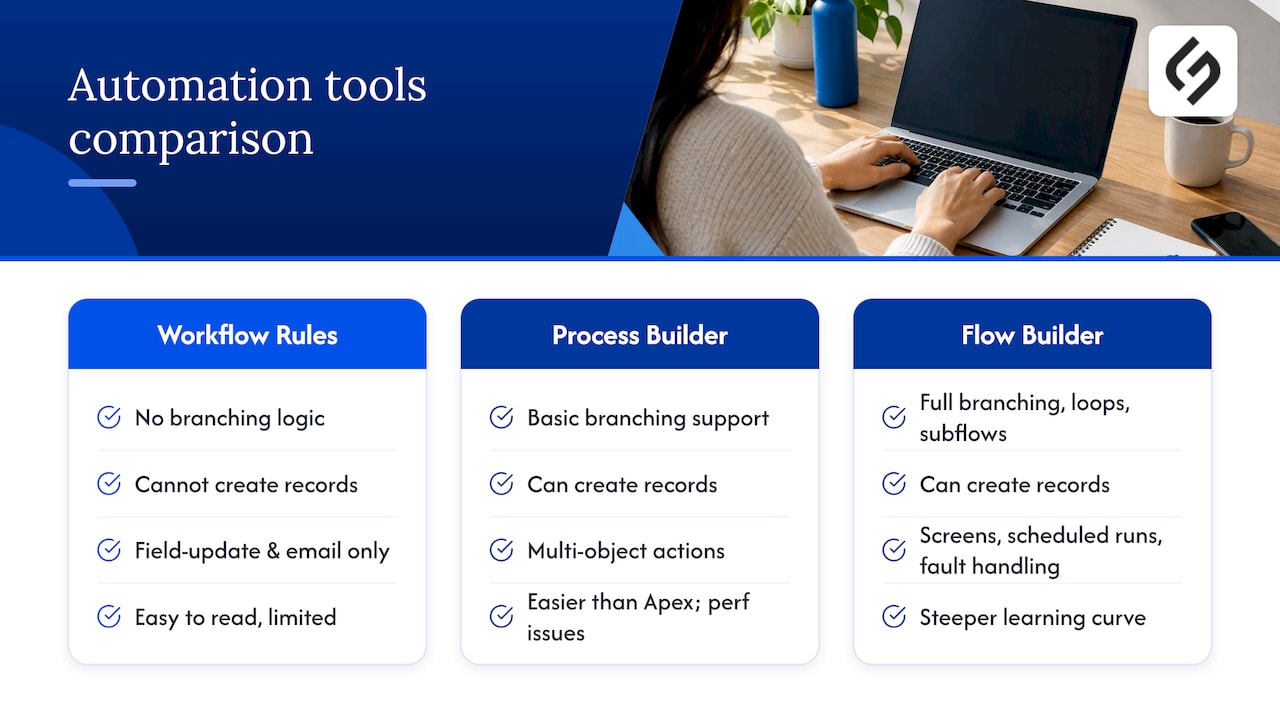
Workflow Rules were the earliest option: simple, field-update-and-email automations with no branching logic and no ability to create records. They are easy to read but limited, and as noted above, they no longer receive support.
Process Builder came next, adding multi-object actions, record creation, and basic branching through a visual canvas. It was easier to use than Apex but struggled with performance at scale and, like Workflow Rules, reached end of support alongside Workflow Rules.
Flow Builder is the current and only actively developed option. It supports everything the older tools did, plus loops, subflows, screen input, scheduled batch runs, and fault handling. The tradeoff is a steeper learning curve for complex logic, but it is the only one of the three Salesforce continues to invest in and support, which makes it the default choice for any new automation and the required target for migrating existing workflow rules or processes.
Connecting Salesforce automation to outside systems
Flows rarely operate in isolation for long. Most orgs eventually need a flow to call an external service, sync a record to another platform, or pull data from a tool outside Salesforce entirely.
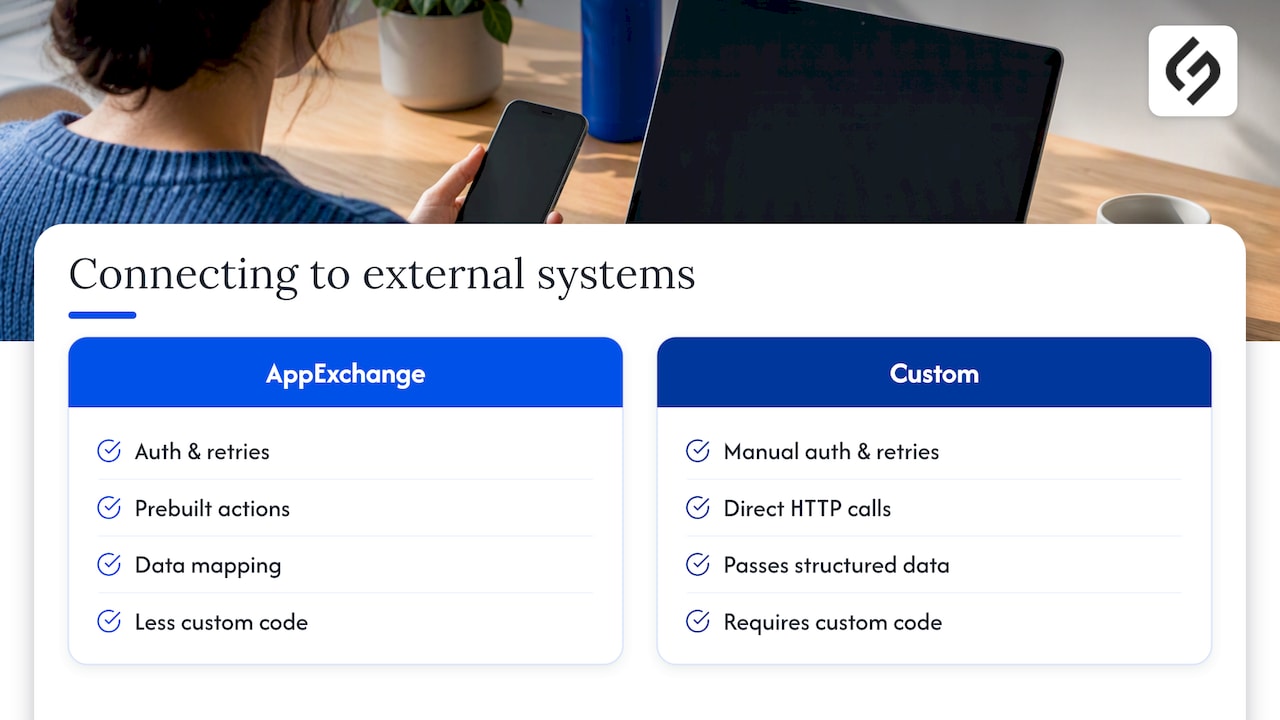
AppExchange apps extend what a flow can do without custom code: document generation tools, data enrichment apps, and integration connectors that handle authentication and data mapping so your flow just calls a defined action. For custom integrations, autolaunched flows can call external services directly, with the flow passing structured data out and receiving a response back to act on.
A common real-world pattern is a new-lead notification that needs to reach a channel outside Salesforce entirely, such as a messaging platform or an answering service queue. Dexcore Technologies’ guide to new lead notifications walks through setting up that kind of cross-system alert so a lead never sits unactioned because nobody was watching the CRM tab.
Before building a custom integration, check whether an AppExchange package already solves the problem. A vetted connector usually handles authentication, error retries, and data mapping more reliably than a first custom build, and it leaves your flow logic focused on the Salesforce-side decision making rather than the plumbing.
What admins consistently get wrong on real projects
The most common mistake I see is not a bad flow design, it is skipping the planning step entirely and opening Flow Builder before writing down what the automation should actually accomplish. That single habit prevents more production fires than any governor limit ever will.
The second pattern worth naming: teams underestimate how much cross-system work adds complexity. A flow that only touches Salesforce is forgiving. A flow that also needs to sync to a marketing platform or a help desk tool is not, and our case study on Pipedrive automation shows how much planning that kind of cross-platform work actually takes. When complexity or integration scope outgrows what your team can safely test in a sandbox, bringing in a consultant earns back the time it costs.
How we help with Salesforce automation projects
We build and support Flow Builder automations as part of our broader CRM & SaaS integration work, including migrating legacy Workflow Rules and Process Builder processes, designing bulk-safe flows with proper fault handling, and setting up monitoring so errors get caught before they reach a customer record.
Our approach stays consultative rather than templated: we scope each project around your actual object model and process gaps, not a generic build. For teams managing automation across Salesforce and other platforms, we also handle the CRM integration work that connects flows to the rest of your stack.
| Project stage | What we cover |
|---|---|
| Audit | Review existing Workflow Rules, Process Builder processes, and Flow Builder automations for migration and reliability gaps |
| Build | Design record-triggered, scheduled, and screen flows with fault paths and bulk-safe patterns |
| Integrate | Connect flows to third-party systems and AppExchange tools |
| Support | Ongoing monitoring, error alerting, and flow maintenance |
If your automation backlog includes a Workflow Rule or Process Builder migration, or a flow that needs to talk to a system outside Salesforce, visit our services page to request a project scope and consultation.
FAQ
A record-triggered flow that creates a task when a new lead is created is one of the simplest starting points, since it uses one object and one trigger condition. Trailhead’s introductory module walks through this exact build.
No. Workflow Rules and Process Builder reached end of support on December 31, 2025, and Salesforce recommends building all new automation in Flow Builder and migrating existing processes over time.
Keep Get Records, Create Records, Update Records, and Delete Records elements outside of loops, and instead collect changes in a variable during the loop and perform one bulk operation after it finishes. Trailhead’s loop-building guide shows this pattern in detail.
A fault path is a branch on a flow element that runs when that element fails, letting you capture the error message and respond gracefully instead of letting the flow crash silently. Trailhead’s fault path module recommends adding one to every data operation element.
Yes, flows can call external services directly or through AppExchange connector apps that handle authentication and data mapping, which is common for notification routing, document generation, and data sync use cases.