Security and Role Management in Zoho Projects: How Do You Protect Your Projects and Control Access?
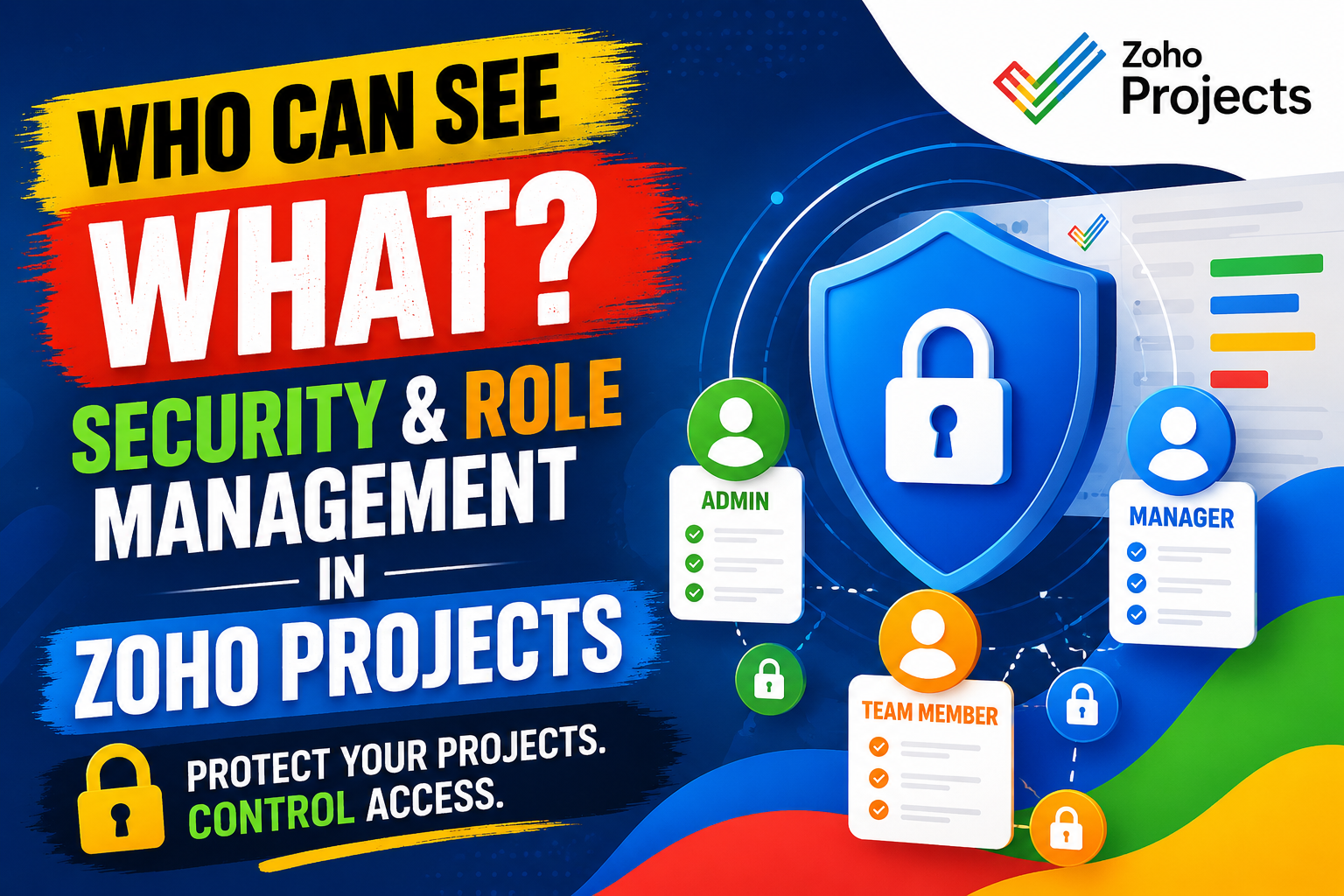
Every project manager eventually faces the same question: who should see what? Whether you run a five-person agency or a 500-person enterprise, giving the wrong person access to the wrong information creates costly mistakes, compliance risks, and broken trust. Zoho Projects tackles this challenge head-on with a layered security and role management system that lets organizations define exactly what each team member can view, edit, and delete — without sacrificing collaboration speed.
This article explores every dimension of security and role management in Zoho Projects, explains why each feature matters for real teams, and shows how partnering with Solution for Guru helps you configure these capabilities correctly from day one.
Table of contents
Quick Summary: What Does Zoho Projects Offer for Security and Access Control?
| Feature | What It Does | Who Benefits |
| User Roles | Assigns predefined permission sets to project members | All team sizes |
| Custom Profiles | Creates organization-specific permission combinations | Mid-to-large teams |
| Portal-Level Access | Controls who enters the Zoho Projects workspace | Admins, IT teams |
| Project-Level Permissions | Restricts access to individual projects | Project managers |
| Task-Level Privacy | Hides specific tasks from selected users | Sensitive project work |
| Client User Access | Limits external stakeholders to view-only data | Agencies, consultancies |
| IP Restriction | Blocks logins from unauthorized networks | Security-conscious orgs |
| Two-Factor Authentication | Adds a second login verification layer | All organizations |
| Audit Logs | Records every user action for accountability | Compliance teams |
| Data Encryption | Protects data at rest and in transit | All users |
How Does Zoho Projects Relate to Security and Role Management?

Why Does a Project Management Tool Need Built-in Security?
Zoho Projects is a cloud-based project management platform used by teams across construction, software development, marketing, finance, and professional services. Because teams store sensitive project plans, budgets, client data, and internal communications inside Zoho Projects, the platform carries significant responsibility for protecting that information.
According to IBM’s Cost of a Data Breach Report 2025, the average cost of a data breach reached $4.45 million — a figure driven heavily by unauthorized access to internal business systems. Cloud-based project management tools, which house confidential timelines, contracts, and financial data, represent exactly the kind of target that attackers pursue. Zoho Projects addresses this threat by embedding security controls directly into the project management workflow, so teams protect their data without switching to a separate security tool.
Furthermore, regulatory frameworks like GDPR in Europe and HIPAA in the United States require organizations to demonstrate that they control who accesses personal or sensitive data. Zoho Projects’ role-based access system creates a documented, auditable trail of permissions — which satisfies many of these compliance requirements without additional software.
What Are the Core Role Types in Zoho Projects?
How Do Default Roles Work in Zoho Projects?
Zoho Projects ships with several default roles that cover the most common team structures. Each role carries a predefined set of permissions that determine what a user can create, edit, view, and delete within a project.
The five standard roles in Zoho Projects are:
| Role | Access Level | Typical User |
| Portal Owner | Full access to all settings, billing, and projects | Business owner, IT admin |
| Administrator | Manages users, projects, and settings (no billing) | Operations manager |
| Manager | Creates and manages projects and tasks | Project manager, team lead |
| Employee | Works on assigned tasks; limited project-level settings | Developer, designer, analyst |
| Client | View-only access to selected project data | External client, stakeholder |
These default roles work well for small teams that need quick setup. However, as organizations grow and project complexity increases, most teams find that these broad categories do not reflect their actual workflow needs — which is where custom profiles become essential.
What Permissions Does Each Default Role Control?
Each default role in Zoho Projects governs a specific range of actions across the platform. Understanding the permission matrix helps project managers assign roles accurately the first time, reducing the need for constant permission adjustments.
Administrators can add and remove users, create projects, set billing contacts, configure integrations, and manage all portal-level settings. They cannot, however, override individual project permissions set by the project manager.
Managers can create milestones, tasks, and subtasks; set deadlines; assign work to team members; run reports; and manage project-level documents. They cannot access billing settings or add new portal users.
Employees can view assigned tasks, log time, leave comments, upload documents to permitted folders, and update their own task statuses. They cannot create projects, view budgets, or access reports unless a manager explicitly grants those rights.
Client users represent an especially important role for agencies and consultancies. Clients see only the data the project manager chooses to share — typically milestone progress, approved deliverables, and selected task lists — while remaining completely invisible to internal discussions, budget data, and team communications.
How Do Custom Profiles Give You Finer Access Control?
Why Do Growing Teams Need Custom Permission Profiles?
Default roles cover broad job categories, but real organizations have nuanced needs. A marketing agency might need a ‘Copywriter’ role that can create tasks and upload documents but cannot see budget fields. A software company might need a ‘QA Engineer’ profile that can view all tasks and leave comments but cannot reassign work or delete anything.
Zoho Projects solves this through custom profiles — user-defined permission sets that mix and match granular capabilities across every module in the platform. Admins build custom profiles from a permission matrix that covers tasks, milestones, bugs, documents, timesheets, forums, pages, reports, and project settings.
Key permission dimensions you control in a custom profile:
- Create: Can the user add new items in this module?
- Edit: Can the user modify existing items?
- Delete: Can the user remove items permanently?
- View: Can the user see items in this module at all?
- Export: Can the user download data from this module?
How Do You Build a Custom Profile Step by Step?
Creating a custom profile in Zoho Projects takes less than five minutes once you know the permission matrix. The process follows this sequence:
- Navigate to Portal Settings → Users & Roles → Profiles
- Click Add Profile and name the new role (e.g., ‘Senior Copywriter’)
- Work through each module — Tasks, Milestones, Bugs, Timesheets, Documents, Forums, Reports — and toggle each permission on or off
- Save the profile and assign it to individual users or groups
The result is a precisely scoped permission set that reflects how that person actually works, rather than forcing them into an oversized or undersized default role.
Example custom profiles for common team structures:
| Profile Name | Can Create Tasks | Can View Budget | Can Delete Files | Can Export Reports |
| Senior Developer | Yes | No | No | No |
| Project Accountant | No | Yes | No | Yes |
| External Reviewer | No | No | No | No |
| Content Lead | Yes | No | Yes (own) | No |
How Does Portal-Level Security Protect Your Entire Workspace?

What Controls Exist at the Zoho Projects Portal Level?
The portal is the top level of your Zoho Projects environment — it contains all your projects, users, and settings. Security decisions at the portal level affect every project inside it, making them the most impactful controls you manage.
Zoho Projects gives portal administrators several powerful tools at this level:
- User provisioning and deprovisioning — Administrators add users by email invitation and remove them instantly when they leave the organization. Unlike some platforms where departing users retain access for days after offboarding, Zoho Projects deactivates portal access immediately upon removal.
- Domain restriction — Administrators can limit sign-ups and logins to users from a specific email domain (e.g., only @yourcompany.com addresses). This prevents contractors and external partners from accidentally joining your portal with personal email accounts.
- IP-based access control — Organizations can whitelist specific IP addresses or IP ranges, ensuring that only users on an approved network — such as the office network or a company VPN — can access Zoho Projects. This control directly addresses the risk of credential theft, because even a stolen password cannot grant access from an unauthorized location.
- Session management — Portal owners can set maximum session durations and force automatic logout after periods of inactivity, reducing the risk of unauthorized access through unattended devices.
How Does Two-Factor Authentication Strengthen Zoho Projects Login Security?
Two-factor authentication (2FA) adds a second verification step beyond the password — typically a time-sensitive code delivered via authenticator app or SMS. Zoho Projects supports 2FA through Zoho’s unified identity layer, and portal administrators can make it mandatory for all users.
According to Microsoft’s research, enabling multi-factor authentication blocks over 99.9% of automated account compromise attacks. For project management portals that contain sensitive client data, budget information, and proprietary workflows, 2FA represents one of the highest-return security investments available.
Furthermore, Zoho’s unified login system (Zoho OneAuth) supports biometric authentication on mobile devices, hardware security keys via FIDO2/WebAuthn standards, and backup verification codes — giving teams flexibility in how they implement the second factor without sacrificing security rigor.
How Do Project-Level Permissions Refine Access Within a Portal?
Can You Control Who Sees Individual Projects in Zoho Projects?
Yes — and this capability matters enormously for organizations that run multiple client engagements or internal initiatives simultaneously. Zoho Projects lets project managers set each project as either public (visible to all portal users) or private (visible only to explicitly invited members).
Private projects remain completely invisible to uninvited portal users. A developer working on Client A’s software project cannot see that Client B’s project even exists — which is critical for agencies that serve competing clients or for enterprises with confidential internal programs.
Project-level permission scenarios:
| Scenario | Recommended Setting | Zoho Projects Feature Used |
| Agency serving two competing clients | Separate private projects per client | Private project + client user role |
| HR running a confidential reorganization | Private project with manager-only access | Private project + custom profile |
| Cross-functional product launch | Public project with role-based editing limits | Public project + custom profiles |
| External vendor collaboration | Private project with vendor as client user | Private project + client role |
How Do Task-Level Privacy Controls Work?
Beyond project-level visibility, Zoho Projects supports task-level privacy — a granular feature that lets project managers hide specific tasks from specific team members within the same project.
This capability serves teams that mix sensitive and routine work inside a single project. For example, a marketing project might contain routine content tasks visible to the whole team alongside confidential budget negotiation tasks visible only to senior managers. Task-level privacy lets both types of work live in one project without forcing a separate project structure.
Project managers enable task privacy by marking individual tasks as private and selecting which team members can view them. All other project members see the task list without the hidden tasks — they receive no indication that private tasks even exist.
How Does Zoho Projects Handle Document and File Security?
What Controls Protect Files Stored in Zoho Projects?
Zoho Projects includes a built-in document management module where teams store project files, contracts, design assets, and reference materials. The platform applies folder-level permissions to document storage, allowing project managers to specify which roles can view, upload, download, edit, and delete files in each folder.
This folder-level control matters because documents often contain more sensitive information than task descriptions. A project folder might hold a contract with a negotiated pricing structure — information the client user should never see. By restricting that folder to Manager and Administrator roles only, the project manager ensures sensitive documents stay protected even while the broader project remains accessible to the wider team.
Additionally, Zoho Projects encrypts all stored files using AES-256 encryption — the same standard used by financial institutions and government agencies. Data in transit between users and Zoho’s servers travels over TLS 1.2 and TLS 1.3 encrypted connections, preventing interception during upload and download.
How Does Version Control Support Document Security?
Document version control in Zoho Projects adds another security layer by maintaining a complete history of every change made to stored files. When a user uploads a revised version of a document, Zoho Projects preserves the previous version — including a timestamp and the identity of the user who made each change.
This version history supports two security goals. First, it creates accountability — if someone modifies a document incorrectly or maliciously, the audit trail identifies exactly who made the change and when. Second, it enables recovery — if a file is overwritten with incorrect content, the team restores the previous version in seconds rather than losing work permanently.
What Do Audit Logs Reveal About User Activity in Zoho Projects?
How Do Audit Logs Support Compliance and Accountability?
Zoho Projects maintains detailed audit logs that record every significant user action within the portal: user additions and removals, permission changes, project creation and deletion, task edits, file uploads, and setting modifications. Portal administrators access these logs from the Settings panel and can filter by user, date range, and action type.
Audit logs serve three critical functions for security-conscious organizations:
- Compliance evidence: Regulators and auditors increasingly require proof that organizations control and monitor data access. Zoho Projects’ logs provide timestamped, user-attributed records that satisfy many GDPR, SOC 2, and ISO 27001 audit requirements
- Incident investigation: When something goes wrong — a deleted task, an unauthorized permission change, a leaked document — the audit log identifies exactly what happened and who did it
- Behavioral monitoring: Admins who review logs regularly spot unusual patterns before they escalate into serious incidents, such as a user downloading large volumes of files shortly before their last day
How Long Does Zoho Projects Retain Audit Log Data?
Zoho Projects retains audit log data according to the organization’s subscription tier. Enterprise-tier subscribers receive longer retention windows, which supports compliance programs that require multi-year records. Organizations with specific retention requirements should confirm their tier’s retention period and supplement with exported log archives if necessary.
Furthermore, Zoho’s broader security infrastructure holds ISO 27001 certification, SOC 2 Type II attestation, and GDPR compliance documentation — providing external validation that the platform’s security practices meet internationally recognized standards.
How Do You Manage Client Access Without Compromising Internal Data?

What Makes the Client User Role Unique in Zoho Projects?
The Client role in Zoho Projects solves one of the most common pain points for service businesses: how to keep clients informed without giving them access to internal discussions, team costs, or sensitive project details. For example, client users access a curated view of the project that shows only what the project manager explicitly shares.
Client users in Zoho Projects can:
- View milestone progress and completion percentages
- See task statuses for tasks the manager marks as client-visible
- Access approved documents in shared folders
- Submit and view bug reports (if the manager enables this)
- Communicate through designated comment threads
Client users in Zoho Projects cannot:
- See internal team discussions or private task comments
- Access timesheet data, hourly rates, or budget fields
- View team members’ profiles or contact information
- Edit or delete any project content
- Access other projects in the portal
This separation gives clients transparency into project progress while protecting the business intelligence, pricing, and internal communications that drive competitive advantage.
What Are the Key Conclusions About Security and Role Management in Zoho Projects?
Why Does Getting Security Right in Zoho Projects Matter So Much?
Zoho Projects delivers a remarkably comprehensive security and role management system — one that competes favorably with enterprise project management tools at a fraction of the price. The combination of portal-level controls, custom permission profiles, project-level privacy, task-level access restrictions, document encryption, and detailed audit logs gives organizations the tools they need to protect sensitive project data without sacrificing team collaboration.
The most important insight, however, is that security features only protect your organization when you configure them deliberately. Default roles work for initial setup, but every organization eventually needs custom profiles that reflect its actual workflow, compliance requirements, and risk tolerance.
Additionally, security in Zoho Projects is not a one-time setup task — it requires ongoing maintenance as teams grow, projects change, and regulations evolve. Building a review cadence for user access, audit logs, and permission profiles ensures your security posture remains strong over time.
Partnering with Solution for Guru accelerates this process by combining deep Zoho Projects expertise with security configuration best practices, so your organization gains the full protective value of Zoho Projects’ security architecture from the very first project. Whether you start with a small team or scale to hundreds of users, the right role management foundation in Zoho Projects keeps your data safe, your clients confident, and your projects on track.
Final Recommended Security Setup Checklist for Zoho Projects:
| Action | Priority | Responsible Party |
| Enable 2FA for all portal users | Critical | Portal Admin |
| Configure IP restrictions for office/VPN networks | High | IT / Solution for Guru |
| Create custom profiles for each role in your org | High | Admin / Solution for Guru |
| Set all client projects to Private | High | Project Manager |
| Apply folder-level permissions to document library | Medium | Project Manager |
| Enable task-level privacy for sensitive tasks | Medium | Project Manager |
| Schedule monthly audit log reviews | Medium | Admin |
| Establish user offboarding checklist | High | HR + Admin |
| Document all permission profiles in a reference guide | Medium | Solution for Guru |
Frequently Asked Questions
Yes. Zoho Projects supports Single Sign-On through SAML 2.0, which allows organizations to connect their existing identity provider — such as Okta, Microsoft Azure Active Directory, or Google Workspace — to the Zoho Projects portal. When SSO is active, users log in through their company’s centralized authentication system rather than a separate Zoho password. This consolidation reduces password fatigue, centralizes access control in the identity provider, and ensures that when IT disables an employee’s company account, their Zoho Projects access disappears simultaneously. Organizations that already use an enterprise identity provider should prioritize SSO configuration as part of their Zoho Projects security setup. Solution for Guru can handle the SAML configuration and testing process to ensure the integration works correctly before rolling it out to all users.
Zoho Projects gives enterprise customers the ability to choose their data residency region — the geographic location where Zoho stores their project data. Available regions include the United States, Europe, Australia, India, China, and Japan. For organizations subject to GDPR, selecting the European data center ensures that personal data remains within the European Economic Area, satisfying the GDPR’s data transfer restrictions without additional legal mechanisms. Beyond data residency, Zoho maintains a Data Processing Agreement (DPA) available to all business customers, which documents the contractual obligations Zoho accepts as a data processor under GDPR Article 28. Organizations operating under strict privacy regulations should work with a Zoho implementation partner like Solution for Guru to select the correct data residency region, configure data retention policies, and document their compliance framework before inviting users to the portal.
How Can Solution for Guru Help You Optimize Security in Zoho Projects?
What Does Working with Solution for Guru Add to Your Zoho Projects Setup?
Configuring security and role management in Zoho Projects correctly from the beginning prevents costly access errors, compliance gaps, and security incidents. Solution for Guru specializes in implementing and optimizing Zoho Projects for organizations of all sizes, with particular expertise in security configuration and access control.
Benefits of partnering with Solution for Guru:
- Security Architecture Design: Solution for Guru maps your organizational structure — departments, seniority levels, client relationships, vendor partnerships — to a custom Zoho Projects permission architecture before a single user logs in. This prevents the ad-hoc role sprawl that plagues self-configured portals
- Custom Profile Development: The team builds precisely scoped custom profiles that reflect how each role in your organization actually works, eliminating both over-permissioning (the security risk) and under-permissioning (the productivity drag)
- IP Restriction and 2FA Implementation: Solution for Guru configures network-level and authentication-level security controls so your portal complies with internal IT policies and external regulatory requirements from day one
- Client Portal Configuration: For agencies and consultancies, Solution for Guru designs client-facing project views that deliver transparency without exposing internal data — building trust with clients while protecting proprietary workflows
- Audit Log Review Processes: The team establishes monitoring routines and log review cadences that catch security anomalies before they escalate, turning Zoho Projects’ audit data into an active security tool rather than a passive record
- Ongoing Role Maintenance: As your team grows, changes, and turns over, Solution for Guru adjusts permission profiles and user assignments to match your evolving organizational chart — ensuring your Zoho Projects security posture stays current without burdening your internal IT team
- Training and Documentation: Solution for Guru delivers role-specific training so every team member understands their access level, how to request additional permissions, and why certain restrictions exist — turning security policies into team habits
Consequently, organizations that implement Zoho Projects with Solution for Guru‘s guidance spend less time troubleshooting permission errors and more time delivering successful projects.
Recommended:
- How Do You Successfully Manage Large Enterprise Projects in Zoho Projects?
- How Can You Integrate Zoho Projects with Slack, Microsoft Teams, and Email to Maximize Team Productivity?
- PMP Certification: Is It Worth It in 2026?
- Project Performance Analytics: Driving Data-Backed Decisions in Project Management
- Zoho Projects Data Structure
- KPIs Every U.S. Project Manager Should Track
- How Can You Automate Task Assignments and Notifications in Project Management?
- How Does Time Tracking and Billing Automation Transform Project Management?
- Resource Allocation and Capacity Planning in Project Management: How Do You Build Teams That Consistently Deliver?
- How Project Management Improves ROI for U.S. Businesses
- Most In-Demand Project Management Skills in the U.S. Job Market
- Zoho Projects Implementation for Software Development Teams
- Zoho Projects + Zoho CRM: Managing Sales-to-Project Workflows
- Using Zoho Projects for Agile Development
- Zoho Projects Architecture and Workflow Model
- What Essential Skills Do Successful Project Managers Need to Master?
- How Can AI Transform Project Management for Modern Teams?