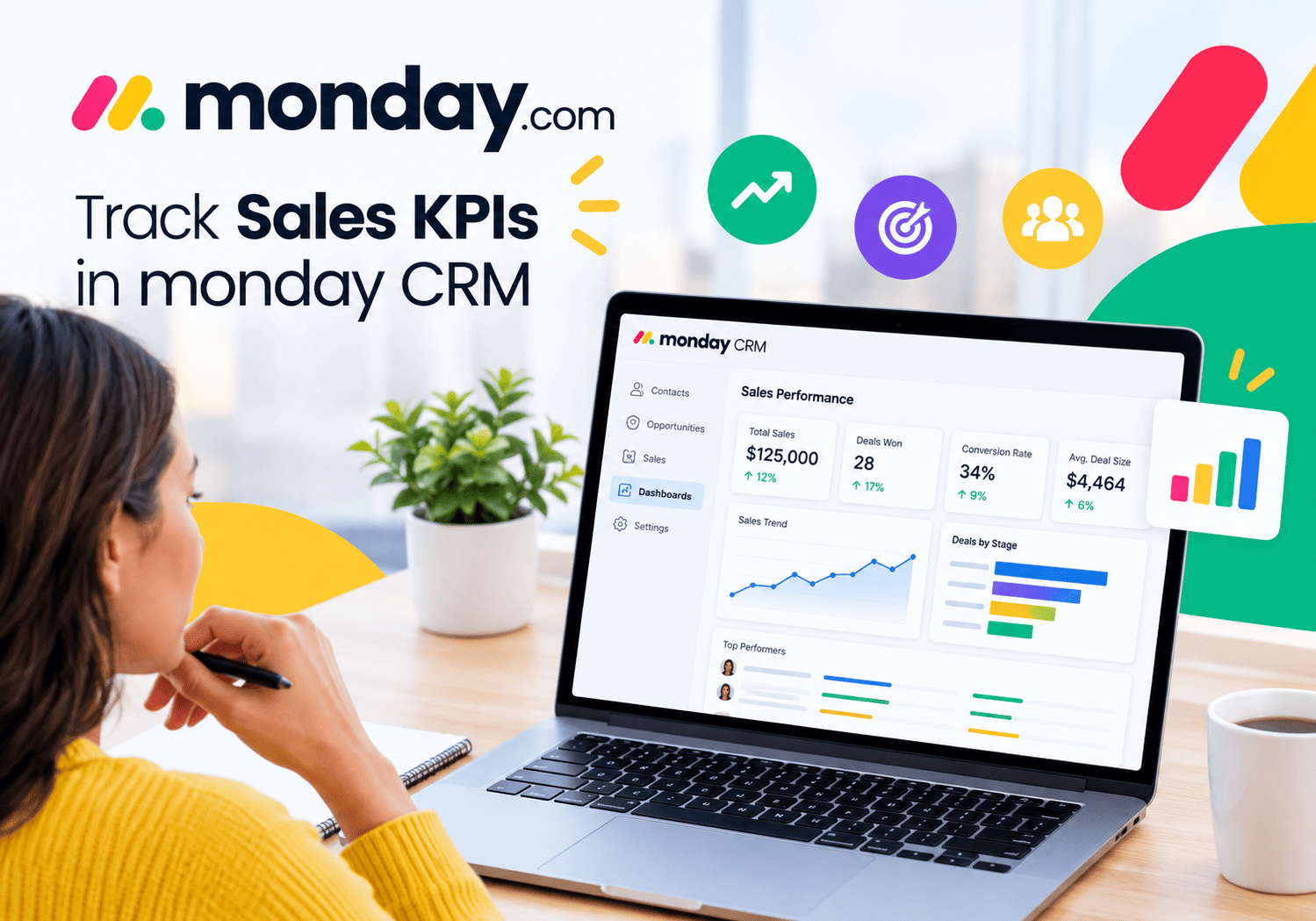
How to Build Powerful Sales Reports in Pipedrive

Sales success depends on more than just closing deals — it requires a clear view of what is working, what is not, and where your team should focus next. Pipedrive gives sales managers and reps a powerful reporting suite that transforms raw pipeline data into actionable insights. Whether you are a small startup or a growing enterprise, mastering Pipedrive’s dashboards and metrics helps you make smarter decisions, forecast revenue with confidence, and lead your team to consistent results. In this guide, you will discover exactly how to build, customize, and leverage sales reports inside Pipedrive to drive measurable growth.
Table of Contents
- Quick Summary
- What are Sales Reports in Pipedrive?
- How Does Pipedrive Relate to Dashboards and Metrics?
- How Do You Set Up Your First Sales Report in Pipedrive?
- Which Key Metrics Should Every Sales Report Track?
- How Do You Customize Pipedrive Dashboards for Your Team?
- How Can You Use Pipedrive Reports to Improve Forecasting?
- How Do You Share and Automate Reports in Pipedrive?
- What Are Advanced Reporting Features in Pipedrive?
- What Are the Key Takeaways for Building Powerful Sales Reports?
- Frequently Asked Questions
- How Can Solution for Guru Help You Get More from Pipedrive?
Quick Summary
| Topic | What You Will Learn |
|---|---|
| Sales Reports Basics | Understand what Pipedrive reports are and why they matter |
| Dashboard Setup | Build and customize your first reporting dashboard |
| Key Metrics | Identify the KPIs every sales team needs to track |
| Forecasting | Use reports to predict revenue and manage pipeline health |
| Automation | Schedule and share reports automatically |
| Advanced Features | Leverage AI-powered insights and custom fields |
| Expert Help | Discover how Solution4Guru accelerates your Pipedrive ROI |
What are Sales Reports in Pipedrive?
Sales reports in Pipedrive are structured data visualizations that aggregate your CRM activity into clear, measurable summaries. Rather than digging through individual deals manually, Pipedrive automatically compiles key sales activities, pipeline stages, revenue figures, and team performance data into reports you can read at a glance. Furthermore, these reports update in real time, so you always work with the latest information.
Pipedrive organizes reporting around three core concepts: Activities, Deals, and Revenue. Activity reports show what your reps do daily — calls made, emails sent, meetings booked. Deal reports reveal how opportunities move through your pipeline and where they stall. Revenue reports track won deals, lost deals, and overall performance against targets. Together, these three pillars give sales leaders a 360-degree view of team performance.
Importantly, Pipedrive’s reporting engine connects directly to the data you already input into the CRM. Every note, stage change, and closed deal feeds the reporting system automatically. As a result, you spend less time compiling spreadsheets and more time acting on insights. According to Salesforce research, high-performing sales teams are 2.8 times more likely to use analytics tools extensively — and Pipedrive makes that accessibility straightforward for teams of all sizes.
How Does Pipedrive Relate to Dashboards and Metrics?

Pipedrive is a sales-focused CRM platform that puts pipeline management and performance visibility at the center of everything it does. Unlike general-purpose CRM tools, Pipedrive designs every feature around the sales process — making dashboards and metrics a first-class feature rather than an afterthought.
Pipedrive’s Insights module serves as the platform’s dedicated reporting hub. Inside Insights, you build custom dashboards populated with interactive widgets — charts, leaderboards, goal trackers, and pipeline summaries. Each widget connects to live CRM data, so every metric reflects what is actually happening in your pipeline right now. Moreover, Pipedrive allows you to filter data by date range, team member, pipeline, or custom field, giving you surgical precision when analyzing performance.
What Makes Pipedrive’s Dashboard Approach Unique?
Most CRM platforms offer static reports. Pipedrive, however, takes a dynamic approach. Its dashboards respond instantly to filter changes, letting you slice data without waiting for reports to regenerate. Additionally, Pipedrive integrates goal-setting directly into dashboards — you can set revenue targets or activity quotas and then watch real-time progress bars fill as your team performs. This combination of live data and goal visualization makes Pipedrive dashboards a genuinely useful management tool rather than just a reporting exercise.
| Dashboard Feature | Description | Business Benefit |
|---|---|---|
| Insights Module | Central hub for all reports and dashboards | Single source of truth for sales data |
| Custom Widgets | Drag-and-drop chart and table builders | Visualize exactly the metrics you care about |
| Goal Tracking | Set revenue and activity targets | Keep teams accountable in real time |
| Live Filters | Filter by rep, date, pipeline, or stage | Instant segmentation without re-running reports |
| Shareable Dashboards | Share links or schedule email reports | Keep stakeholders informed automatically |
How Do You Set Up Your First Sales Report in Pipedrive?
How Do You Navigate to the Insights Module?
Setting up your first sales report in Pipedrive takes only a few minutes once you know where to look. First, log into your Pipedrive account and click the Insights icon in the left-hand navigation bar — it looks like a bar chart. This takes you directly to the Insights module, where all reporting and dashboard activity happens. If you do not see Insights, check that your subscription plan includes the feature; it is available on the Essential plan and above.
How Do You Create a New Dashboard?
Inside Insights, click the ‘+’ button next to ‘Dashboards’ in the left panel to create a new dashboard. Give your dashboard a descriptive name — for example, ‘Q2 Team Performance’ or ‘Monthly Revenue Tracker.’ Next, click ‘Add report’ to start populating your dashboard with widgets. Pipedrive presents you with a report type selector offering deals reports, activities reports, and revenue reports. Choose the type that matches your immediate goal.
After selecting a report type, Pipedrive walks you through a configuration panel. Here you choose your metrics (for example, number of deals won), grouping (by rep, by stage, or by time period), and visualization style (bar chart, line graph, table, or scorecard). Once configured, the report renders instantly and drops into your dashboard. You can then resize it, reposition it, and add more reports alongside it.
What Are the Most Useful Starter Reports for New Users?
If you are new to Pipedrive reporting, start with these four foundational reports that most sales teams find immediately valuable:
- Deals Won by Month — tracks revenue performance over time
- Deals Lost by Reason — reveals why deals fall through so you can address root causes
- Activities Completed by Rep — measures individual team member productivity
- Pipeline Value by Stage — shows where revenue concentrates and where bottlenecks occur
Which Key Metrics Should Every Sales Report Track?

Effective sales reporting centers on the right metrics. Track too many numbers and you lose focus; track too few and you miss critical trends. Consequently, Pipedrive’s most successful users build reports around a balanced set of leading and lagging indicators that together paint a complete picture of pipeline health.
What Are Leading vs. Lagging Sales Indicators?
Leading indicators predict future performance. They include activities like calls made, emails sent, and meetings booked — things your team controls right now that will influence results later. Lagging indicators, by contrast, measure outcomes that have already occurred, such as deals closed and revenue generated. A strong Pipedrive dashboard tracks both. Leading indicators help managers coach proactively, while lagging indicators confirm whether strategies actually work.
| Metric Type | Example Metrics | Why It Matters |
|---|---|---|
| Leading Indicator | Calls made, emails sent, demos booked | Predicts future pipeline health |
| Leading Indicator | New deals created per week | Shows top-of-funnel momentum |
| Lagging Indicator | Deals won and revenue closed | Confirms strategy effectiveness |
| Lagging Indicator | Average deal size | Reveals pricing and upsell trends |
| Pipeline Health | Stage-by-stage conversion rates | Identifies bottlenecks early |
| Pipeline Health | Average sales cycle length | Benchmarks efficiency over time |
How Do You Set Revenue Goals Inside Pipedrive?
Pipedrive‘s goal-setting feature lets you attach specific revenue or activity targets to your reports. Navigate to Insights, click a report, and select ‘Add goal.’ Choose a target value and a time period — for example, $50,000 in closed-won revenue by the end of the month. Pipedrive then displays a progress indicator directly on the report, giving your team instant visual feedback on how close they are to the target. Furthermore, you can set goals at the individual rep level, the team level, or across the entire organization.
How Do You Customize Pipedrive Dashboards for Your Team?
How Do Custom Fields Enhance Report Relevance?
Out-of-the-box Pipedrive reports cover most standard sales scenarios. However, most businesses have unique data points that standard fields do not capture — industry sector, product line, deal source, or customer tier, for example. Pipedrive lets you create custom fields on deals, contacts, and organizations, and these fields become available as filters and groupings inside Insights. Therefore, your reports can reflect the specific segmentation that drives decisions in your business.
For instance, if you sell to both enterprise and SMB customers, you might add a ‘Customer Segment’ custom field to deals. Once you add this, you can build a dashboard that compares average deal size, sales cycle length, and win rate across segments side by side. This level of granularity transforms generic reports into strategic tools that directly inform pricing, hiring, and go-to-market decisions.
How Do You Use Filters to Drill Down Into Data?
Every Pipedrive report supports multi-layer filtering. You can combine filters for date range, pipeline, stage, assigned user, custom field value, and more. Additionally, Pipedrive saves your filter configurations so you can return to the same view repeatedly without rebuilding it. This makes it straightforward to maintain a weekly rep-performance review that always shows the current week’s data, or a monthly leadership dashboard that spans the full quarter.
How Do You Organize Dashboards for Different Audiences?
Different stakeholders need different views. Sales reps benefit from dashboards focused on their own activity counts and deal progress. Sales managers need team-wide performance comparisons and pipeline health summaries. Executives want revenue totals and forecast accuracy. Pipedrive supports multiple dashboards simultaneously, so you can build a dedicated view for each audience. Moreover, you control who can see each dashboard, keeping sensitive performance data private where needed.
How Can You Use Pipedrive Reports to Improve Forecasting?
What is Revenue Forecasting in Pipedrive?
Revenue forecasting in Pipedrive works by projecting expected deal value based on your pipeline’s current composition, historical win rates, and deal close dates. Pipedrive’s forecast view in the pipeline section shows you which deals are expected to close in a given period, weighted by their probability of winning. This gives sales leaders a realistic revenue projection rather than an optimistic list of every open opportunity.
To build a reliable forecast, Pipedrive recommends keeping close dates and deal values updated consistently. The more accurate your team’s CRM hygiene, the more trustworthy your forecasts become. Consequently, many Pipedrive administrators build activity reports that surface stale deals — ones with no recent activity or outdated close dates — so managers can prompt their reps to update them regularly.
How Do Conversion Rate Reports Sharpen Your Forecast?
Conversion rate reports reveal what percentage of deals move from one pipeline stage to the next. For example, if 40% of deals that reach your demo stage ultimately close, you can multiply your current demo-stage pipeline value by 0.4 to get a statistically grounded forecast. Pipedrive calculates stage-by-stage conversion rates automatically inside Insights. Tracking these rates over time also reveals whether your team’s performance improves or deteriorates — which is critical data for coaching conversations and hiring decisions.
| Pipeline Stage | Deals in Stage | Historical Conversion Rate | Projected Closes |
|---|---|---|---|
| Initial Contact | 120 | 25% | 30 |
| Demo Booked | 55 | 40% | 22 |
| Proposal Sent | 30 | 60% | 18 |
| Negotiation | 18 | 80% | 14 |
| Closed Won | — | 100% | — |
How Do You Share and Automate Reports in Pipedrive?

How Do You Share a Dashboard with Your Team?
Pipedrive makes report sharing simple. Inside Insights, each dashboard has a ‘Share’ button that generates a shareable link. Team members with Pipedrive access can view the dashboard directly in their browser. You control visibility by adjusting the dashboard’s permission settings — choosing whether it is private to you, visible to your team, or open to the entire company. This flexibility ensures that sensitive data stays protected while keeping shared performance metrics accessible.
How Do You Schedule Automated Report Delivery?
Beyond manual sharing, Pipedrive lets you schedule automated report emails. Navigate to a report, click the email icon, and configure a delivery schedule — daily, weekly, or monthly. Pipedrive sends a formatted email with the report’s current data directly to the recipients you specify. As a result, executives receive regular performance updates without logging into the CRM, and managers stay informed even during busy travel periods. This automation reduces the administrative burden on sales operations teams significantly.
How Do Third-Party Integrations Extend Pipedrive Reporting?
Pipedrive connects with a wide ecosystem of business intelligence and reporting tools. For deeper analytics, many teams integrate Pipedrive with platforms like Google Looker Studio, Power BI, or Tableau via native connectors or through Zapier. These integrations pull Pipedrive data into more advanced analytical environments where you can build complex multi-source dashboards that combine CRM data with marketing attribution, financial data, or customer success metrics. Additionally, Pipedrive’s open API lets developers build custom data pipelines for enterprise reporting needs.
What Are Advanced Reporting Features in Pipedrive?
How Does Pipedrive’s AI Sales Assistant Support Reporting?
Pipedrive includes an AI Sales Assistant that analyzes your pipeline data and surfaces proactive insights directly in your dashboard. Rather than waiting for you to run a report, the AI assistant highlights unusual patterns — a deal that has gone cold, a rep whose activity has dropped, or a pipeline stage where deals are stalling longer than usual. These nudges keep managers and reps focused on the actions most likely to influence outcomes, adding an intelligent layer on top of traditional static reporting.
How Do Goals and Progress Reports Work Together?
Pipedrive‘s goals feature integrates tightly with its reporting system. When you set a revenue or activity goal, Pipedrive creates a corresponding progress report widget automatically. This widget shows the current value, the target value, the time remaining, and a visual progress bar. You can add these widgets to any dashboard, creating a real-time scoreboard that keeps the entire team aligned around shared targets. Furthermore, goal progress reports support filtering by individual rep, so each team member can track their personal contribution toward team-level objectives.
What Role Do Activity Reports Play in Coaching?
Activity reports are arguably the most powerful coaching tool inside Pipedrive. By showing each rep’s call volume, email count, and meeting schedule side by side, managers can quickly identify who is above quota on activities, who is falling behind, and whether activity levels correlate with revenue results. For example, if a rep makes significantly fewer calls than peers but maintains a similar close rate, that signals strong qualification skills worth sharing with the team. Conversely, a rep with high activity but low win rates may need coaching on pitch quality or discovery technique.
What Are the Key Takeaways for Building Powerful Sales Reports?
Building powerful sales reports in Pipedrive is one of the highest-leverage investments a sales leader can make. Throughout this guide, we have seen that Pipedrive provides a comprehensive, user-friendly reporting suite — from the Insights dashboard module to automated report scheduling and AI-powered coaching nudges — that covers every stage of the reporting journey.
The most successful Pipedrive users share a common approach: they start with clearly defined KPIs, build dashboards tailored to each audience, maintain disciplined data hygiene so reports stay accurate, and continuously refine their reporting setup as their business evolves. Importantly, they treat reports not as a retrospective exercise but as a forward-looking tool for coaching, forecasting, and decision-making.
Pipedrive makes all of this achievable without requiring deep technical expertise. Nevertheless, getting the configuration right from the start — and structuring dashboards that genuinely serve your sales strategy — benefits enormously from experienced guidance. That is why working with a specialist like Solution4Guru accelerates your return on investment and prevents the common pitfalls that plague self-serve CRM implementations.
Ultimately, the goal is not simply to have more reports — it is to have better decisions. Pipedrive gives you the tools; this guide shows you how to use them; and Solution4Guru ensures your setup delivers on its full potential.
Frequently Asked Questions
Pipedrive does not impose a strict limit on the number of dashboards you can create inside the Insights module. You can build as many dashboards as your team needs, each tailored to a different audience, time period, or business unit. However, for practical usability, most teams maintain between three and seven dashboards — one for executives, one for sales managers, one for individual reps, and additional dashboards for specific campaigns or seasonal reporting cycles. Keeping your dashboard library organized with clear naming conventions helps ensure the right people find the right data quickly.
Yes — Pipedrive reports update in real time based on the activity recorded in the CRM. As soon as a rep logs a call, moves a deal to a new stage, or marks an opportunity as won, the relevant reports and dashboards reflect the change immediately. There is no manual refresh or overnight data sync required. This real-time capability makes Pipedrive dashboards genuinely useful for daily sales stand-ups and intra-day pipeline reviews, rather than just end-of-month summaries.
Pipedrive’s Insights module handles the reporting needs of most small to mid-sized sales teams exceptionally well without any additional tools. However, for organizations that need to combine Pipedrive data with marketing analytics, financial systems, or customer success platforms into unified multi-source dashboards, a dedicated BI tool like Google Looker Studio, Power BI, or Tableau provides deeper analytical capability. Pipedrive’s open API and native integrations make this combination straightforward to implement, and Solution4Guru specializes in building exactly these kinds of integrated reporting environments for organizations ready to move beyond CRM-only analytics.
How Can Solution for Guru Help You Get More from Pipedrive?
Building powerful sales reports in Pipedrive is straightforward once you understand the platform — but getting there quickly, and doing it correctly from the start, requires expertise that most sales teams simply do not have in-house. That is precisely where partnering with a certified Pipedrive implementation specialist makes a decisive difference.
Solution for Guru is a specialized CRM consultancy with deep expertise in Pipedrive implementation, configuration, and optimization. Their team works directly with sales organizations to design reporting architectures that align with business goals — not just default out-of-the-box setups. Rather than spending weeks figuring out custom fields, filter logic, and dashboard organization through trial and error, you get a proven framework from day one.
Why Does Choosing the Right Implementation Partner Matter?
A poorly configured Pipedrive instance produces unreliable reports — and unreliable reports lead to bad decisions. Conversely, a well-structured CRM setup transforms Pipedrive into a genuine strategic asset. Solution for Guru brings the methodological rigor, Pipedrive-specific expertise, and change management experience to ensure your implementation succeeds the first time. For growing sales organizations that cannot afford costly detours, this partnership dramatically shortens the path from Pipedrive purchase to measurable revenue impact.
Recommended:
- Advanced Filtering in Pipedrive: Tips and Tricks
- Pipedrive Web Chat and LeadBooster: Generate More Leads from Your Website
- CRM Ecosystem Explained: Business and Technical Roles You Need
- What is CRM System Proficiency?
- How Should You Structure Your CRM Team for Maximum Success?
- Using Salesforce to Build a 360° Customer View
- What Should Investors Know About Salesforce Stock?
- What KPIs Should Every Business Track in Their CRM System?
- What is CRM Database?
- How Can CRM Analytics Transform Your Salesforce Experience?
- CRM Management
- Getting Started With Pipedrive
- What is Pipedrive CRM?
- Choosing the best low-cost CRM
- Top Microsoft Dynamics Alternatives and Competitors
- CRM Cost Comparison of Top Platforms