Troubleshooting and Common Issues in monday.com CRM: What Should You Know?

Managing customer relationships effectively demands reliable tools — and monday.com CRM has become a go-to platform for thousands of sales and operations teams around the world. However, like any powerful software, it occasionally presents users with technical hiccups, configuration challenges, and workflow bottlenecks. Consequently, knowing how to diagnose and resolve these issues can save your team hours of frustration and keep your pipeline moving smoothly.
This article walks you through the most common monday.com CRM problems, practical solutions, and expert tips to get your system back on track — fast.
Table of contents
Quick Summary: What Are the Most Common monday.com CRM Issues?
| Issue Category | Common Problem | Typical Fix |
|---|---|---|
| Login & Access | Users cannot log in or access boards | Check SSO settings and user permissions |
| Automations | Automations not triggering correctly | Review trigger conditions and integration tokens |
| Integrations | CRM data not syncing with third-party apps | Re-authenticate and check field mappings |
| Notifications | Missing or duplicate email alerts | Adjust notification preferences per user |
| Data & Columns | Filters or formulas returning errors | Validate column types and formula syntax |
| Performance | Slow loading times on large boards | Archive old items and limit board complexity |
| Mobile App | App crashing or features unavailable | Update app and clear cache |
| Permissions | Team members cannot edit items | Review board and workspace permission levels |
How Does monday.com CRM Relate to Troubleshooting and Common Issues?

monday.com CRM is a fully visual, highly customizable customer relationship management platform built on the monday.com Work OS. Unlike rigid legacy CRM systems, monday.com CRM lets teams design their own pipelines, automate repetitive tasks, and connect with dozens of third-party tools — all in one place.
Precisely because of this flexibility, troubleshooting becomes an important skill for every admin and power user. Since the platform allows deep customization, issues often stem from misconfigured automations, conflicting permissions, or incorrect field mappings rather than platform bugs. In other words, most monday.com CRM problems are solvable — you just need to know where to look.
Furthermore, monday.com CRM serves teams across sales, marketing, customer success, and operations. Each department uses the platform differently, which means the range of potential issues is broad. Throughout this article, we cover the most critical problem areas so you can troubleshoot confidently, regardless of your role.
Why Are Users Having Trouble Logging In to monday.com CRM?
Login problems rank among the most disruptive issues any team can face, since they block access entirely. Fortunately, most login failures follow recognizable patterns and resolve quickly once you identify the root cause.
Is Your SSO Configuration Causing Login Failures?
Many organizations configure monday.com CRM with Single Sign-On (SSO) via providers such as Okta, Azure Active Directory, or Google Workspace. When SSO breaks, users typically see error messages like ‘Authentication failed’ or get stuck in a login loop.
To resolve SSO issues, start by checking the following:
- Confirm that your identity provider (IdP) certificate has not expired — certificates commonly cause silent failures after renewal.
- Verify that the SAML assertion URL in your IdP matches the one in monday.com’s SSO settings exactly.
- Ensure the user’s email in monday.com matches the email attribute sent by the IdP.
- Ask affected users to clear browser cookies and try an incognito window to rule out cached credential conflicts.
Additionally, monday.com’s admin panel offers an SSO bypass link that allows account owners to log in even when SSO is broken — a useful emergency measure while you resolve the configuration.
Are Permission Levels Blocking User Access?
Beyond SSO, permission misconfiguration frequently prevents users from accessing the boards or workspaces they need. monday.com CRM offers several permission layers: account-level roles (Admin, Member, Viewer, Guest) and board-level permissions (Edit, Comment, View).
If a user reports they cannot see a board, verify that:
- They hold the correct account-level role for the content they need.
- The board is not set to ‘Private’ without them being added as a subscriber.
- Their guest or viewer status does not restrict the column types visible to them.
Why Are monday.com CRM Automations Not Working Correctly?
Automations are central to monday.com CRM’s value proposition — they eliminate manual data entry, send timely notifications, and move deals through your pipeline automatically. When they stop firing, the impact on productivity can be significant.
Are Your Automation Triggers Set Up Correctly?
The most common reason automations fail is an incorrectly configured trigger condition. For example, an automation set to fire ‘When status changes to Won’ will not trigger if the column being changed is named differently or if a user selects a label that looks the same but has a different internal value.
To diagnose trigger issues in monday.com CRM:
- Open the automation builder and review the trigger column and value carefully.
- Check whether the trigger relies on a ‘People’ column — these can behave unexpectedly when a user is deactivated.
- Look at the automation activity log (available in the board’s automation panel) to see if the automation fired but failed at a subsequent action step.
- Temporarily simplify the automation to isolate whether the trigger or the action is the problem.
Are Third-Party Integration Tokens Causing Automation Failures?
monday.com CRM integrates with tools like HubSpot, Salesforce, Gmail, Slack, and Zoom. These integrations rely on OAuth tokens that expire or revoke when passwords change, security policies update, or admin accounts are reassigned.
When an integration-based automation stops working, take these steps:
- Navigate to the integration center and look for a red warning icon next to the affected integration.
- Re-authenticate the integration using an admin account with sufficient permissions in both monday.com CRM and the third-party tool.
- Confirm that the third-party app’s API rate limits are not being exceeded — this is common with high-volume CRM environments.
| Automation Problem | Likely Cause | Resolution Steps |
|---|---|---|
| Automation not triggering | Wrong trigger column or value | Verify column name and label value in builder |
| Automation fires but action fails | Integration token expired | Re-authenticate the connected app |
| Automation runs on wrong items | Missing filter conditions | Add ‘Only if’ filters to scope the automation |
| Duplicate notifications sent | Multiple overlapping automations | Audit all board automations and consolidate |
| Automation delayed | High board activity or API limits | Reduce automation frequency or upgrade plan |
How Do You Fix Data Sync Issues Between monday.com CRM and Other Tools?
Data synchronization problems are among the trickiest issues to resolve in monday.com CRM because they often involve two separate platforms, each with their own configurations, API limitations, and user permission systems.
Why Is CRM Data Not Appearing in Connected Apps?
When data fails to flow between monday.com CRM and tools like Slack, Google Sheets, or your email platform, the problem usually falls into one of three categories: authentication failure, field mapping mismatch, or webhook timeout.
Here is how to systematically troubleshoot each scenario:
- Authentication failure: Re-authenticate the integration. Check that the authorizing user still holds admin rights in both systems. Token-based integrations (OAuth2) should be refreshed at least once per quarter.
- Field mapping mismatch: Open the integration settings and verify that each field in monday.com CRM maps to the correct field type in the connected app. For instance, a ‘Date’ column in monday.com will not map correctly to a ‘Text’ field in your CRM target.
- Webhook timeout: If you use custom webhooks, confirm that your receiving server responds within the timeout window (monday.com requires a response within 10 seconds). Slow or down servers cause webhook failures that appear as sync gaps.
Does Your Data Import Contain Formatting Errors?
Many teams encounter sync problems after importing data from CSV files or migrating from legacy CRMs. monday.com CRM expects specific formats for certain column types, and mismatches cause silent import failures.
Before importing data into monday.com CRM:
- Ensure date fields follow the ISO 8601 format (YYYY-MM-DD) unless your account uses a different locale setting.
- Remove special characters from numeric columns — commas in numbers like ‘1,000’ should become ‘1000’.
- Keep text fields under the 10,000-character limit to avoid truncation.
- Use monday.com’s built-in import preview to catch errors before committing the import.
What Causes Notification Problems in monday.com CRM?
Notifications keep your sales team informed about deal updates, task deadlines, and customer communications. When they arrive late, appear duplicated, or stop arriving altogether, team alignment suffers. Fortunately, most notification issues trace back to a handful of configuration settings.
Why Are Users Receiving Too Many or Too Few Notifications?
monday.com CRM sends notifications through multiple channels: in-app, email, and mobile push. Each user can customize their notification preferences, and these settings frequently conflict with board-level automation alerts.
If users report notification overload, check these settings:
- Each user should review their personal notification preferences under their profile settings and disable categories that are not relevant to their role.
- Admins should audit board automations that send notifications and consolidate overlapping ones — for example, two automations that both notify the assigned owner when a status changes.
- Turn off ‘Activity in boards you’re subscribed to’ if the user works across many active boards.
Conversely, if users miss notifications, verify that:
- Their email address is confirmed and active in monday.com.
- monday.com emails are whitelisted in your company’s spam filter (look for emails from notifications@monday.com).
- The user has not accidentally muted the board or item.
How Do You Resolve Formula and Column Errors in monday.com CRM?

monday.com CRM offers formula columns that let teams calculate deal values, track days in stage, score leads, and more. However, formula errors are surprisingly common, especially when teams migrate data or modify column structures after formulas are already in place.
Why Is Your Formula Column Showing an Error or Blank Value?
Formula errors in monday.com CRM usually display as a red exclamation mark or simply return blank. The most frequent causes include referencing a deleted column, using incompatible column types, or exceeding formula complexity limits.
Follow these steps to fix formula errors:
- Click on the formula column header and open the formula editor.
- Check each referenced column to confirm it still exists and has not been renamed.
- Verify that numeric operations only reference Number or Rating columns — referencing a Text column in a SUM formula will return an error.
- Simplify complex nested formulas by breaking them into intermediate columns. monday.com formulas have character and nesting limits.
- Use the formula preview feature to test output before saving.
| Formula Error Type | Cause | Fix |
|---|---|---|
| Blank result | Referenced column is empty or wrong type | Check source column type and ensure it has data |
| #ERROR! | Syntax mistake or unsupported function | Review formula syntax in the editor |
| Incorrect calculation | Column type mismatch (e.g., text vs number) | Change source column to correct type |
| Formula not updating | Board has too many automations or formulas | Simplify board structure or archive unused items |
What Should You Do When monday.com CRM Runs Slowly?
As your CRM scales and accumulates data, performance degradation becomes a real concern. Slow load times frustrate users and signal that your board architecture needs optimization.
Is Board Complexity Slowing Down monday.com CRM?
monday.com CRM boards slow down primarily because of item volume, automation density, and the number of columns. Boards with more than 10,000 active items or 50+ columns often experience noticeable lag.
To improve performance in monday.com CRM:
- Archive deals that closed more than 12 months ago — use the ‘Archive items’ feature to move them off the active board while preserving the data.
- Reduce the number of formula columns, since each one recalculates dynamically every time the board loads.
- Split oversized boards into multiple focused boards — for example, separate your ‘Active Deals’ board from your ‘Closed Won’ board.
- Disable automations that run on every item update if they are not strictly necessary.
- Use the Board Filters to display only current-period data by default, so users see fewer items on load.
How Do You Fix monday.com CRM Mobile App Problems?

The monday.com CRM mobile app for iOS and Android lets your sales team update deals, log calls, and respond to leads on the go. Nevertheless, mobile users occasionally encounter crashes, missing features, or sync delays.
Why Does the monday.com CRM App Keep Crashing?
Mobile app crashes typically stem from outdated app versions, insufficient device memory, or cached data corruption. Before reporting a bug to monday.com support, try the following steps:
- Update the app to the latest version from the App Store or Google Play — monday.com releases updates frequently and bug fixes are often included.
- Clear the app cache through your device settings (Android) or delete and reinstall the app (iOS).
- Free up device storage — apps crash more frequently when a device has less than 10% storage available.
- Toggle your connection between Wi-Fi and cellular data to rule out network-specific issues.
If crashes persist after these steps, note the exact sequence of actions that causes the crash and submit a detailed report through monday.com’s in-app support so their engineering team can reproduce and fix the issue.
What Are the Key Takeaways for Troubleshooting monday.com CRM?
monday.com CRM is a powerful platform that rewards well-configured, well-maintained environments. Most issues that teams encounter — from login failures and broken automations to slow performance and data sync gaps — have clear solutions once you understand the platform’s architecture and know where to look.
To summarize the most important takeaways:
- monday.com CRM issues most commonly arise from misconfigured automations, expired integration tokens, and overly complex board structures — not platform bugs.
- A systematic approach to troubleshooting — isolating the trigger, checking logs, and testing in stages — resolves the majority of problems without requiring support tickets.
- Preventive maintenance, such as archiving old items, auditing automations quarterly, and keeping integrations authenticated, reduces the frequency of issues significantly.
- Mobile problems almost always resolve with a simple app update and cache clear, while performance issues typically require board restructuring.
Ultimately, monday.com CRM works best when it is thoughtfully set up and regularly maintained. If your team struggles with recurring issues or wants to build a more sophisticated CRM environment, partnering with monday.com experts like Solution for Guru provides the fastest path to a stable, high-performing system.
Frequently Asked Questions About monday.com CRM Troubleshooting
When you rename a column in monday.com CRM, automations that reference that column by its original name can break silently. monday.com uses internal column IDs rather than display names in automation logic, but certain legacy automations may lose their reference during column restructuring. After renaming any column, open your automation panel, review every automation that interacts with that column, and re-select the column from the dropdown to refresh the reference. Going forward, plan column naming conventions before building automations to minimize this disruption.
monday.com CRM moves deleted items to a recycle bin that retains them for 30 days before permanent deletion. To recover lost items, navigate to your board, click the three-dot menu in the top right, and select ‘Deleted Items.’ From there, you can restore individual items or bulk-restore an entire deleted batch. If more than 30 days have passed, contact monday.com support immediately — in some cases, enterprise account holders can request a data snapshot restoration. As a best practice, train your team to archive items instead of deleting them, since archived items never enter the recycle bin and remain searchable indefinitely.
Absolutely. Solution for Guru specializes precisely in custom monday.com CRM implementations that go beyond standard templates and official guides. Whether you need a multi-board CRM architecture for a complex sales organization, custom API integrations with proprietary internal systems, or advanced formula-based scoring models for lead prioritization, their team builds solutions tailored to your unique requirements. Unlike general IT consultants, Solution for Guru’s experts hold deep monday.com platform knowledge and maintain direct relationships with monday.com’s partner network — giving your team access to beta features, priority support escalation paths, and implementation patterns refined through dozens of real-world deployments.
How Can Solution for Guru Help You Get the Most Out of monday.com CRM?
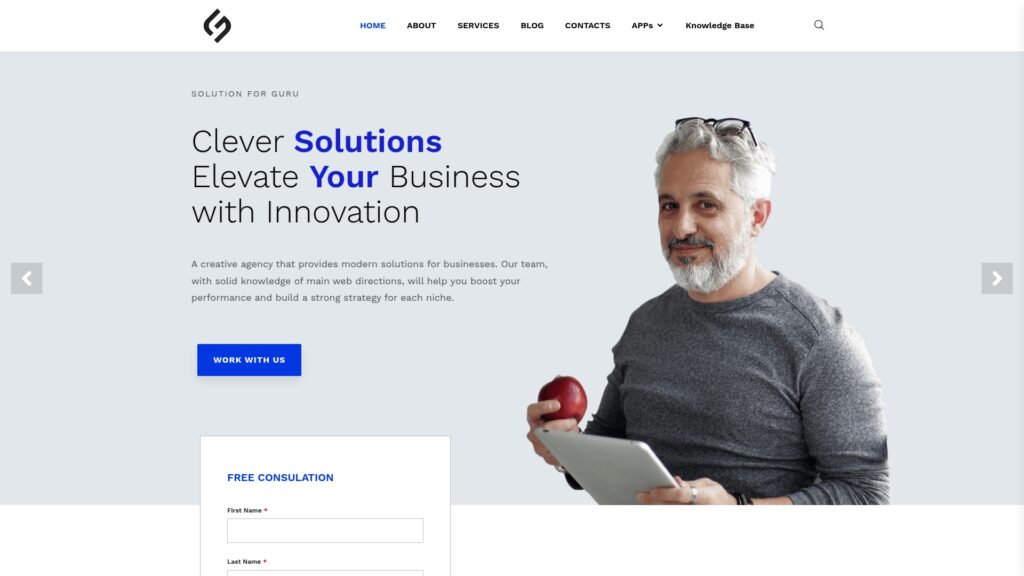
Troubleshooting monday.com CRM on your own is possible — but partnering with a certified expert accelerates results dramatically. Solution for Guru is a professional implementation and consulting company specializing in monday.com ecosystems, including CRM configuration, automation design, and team onboarding.
What Specific Benefits Does Solution for Guru Offer to monday.com CRM Users?
Working with Solution for Guru means you gain access to a team that has seen — and solved — virtually every monday.com CRM challenge across dozens of industries. Their experts do not just fix immediate problems; they build robust, scalable CRM architectures that prevent issues from recurring.
Key benefits of partnering with Solution for Guru include:
- Expert CRM Setup: Solution for Guru configures your monday.com CRM from the ground up, tailoring pipelines, column structures, and automations to your specific sales process — eliminating the trial-and-error that causes most common issues.
- Automation Audits: Their team reviews your existing automation library, identifies conflicts and redundancies, and rebuilds workflows for reliability and performance.
- Integration Architecture: Solution for Guru designs and implements integrations between monday.com CRM and your existing tech stack — CRMs, ERPs, email platforms, and custom APIs — ensuring clean, consistent data flow.
- Team Training: Beyond technical configuration, Solution for Guru provides structured training sessions so your team understands how to use monday.com CRM correctly, reducing user-generated errors.
- Ongoing Support: As your business scales, monday.com CRM configurations need to evolve. Solution for Guru offers ongoing support and quarterly health checks to keep your CRM performing optimally.
In short, Solution for Guru transforms monday.com CRM from a flexible tool into a reliable, strategic asset — precisely configured for how your team sells and serves customers.
Recommended:
- How Do You Set Up Salesforce and Outlook Integration the Right Way?
- Zoho CRM Implementation Guide for Enterprises
- 5 Essential Pipedrive CRM Features for Successful Sales
- Best HubSpot Integrations for Sales and Marketing Teams
- HubSpot CRM: What It Is and How It Works for Businesses
- Top Pipedrive Tips from the Community That Most Guides Don’t Cover
- What Is Bigin by Zoho CRM and Who Is It Best For?
- Creatio CRM Data Migration Best Practices
- Blueprint Automation in Zoho CRM: Process Engineering Approach
- Security & Compliance Considerations When Implementing Creatio
- BPM + CRM: Why Creatio Combines Both Worlds
- CRM Proficiency for Sales Teams: Turning Data into Deals
- Customer 360° View in Creatio: Benefits for Sales Teams
- The Pipedrive Gmail Add-On
- Creatio CRM Implementation Guide for U.S. Businesses
- How Does Zoho CRM Handle Multi-Pipeline Sales Architecture?
- How Does Creatio Improve Lead Management and Conversion Rates?
- Top CRM-Related Professions Every Modern Company Needs