How Do You Manage User Roles and Permissions in Smartsheet?
Every shared workspace runs on trust, and permissions turn that trust into rules. When a project team grows beyond a handful of people, questions pile up fast. Who can edit the budget sheet? Who can send it to a client? And, who owns the project plan when the project manager leaves?
Smartsheet answers these questions with a layered permission system. The system is flexible, but it also confuses many new admins, because it uses several overlapping terms. This guide breaks it down. You will learn how Smartsheet separates account roles from sharing permissions, how to assign each level, which mistakes to avoid and how to build a governance routine that scales. You will also see how a technology partner like Solution for Guru can help you put the plan into practice.
Table of contents
What Should You Know at a Glance?
Here is the short version.
- Smartsheet uses two layers. Account-level roles or seat types control who administers the plan, and item-level sharing permissions control what each person can do with a specific sheet, report or dashboard.
- Five sharing levels exist. They are Admin, Editor (can share), Editor (cannot share), Commenter and Viewer, plus the Owner who created the item.
- System Admins manage the plan. They handle users, seat types and Admin Center settings, but they do not automatically see item content.
- Groups and workspaces save time. Share to groups and workspaces instead of individuals wherever you can.
- Least privilege wins. Give people the lowest level that still lets them do their job.
- Governance needs a routine. Review access regularly, and plan for people who leave.
- Smartsheet Project Management supports the whole approach. It gives project teams a place to control who sees and changes each plan.
- A partner can speed up setup. Solution for Guru offers consulting, integration and automation services.
How Does Smartsheet Project Management Relate to Roles and Permissions?

Smartsheet Project Management is a work management platform. Teams use it to plan projects, track tasks, manage resources and report progress through sheets, dashboards, reports and workspaces. Because these items often hold budgets, timelines, customer details and internal decisions, access control sits at the centre of safe use.
Why Do Permissions Matter for Project Work?
Projects involve many people with different needs. A project manager builds the plan, team members update tasks, executives read summaries and clients review progress. Without clear permissions, someone will eventually delete a formula, share a confidential sheet or lose access at a critical moment.
Smartsheet Project Management addresses this by letting you control access at several levels. You can share a single sheet, a report, a dashboard or an entire workspace. Each choice affects how many people can see or change your work.
How Does This Article Connect to the Platform?
The rest of this article uses Smartsheet Project Management as the working example. Every recommendation below applies to how you configure and govern that environment. Note that Smartsheet is moving some plans from a legacy user type model to a newer seat type model, so check which one your plan uses before you follow any step.
What Is the Difference Between User Types and Sharing Permissions?
This distinction confuses more admins than any other. Smartsheet’s help centre explains that user type and permission level both shape what a person can do, yet they work independently. Understanding both layers prevents most access problems.
What Does the Account Layer Control?
The account layer defines what someone can do across the plan. According to Smartsheet’s help documentation, a paid user can create sheets, reports and dashboards, while a free user can only work with items shared with them. System Admins manage these user types for the plan.
Third-party summaries describe the account roles as System Admin, Group Admin and Licensed User. In the newer model, Smartsheet uses the term seat types, such as Member, Contributor and Guest. The help centre states that seat types are called user types in the legacy model.
What Does the Item Layer Control?
The item layer defines what someone can do with one specific sheet, report, dashboard or workspace. Smartsheet’s documentation explains that sharing permissions define what you can and cannot do with a specific item. A person might hold Admin permission on one sheet and Viewer permission on another.
How Do the Two Layers Interact?
The layers interact in useful ways, and they sometimes conflict. Smartsheet notes that an unlicensed user with Admin sharing permission on a sheet can manage sharing on that item, but that user still cannot create new sheets or own items. In other words, the sharing permission applies to the item, while the user type applies to the whole plan.
The help centre also explains that a System Admin on a Business or Enterprise plan might hold only Viewer access to a particular sheet, while an ordinary collaborator could hold Admin access to it. Do not assume that a high account role gives high item access.
What Are the Five Sharing Permission Levels in Smartsheet?
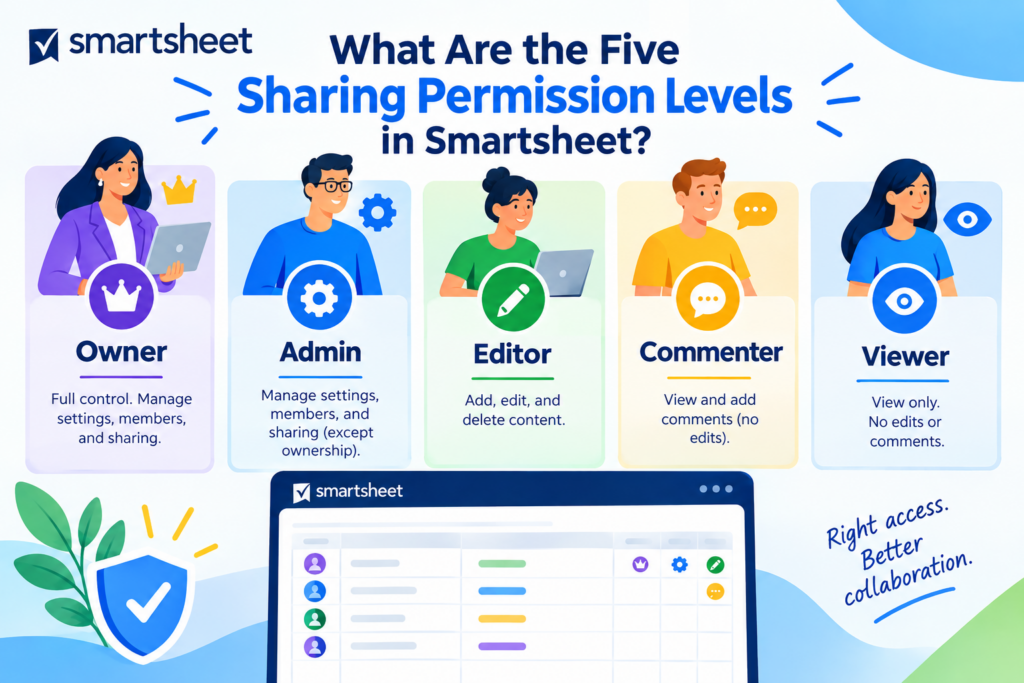
Smartsheet offers five permission levels when you share an item. Learn them thoroughly, because you will use them daily.
What Does Each Level Allow?
| Permission level | What the person can generally do | Typical use |
|---|---|---|
| Owner | Holds full control of an item they created, including sharing and deletion | The person who built the sheet |
| Admin | Manages the item, including structure, settings and sharing | Project managers and trusted co-owners |
| Editor (can share) | Edits content and shares the item with others | Team leads who bring in collaborators |
| Editor (cannot share) | Edits content but cannot share | Regular team members |
| Commenter | Views the item and adds comments and attachments | Reviewers and stakeholders who give feedback |
| Viewer | Views the item without editing | Executives, clients and auditors |
Smartsheet’s help centre lists Admin, Editor (can share), Editor (cannot share), Commenter and Viewer as the five levels. It also notes that the person who creates an item becomes its Owner.
What Is the Default Permission Level?
The help centre states that the default level when you share an item is Editor (can share). That default may surprise you. If you click through the sharing dialog quickly, you might grant more access than you intended. Always check the drop-down before you send an invitation.
How Do Commenters Differ from Viewers?
The difference is small but useful. Smartsheet explains that Commenters have the same permissions as Viewers, except that Commenters can leave comments and attachments. Choose Commenter for people who need to give feedback without changing data, for example a client who reviews a project plan.
What Happens When Someone Needs More Access?
People without enough permission see a request button instead of a share button. Smartsheet’s documentation says that Viewers, Commenters and Editors who cannot share see options such as “Request to edit,” which triggers an access request for an Admin or Owner to approve. This built-in flow helps you handle requests without email chains.
How Do Account-Level Roles Work in Smartsheet Project Management?
Account roles decide who manages the plan itself. Give them out sparingly, since they control users, billing information and security settings.
What Does a System Admin Do?
System Admins manage user access, seat types and settings through Admin Center. Third-party guidance notes that Admin Center user management is available only to System Admins, and that paid plans require at least one System Admin. Their tasks typically include:
- Adding and removing users.
- Changing seat or user types.
- Handling access requests.
- Managing security and sign-in settings.
- Reviewing sharing across the plan.
Can System Admins See Everything?
Not by default. Smartsheet‘s item ownership documentation says System Admins cannot open items to view them by default, and that admins without at least Viewer permission cannot see an item’s content. They can, however, create a sheet access report in Admin Center to list all items in the plan, and they can assign themselves as Admin when needed. This design protects sensitive content, such as HR or finance sheets, from unnecessary exposure.
What Does a Group Admin Do?
A Group Admin is a delegated role. According to a third-party user management guide, a System Admin assigns the role and it does not grant broader account admin rights. Use Group Admins to let a department manage its own groups without opening the full Admin Center.
How Do Seat Types Change the Picture?
In the newer model, seat types determine access and billing. Smartsheet’s documentation describes provisional members, who gain full functionality immediately at no cost for at least 30 days unless a System Admin changes their seat type. It also describes guests, who revert to a Contributor seat within 90 days if they hold no Editor permission or higher on any shared core item. Review these rules carefully, since they affect cost as well as access.
How Do You Share Items and Assign Permissions Step by Step?

Knowing the theory helps, but daily work depends on practice. This section walks through a reliable sharing routine.
What Steps Should You Follow When You Share an Item?
- Open the item. Choose the sheet, report or dashboard you want to share.
- Click Share. Enter the person’s email address or select a group.
- Pick the permission level. Choose the lowest level that fits their role.
- Add a message. Explain why you are sharing and what you expect.
- Send the invitation. Confirm that the recipient appears in the sharing list.
- Record the decision. Note the reason in your project documentation for later audits.
Who Can Share and Who Cannot?
Smartsheet’s documentation states that Owners, Admins and Editors with sharing rights can grant permissions to other users. Everyone else must ask. Limit the number of people who can share, because each extra sharer multiplies your risk.
How Do You Handle External Collaborators?
External users deserve extra caution. Smartsheet’s documentation warns that if you are on a Pro plan and share files with people outside your plan, those people get only Viewer access, and they must belong to your plan to apply changes such as writing comments. Plan ahead, so clients or partners can contribute without surprises. Verify current rules for your plan type, since Smartsheet updates its models.
What Should You Check After You Share?
Confirm three things. First, check that the person holds the right permission. Second, check that their user or seat type actually lets them use it. Smartsheet notes that downgrading someone to a free user type can stop them from using higher permissions, and that only a System Admin can upgrade their seat type. Third, test the experience by asking the person to open the item.
How Do Groups and Workspaces Simplify Permission Management?
Managing hundreds of individual shares becomes unmanageable. Groups and workspaces solve that problem.
Why Should You Share to Groups Instead of Individuals?
Groups let you assign permission once and update membership in one place. When someone joins a team, you add them to the group, and they inherit access to every item shared with that group. When someone leaves, you remove them and their access follows. This approach saves time and reduces mistakes.
How Do Workspaces Help?
Workspaces bundle related sheets, reports and dashboards under one share. Share a workspace and everything inside inherits the permission. For a project, create a workspace, add the plan, the budget, the risk log and the dashboard, then share the workspace with the right groups. Note that some permission behaviour differs between sheets and workspaces, and Smartsheet’s documentation adds that WorkApps use a separate permission model. Check the specific rules for each item type.
What Naming Conventions Keep Groups Tidy?
Clear names prevent confusion. Use a pattern such as “Department – Project – Role,” for example “Marketing – Website Relaunch – Editors.” Document each group’s purpose and owner. Without this discipline, old groups accumulate and nobody knows who belongs where.
Which Structure Works Best for a Typical Project?
| Level | Recommended approach |
|---|---|
| Workspace | One per project or program |
| Groups | One per role, such as Editors, Reviewers and Executives |
| Sheets | Inherit from the workspace unless a special case requires more |
| Dashboards | Share with Viewers or Commenters |
| Sensitive sheets | Keep in a separate workspace with tighter access |
How Do You Apply the Principle of Least Privilege in Smartsheet?
Least privilege means giving each person the minimum access they need. The National Institute of Standards and Technology (NIST) includes the concept in its SP 800-53 security and privacy controls under the access control family, and it applies well to collaboration tools.
How Do You Decide Who Gets What?
Ask three questions for each person and each item:
- Does this person need to see the data?
- Does this person need to change it?
- Does this person need to share it?
Most people need only the first, and a smaller number need the second. Very few need the third. Start at Viewer, then raise the level only when someone asks and has a good reason.
How Do You Protect Sensitive Data?
Separate sensitive work from general project work. Keep HR, legal and financial sheets in dedicated workspaces with limited groups. Review those workspaces more often than the rest. Also remember that System Admins do not see item content by default, so you can protect confidential material even from account administrators if you configure access carefully.
What Should You Avoid?
Avoid these common mistakes:
- Sharing everything as Editor because it feels convenient.
- Giving Admin permission to every project member.
- Sharing a sensitive sheet by email attachment instead of through Smartsheet.
- Leaving former staff and contractors on old shares.
- Relying on one person as the only Owner.
How Do You Prevent Ownership Gaps and Handle Departures?
People change jobs, and their departure can leave orphaned sheets. Smartsheet gives you tools to prevent that, but you must plan.
Why Does Ownership Matter?
The Owner controls an item. If the Owner leaves without transferring ownership, the team can lose the ability to manage it. Smartsheet’s documentation recommends assigning Admin permission to at least two users on important items to avoid such gaps.
What Should You Do When Someone Leaves?
Follow a short offboarding checklist:
- Identify every item the person owns.
- Transfer ownership to a current employee.
- Remove the person’s sharing from important items.
- Review groups and remove them.
- Update or deactivate the account.
Smartsheet explains that removing a user from your plan does not automatically block access to sheets they hold. To prevent access, the System Admin must transfer Owner permissions and remove sharing for that user. Follow the steps in order.
How Do You Find Abandoned Items?
Smartsheet’s documentation mentions a Manage Abandoned Items page in Admin Center that helps you find and reassign items with no active Admin or Owner. Check it on a schedule, for example every quarter.
Which Reports Help You Audit Access?
Use the sheet access report in Admin Center to list all items in your plan. Compare it with your groups and workspace structure, then investigate anything unexpected. This review takes little time and prevents large problems.
How Do You Build a Governance Routine Around Permissions?
One-time setup does not protect you for long. A regular routine keeps your permissions accurate.
What Should a Governance Policy Include?
A short policy works better than a long one nobody reads. Include:
- Who can create workspaces and groups.
- Which permission levels people receive by default.
- How to request more access.
- How often to review access.
- How to handle external collaborators.
- How to offboard people.
How Often Should You Review Access?
Set a rhythm that matches your risk. The table below offers a starting point.
| Review task | Suggested frequency |
|---|---|
| Sensitive workspaces | Monthly |
| Group membership | Quarterly |
| Sheet access report | Quarterly |
| Seat and user type review | Quarterly |
| Abandoned items check | Quarterly |
| Full policy review | Annually |
Who Should Own Governance?
Assign clear ownership. A System Admin usually manages the technical side, while a project management office or business lead sets policy. Delegate departmental work to Group Admins so central admins do not become a bottleneck.
How Do You Train Users?
Teach people the basics. Short sessions should cover the five permission levels, how to request access, why to share to groups and what never to share outside the platform. Well-informed users make fewer mistakes and ask better questions.
What Common Permission Problems Occur and How Do You Fix Them?

Even careful teams run into recurring issues. Recognising the patterns saves time.
Why Can’t a Person Edit After I Gave Them Editor Access?
Check the user or seat type first. Smartsheet notes that a free user type or a restricted seat type can prevent someone from using higher permissions. Then confirm that the person belongs to your plan, since external users often receive limited access. Finally, ask them to refresh or sign in again.
Why Can a Free User Not Leave Comments?
Smartsheet’s FAQ explains that people outside a Pro plan get only Viewer access to shared files, so they cannot write comments. Add them to your plan or choose a different sharing approach.
Why Do Some People See Data They Should Not See?
Look for inherited access. A workspace share may give someone access to every item inside. Also check group memberships and old individual shares. Remove excess access at the source, not only on the sheet where you spotted the problem.
Why Can’t I Find Who Owns a Sheet?
Use the sheet access report or the item’s sharing dialog. If nobody owns the item, use the abandoned items page to reassign it.
What Are the Key Takeaways?
Managing roles and permissions in Smartsheet comes down to understanding two layers and using them wisely. Account roles and seat types decide who administers the plan, while the five sharing levels decide what each person can do with each item. System Admins keep the platform healthy, groups and workspaces keep sharing manageable, and least privilege keeps risk low.
Smartsheet Project Management gives your teams a strong place to plan and deliver work, but it works best when you treat access as part of project design. Build a workspace structure, share to groups, protect sensitive material and plan for ownership gaps. Then review access on a schedule, train users and document your rules. Because Smartsheet keeps updating its user and seat models, confirm current details in the official help centre before you act.
If you want experienced support with governance, integration or automation, consider a consultation with Solution for Guru. A short planning session can save weeks of cleanup later.
What Questions Do Admins Ask Most About Smartsheet Roles and Permissions?
A System Admin manages the whole plan, including users, seat types and settings in Admin Center. A sheet Admin manages one specific item. Smartsheet’s documentation shows that the two roles operate independently, so a System Admin might hold only Viewer access to a sheet, while an ordinary user might hold Admin access to it.
Share with groups whenever you can. Groups let you update access in one place, which reduces mistakes and speeds up onboarding and offboarding. Reserve individual shares for special cases, and document the reason.
The sheet stays, but you may lose management control if nobody else holds Admin or Owner rights. Transfer ownership before the person leaves, remove their sharing and assign Admin rights to at least two people on important items. If you discover abandoned items later, use the Manage Abandoned Items page in Admin Center to reassign them.
How Can Solution for Guru Help You Manage Smartsheet Permissions?
Permission design looks simple on paper, but real organisations bring complications: mergers, contractors, regulated data and dozens of projects at once. A specialist partner helps you cut through the complexity.
Solution for Guru is a technology solutions company. Its website lists services such as custom web development, UI/UX design, SEO and digital marketing, AI and automation, CRM and SaaS integrations, cybersecurity and data protection, and tech consulting and strategy. The company also publishes software content, including a recent article on Smartsheet compliance and security, which shows its familiarity with the platform.
What Are the Benefits of Working with Solution for Guru?
- Platform know-how. The team works with project management and business platforms and can advise on structure, not just settings.
- Governance design. Tech consulting helps you build a clear permission model, group structure and review routine.
- Security focus. Cybersecurity and data protection services help you review access, authentication and data handling.
- Integration support. SaaS integrations connect Smartsheet with your other tools so identity and data stay consistent.
- Automation. AI and automation services can reduce repetitive admin work, such as onboarding and offboarding tasks.
- Tailored strategy. The company builds plans around your workflows and compliance needs, not a generic template.
- One partner for several needs. If you also want a project portal, a knowledge base or help content, the same team can handle it.
- Free consultation. The website offers a consultation form, so you can discuss your goals before you commit.
When Should You Bring in Outside Help?
Consider a partner when you plan a large rollout, migrate from another tool or handle sensitive data. You should also call for help when your admin team lacks capacity. Keep an internal owner for governance, however. A partner speeds up design and setup, but your organisation must make the final decisions.
Recommended:
- Smartsheet Compliance and Security: HIPAA, GDPR, and Enterprise Governance
- Smartsheet Automations 101: Alerts, Approvals, and Reminders Explained
- Smartsheet Pricing Explained: Plans, Costs, and Hidden Add-Ons
- What Is Smartsheet? A Complete Overview of Features and Use Cases
- Zoho Projects API Integration Guide: How Can You Connect Your Business Tools Effectively?
- Security and Role Management in Zoho Projects
- How Do You Successfully Manage Large Enterprise Projects in Zoho Projects?
- How Can You Integrate Zoho Projects with Slack, Microsoft Teams, and Email to Maximize Team Productivity?
- PMP Certification: Is It Worth It in 2026?
- Project Performance Analytics: Driving Data-Backed Decisions in Project Management
- Zoho Projects Data Structure
- KPIs Every U.S. Project Manager Should Track
- How Can You Automate Task Assignments and Notifications in Project Management?
- How Does Time Tracking and Billing Automation Transform Project Management?
- Resource Allocation and Capacity Planning in Project Management: How Do You Build Teams That Consistently Deliver?
- How Project Management Improves ROI for U.S. Businesses
- Most In-Demand Project Management Skills in the U.S. Job Market
- Zoho Projects Implementation for Software Development Teams
- Zoho Projects + Zoho CRM: Managing Sales-to-Project Workflows