How Do Smartsheet Forms Collect Data Without Manual Entry?
Every team collects information: project requests, client details, bug reports, expense claims, event registrations. Many teams still copy that information from emails and spreadsheets into a tracker. That habit wastes time, invites typos, and delays decisions.
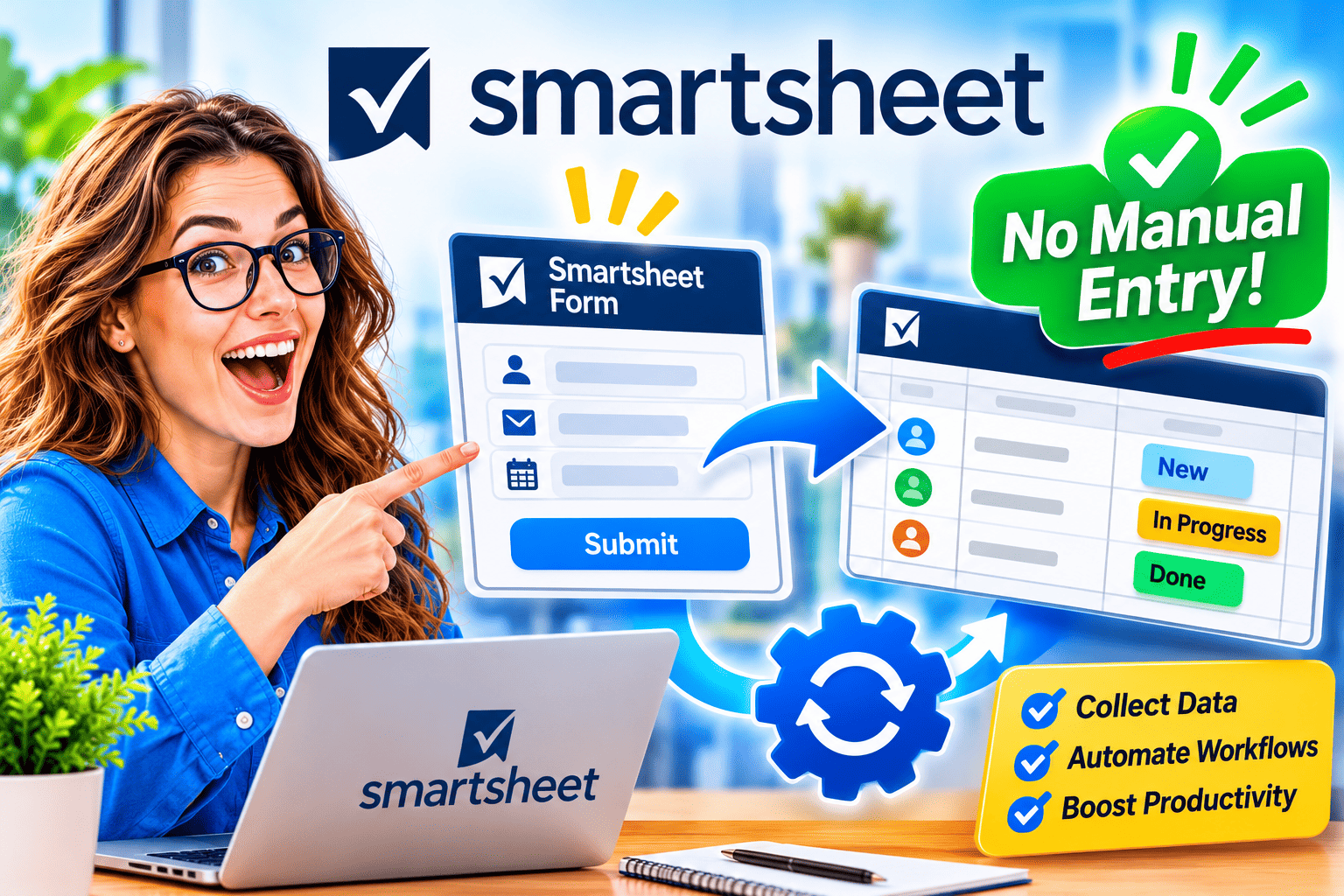
Smartsheet Forms solve the problem. A form captures data at the source, then writes each submission straight into a sheet as a new row. This guide explains how forms work, how to build them, how to automate the next steps, and how to avoid common mistakes. Along the way, you will see how Smartsheet Project Management brings the whole process together.
Table of contents
Quick Summary: What Will You Learn in This Article?
Short on time? Here are the key points:
- Forms replace manual entry. Each submission becomes a new row in your sheet automatically.
- Fields map to columns. You control which questions people see and where each answer lands.
- Smart features cut errors. Required fields, dropdowns, conditional logic, and hidden fields keep data clean.
- Automation extends the value. Alerts, approvals, and update requests start as soon as a form arrives.
- Sharing is flexible. You can send a link, email the form, or embed it on a website or intranet.
- Governance still matters. Clear naming, access rules, and ownership keep forms reliable as usage grows.
- A partner speeds up results. Solution for Guru helps you design, roll out, and scale form-based workflows.
What Is Smartsheet Project Management and How Does It Relate to Forms?

Smartsheet Project Management is a work management platform that combines a spreadsheet-style grid with project views, dashboards, automation, and reporting. Teams plan tasks, track progress, assign owners, and share status in one place. Because the interface feels familiar, people adopt it quickly, even without technical training.
Forms form the intake layer of that platform. Instead of asking colleagues to email requests or edit a shared sheet, you give them a clean web form. Each submission lands in the project sheet, ready for assignment, scoring, or approval. As a result, Smartsheet Project Management turns scattered requests into a structured pipeline that managers can see, filter, and report on.
The platform also connects forms to its other strengths:
- Multiple views: Show the same data as a grid, card board, Gantt chart, or calendar.
- Automation: Trigger alerts, approvals, and reminders without manual follow-up.
- Dashboards: Summarize incoming requests with charts and metrics.
- Integrations: Connect to tools such as Microsoft Teams, Slack, and Google Workspace.
For current feature details and plan limits, check the official Smartsheet website and the Smartsheet Help Center.
Why Does Manual Data Entry Hurt Your Team?

Manual entry may look harmless, but it carries real costs. Someone must read an email, open a tracker, and retype the details. Multiply that routine by dozens of requests each week, and the hours add up quickly.
How Does Manual Entry Create Errors?
People make mistakes when they copy information. They mistype numbers, skip fields, or paste data into the wrong column. Moreover, different submitters describe the same thing in different words, so reports become inconsistent. Once bad data enters a sheet, every dashboard and forecast built on it inherits the problem.
How Does It Slow Down Decisions?
Manual entry adds a delay between the request and the action. A request sits in an inbox until someone finds time to log it. In contrast, a form creates the row instantly, so the right person sees it right away. Faster visibility leads to faster decisions, which matters most for urgent items such as incidents and approvals.
What Hidden Costs Should You Consider?
Beyond time and errors, manual processes drain morale. Skilled staff spend their day on clerical work instead of problem-solving. Meanwhile, managers lack a single source of truth, so they chase updates through chat and email. Automating intake removes that friction and frees people to focus on higher-value work.
How Do Smartsheet Forms Work?
A Smartsheet form attaches to a sheet. Each form field corresponds to a column, so every answer lands in the correct place. When someone submits the form, Smartsheet adds a new row and fills it with the responses. The submitter does not need to open the sheet at all.
What Happens After Someone Submits a Form?
The submission creates a row at the bottom or top of the sheet, depending on your setup. Automation rules can then fire immediately. For example, the sheet can notify the project manager, assign the request to a team member, or start an approval. You can also send the submitter a confirmation email so they know the request arrived.
Who Can Submit a Form?
You decide. Internal teams can use the form after signing in, whereas external customers or partners may submit through a public link, depending on your sharing settings. Because submitters do not need edit access to the sheet, your underlying data stays protected. Check your plan and the Help Center for the exact sharing options available to you.
Which Field Types Do Forms Support?
Forms support the most common input types, and the table below summarizes them. Availability can vary by plan and by column type, so confirm the details in the Help Center.
| Field Type | Best Used For | Benefit |
|---|---|---|
| Text / Text area | Names, descriptions, comments | Captures free-form detail |
| Dropdown | Categories, priorities, departments | Enforces consistent values |
| Checkbox | Yes/no confirmations, opt-ins | Simplifies binary choices |
| Date | Deadlines, event dates, start dates | Prevents formatting errors |
| Contact list | Assigning requests to named people | Links responses to real users |
| Number | Quantities, budgets, hours | Supports calculations later |
| Attachments | Screenshots, invoices, briefs | Keeps files with the request |
How Do You Build a Smartsheet Form Step by Step?

Building a form takes minutes once you plan the data you need. Follow these steps for a clean result.
- Define the goal. Decide what decision or action the form supports. A clear purpose keeps the form short.
- Prepare the sheet. Create columns for every piece of information you plan to collect. Choose the correct column types, such as dropdown, date, or contact list.
- Create the form. Open the sheet, select the form option, and add the fields you need.
- Order the fields logically. Place the easiest questions first and group related items together.
- Mark required fields. Require only the information you truly need for the next step.
- Add instructions. Write brief help text under confusing fields, and add a clear form title and description.
- Brand the form. Add a logo and header so that submitters recognize your team.
- Test it. Submit a sample entry, check the new row, and fix any mapping issues.
- Share it. Send the link, email the form, or embed it where users already work.
Because Smartsheet Project Management uses a familiar grid, you can adjust columns and forms anytime. Therefore, start small and refine based on real submissions.
Which Form Features Reduce Errors and Save Time?
Smart design matters as much as the tool. The following features help you collect accurate data without extra cleanup.
How Does Conditional Logic Simplify Forms?
Conditional logic shows or hides fields based on earlier answers. For example, if a user selects “Hardware issue” from a dropdown, the form can reveal fields for device model and serial number. If the user selects “Software issue,” a different set appears. As a result, each person sees only relevant questions, and the form feels shorter.
What Are Hidden Fields and Prefilled Values?
Hidden fields let you capture information the submitter doesn’t need to see, such as a campaign name or team code. You can also prefill values through the form link, so a form opened from a specific project already knows the project ID. This approach cuts typing and prevents mismatched data.
Why Should You Use Dropdowns and Required Fields?
Free text invites variation. A dropdown, on the other hand, limits answers to approved options, which makes filtering and reporting reliable. Required fields ensure that you never receive a request without critical details. However, avoid marking everything as required, because long forms discourage completion.
Can Forms Handle File Attachments?
Yes. Submitters can attach files such as screenshots, receipts, or briefs, and those files attach to the new row. As a result, reviewers see the evidence beside the request, without hunting through email threads. Keep file size limits and security policies in mind when you collect sensitive documents.
How Can You Automate Work After a Form Submission?
A form removes manual entry at the front door. Automation removes manual follow-up behind it. Together, they create a hands-off workflow that moves each request forward.
Which Automations Work Best With Forms?
Several automation patterns pair naturally with forms:
- Alerts: Notify a manager or a channel when a new row arrives.
- Assignments: Assign the row to a person based on category or region.
- Approvals: Send the request to a reviewer and record the decision in the sheet.
- Update requests: Ask owners to confirm the status at set intervals.
- Date stamps: Record the submission or approval date for reporting.
Smartsheet Project Management lets you build these rules visually, so you do not need to write code. You choose a trigger, add conditions, and select an action. You can also combine several steps into one workflow.
How Do You Route Requests to the Right Person?
Routing rules read a column value and act on it. If the “Department” field says “Finance,” the automation can assign the row to the finance lead. If the priority is “Urgent,” it can send an immediate alert. This logic replaces the manual triage that often delays requests.
How Do Approvals Fit In?
Approvals work well for purchase requests, content reviews, and change requests. The submitter fills out the form, the approver receives an email or notification, and the decision updates the sheet. A clear audit trail shows who approved what and when, which supports compliance and accountability.
Can You Connect Forms to Other Tools?
Yes. Smartsheet offers integrations and connectors for tools such as Microsoft Teams, Slack, Google Workspace, and others, and automation platforms can extend the reach further. You can post new submissions into a team channel or push data into another system. Review the Help Center for the integrations that your plan includes.
Which Real-World Use Cases Benefit Most From Smartsheet Forms?
Forms suit any process that begins with a request or a report. The following scenarios show how teams apply them.
| Use Case | What the Form Collects | What Happens Next |
|---|---|---|
| Project intake | Project name, sponsor, goals, budget, deadline | Portfolio team scores and approves requests |
| IT help requests | Issue type, urgency, device, screenshots | Ticket row routes to the right technician |
| Marketing requests | Asset type, audience, due date, brief | Creative lead assigns and schedules work |
| HR onboarding | New hire name, start date, equipment needs | Tasks trigger for IT, facilities, and HR |
| Event registration | Attendee details, preferences, dietary needs | Organizers track headcount in real time |
| Field reports | Location, photos, observations, date | Supervisors review and follow up quickly |
| Customer feedback | Rating, comments, contact details | Support team follows up on low scores |
How Do Project Teams Use Forms for Intake?

Project management offices often struggle with ideas that arrive through email, chat, and hallway conversations. A single intake form fixes that. Every request includes the same details, so the team can compare, score, and prioritize fairly. Smartsheet Project Management then turns approved requests into projects, with task and timeline templates.
How Can Operations Teams Use Forms in the Field?
Field staff rarely sit at a desk. Because forms run in a web browser, workers can submit inspections, incident reports, or timesheets from a phone or tablet. The data reaches the office instantly, which shortens the gap between event and response.
How Do You Share and Embed Smartsheet Forms?
A great form still fails if nobody finds it. Choose the sharing method that matches your audience.
What Sharing Options Exist?
You can copy a direct link and place it in an email, a chat message, or a document. You can also email the form from within Smartsheet and embed it on a website, wiki, or intranet page so users never leave the tools they already use. For frequent use, pin the link in a team channel or add it to the navigation of your internal portal.
How Do You Keep Forms Secure?
Security depends on the audience. Decide first whether the form needs a login. Then limit who can edit the form or the underlying sheet. Avoid collecting sensitive personal data unless your policies and plan allow it. Also review the Smartsheet Trust Center and your own compliance rules before collecting regulated information.
What Best Practices Make Forms More Effective?

Tools help, but habits decide success. Apply these practices to improve completion rates and data quality.
- Keep it short. Ask only what you need for the next action.
- Use plain language. Write questions a new employee or customer can understand.
- Prefer structured fields. Use dropdowns, dates, and checkboxes instead of free text.
- Show progress through clear sections. Group related questions under simple labels.
- Mobile test. Many people submit forms from phones.
- Confirm receipt. Send a confirmation so that users trust the process.
- Review submissions regularly. Remove unused fields and fix recurring confusion.
- Assign an owner. Every form needs someone to maintain it.
These habits sound simple. Still, they separate forms people love from forms people avoid.
What Common Mistakes Should You Avoid?
Even experienced teams make avoidable errors. Watch for these pitfalls:
- Collecting too much data. Long forms drive abandonment and low-quality answers.
- Mismatched columns. A wrong column type, such as text instead of date, breaks reports and automation.
- No clear owner. Forms without an owner drift out of date.
- Weak naming conventions. Vague sheet and form names confuse users.
- Skipping testing. An untested form can send data to the wrong place.
- Ignoring feedback. Submitters often reveal the best improvements.
To prevent these issues, document your form standards, review them each quarter, and train new users.
How Do You Measure the Impact of Smartsheet Forms?
Measure results to prove value and guide improvement. Track a small set of indicators:
| Metric | What It Shows | Where to Find It |
|---|---|---|
| Submission volume | Demand and adoption | Sheet row count and reports |
| Time to first action | Speed of response | Date stamps and automation logs |
| Completion rate | Form usability | Compare form views with submissions where available |
| Error or rework rate | Data quality | Review corrections and rejected requests |
| Hours saved | Efficiency gains | Estimate time per manual entry times volume |
Build a dashboard that displays these numbers, and share it with stakeholders. Smartsheet Project Management supports dashboards with charts, metrics, and live sheet data, so you can update leaders without building slides by hand.
What Are the Key Takeaways About Smartsheet Forms?
Manual data entry costs time, causes errors, and delays decisions. Smartsheet Forms remove that burden by writing each submission directly into a sheet. Conditional logic, required fields, dropdowns, and hidden values keep the data clean, while automation moves each request to the right person without delay.
Smartsheet Project Management strengthens this approach by combining forms with automation, dashboards, multiple views, and integrations. Teams capture requests once, track them in one place, and report on them without extra work. As a result, managers gain clear visibility, and staff reclaim hours for meaningful work.
Start with one process, such as project intake or help requests. Build a short form, test it, and add automation step by step. Then expand to other teams as confidence grows. If you want expert guidance on design, configuration, or training, Solution for Guru can support you from the first form to a full workflow. With the right tools and the right partner, you can stop retyping data and start acting on it.
Frequently Asked Questions
Not always. Depending on your sharing settings, you can let people submit a form without an account, or you can require them to sign in. Choose the option that matches your security needs and audience. Verify the current options in the Smartsheet Help Center, because they can vary by plan.
Yes. You can add, remove, or reorder fields at any time. However, changes affect new submissions only, and removing a field does not delete data that earlier submitters already provided. Test every change before you share the updated form widely, and make sure that column types still match the fields.
Use required fields, dropdowns, and clear instructions to reduce incomplete entries. For duplicates, add a unique reference field and review the sheet regularly, or use automation and conditional formatting to flag repeated values. A confirmation email also helps, because submitters stop resending a request when they know you received it.
How Can Solution for Guru Help You Succeed With Smartsheet?
Forms look simple, but good workflows need thoughtful design. Solution for Guru helps organizations plan, implement, and optimize business software, so teams adopt tools faster and avoid expensive rework. A partner brings experience from many projects and helps you skip common detours.

The table below outlines the main benefits of cooperation with Solution for Guru:
| Benefit | How It Helps Your Team |
|---|---|
| Expert consultation | Specialists review your processes and recommend where forms and automation add the most value. |
| Faster implementation | Experienced consultants configure sheets, forms, and workflows correctly from the start. |
| Tailored solutions | Forms, approvals, and dashboards match your real process, not a generic template. |
| Training and adoption | Your staff learn best practices, so they use the tools with confidence. |
| Governance guidance | Clear standards for naming, access, and ownership keep your workspace tidy as it grows. |
| Ongoing support | A reliable partner answers questions and helps you adapt as needs change. |
As a result, your internal team spends less time on setup and troubleshooting, and more time on the work that matters. To discuss your goals and confirm the services available for your situation, visit the Solution for Guru website.
Recommended:
- Common Smartsheet Implementation Mistakes and How to Avoid Them
- Smartsheet ROI: How Much Time and Cost Can Automation Actually Save?
- How Does Smartsheet Support Portfolio and Resource Management for Growing Teams?
- Smartsheet Dashboards: How Do You Build Reports That Leaders Actually Use?
- How Do You Manage User Roles and Permissions in Smartsheet?
- Smartsheet Compliance and Security: HIPAA, GDPR, and Enterprise Governance
- Smartsheet Automations 101: Alerts, Approvals, and Reminders Explained
- Smartsheet Pricing Explained: Plans, Costs, and Hidden Add-Ons
- What Is Smartsheet? A Complete Overview of Features and Use Cases
- Zoho Projects API Integration Guide: How Can You Connect Your Business Tools Effectively?
- Security and Role Management in Zoho Projects
- How Do You Successfully Manage Large Enterprise Projects in Zoho Projects?
- How Can You Integrate Zoho Projects with Slack, Microsoft Teams, and Email to Maximize Team Productivity?
- PMP Certification: Is It Worth It in 2026?
- Project Performance Analytics: Driving Data-Backed Decisions in Project Management
- Zoho Projects Data Structure
- KPIs Every U.S. Project Manager Should Track
- How Can You Automate Task Assignments and Notifications in Project Management?
- How Does Time Tracking and Billing Automation Transform Project Management?