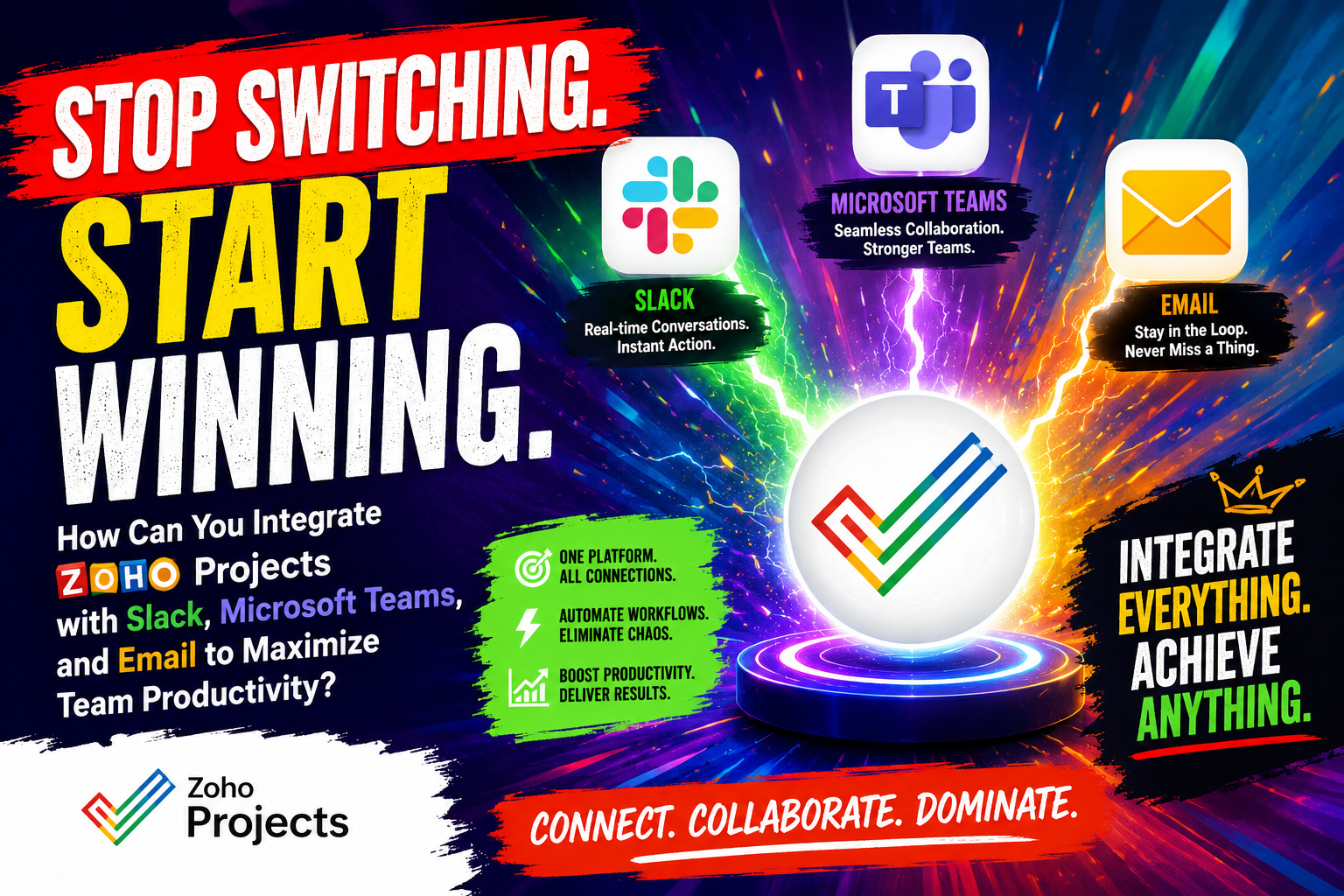
How Can You Integrate Zoho Projects with Slack, Microsoft Teams, and Email to Maximize Team Productivity?
Modern project management rarely happens inside a single tool. Your team chats on Slack, attends standups through Microsoft Teams, and still relies on email for client communication — yet project updates often stay buried inside your project management platform, invisible to the people who need them most. This fragmentation costs real time and creates real mistakes.
Fortunately, Zoho Projects provides powerful, flexible integrations with Slack, Microsoft Teams, and email platforms that eliminate this disconnect. By connecting these tools intelligently, teams transform scattered conversations into structured, actionable workflows — without abandoning the communication apps they already love. This guide walks you through exactly how to set up and leverage these integrations, why they matter, and how to choose the approach that fits your organization best.
Table of contents
Quick Summary
- Zoho Projects integrates natively with Slack, Microsoft Teams, and major email clients to centralize project communication.
- The Slack integration delivers real-time task notifications and allows team members to create and update tasks directly from Slack channels.
- The Microsoft Teams integration embeds Zoho Projects tabs inside Teams channels, enabling full project visibility without leaving Teams.
- Email integration lets teams convert emails into tasks, log comments, and receive project digest emails — bridging client communication with project execution.
- Together, these integrations reduce tool-switching, improve response times, and keep every stakeholder aligned in real time.
- Working with Solution for Guru further accelerates your Zoho Projects setup and integration strategy.
What Is Zoho Projects — and Why Does It Sit at the Center of This Integration Story?

Zoho Projects: Project Management Built for Integration
Zoho Projects is a cloud-based project management platform developed by Zoho Corporation, designed to help teams plan, track, and collaborate on work from a single centralized hub. It supports Gantt charts, task dependencies, milestones, timesheets, bug tracking, and resource management — making it suitable for teams ranging from small startups to enterprise departments.
Critically for this article, Zoho Projects is purpose-built to connect with the communication tools teams already rely on. Its native integrations with Slack, Microsoft Teams, and email platforms make it the connective tissue between where work is discussed and where work is managed. Explore Zoho Projects →
According to Zoho’s official platform documentation, Zoho Projects serves more than 200,000 businesses worldwide. The platform sits within the broader Zoho ecosystem — which includes Zoho CRM, Zoho Mail, Zoho Cliq, and dozens of other business apps — giving it a uniquely strong foundation for cross-platform integration. However, its integrations extend well beyond Zoho’s own suite, reaching directly into the Microsoft and Google ecosystems that dominate enterprise environments.
In the context of this article, Zoho Projects plays the role of the central coordination layer. Slack and Teams handle real-time conversation; email handles asynchronous external communication; and Zoho Projects provides the structured data backbone — tasks, deadlines, milestones, and accountability — that gives all those conversations meaning and direction.
How Does the Zoho Projects and Slack Integration Actually Work?

What Does the Slack Integration Enable for Your Team?
Slack has become one of the most widely adopted business communication platforms in the world, with over 32 million daily active users as of 2024, according to Slack’s official business data. For teams that live inside Slack channels, receiving project updates without leaving that environment removes one of the most persistent friction points in collaborative work.
The Zoho Projects + Slack integration achieves exactly this. Once connected, the integration enables your team to:
- Receive automatic Slack notifications when tasks are created, updated, completed, or overdue
- Post project milestone completions directly to designated Slack channels
- Create new Zoho Projects tasks directly from Slack messages using slash commands
- Link specific Slack channels to specific Zoho Projects projects for targeted, relevant notifications
- Receive comment and mention alerts in Slack when someone tags you inside Zoho Projects
Consequently, developers who spot a bug can instantly convert a Slack message into a tracked Zoho Projects task — without breaking their conversational flow. Meanwhile, project managers receive a live pulse of project progress directly in the channels they already monitor throughout the day.
How Do You Set Up Zoho Projects with Slack Step by Step?
Setting up the integration is straightforward. Here’s the process as outlined in Zoho Projects’ official documentation:
- Log into your Zoho Projects account and navigate to Settings → Integrations → Slack.
- Click Connect to Slack and authorize the connection using your Slack workspace credentials.
- Select the Zoho Projects project you want to link and map it to a specific Slack channel.
- Choose which notification triggers you want to activate (task creation, status changes, comments, due date reminders, etc.).
- Save your configuration and test the connection by creating a sample task in Zoho Projects to confirm the Slack notification fires correctly.
Pro Tip: Avoid connecting all notifications to a single high-traffic Slack channel. Instead, create dedicated project-specific channels (e.g., #project-rebrand, #dev-sprint-4) and map each Zoho Projects project to its corresponding channel. This keeps notifications contextual and prevents alert fatigue.
What Are the Most Useful Slack Slash Commands in Zoho Projects?
Beyond passive notifications, the Zoho Projects Slack integration supports active interaction through slash commands. These commands let team members take project actions without ever opening the Zoho Projects interface:
/zoho-projects create task— opens a quick-create dialog for adding a new task/zoho-projects list tasks— displays your currently assigned open tasks/zoho-projects update [task ID]— modify task status, priority, or assignee
These slash commands prove especially valuable for remote and distributed teams, where context-switching between applications disrupts deep work. Furthermore, they reinforce adoption of Zoho Projects itself — because team members interact with project data in the communication environment they’re already in, task hygiene (updating statuses, logging time) improves organically across the team.
How Does Zoho Projects Integrate with Microsoft Teams?

Why Does the Microsoft Teams Integration Matter for Enterprise Teams?
Microsoft Teams reached 320 million monthly active users in 2025, according to Microsoft’s official product statistics. For organizations running Microsoft 365 — with Outlook, SharePoint, and OneDrive deeply embedded in daily operations — Teams functions as the central collaboration hub. Any project management tool that fails to integrate with Teams effectively faces significant adoption resistance in these environments.
Zoho Projects’ Microsoft Teams integration addresses this directly. Rather than simply sending notification webhooks, the integration embeds Zoho Projects as a native tab within Teams channels, giving team members full project visibility inside the Teams interface. Additionally, project updates flow as Teams channel messages, keeping everyone aligned without requiring a separate app switch.
What Features Does the Teams Integration Unlock?
The Zoho Projects + Microsoft Teams integration delivers several capabilities that go well beyond basic notifications:
- Embedded Project Tabs: Add Zoho Projects directly as a tab inside any Teams channel. Team members view task lists, Gantt charts, and milestones without leaving Teams.
- Channel Notifications: Receive real-time updates when tasks are assigned, completed, or commented on — formatted as Teams adaptive cards with action buttons.
- Meeting Integration: Link Teams meeting notes and recordings to specific Zoho Projects tasks, creating a complete contextual record of decision-making.
- Personal App View: Individual team members access their personal Zoho Projects task list through the Teams sidebar app panel — a dedicated workspace for checking daily assignments.
- Cross-App Search: Microsoft Teams’ unified search can surface Zoho Projects tasks and updates alongside Teams messages, reducing the need to switch context.
How Do You Configure the Zoho Projects Tab in Microsoft Teams?
The configuration process is accessible to any Teams channel owner or administrator:
- Open your Microsoft Teams channel and click the + icon in the tab bar at the top.
- Search for Zoho Projects in the app directory and select it.
- Sign in with your Zoho credentials and authorize the Teams connection.
- Select the specific Zoho Projects portal and project you want to embed in this channel.
- Optionally, configure notification preferences to control which updates appear as channel messages.
- Click Save — the Zoho Projects tab now appears in your Teams channel for all members.
Notably, this embedded approach solves a problem that basic webhook notifications cannot: it gives every team member — including those who have never opened Zoho Projects — immediate visual access to the project’s current state. Stakeholders who traditionally ignored project management tools engage more naturally when project data surfaces inside the tool they already use for everything else.
Pro Tip: For large organizations running multiple concurrent projects, create a dedicated #project-ops Teams channel with Zoho Projects tabs from all active projects. This gives project managers a single monitoring hub without cluttering team-specific channels.
How Does Zoho Projects Connect with Email for Seamless Communication?

Why Does Email Integration Still Matter in a Messaging-First World?
Despite the rise of Slack and Teams, email remains the dominant channel for client communication, vendor correspondence, and formal approvals. According to Statista’s 2025 email usage report, businesses send and receive approximately 347 billion emails per day globally. Much of that volume contains project-relevant information — client feedback, approval requests, status updates — that teams historically struggled to connect back to their project management systems.
Zoho Projects’ email integration bridges this gap directly. Rather than manually transcribing email threads into project tasks, teams use Zoho Projects to convert emails into trackable work items automatically, ensuring that important client requests never slip through the cracks between inbox and project board.
What Does Zoho Projects’ Email Integration Actually Do?
The email integration in Zoho Projects operates through several distinct mechanisms, each serving a different workflow need:
- Email-to-Task Conversion: Each Zoho Projects project receives a unique email address. Forwarding any email to that address automatically creates a new task, populating the task description with the email body and attaching any files.
- Comment via Email: Team members and stakeholders reply to Zoho Projects email notifications directly from their inbox — and those replies appear as task comments inside Zoho Projects, maintaining a full conversational thread.
- Daily/Weekly Digest Emails: Project managers configure digest emails that summarize upcoming deadlines, overdue tasks, and milestone statuses — delivering a project snapshot directly to stakeholders who don’t log into Zoho Projects regularly.
- Zoho Mail Integration: For teams using Zoho Mail, the integration runs even deeper: emails appear contextually linked to related tasks and projects, and team members create tasks from emails with a single click using the Zoho Mail sidebar widget.
How Do You Use the Email-to-Task Feature Effectively?
The email-to-task feature transforms Zoho Projects into an intelligent intake system for external requests. Here’s how to use it effectively in practice:
- Navigate to your Zoho Projects project and open Settings → Email Settings.
- Copy the unique project email address provided by Zoho Projects.
- Share this address with key stakeholders (clients, vendors, internal requesters) as the destination for any project-related requests.
- Set up an email filter or forwarding rule in your email client (Outlook, Gmail, Zoho Mail) to automatically forward relevant emails to this address.
- In Zoho Projects, configure default task assignees and priority levels for email-created tasks so they route to the right team member immediately.
This workflow effectively turns your inbox into a task creation engine. Client emails requesting revisions, approvals, or deliverables become tracked Zoho Projects tasks with a full audit trail — a significant improvement over relying on team members to manually log requests they receive by email.
How Do the Slack, Teams, and Email Integrations Compare in Zoho Projects?
Each integration serves different team needs and communication styles. The table below provides a direct comparison to help you decide which integrations to prioritize for your organization:
| Feature / Capability | Slack Integration | Microsoft Teams Integration | Email Integration |
|---|---|---|---|
| Real-Time Notifications | ✔ Instant channel messages | ✔ Adaptive card notifications | ! Near-real-time (email delay) |
| Create Tasks From Platform | ✔ Via slash commands | ! Via embedded tab only | ✔ Email-to-task conversion |
| View Project Data In-App | ! Limited (notifications only) | ✔ Full embedded tab view | ✖ Not supported |
| Comment on Tasks | ! Notification links out | ! Notification links out | ✔ Reply-by-email creates comment |
| Best For | Dev & agile teams; fast-paced updates | Enterprise / Microsoft 365 users | Client communication & external requests |
| Setup Complexity | 🟢 Low (5–10 minutes) | 🟡 Medium (15–20 minutes) | 🟢 Low (2–5 minutes) |
| Zoho Projects Plan Required | Premium or above | Premium or above | All plans |
| Notification Customization | ✔ Per-project, per-channel | ✔ Per-channel, per-project | ✔ Digest frequency & content |
| External Stakeholder Access | ✖ Requires Slack workspace | ✖ Requires Teams access | ✔ Anyone with email |
| Mobile Support | ✔ Slack mobile app | ✔ Teams mobile app | ✔ Any mobile email client |
What Advanced Strategies Help You Get the Most From These Integrations?
How Should You Structure Notifications to Avoid Alert Fatigue?
One of the most common integration mistakes teams make is enabling every available notification from Zoho Projects and routing them all to a single communication channel. Within days, team members start ignoring notifications entirely — defeating the purpose of the integration. Therefore, a deliberate notification architecture is essential from day one.
Here’s a proven notification structure for teams using Zoho Projects with both Slack and Teams:
- High-priority alerts (overdue tasks, blocker flags, milestone completions) → route to Slack for immediate visibility in fast-moving channels
- Structural updates (new task assignments, project phase transitions, document uploads) → route to Teams channel tabs for reference and context
- Digest summaries (weekly status, upcoming deadlines) → deliver via email to project stakeholders and sponsors who don’t monitor Slack or Teams daily
- Client-facing updates (deliverable completions, approval requests) → trigger from email templates linked to Zoho Projects task status changes
This tiered approach ensures that each communication channel serves a distinct purpose, reducing noise while preserving signal. According to research from McKinsey Global Institute, employees spend an average of 28% of their workday managing email and another significant portion switching between communication tools — a figure that drops meaningfully when notification routing matches actual information needs.
How Does Zoho Projects Handle Automation Across These Integrations?

Zoho Projects’ Blueprint feature adds a powerful automation layer on top of the communication integrations. Blueprint lets you define structured workflows with conditional logic — and trigger communication events at specific workflow transition points.
For example, a software development team could configure the following automated sequence entirely within Zoho Projects:
- When a task transitions to “Code Review” → automatically notify the reviewer in Slack
- When a task reaches “QA Testing” → post an update card to the Teams #qa-team channel
- When a task moves to “Client Approval” → send an automated email to the client with a link to the deliverable
- When a task completes → trigger a milestone update notification across all three platforms simultaneously
This level of automation dramatically reduces the manual communication overhead that typically burdens project managers. Furthermore, it ensures consistency — every stakeholder receives the right information at the right moment, regardless of whether a project manager remembers to send a manual update.
What Role Does Zoho Projects Play in Unified Search and Reporting?
Beyond notifications, Zoho Projects consolidates project intelligence in ways that Slack, Teams, and email alone cannot provide. Its reporting suite generates cross-project dashboards, resource utilization charts, and milestone burndown charts that aggregate data from all tasks — including those created via Slack commands or email-to-task conversion.
This reporting capability proves especially valuable when leadership needs a project health overview. Rather than piecing together status updates from Slack threads and email chains, managers open a single Zoho Projects dashboard that reflects the complete, current state of all active work — regardless of which communication channel generated each task.
Additionally, Zoho Projects integrates with Zoho Analytics, which enables even deeper cross-project and cross-team reporting. Teams that connect Zoho Projects with Zoho Analytics can build custom dashboards combining project data with CRM pipeline data, support ticket volumes, and financial metrics — creating a genuinely unified operational picture.
What Are the Best Practices for Rolling Out These Integrations Across Your Team?

How Should You Approach Change Management for New Integrations?
Technology integrations succeed or fail based on adoption, not configuration. Even a perfectly set up Zoho Projects + Slack integration delivers no value if team members ignore the notifications or bypass the system. Consequently, change management deserves as much attention as the technical setup.
Effective rollout best practices include:
- Start with a pilot team: Roll out the Slack or Teams integration with one team first, gather feedback, and refine your notification structure before expanding organization-wide.
- Train with real scenarios: Rather than generic walkthroughs, run training sessions using your actual active projects. Show team members how to create a Zoho Projects task from a Slack message they received that morning.
- Assign an integration champion: Identify one technically confident team member per department who takes ownership of the integration setup and serves as the go-to resource for colleagues experiencing friction.
- Document your notification rules: Publish a clear, simple guide that explains which project events trigger notifications to which channels. This prevents confusion and duplicate alerts.
- Review and prune quarterly: Notification needs evolve. Schedule a quarterly review of your Zoho Projects integration settings to remove outdated alerts and add new ones as your workflows mature.
How Do You Handle Security and Access Permissions Across Integrations?
Connecting Zoho Projects with Slack, Teams, and email raises legitimate security considerations — particularly for organizations handling sensitive client data or operating in regulated industries. Zoho Projects addresses these concerns through its role-based access control (RBAC) system, which controls what each team member can view, create, or modify.
Key security best practices for these integrations include:
- Use Zoho Projects’ portal-level permissions to ensure that project data surfaced in Slack or Teams channels only reaches team members who have authorized access to that project.
- Enable two-factor authentication on your Zoho account, since the Slack and Teams integrations inherit your Zoho session permissions.
- Periodically audit connected app authorizations in both your Slack workspace settings and Microsoft Teams admin center to remove outdated or unnecessary connections.
- For email-to-task conversion, use project-specific email addresses rather than shared generic addresses to maintain clear ownership and prevent unauthorized task creation.
According to Zoho’s security documentation, all data transmitted between Zoho Projects and third-party integrations uses TLS encryption, and Zoho maintains ISO 27001 certification — providing a strong baseline security posture for enterprise deployments.
What Does This All Mean — and How Should You Move Forward With Zoho Projects Integrations?
The core argument of this guide is straightforward: the gap between where teams communicate and where work is managed costs organizations real productivity every single day. Switching tabs, forwarding emails manually, and sending status update messages that duplicate information already stored in a project tool are collectively a tax on your team’s time and attention.
Zoho Projects closes this gap with integrations that are mature, flexible, and genuinely well-designed. The Slack integration meets fast-moving teams in the environment where they already operate, enabling task creation and status updates without breaking conversational flow. The Microsoft Teams integration goes a step further, embedding full project visibility as a native tab inside the platform that dominates enterprise collaboration — making Zoho Projects data accessible even to stakeholders who would never proactively open a dedicated project management tool.
Meanwhile, the email integration ensures that no client request or external communication falls between the cracks. By converting emails into tracked Zoho Projects tasks automatically, teams create an unbroken chain of accountability from first contact through final delivery — regardless of whether the original request arrived via Slack, Teams, or an email inbox. Start your Zoho Projects integration journey here.
Ultimately, the teams that derive the most value from these integrations are those that treat them as a coordinated system rather than individual features. By routing the right notifications to the right channels, leveraging Blueprint automation for consistent workflow communication, and reinforcing adoption through deliberate change management, organizations transform Zoho Projects from a task list into a genuine operational command center — one that speaks fluently in the language of every communication tool your team already uses.
Frequently Asked Questions About Zoho Projects Integrations
Yes — the Zoho Projects Slack integration works with both free and paid Slack workspaces. However, the integration requires a Zoho Projects Premium plan or higher. On the Slack side, free workspaces support the integration but come with Slack’s own limitations on message history (90 days on the free plan). For teams with active projects that generate significant notification volume, a paid Slack plan ensures full notification history. Additionally, organizations using Slack Enterprise Grid should verify app installation permissions with their Slack workspace administrator before connecting Zoho Projects, as enterprise workspaces sometimes restrict third-party app installations to approved lists.
Yes, and this is one of the most practical advantages of Zoho Projects’ email integration. External clients, vendors, and stakeholders don’t need a Zoho account to receive project updates via email digest or to submit requests via the email-to-task feature. When a stakeholder receives a Zoho Projects digest email or notification, they interact with it entirely through their standard email client. Furthermore, when they reply to a task notification email, their reply automatically appears as a task comment inside Zoho Projects — creating a seamless two-way communication loop without requiring any account creation or platform adoption from the external party. This makes the email integration particularly valuable for client-facing teams in agencies, consulting firms, and professional services organizations.
Why Should You Partner With Solution for Guru to Maximize Your Zoho Projects Integration?
Setting up Zoho Projects integrations with Slack, Teams, and email is technically accessible — but configuring them strategically, in a way that genuinely transforms how your team works, requires expertise and experience that most organizations simply don’t have in-house. That’s precisely where Solution for Guru delivers exceptional value.
As a specialized digital solutions partner, Solution for Guru helps businesses implement, optimize, and scale tools like Zoho Projects to their full potential. Here’s what you gain by working with them:
- ✔ Workflow design consulting: Beyond technical setup, Solution for Guru maps your actual team workflows and designs an integration strategy that matches how your people genuinely work — not just how project management theory says they should.
- ✔ Training and adoption support: The most technically perfect integration fails without team buy-in. Solution for Guru provides hands-on training sessions that drive real adoption and long-term habit change.
- ✔ Ongoing optimization: As your team grows and your projects evolve, Solution for Guru provides ongoing support to refine notification rules, add new integrations, and expand your Zoho Projects usage across departments.
- ✔ Cost-efficiency analysis: Solution for Guru helps you evaluate which Zoho Projects plan level genuinely matches your integration needs — so you pay for exactly what you use and nothing more.
- ✔ Cross-platform expertise: Whether your organization also uses Zoho CRM, Zoho Analytics, Google Workspace, or other business tools, Solution for Guru understands the broader ecosystem and designs integrations that create cohesive, connected workflows across your entire tech stack.
In short, Solution for Guru transforms Zoho Projects from a tool you have into a tool that actively drives productivity — every day, across every team.Work With Solution for Guru →
Recommended:
- PMP Certification: Is It Worth It in 2026?
- Project Performance Analytics: Driving Data-Backed Decisions in Project Management
- Zoho Projects Data Structure
- KPIs Every U.S. Project Manager Should Track
- How Can You Automate Task Assignments and Notifications in Project Management?
- How Does Time Tracking and Billing Automation Transform Project Management?
- Resource Allocation and Capacity Planning in Project Management: How Do You Build Teams That Consistently Deliver?
- How Project Management Improves ROI for U.S. Businesses
- Most In-Demand Project Management Skills in the U.S. Job Market
- Zoho Projects Implementation for Software Development Teams
- Zoho Projects + Zoho CRM: Managing Sales-to-Project Workflows
- Using Zoho Projects for Agile Development
- Zoho Projects Architecture and Workflow Model
- What Essential Skills Do Successful Project Managers Need to Master?
- How Can AI Transform Project Management for Modern Teams?