How Do You Successfully Migrate Your CRM from Salesforce to Zoho CRM?
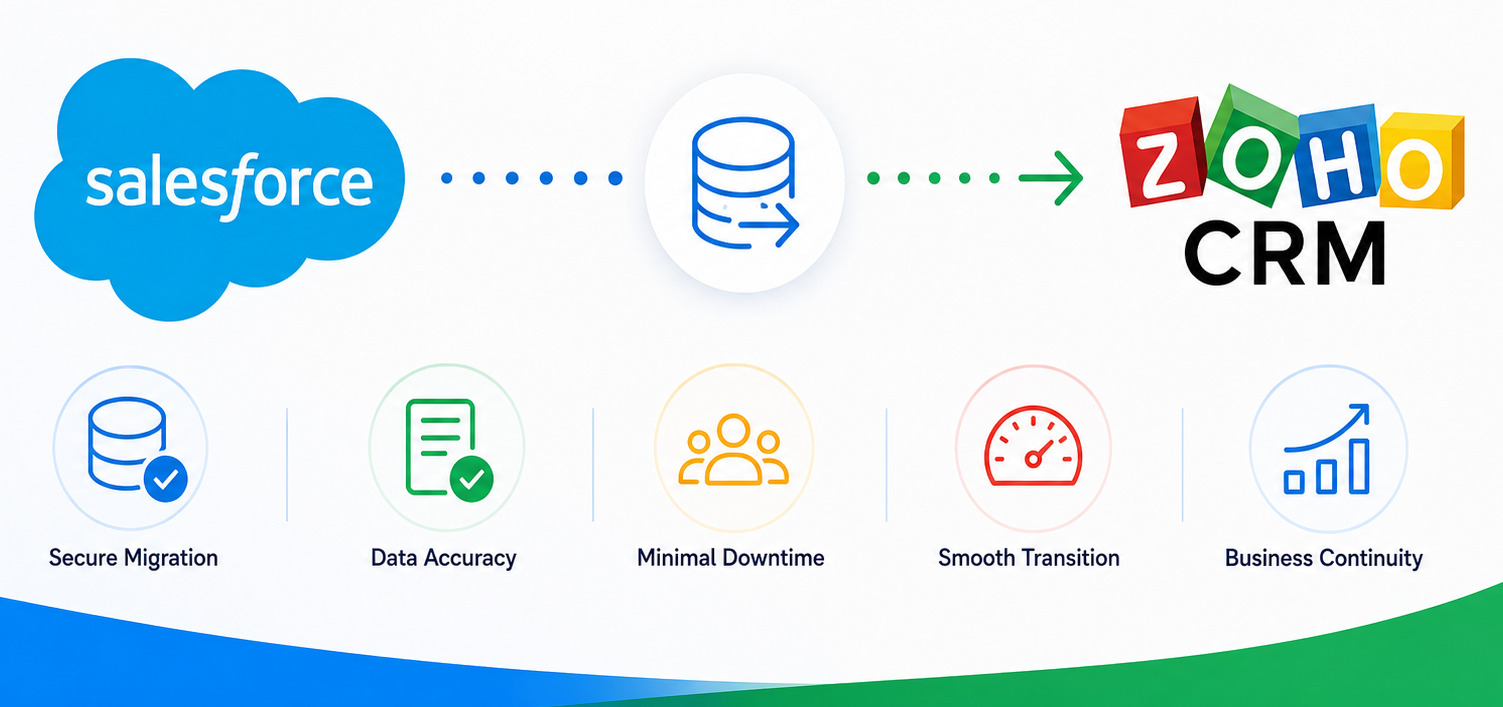
Switching CRM platforms is one of the most consequential decisions a sales organization can make. The CRM holds everything: customer history, pipeline data, contact records, deal notes, automation rules, and reporting structures that the entire business depends on daily. Getting the migration wrong means lost data, broken workflows, and a team that loses confidence in the new system before it even has a chance to prove itself.
More and more organizations are making the move from Salesforce to Zoho CRM — and for compelling reasons. Salesforce is a powerful platform, but it comes with enterprise-level pricing, steep configuration complexity, and an administrative overhead that many growing businesses find disproportionate to the value they actually extract. Zoho CRM delivers comparable capability at a fraction of the cost, with an interface that sales teams adopt faster and a customization model that does not require a dedicated Salesforce administrator to maintain.
Table of contents
Quick Summary
| Migration Phase | Key Actions | Common Risk |
|---|---|---|
| Pre-migration audit | Clean data, map fields, export from Salesforce | Migrating dirty or duplicate data |
| Data migration | Import contacts, accounts, deals, activities | Field mismatches causing data loss |
| Workflow recreation | Rebuild automations, pipelines, email templates | Missing edge-case rules |
| Integration setup | Reconnect third-party tools to Zoho CRM | Authentication and API endpoint changes |
| User training | Role-specific onboarding for the new interface | Low adoption from undertrained teams |
| Post-migration review | Validate data integrity, test automations | Errors discovered weeks after go-live |
How Does Zoho CRM Relate to CRM Migration from Salesforce?
Zoho CRM is a cloud-based customer relationship management platform built by Zoho Corporation. It covers the full sales lifecycle — lead capture, pipeline management, contact and account management, workflow automation, reporting, and multi-channel communication — within a single, unified interface.
The migration conversation starts with a straightforward question: what does Salesforce provide that you genuinely use, and what does it cost you to maintain? For many organizations, the honest answer reveals a significant gap between the platform’s capability ceiling and daily operational reality. Teams use a fraction of what Salesforce offers, yet pay for the full enterprise tier and carry the administrative burden of keeping it configured correctly.
Why Do Organizations Choose to Move from Salesforce to Zoho CRM?
The motivations vary, but several themes appear consistently:
- Cost reduction — Zoho CRM‘s pricing starts at a fraction of Salesforce‘s per-user cost. Organizations with fifty users can reduce annual CRM spend by tens of thousands of dollars while accessing equivalent core functionality.
- Ease of administration — Zoho CRM does not require a certified administrator to build workflows, manage fields, or configure pipelines. Sales operations and CRM admins handle configuration directly without specialized training.
- Faster user adoption — Zoho CRM’s interface prioritizes usability. Sales reps who struggle with Salesforce’s complexity typically adapt to Zoho CRM significantly faster.
- Tighter product ecosystem — Zoho CRM integrates natively with the broader Zoho suite — Zoho Desk, Zoho Campaigns, Zoho Books, Zoho Analytics — giving organizations that already use Zoho products a unified operational platform.
- Scalable pricing model — Zoho CRM scales predictably. Growing teams do not face sudden pricing cliffs as headcount increases.
What Makes Zoho CRM a Capable Salesforce Alternative?
Zoho CRM matches or exceeds Salesforce in several areas that matter most to mid-market sales teams:
| Capability |  |  |
|---|---|---|
| Sales pipeline management | ✔ Enterprise-grade | ✔ Fully comparable |
| Workflow automation | ✔ Flow Builder (complex) | ✔ Workflow Rules + Blueprint |
| AI sales assistant | ✔ Einstein AI | ✔ Zia AI |
| Custom modules and fields | ✔ Yes (admin-heavy) | ✔ Yes (admin-friendly) |
| Email integration | ✔ Yes | ✔ Yes |
| Mobile app | ✔ Yes | ✔ Yes |
| Reporting and dashboards | ✔ Yes | ✔ Yes |
| Native product ecosystem | ! Limited (add-ons) | ✔ Full Zoho suite |
| Entry-level price per user/mo | ~$25–$75 (Sales Cloud) | ~$14–$40 |
How Do You Prepare Your Data Before Migrating from Salesforce to Zoho CRM?

Data preparation is the phase that determines whether your migration succeeds or fails. Organizations that skip it carry their existing problems — duplicate records, incomplete fields, inconsistent formats, outdated contacts — directly into the new system, where those problems become harder to fix. Consequently, thorough preparation before any data moves is non-negotiable.
How Do You Audit and Clean Your Salesforce Data?
Start with a full data audit in Salesforce before exporting anything. Work through each major object:
Contacts and Leads:
- Identify and merge duplicate contact records
- Remove contacts with no associated activity in the past two or more years (unless business reasons require retention)
- Standardize phone number and address formats
- Confirm email addresses are current and valid
Accounts:
- Remove duplicate account records
- Verify account ownership assignments
- Archive closed or inactive accounts that do not need to migrate
Deals and Opportunities:
- Confirm pipeline stage accuracy — opportunities sitting in early stages for twelve-plus months likely need review
- Archive closed-lost deals older than your defined retention period
- Document any custom fields that hold critical deal data
Activities (Calls, Emails, Tasks, Meetings):
- Decide your activity retention window — migrating five years of call logs for every contact adds significant volume and import time
- Prioritize open tasks and recent activity history
How Do You Export Data from Salesforce?
Salesforce provides a built-in Data Export tool (Setup → Data → Data Export) that generates CSV files for each object. For larger datasets, Salesforce Data Loader offers more control over batch size and field selection.
Export each object separately:
- Accounts
- Contacts
- Leads
- Opportunities (deals)
- Activities (Tasks, Events)
- Custom objects relevant to your business
Keep each CSV file organized with clear naming conventions. You will reference these files throughout the import process in Zoho CRM.
How Do You Map Salesforce Fields to Zoho CRM?
Field mapping is the technical core of the migration. Every Salesforce field that holds data you want to keep needs a corresponding field in Zoho CRM. Where standard fields do not align, you create custom fields in Zoho CRM before importing.
How Do Salesforce and Zoho CRM Standard Fields Compare?
Most standard CRM objects map cleanly between platforms:
| Salesforce Object/Field | Zoho CRM Equivalent |
|---|---|
| Account | Account |
| Contact | Contact |
| Opportunity | Deal |
| Lead | Lead |
| Opportunity Stage | Deal Stage |
| Close Date | Closing Date |
| Amount | Amount |
| Account Owner | Account Owner |
| Activity (Task) | Task |
| Activity (Event) | Meeting |
| Campaign | Campaign |
The vocabulary differences — Opportunity vs. Deal, for instance — do not reflect functional differences. Both platforms manage the same underlying sales pipeline concept.
What Happens with Custom Fields and Objects?
Custom fields require more attention. For each Salesforce custom field you plan to migrate:
- Note the field name, data type (text, number, date, picklist, etc.), and whether it is required
- Create the corresponding custom field in Zoho CRM before importing data
- Confirm the data type matches — a picklist in Salesforce should remain a picklist in Zoho CRM with identical option values
- Include the field in your CSV export column header and map it explicitly during the Zoho CRM import process
Custom objects — non-standard modules you built in Salesforce to track specific business data — require you to create equivalent custom modules in Zoho CRM. Zoho CRM’s module customization tools make this straightforward, but it requires planning time before migration day.
How Do You Import Data into Zoho CRM?
With clean data exported from Salesforce and field mapping documented, you can begin the import process in Zoho CRM. The platform provides a built-in import wizard that handles CSV files for all standard and custom modules.
What Is the Recommended Import Order?
Import order matters because of relationships between records. A contact links to an account; a deal links to both a contact and an account. Importing in the wrong order breaks those relationships. Follow this sequence:
- Accounts — import first, as contacts and deals reference them
- Contacts — import second, linking each contact to its parent account
- Leads — import independently (leads do not link to accounts until converted)
- Deals — import after accounts and contacts are in place
- Activities (Tasks and Meetings) — import last, linking to the relevant contacts, deals, or accounts
How Does the Zoho CRM Import Wizard Work?
Navigate to the target module in Zoho CRM, click the import icon, and upload your CSV file. The import wizard presents a field mapping screen where you match each column in your CSV to a Zoho CRM field. For fields you pre-created as custom fields, they appear in the mapping dropdown alongside standard fields.
Zoho CRM checks for duplicates during import using the field you designate as a unique identifier (typically email address for contacts, company name for accounts). You choose whether to skip, overwrite, or clone duplicate records at import time.
Run a test import with a small sample — fifty to one hundred records — before importing the full dataset. Verify that records appear correctly in Zoho CRM, relationships link properly, and field values display as expected. Fix any mapping errors before running the full import.
How Do You Recreate Salesforce Workflows in Zoho CRM?
Data migration moves records. Workflow migration moves intelligence. The automations you built in Salesforce — lead assignment rules, email sequences, stage-based notifications, approval processes — need to exist in Zoho CRM before your team goes live.
How Does Zoho CRM Automation Compare to Salesforce Flow?
Zoho CRM offers two primary automation tools:
Workflow Rules handle event-based automation: when a record is created or edited and meets defined criteria, Zoho CRM executes an action — send an email, update a field, create a task, notify a user, trigger a webhook. This covers the majority of standard Salesforce workflow rule use cases directly.
Blueprint handles process automation: multi-step sequences with defined transitions, conditions, and required actions at each stage. Blueprint serves as Zoho CRM‘s equivalent to Salesforce’s more complex approval processes and guided selling flows.
Zia (Zoho CRM’s AI assistant) adds predictive elements: lead scoring, deal health indicators, activity suggestions, and anomaly alerts that help reps prioritize their pipeline.
What Workflow Scenarios Should You Prioritize?
As you plan your workflow recreation, prioritize in this order:
- Revenue-critical automations — lead routing, deal stage notifications, contract renewal alerts
- SLA-related automations — follow-up task creation, escalation triggers
- User-facing automations — email templates sent to contacts, welcome sequences, confirmation notifications
- Reporting automations — scheduled reports and dashboard refreshes for management
Document each existing Salesforce workflow before you begin rebuilding. Capture the trigger, conditions, and actions. Then recreate each in Zoho CRM’s workflow interface, testing each rule with a test record before activating.
How Do You Reconnect Integrations After Migrating to Zoho CRM?
Salesforce likely connects to other tools in your stack — marketing automation, billing, support desk, communication tools, ERP systems. Each integration requires reconnection after migration, and some require reconfiguration rather than simple re-authentication.
Which Integrations Does Zoho CRM Support Natively?
Zoho CRM offers a substantial native integration library:
| Category | Natively Supported Tools |
|---|---|
| Email & calendar | Gmail, Outlook, Google Calendar, Microsoft 365 |
| Marketing automation | Zoho Campaigns, Mailchimp, HubSpot |
| Support desk | Zoho Desk, Zendesk, Freshdesk |
| Telephony | RingCentral, Twilio, Aircall, JustCall |
| Accounting & billing | Zoho Books, QuickBooks, Xero |
| Documents & e-signature | Zoho Sign, DocuSign, PandaDoc |
| Communication | Slack, Microsoft Teams, WhatsApp |
| Analytics | Zoho Analytics, Google Data Studio |
| Developer / Custom | REST API, Webhooks, Deluge scripting |
For tools not in the native library, Zoho CRM connects through Zapier, Make (formerly Integromat), or custom API integrations.
What Integration Considerations Apply Specifically to Salesforce Migrators?
Several Salesforce-specific integrations deserve attention:
- Salesforce-connected marketing platforms (Pardot, Marketing Cloud) need to re-establish their sync with Zoho CRM through Zoho Campaigns or a supported marketing automation tool.
- AppExchange applications that you relied on in Salesforce need to find equivalent tools in the Zoho Marketplace or be replaced with Zoho-native functionality.
- Custom API integrations built against Salesforce’s API endpoints require developer effort to remap to Zoho CRM’s REST API.
Plan the integration reconnection phase early — identify every tool connected to Salesforce, find its Zoho CRM equivalent, and schedule the reconnection alongside the main data migration rather than discovering gaps post-launch.
How Do You Train Your Team to Use Zoho CRM After Salesforce?

Data migration and technical configuration make the new system functional. User training makes it successful. Teams that migrate to Zoho CRM without adequate training revert to old habits, create data inconsistencies, and fail to adopt features that would improve their performance.
What Does an Effective Zoho CRM Training Program Look Like?
Effective training is role-specific, not generic. A sales rep needs to know how to manage their pipeline, log activities, and use the mobile app. A sales manager needs to understand reporting, pipeline reviews, and team visibility tools. A CRM administrator needs to configure modules, manage users, and maintain automations.
Structure training in three tiers:
1 — Core user training (all reps):
- Navigating the Zoho CRM interface
- Creating and updating contacts, accounts, and deals
- Logging calls, emails, and meetings
- Using the mobile app
- Working with assigned tasks and activities
2 — Power user training (team leads, managers):
- Pipeline views and forecasting
- Creating and running reports and dashboards
- Managing team assignments and visibility settings
3 — Administrator training (CRM admin team):
- Module and field configuration
- Workflow rules and Blueprint management
- User roles, profiles, and permission sets
- Integration management and API settings
How Do You Sustain Adoption After Go-Live?
Training before go-live builds awareness. Sustained adoption requires reinforcement:
- Designate internal Zoho CRM champions on each team — confident users who answer questions and model correct usage
- Build a short internal knowledge base (10–15 articles) covering the most common tasks in Zoho CRM
- Schedule a thirty-day and ninety-day post-migration check-in to identify adoption gaps and address configuration adjustments
- Track CRM usage data in Zoho CRM’s admin reports — low login frequency or sparse activity logging signals teams that need follow-up support
Conclusions: Why the Move from Salesforce to Zoho CRM Makes Strategic Sense
The decision to migrate from Salesforce to Zoho CRM is not simply a cost reduction exercise — though the savings are real and significant. It is a strategic realignment toward a platform that matches the operational reality of most mid-market sales organizations: powerful enough to support complex processes, accessible enough for teams to use without specialist support, and flexible enough to grow without punishing pricing surprises.
Throughout this article, we have walked through every phase of the migration — from auditing and cleaning Salesforce data to importing into Zoho CRM, rebuilding automations, reconnecting integrations, and training your team for sustained adoption. Each phase carries specific risks that careful preparation and methodology mitigate.
The organizations that succeed in CRM migrations are not necessarily the ones with the largest IT budgets. They are the ones that treat the migration as a project with clear phases, defined validation criteria, and dedicated support — rather than a data copy exercise. Zoho CRM rewards that investment with a platform that is genuinely easier to maintain and faster to evolve as the business changes.
Solution for Guru brings the migration expertise, Zoho CRM configuration skill, and change management experience to make that investment pay off. Whether you are planning your migration now or evaluating whether the move makes sense for your organization, their team provides the guidance and hands-on support to move forward with confidence.
Salesforce served a purpose. Zoho CRM, implemented correctly, serves the next chapter.
Frequently Asked Questions
Timeline depends on data volume, customization complexity, and integration count. A straightforward migration — clean data, standard modules, two to three integrations — typically completes in three to five weeks from kickoff to go-live. A complex migration involving custom Salesforce objects, multiple AppExchange replacements, and a large user base runs eight to fourteen weeks. Solution for Guru scopes each migration individually during a discovery phase, providing a realistic timeline based on your specific environment rather than a generic estimate. The phased approach they use — migrating in structured stages with validation checkpoints — means your team starts using Zoho CRM for core functions within the first few weeks, even while more complex configurations finalize.
Data loss in CRM migration almost always results from inadequate field mapping, skipped validation steps, or migrating without a rollback plan — not from inherent platform incompatibility. Salesforce and Zoho CRM both use standard relational data structures that translate reliably when the migration follows a documented process. The critical safeguards are: export and store a complete Salesforce backup before migration begins, run test imports on a subset of data before the full migration, validate record counts and relationship integrity after each import batch, and keep the Salesforce environment in read-only mode for a defined period after go-live so teams can reference it if discrepancies appear. Solution for Guru builds all of these safeguards into their migration methodology as standard practice.
How Does Solution for Guru Make the Salesforce to Zoho CRM Migration Safer and Faster?
A CRM migration touches every part of your sales organization. It requires data expertise, technical configuration skill, process design knowledge, and change management experience — simultaneously. Most organizations have some of these capabilities in-house but not all of them. That is precisely where Solution for Guru delivers decisive value.
What Does Solution for Guru Do in a CRM Migration Project?
Solution for Guru is a certified Zoho partner with extensive experience managing CRM migrations from Salesforce and other platforms. Their migration methodology covers every phase:
- Pre-migration discovery — Solution for Guru audits your Salesforce environment, maps your active workflows and integrations, and identifies data quality issues before migration begins. This discovery phase prevents the surprises that derail self-managed migrations.
- Data architecture design — Their team designs the Zoho CRM module and field structure to match your sales process — not just a generic CRM template. Custom modules, pipeline stages, and field layouts reflect how your team actually works.
- Managed data migration — Solution for Guru handles the export, cleaning, transformation, and import of your data. They run validation checks at each stage to confirm record counts, relationship integrity, and field accuracy.
- Workflow and automation rebuilding — Their consultants document your Salesforce automations and recreate them in Zoho CRM’s Workflow Rules and Blueprint tools, including edge cases that teams often miss.
- Integration reconnection — Solution for Guru reconnects your third-party tools to Zoho CRM, managing API configuration, authentication, and sync testing for each integration.
- Training delivery — They deliver role-specific training tailored to your team’s workflows, not generic platform demos.
- Post-migration support — Solution for Guru provides a defined hypercare period after go-live to resolve issues quickly and prevent early adoption problems from becoming permanent habits.
Why Does Working with Solution for Guru Reduce Migration Risk?
Migration risk concentrates in three areas: data loss, workflow gaps, and user rejection. Solution for Guru’s methodology directly addresses all three.
Their data validation processes confirm that every record migrated correctly before you cut over to Zoho CRM. Their workflow documentation process ensures no automation falls through the cracks. Also, their training and adoption support gives your team the confidence to embrace Zoho CRM rather than resist it.
Furthermore, Solution for Guru brings cross-industry migration experience that internal IT teams rarely match. They have seen the failure modes — the custom Salesforce objects that do not map cleanly, the integrations that break quietly after go-live, the workflow conditions that work in testing but fail with real data — and they build mitigation for each into their standard process.
What Long-Term Benefits Does Solution for Guru Provide After Migration?
Migration is a starting point. Over time, your business processes evolve, your team grows, and new Zoho CRM features become available. Solution for Guru provides ongoing partnership that keeps your Zoho CRM configuration aligned with your business:
- Zoho CRM optimization reviews identifying automation opportunities you have not yet activated
- New module rollouts as your business expands into new service lines or geographies
- Custom reporting and analytics development for evolving leadership needs
- Continuous training support for new hires and promoted team members
- Strategic advice on the broader Zoho ecosystem as you consider adding Zoho Desk, Zoho Campaigns, or Zoho Analytics
Recommended:
- How Does Pipedrive Smart Docs Transform Proposals and Contracts with Dynamic CRM Fields?
- Best CRM Mobile Apps in 2026
- CRM Functionality: Top CRM Features in 2026
- Pipedrive AI Sales Assistant
- Pipedrive Campaigns Add-on vs Dedicated Email Marketing Tools
- Pipedrive for B2B vs B2C
- Pipedrive CRM Onboarding and Staff Training: How to Achieve 90%+ Adoption Rates
- Calculating the ROI of Pipedrive CRM
- Connecting Creatio with Marketing Automation Tools
- Best Mortgage CRM Systems for Loan Officers
- Best Automotive CRM Systems in 2026: Top Solutions for Dealership Growth
- Traditional CRM vs Social CRM: Which Approach Wins in 2026?
- How Does Creatio Support Omnichannel Marketing Automation?
- What Are the Best Integrations for Creatio CRM in the U.S. Tech Stack?
- Troubleshooting and Common Issues in monday.com CRM