How Does Pipedrive Smart Docs Transform Proposals and Contracts with Dynamic CRM Fields?
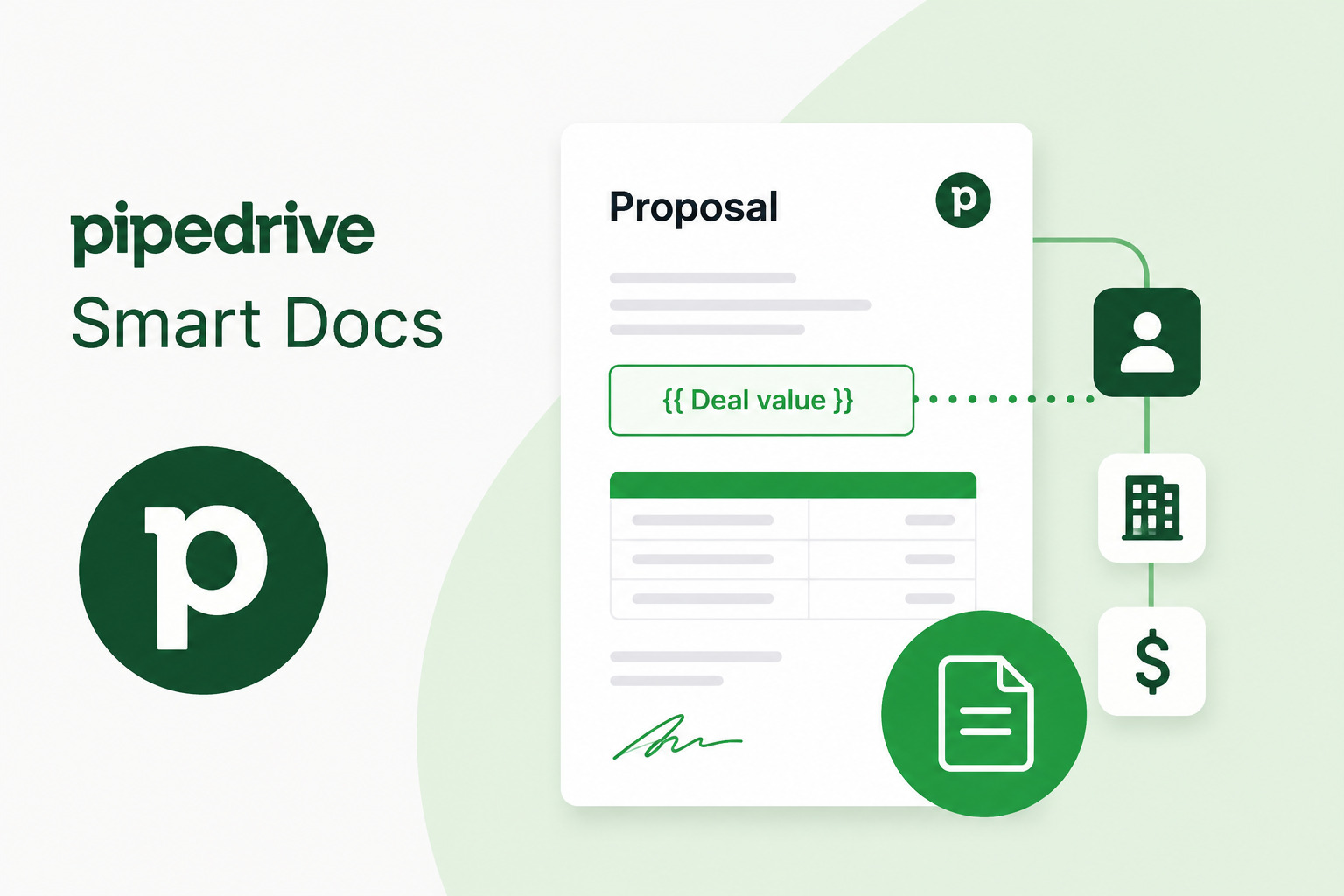
Closing deals faster starts long before anyone signs on the dotted line. It begins the moment your team stops copying and pasting client details into yet another Word template, stops chasing down signatures via email chains, and stops wondering whether a prospect ever opened the proposal you sent three days ago. Pipedrive Smart Docs eliminates all of that friction — and it does so by pulling live data directly from your CRM records into polished, professional documents in seconds.
Whether you manage a lean sales team or coordinate across multiple departments, Smart Docs turns your pipeline data into a powerful document engine. This article walks you through exactly how it works: from template setup and dynamic field population to e-signature triggers and real-time document tracking.
Table of contents
Quick Summary
| Feature | What It Does |
|---|---|
| Smart Templates | Reusable proposal/contract layouts with dynamic placeholders |
| Dynamic CRM Fields | Auto-fill deal, contact, and org data from Pipedrive records |
| E-Signature Triggers | Send for signature directly from a deal — no third-party tool needed |
| Document Tracking | See when recipients open, view, and sign documents |
| Solution4Guru Support | Expert Pipedrive setup, automation, and ongoing optimization |
What Is Pipedrive Smart Docs — and Why Does It Matter?
Pipedrive is a sales-focused CRM built around visual pipeline management. Smart Docs is its native document generation module, available on the Professional, Power, and Enterprise plans. Rather than treating document creation as a separate workflow, Pipedrive embeds it directly inside the deal view — so your team never has to leave the CRM to generate a proposal or request a signature.
Why Do Teams Abandon Manual Document Workflows?
Manual document workflows break down in predictable ways:
- Sales reps copy details from CRM to Word, introducing typos and outdated pricing.
- Multiple versions of the same contract circulate over email, creating confusion.
- Signature requests sit in inboxes untracked, and follow-up becomes guesswork.
- There is no audit trail connecting a signed document to its originating deal.
Smart Docs solves each of these problems systematically. Furthermore, because it lives inside Pipedrive, every document associates automatically with the correct deal, contact, and organization — giving managers full visibility without any manual logging.
How Do You Set Up Smart Doc Templates in Pipedrive?
Template setup is the foundation of the entire Smart Docs system. Once you build a template correctly, every future document generates itself — your team simply selects it, confirms the deal fields, and hits send.
What Goes Into a Smart Doc Template?
Navigate to Tools & Integrations → Smart Docs → Templates and choose “New Template.” Pipedrive gives you three starting options:
- Start from scratch using the built-in rich-text editor
- Import from Google Docs (requires connecting your Google account)
- Import a Word document (.docx format)
The editor supports standard formatting — headings, paragraphs, bullet lists, numbered lists, tables, and images. You can structure a full proposal with an executive summary, scope of work, pricing table, and terms section all within a single template.
How Do You Insert Dynamic Field Placeholders?
This is where the automation begins. Inside the template editor, click the field merge tag button (represented by {}). A dropdown appears with every available data field organized by category:
| Category | Example Fields |
|---|---|
| Deal fields | Deal name, value, currency, close date, pipeline stage |
| Contact fields | First name, last name, email, phone, job title |
| Organization fields | Company name, address, website |
| User fields | Owner name, owner email, owner phone |
| Custom fields | Any custom field you have created in Pipedrive |
Place the cursor in the template where you want data to appear, then select the field. Pipedrive inserts a merge tag such as {{Deal.Name}} or {{Contact.FirstName}}. When you generate a document from a deal, the system replaces every tag with the live value from that record.
Additionally, you can combine fields with static text naturally. For example: “This proposal is prepared for {{Contact.FirstName}} {{Contact.LastName}} at {{Organization.Name}}, based on a deal value of {{Deal.Value}} {{Deal.Currency}}.”
What Are the Best Practices for Template Structure?
Experienced Pipedrive users — and the consultants at Solution for Guru — consistently recommend the following when building templates:
- Use a naming convention that makes templates instantly identifiable (e.g., “Proposal – SaaS Monthly,” “Contract – Enterprise Annual”).
- Build role-specific templates rather than one generic document for all use cases.
- Include a placeholder for custom notes — a free-text field that reps fill in manually for deal-specific context.
- Add your brand assets (logo, colors, footer) directly in the template so every document outputs consistently.
- Test with a real deal before rolling out to the full team.
How Does Pipedrive Populate Fields from Deals and Contacts?
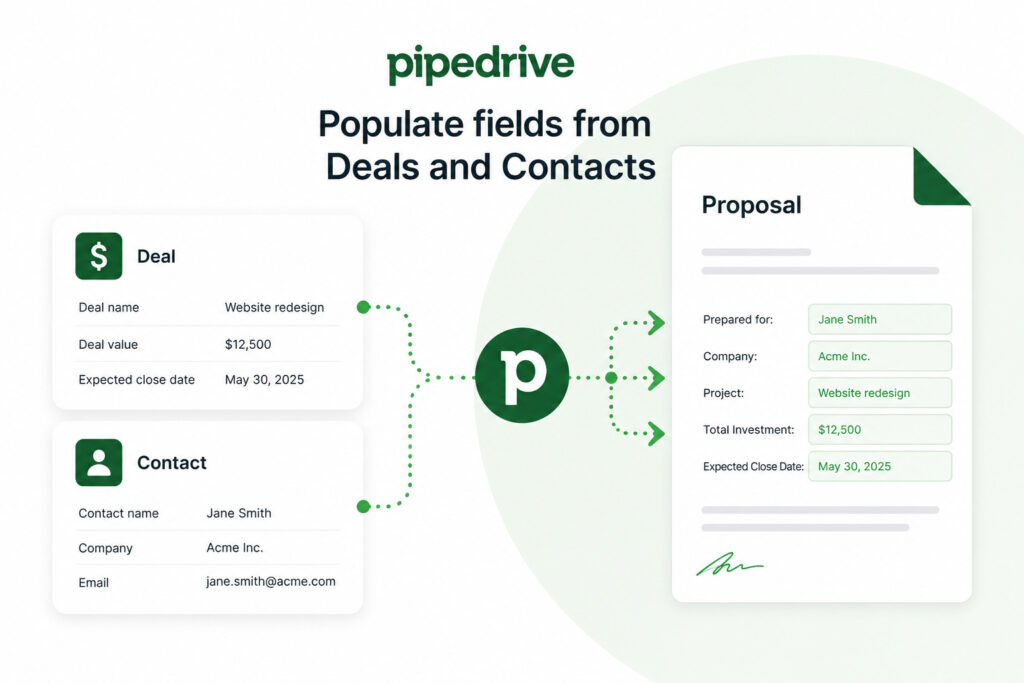
Once your template is ready, generating a document takes under a minute. Open the target deal in Pipedrive, scroll to the Smart Docs section in the right sidebar, and click “New Document.” Select your template, and Pipedrive immediately pulls every available field from the deal record.
What Happens When a Field Is Missing?
Pipedrive flags any merge tag that does not have a corresponding value in the deal. The system shows you a pre-send checklist — a list of empty fields that you need to fill in before the document finalizes. Consequently, you catch data gaps before the prospect ever sees them, rather than sending a proposal with blank lines where the company name should appear.
Can You Edit the Document After Fields Populate?
Yes. After Pipedrive populates the fields, the document opens in an editable view. You can adjust specific figures, add deal-specific language, or remove sections that do not apply to this particular prospect. Importantly, editing happens inside Pipedrive — you do not need to download anything or switch to another application.
This combination of automation and flexibility is exactly what makes Smart Docs practical for real sales teams. The system handles the repetitive 80% automatically, and reps customize the remaining 20% for each situation.
Which Custom Fields Work with Smart Docs?
Pipedrive supports a wide range of custom field types, and most of them work as merge tags:
| Custom Field Type | Smart Docs Compatible |
|---|---|
| Text | Yes |
| Large text / notes | Yes |
| Numerical | Yes |
| Monetary | Yes |
| Date | Yes |
| Single option (dropdown) | Yes |
| Multiple options | Partially (first selected value) |
| Person / Organization link | Yes (linked record name) |
This means that if you store a custom field like “Contract Term (months)” or “Discount Percentage” on your deals, you can pull that data directly into proposals and contracts without any manual input.
How Do E-Signature Triggers Work in Pipedrive Smart Docs?
Collecting signatures is often the final bottleneck in the deal-closing process. Pipedrive Smart Docs includes a built-in e-signature capability, which means you can request, receive, and store legally binding signatures without ever leaving your CRM.
What E-Signature Options Does Pipedrive Offer?
Pipedrive supports e-signatures through two routes:
- Native Pipedrive e-signatures — available on Professional plans and above. Recipients receive a signing link by email and sign directly in their browser. No account creation required on their end.
- Integrated third-party tools — Pipedrive connects natively with DocuSign and PandaDoc. If your organization already uses one of these platforms, you can trigger signature requests through those integrations while keeping the document linked to the Pipedrive deal.
How Do You Set Up a Signature Request?
After generating and reviewing a document, click “Send for Signature.” The system prompts you to:
- Add one or more signers (pulled from your deal contacts, or entered manually)
- Assign a signing order if multiple parties need to sign sequentially
- Set an optional expiration date for the signature request
- Write a custom email message to the recipient
Once sent, the signer receives an email with a secure link. They open the document in their browser, review it, and click to sign — no downloads, no printing, no scanning.
Does Pipedrive Support Sequential Signing Workflows?
Yes. For contracts that require multiple signatories — for instance, a vendor, a client contact, and a legal reviewer — Pipedrive lets you define the order in which signers receive the request. Signer two does not receive the document until signer one completes their signature. This prevents out-of-order signing and keeps the audit trail clean.
How Does Document Tracking Work Inside Pipedrive?
Sending a proposal is only half the job. Understanding what happens after you hit send is equally important — and this is where Smart Docs document tracking gives your team a meaningful advantage.
What Activity Does Pipedrive Track?
Every document you send through Smart Docs generates a real-time activity log attached to the deal. Specifically, Pipedrive records:
- Sent — the exact timestamp when the document left your system
- Opened — when the recipient clicks the link and views the document
- Viewed — how many times the document was accessed (useful for multi-stakeholder deals)
- Signed — the timestamp and confirmation when each signer completes their signature
- Completed — when all required signatures are collected
How Does This Improve Sales Follow-Up?
This data fundamentally changes how your team follows up. Instead of sending a generic “just checking in” email two days after a proposal, reps can now act on real signals:
- A prospect opened the proposal five times in one day — a strong buying signal worth a call.
- A prospect has not opened the proposal in four days — time to re-engage with a different angle.
- A contract was signed by one party but stalled at the second — a trigger for a targeted nudge.
Moreover, all of this activity automatically logs to the Pipedrive deal timeline, so managers and team members can see the full picture without asking reps to update anything manually.
Where Do Completed Documents Go?
When all signatures are collected, Pipedrive stores the completed, signed document directly inside the deal record. It remains accessible there indefinitely, creating a permanent, searchable archive that connects each contract to the specific deal, contact, and organization it belongs to.
What Are the Key Benefits of Using Pipedrive Smart Docs for Your Sales Team?

Smart Docs is not simply a convenience feature — it produces measurable improvements across several dimensions of sales operations.
How Does Smart Docs Reduce Errors and Save Time?
Manual document creation introduces human error at every step: wrong client name, outdated pricing, miscopied address. Dynamic field population removes that risk entirely. According to Pipedrive’s own published data, sales teams using automation features spend significantly more time on active selling and less on administrative tasks.
Consider the time math:
| Task | Manual Process | With Smart Docs |
|---|---|---|
| Create proposal from template | 20–40 minutes | 2–3 minutes |
| Send for signature | 5–10 minutes (email, attach, follow up) | 30 seconds |
| Log document activity to CRM | 5 minutes per update | Automatic |
| Retrieve signed contract | Search email inbox | One click in deal |
Across a team of five reps closing ten proposals per week each, Smart Docs can reclaim dozens of hours of productive time every month.
How Does Smart Docs Support Compliance and Audit Readiness?
Every Smart Docs signature comes with a full audit trail: who signed, from which IP address, at what time, using which device. Pipedrive generates a certificate of completion for every signed document. Consequently, your legal and compliance teams have the documentation they need if any contract terms ever come into question.
Does Smart Docs Work for Non-Sales Teams?
While Pipedrive built Smart Docs with sales in mind, operations and account management teams use it effectively as well. Common non-sales use cases include:
- Onboarding agreements sent to new clients after a deal closes
- Service renewal contracts triggered when a deal moves to a renewal pipeline
- Partnership agreements managed through a dedicated partner pipeline
- Statement of work documents for project-based teams
Conclusions: Why Pipedrive Smart Docs Deserves a Central Role in Your Sales Stack
Throughout this article, we have covered the full arc of what Pipedrive Smart Docs makes possible — from building your first template to tracking a signed contract in your deal timeline. The consistent theme is that automation and accuracy go hand in hand. When your proposals populate themselves from verified CRM data, errors disappear. When e-signatures trigger directly from a deal, the closing step becomes frictionless. Also, when document tracking feeds real-time signals back into the pipeline, follow-up becomes intelligent rather than arbitrary.
Pipedrive has built Smart Docs as an integrated part of its CRM ecosystem precisely because document generation should never be a detour from selling — it should be a natural extension of it. Every proposal you send, every contract you close, and every signature you collect lives inside the deal record where it belongs.
For teams that want to implement Smart Docs quickly, correctly, and in a way that scales, partnering with Solution for Guru is the clearest path forward. Their expertise ensures that you are not just using a feature — you are building a repeatable, automated document process that supports your team’s growth for the long term.
Start with one template. Connect it to your best-performing pipeline. Measure the time you save in the first month. The results will make the case for expanding Smart Docs across your entire sales operation.
Frequently Asked Questions
No. Smart Docs is available on the Professional, Power, and Enterprise plans. Users on the Essential and Advanced plans do not have access to the full Smart Docs feature set, though they may access limited document features depending on their subscription tier. If you are evaluating whether to upgrade, the document generation and e-signature capabilities alone often justify the step up — particularly for teams sending more than five proposals per week.
Pipedrive Smart Docs supports a review workflow where you can share a document link internally before it goes to the client. However, simultaneous multi-user editing within the Pipedrive editor itself is not a native feature — for co-editing, teams often finalize structure in Google Docs first and then import the approved template into Smart Docs. Once the template is live, any authorized Pipedrive user can generate documents from it according to their permission level.
Pipedrive’s native e-signatures comply with the eIDAS regulation in the European Union and the ESIGN Act in the United States, making them legally binding in most jurisdictions. Each signed document includes a certificate of completion with a full audit trail — signer identity, timestamp, IP address, and device type. For industries with stricter compliance requirements (financial services, healthcare, legal), Solution for Guru can advise on whether native Pipedrive signatures meet your specific regulatory standards or whether a deeper integration with a specialized provider like DocuSign is more appropriate.
How Does Solution for Guru Help You Get the Most from Pipedrive Smart Docs?
Implementing Pipedrive effectively takes more than reading documentation. It requires understanding how your specific sales process maps to Pipedrive’s features, designing templates that reflect your brand and workflow, and configuring automation so documents generate and track exactly when they should. That is precisely where Solution for Guru delivers value.
What Does Solution for Guru Actually Do for Pipedrive Users?
Solution for Guru is a certified Pipedrive partner and implementation consultancy that specializes in CRM configuration, sales process design, and workflow automation. Their team works directly with your organization to:
- Audit your existing document and proposal process — identifying where time is lost and errors occur
- Design Smart Doc templates — branded, structured, and mapped to your actual deal fields
- Configure custom fields — ensuring the data your documents need already exists on every deal
- Build automation workflows — so documents generate and send at the right pipeline stage automatically
- Train your team — making sure every rep knows how to use Smart Docs confidently and correctly
- Provide ongoing support — monitoring your setup and adjusting configurations as your process evolves
Why Work with a Certified Partner Instead of Going It Alone?
Pipedrive is genuinely user-friendly, but getting Smart Docs to work seamlessly with a complex sales process involves nuances that take time to discover independently. Solution4Guru has already solved those problems for dozens of organizations. Working with them means you avoid the trial-and-error phase and arrive at a working, optimized setup much faster.
Furthermore, Solution for Guru helps you think beyond Smart Docs in isolation. They connect it to your broader Pipedrive automation — pipeline stage triggers, activity creation, deal field updates — so document generation becomes one smooth step in a larger, intelligent workflow rather than a standalone feature you manage manually.
What Industries Does Solution for Guru Serve?
Solution for Guru works across a broad range of industries, including technology and SaaS companies, professional services firms, manufacturing and distribution, real estate and construction, and marketing and creative agencies. Their consultants bring industry-specific knowledge to each engagement, which means the templates and workflows they build reflect the document standards and compliance requirements of your sector.
Recommended:
- Best CRM Mobile Apps in 2026
- CRM Functionality: Top CRM Features in 2026
- Pipedrive AI Sales Assistant
- Pipedrive Campaigns Add-on vs Dedicated Email Marketing Tools
- Pipedrive for B2B vs B2C
- Pipedrive CRM Onboarding and Staff Training: How to Achieve 90%+ Adoption Rates
- Calculating the ROI of Pipedrive CRM
- Connecting Creatio with Marketing Automation Tools
- Best Mortgage CRM Systems for Loan Officers
- Best Automotive CRM Systems in 2026: Top Solutions for Dealership Growth
- Traditional CRM vs Social CRM: Which Approach Wins in 2026?
- How Does Creatio Support Omnichannel Marketing Automation?
- What Are the Best Integrations for Creatio CRM in the U.S. Tech Stack?
- Troubleshooting and Common Issues in monday.com CRM