Pipedrive Automation Triggers and Actions Explained
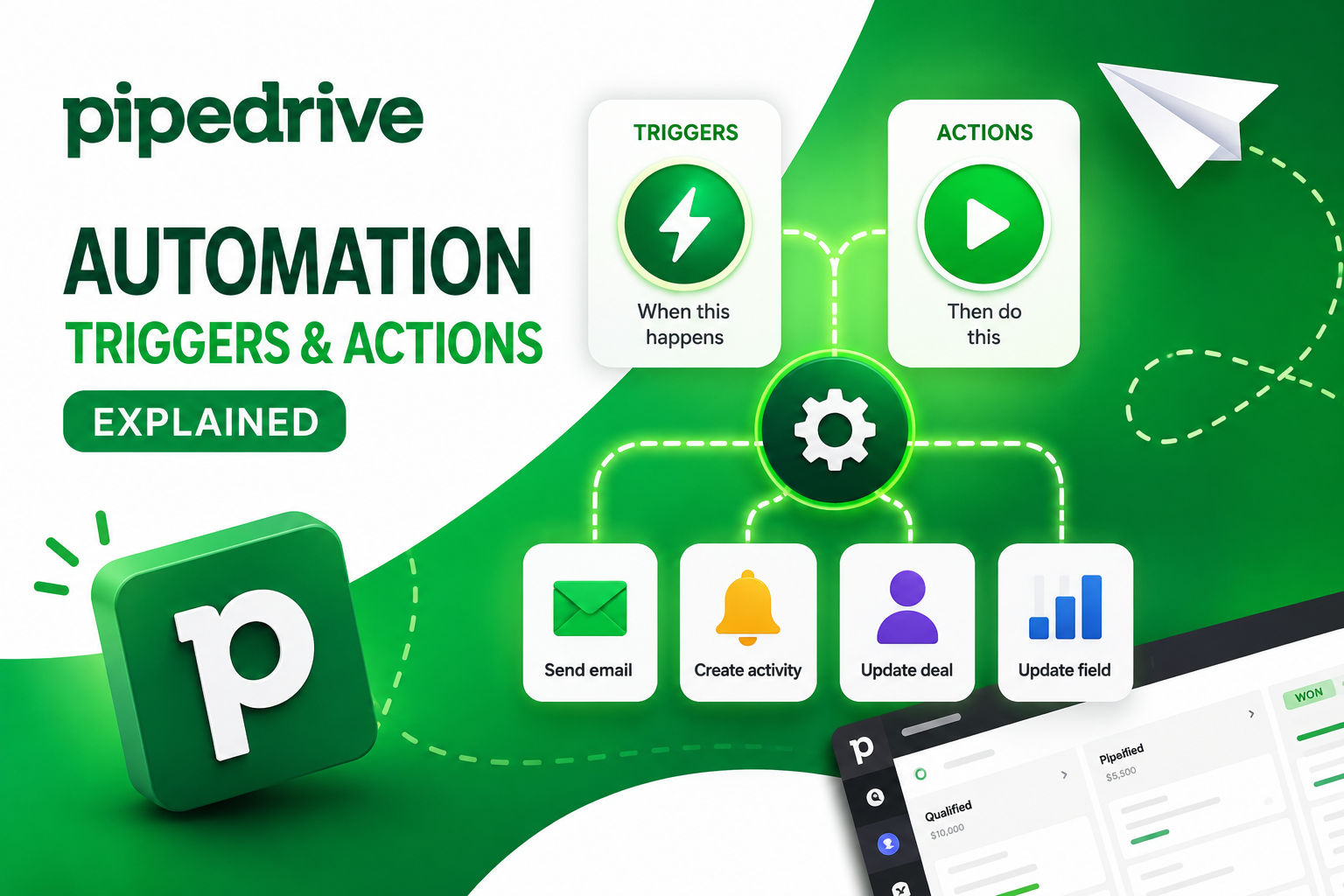
Every automation inside Pipedrive comes down to two building blocks: a trigger that starts the workflow and an action that carries it out. Once you understand how these two pieces fit together, you can build almost any repetitive sales task into an automated workflow — from assigning new leads to sending contract renewal reminders. Yet many teams only scratch the surface, using one or two basic automations while leaving dozens of admin tasks to be done manually.
This article walks through exactly how Pipedrive’s trigger-action model works, which trigger types are available, which actions you can pair with them, and how to combine them into workflows that actually hold up as your sales process grows.
Table of contents
Quick Summary
- Pipedrive automations follow a trigger → condition → action model, similar to an “if this, then that” statement.
- Triggers fall into two main categories: event triggers (something happens to a record) and date triggers (a specific date is reached).
- Actions include creating, updating, or deleting records, sending emails, and connecting to integrations like Slack, Microsoft Teams, Trello, and Asana.
- The Automations feature requires the Growth plan or higher — it isn’t available on the Lite plan.
- Conditions and if/else branches let you split a single automation into multiple paths depending on the data involved.
- Solution For Guru helps businesses design and troubleshoot automation workflows that match their actual sales process, rather than relying on generic templates.
Pipedrive CRM: What Platform Powers These Automations?

Before diving into triggers and actions, it’s worth clarifying what Pipedrive CRM actually is. Pipedrive is a sales-focused CRM built around a visual, drag-and-drop pipeline that shows reps exactly where every deal stands and what needs to happen next. Beyond the pipeline itself, Pipedrive layers in email sync, a built-in scheduler, revenue forecasting, and — central to this article — a dedicated Automations feature for handling repetitive administrative work.
Why Do Automations Matter Inside Pipedrive?
According to Pipedrive’s own documentation, the Automations feature lets teams build custom workflows that handle routine tasks automatically based on triggers and actions they define, reducing administrative work and helping sales teams avoid the human errors that can cost valuable deals. In other words, automations exist to free reps from repetitive data entry so they can spend more time actually selling.
Which Plans Include Automations?
Not every Pipedrive plan includes this feature. Automation requires the Growth plan or higher, since the Lite plan has zero workflow automation. Teams evaluating whether to upgrade should factor this in — if manual admin work is consuming significant rep time, the jump to Growth often pays for itself quickly.
What Exactly Is a Trigger in Pipedrive Automations?
A trigger is the event that starts an automated workflow. Think of it as the “if” half of an if-then statement. Something happens inside your CRM — a deal gets created, a contact’s email address changes, a specific date arrives — and that event kicks the automation into motion.
How Does Pipedrive Define a Trigger Event?
Pipedrive’s support documentation describes it plainly: the trigger event represents the “if” part of an if-then statement, and for the automation to run, a specific action must occur first, such as creating, updating, or deleting a person, organization, activity, or deal. Alternatively, instead of waiting for something to happen to a record, you can set a trigger tied to a calendar date.
What Are the Two Main Categories of Triggers?
| Trigger Category | What Starts the Automation | Example |
|---|---|---|
| Event trigger | A record is created, updated, or deleted | A new deal is added to the pipeline |
| Date trigger | A specific date is reached | Three days before a deal’s expected close date |
What Types of Event Triggers Can You Use?
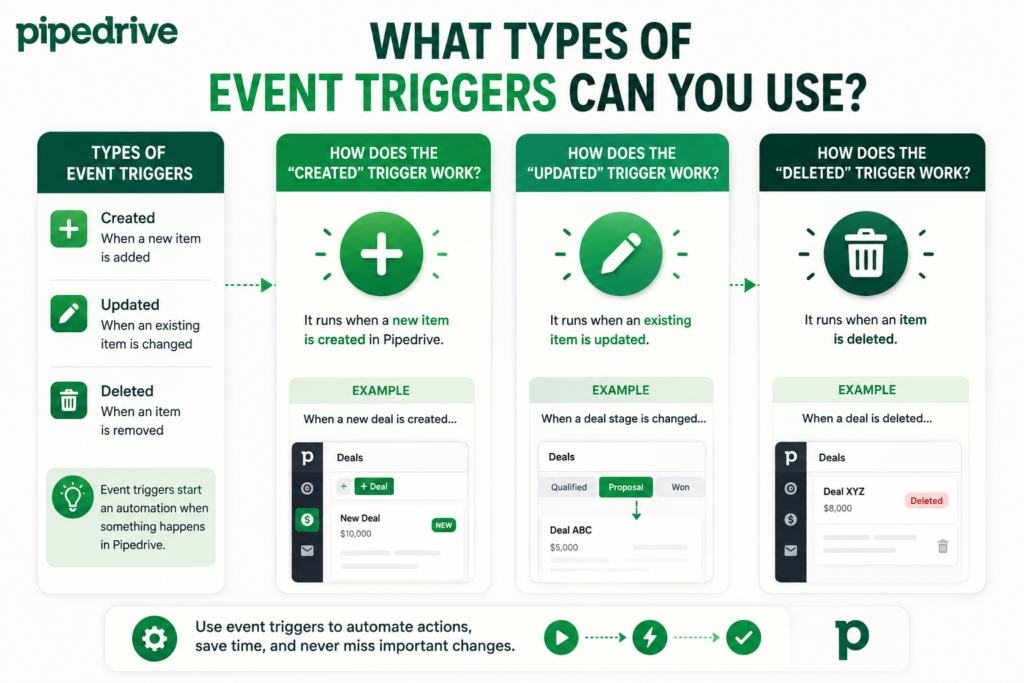
Event triggers respond to changes made to specific record types inside Pipedrive. Understanding which entities support triggers helps you map out exactly where automation can plug into your process.
Which Record Types Support Event Triggers?
You can build event-based automations around six entity types: activities, deals, leads, organizations, people, and projects. Each of these can trigger a workflow when a record is created, updated, or deleted.
How Does the “Created” Trigger Work?
A “created” trigger fires the moment a new record appears in Pipedrive. This is the most common starting point for lead-routing workflows — for example, automatically assigning a new lead to a sales rep the instant it’s added, rather than waiting for someone to notice it manually.
How Does the “Updated” Trigger Work?
Update triggers are more precise. Pipedrive’s documentation explains that you can make event-based automations more precise by choosing which updates should activate them, selecting specific fields to monitor so the automation only runs when a selected field is updated and the update matches your automation conditions. This prevents automations from firing on every minor edit and instead limits them to changes that actually matter, such as a deal moving from “Proposal Sent” to “Negotiation.”
How Does the “Deleted” Trigger Work?
A deleted trigger fires when a record is removed from Pipedrive entirely. This is less commonly used than created or updated triggers, but it’s useful for cleanup workflows — for instance, notifying a manager whenever a deal record is deleted, so unusual deletions don’t go unnoticed.
What Are Date Triggers and When Should You Use Them?
Date triggers work differently from event triggers. Instead of reacting to something that just happened, they fire when a specific date arrives, regardless of whether any other change occurred on the record.
Which Entities Support Date Triggers?
Date triggers are more limited in scope than event triggers. Pipedrive notes that date triggers work only for activity, deal, organization, and person entities. Leads and projects are not currently supported for this trigger type.
What Kinds of Tasks Do Date Triggers Handle Well?
Date-based automation is especially useful for time-sensitive tasks that don’t depend on someone manually updating a record. Common examples include:
- Sending a birthday email to a contact.
- Reminding a rep about an upcoming meeting a day in advance.
- Scheduling a check-in call a week before a deal’s expected close date.
- Triggering a renewal reminder ahead of a contract’s expiration date.
Do Date Triggers Work with Imported Data?
This is a detail many teams overlook. According to automation guidance for service businesses using Pipedrive, data imports into Pipedrive do not fire event-based automations — only date-trigger automations can fire after an import. If you’re migrating historical deals or contacts into Pipedrive in bulk, event-based automations like “deal created” will not retroactively trigger for those imported records. Date triggers, however, will still fire once the relevant date is reached, which matters for anything involving renewal dates or scheduled follow-ups on imported data.
What Actions Can You Pair with a Trigger?
Once a trigger fires, the action defines what actually happens. This is the “then” half of the if-then statement, and Pipedrive offers a fairly broad set of options.
What Does Pipedrive Consider a “Default” Action?
Default actions are built directly into Pipedrive without requiring a third-party connection. Per Pipedrive’s own documentation, the action event can include automatically creating, updating, or deleting a person, organization, activity, or deal, as well as sending an email from the email address synced to the account.
What Full Range of Default Action Types Is Available?
Beyond the core record types, Pipedrive’s automation builder supports action categories covering person, organization, lead, deal, activity, email, notes, campaigns, projects, and webhooks. This gives teams flexibility to automate not just pipeline management, but also note-taking, marketing campaign triggers, and project creation for post-sale delivery.
Which Third-Party Integrations Can Actions Trigger?
For teams that operate across multiple tools, Pipedrive automations can also reach outside the CRM itself. Native integration actions include Slack, Microsoft Teams, Trello, and Asana, letting a single Pipedrive automation notify a Slack channel, create a Trello card, or add a task in Asana without a rep needing to switch tools manually.
What Does a Full Action Table Look Like?
| Action Category | Example Use Case |
|---|---|
| Create/update a deal | Auto-update deal stage or value based on a condition |
| Create an activity | Schedule a follow-up call after a stage change |
| Send an email | Notify a customer automatically when a deal is won |
| Add a note | Log a system-generated note when a deal stalls |
| Update a person or organization | Sync a new job title or company field automatically |
| Trigger a campaign | Add a contact to a marketing sequence |
| Create a project | Kick off onboarding once a deal is marked “Won” |
| Send a webhook | Push deal data to an external system |
| Slack / Teams notification | Alert a manager when a high-value deal changes stage |
| Trello / Asana task | Create a task for another team once a deal reaches a milestone |
How Do Conditions and Branches Refine an Automation?
Triggers and actions alone can only get you so far. Most real-world workflows need at least one condition to avoid firing on every single record, and more advanced setups often need multiple paths depending on the data involved.
What Is a Condition, and Why Add One?
A condition acts as a filter that narrows down exactly when an automation should run. Pipedrive explains that once the trigger event is in place, you can apply a condition — or several — choosing from suggested options or adding your own to define when the automation should run. For example, a lead-assignment automation might only apply to deals with a value above a certain threshold, or only to leads tagged with a specific source.
What Are If/Else Paths Used For?
For more advanced logic, Pipedrive supports branching. As the documentation notes, you can add wait-for conditions or if/else conditions to split your automation into two or more paths. This means a single automation can behave differently depending on the data — for instance, sending one type of follow-up email to enterprise leads and a different one to small-business leads, all from a single automation rather than building two separate ones from scratch.
What Is a “Wait For” Step?
A wait-for step pauses the automation until a condition is met or a set amount of time passes, rather than executing immediately. This is useful for workflows like: wait three days after a proposal is sent, then check whether the deal has moved forward before sending a reminder.
How Do You Actually Build an Automation Step by Step?

Understanding the theory behind triggers and actions is one thing — actually building a workflow inside Pipedrive is another. The process itself is fairly consistent regardless of which trigger type you choose.
What Are the Basic Setup Steps?
- Open the account menu in the top-right corner and go to Tools and apps > Automations.
- Click “+ Automation”.
- Choose your trigger type — either an event trigger or a date trigger.
- If using an event trigger, select which item activates it (activity, deal, lead, organization, person, or project).
- Add any conditions needed to narrow down when the automation should run.
- Define the action — what Pipedrive should do once the trigger and conditions are satisfied.
- Save and test the automation before relying on it in production.
How Do You Set Up an Update-Based Trigger Specifically?
For update triggers, there’s an additional step. Per Pipedrive’s guidance, you open Tools and apps > Automations, click “+ Automation,” select “Event trigger,” choose which item activates the automation, and then set the trigger event as “Updated”. From there, you can narrow the trigger further by selecting exactly which field needs to change before the automation fires.
How Can You Troubleshoot an Automation That Isn’t Working?
Even well-built automations sometimes fail to run as expected. Knowing where to look first saves significant time.
Where Do You Check Automation History?
Pipedrive keeps a record of past automation activity. According to the platform’s troubleshooting guidance, you can open Tools and apps > Automations, use the automations tab to review your setup, and switch to the history tab to see past automation activity. It’s worth noting, however, that this history is only kept for 15 days, so issues need to be investigated quickly before the relevant log data disappears.
What Commonly Causes an Automation Not to Fire?
- Missing visibility permissions on the records involved in the automation.
- A condition that’s too narrow and never actually matches real data.
- An update trigger tied to a field that isn’t being changed the way expected.
- Bulk-imported records that never fired an event-based trigger in the first place.
What Should You Check First When Debugging?
Pipedrive recommends confirming visibility of the items used in your automations, such as deals, leads, contacts, organizations, projects, and activities, since a record the automation can’t “see” due to permission settings will silently fail to trigger.
What Are Some Practical Automation Examples Worth Building?
Seeing triggers and actions applied to real scenarios makes the concept easier to translate into your own sales process.
How Can You Automate Lead Assignment?
Trigger: New lead created. Condition: Lead source equals “Website form.” Action: Assign to the next rep in a round-robin rotation and create a follow-up activity for the same day.
How Can You Automate Deal Stage Follow-Ups?
Trigger: Deal updated, stage changed to “Proposal Sent.” Condition: None required. Action: Schedule a follow-up call three business days later and send an internal notification to the deal owner.
How Can You Automate Renewal Reminders?
Trigger: Date trigger, seven days before contract renewal date. Condition: Deal status is “Won.” Action: Send a renewal reminder email to the customer and create a task for the account manager.
How Can You Automate Post-Sale Handoffs?
Trigger: Deal updated, status changed to “Won.” Condition: None required. Action: Create a new project for onboarding, add a note summarizing the deal, and send a Slack notification to the customer success channel.
What Recent Changes Have Expanded Automation Capabilities?
Pipedrive continues to update its automation feature set, closing gaps that previously required workarounds through third-party tools.
Can You Now Trigger Automations from Project Tasks?
Yes. As of a recent update, users can trigger an automation when a task is created, updated, or marked complete inside Pipedrive Projects, closing a gap for teams using Projects for post-sale delivery or structured internal workflows. Previously, task events had no automation trigger at all, meaning teams had to manage post-sale task tracking manually or through separate tools.
Does This New Trigger Require a Specific Plan?
Yes. Task triggers are tied to Pipedrive Projects, which is available on Professional plans and above — if the task trigger option isn’t visible in the automation builder, it’s worth checking whether Projects is enabled on the account’s plan.
What Best Practices Keep Automations Reliable Over Time?

Building an automation is only the first step. Sales processes evolve, teams grow, and pipeline stages get renamed — all of which can quietly break workflows that were working fine a few months earlier. A handful of habits keep automations dependable long term.
How Often Should You Review Existing Automations?
A quarterly review is a reasonable baseline for most sales teams. During this review, check whether pipeline stage names referenced in conditions still match the current pipeline, confirm that assigned users in “notify” actions are still active team members, and verify that any date-based automations tied to renewal cycles still reflect current contract terms. Automations built around a specific team structure can silently stop working correctly once that structure changes, even though the automation itself never technically “broke.”
Should You Document Your Automations Somewhere Outside Pipedrive?
Yes, this is worth doing even though Pipedrive’s automation builder is visual and reasonably easy to read. As the number of automations grows, keeping a simple external log — trigger, condition, action, and the business reason behind each one — makes onboarding new team members easier and prevents a well-intentioned edit from accidentally undoing logic someone else depended on. This is especially important once branching logic and wait-for steps get involved, since those are harder to reconstruct from the builder alone months later.
How Do You Avoid Automation Conflicts?
Conflicts typically happen when two separate automations act on the same trigger with overlapping conditions, producing duplicate emails, duplicate activities, or contradictory field updates. Before adding a new automation, it helps to check whether an existing one already responds to the same trigger. Naming automations clearly and consistently — rather than leaving them as generic default names — makes this kind of overlap far easier to spot at a glance.
What Role Does Testing Play Before Going Live?
Every new automation should be tested against a sample record before being trusted with real deals and contacts. Pipedrive’s automation history makes this straightforward to verify: create a test record that matches the trigger conditions, confirm the automation fires as expected, and check that the resulting action — whether it’s an email, a task, or a Slack notification — looks correct before rolling the automation out across the full pipeline. Skipping this step is one of the most common reasons automations produce unexpected results once they’re live.
Why Should You Bring in an Implementation Partner for Automation Setup?
Building one or two simple automations is straightforward. Designing a full system of interconnected triggers, conditions, and actions that scales with a growing sales team is a different challenge entirely, and it’s where many self-configured Pipedrive accounts fall short.
What Mistakes Do Teams Commonly Make on Their Own?
Sales teams building automations without guidance often create rules that conflict with each other, set conditions too broad or too narrow to work as intended, or forget to account for how bulk-imported data interacts with event triggers. Over time, these small missteps accumulate into a tangle of automations nobody fully understands or trusts.
How Does a Specialized Partner Change the Outcome?
An experienced partner maps the actual sales process first, then builds triggers and actions around that reality rather than a generic template. This reduces the back-and-forth debugging that typically eats up internal time and ensures automations keep working correctly as the team, pipeline, and plan tier evolve.
Conclusion
Pipedrive’s trigger-action model gives sales teams a genuinely flexible way to automate the repetitive parts of their process, from lead assignment to renewal reminders to post-sale handoffs. Event triggers respond to what happens on a record, date triggers respond to the calendar, and a wide range of actions — from internal record updates to Slack notifications — can be chained together with conditions and branching logic to build workflows that match almost any sales process.
Getting real value from this feature, however, depends on setting it up correctly from the start. Pipedrive gives teams the building blocks, but turning those blocks into a reliable, scalable system takes planning, testing, and ongoing maintenance as the sales process changes. This is exactly where Solution For Guru adds measurable value. The team at Solution For Guru specializes in configuring Pipedrive automations around a business’s actual workflow, helping avoid the conflicting rules, overlooked conditions, and permission issues that commonly derail self-built setups. For teams that want their Pipedrive automations to run reliably in the background — freeing reps to focus on selling rather than admin work — partnering with Solution For Guru turns Pipedrive’s automation feature from a promising tool into a dependable part of daily operations.

Frequently Asked Questions
A trigger is the event that starts an automation — something like a deal being created, a field being updated, or a specific date being reached. An action is what Pipedrive does in response, such as sending an email, creating an activity, or updating a record. Every automation needs at least one trigger and one action to function.
Event-based triggers, such as “deal created,” do not fire for records added through a bulk import. Date-based triggers are the exception — they will still fire once the relevant date arrives, even for imported records. Teams migrating historical data into Pipedrive should keep this distinction in mind when planning renewal reminders or other date-dependent workflows.
The Automations feature requires the Growth plan or higher; it is not available on the Lite plan. Certain advanced triggers, such as task-based triggers tied to Pipedrive Projects, require a Professional plan or above, so teams should confirm plan-specific feature availability before designing a workflow around a particular trigger type.
Recommended:
- Pipedrive AI vs Traditional CRM Automation: What’s the Difference?
- ERP and ITSM Integration: Improving Operational Visibility Across Departments
- Integrating Endpoint Management Tools with Freshservice
- ManageEngine Asset Management (ITAM): Why Businesses Trust It to Control Their IT Assets
- Why Mid-Sized Companies Choose Freshservice Over Enterprise ITSM Platforms
- Best Reporting and Analytics Dashboards for IT Operations Teams in Freshservice
- How ITSM Platforms Support IT Compliance and Audit Readiness
- How ITSM Tools Support Internal IT Risk Management
- How AI Is Changing ITSM Workflows in Freshservice?
- How ITSM Platforms Like Freshservice Support Digital Transformation
- Freshservice CMDB Explained: Structure, Relationships, and Best Practices
- Freshservice for Remote and Hybrid Work Environments
- Automating Employee Onboarding and Offboarding with Freshservice
- ManageEngine ServiceDesk Plus for Mid-Size Business: Is It the Right ITSM Fit?
- ManageEngine ITSM: Standard vs Professional vs Enterprise — Which Edition Fits Your Team?
- ManageEngine SLA Management: How Does It Help IT Teams Meet Every Deadline?
- Freshservice for Growing Companies: When Is the Right Time to Upgrade ITSM?
- Freshservice Change Management: Real-World Configuration Strategies
- What Are the Best Automation Use Cases for ITSM Platforms in Growing Businesses?
- How Does Freshservice Support Compliance and Audit Readiness?