
Remote Troubleshooting for Windows, Mac, Linux, and Mobile Devices with Zoho Assist
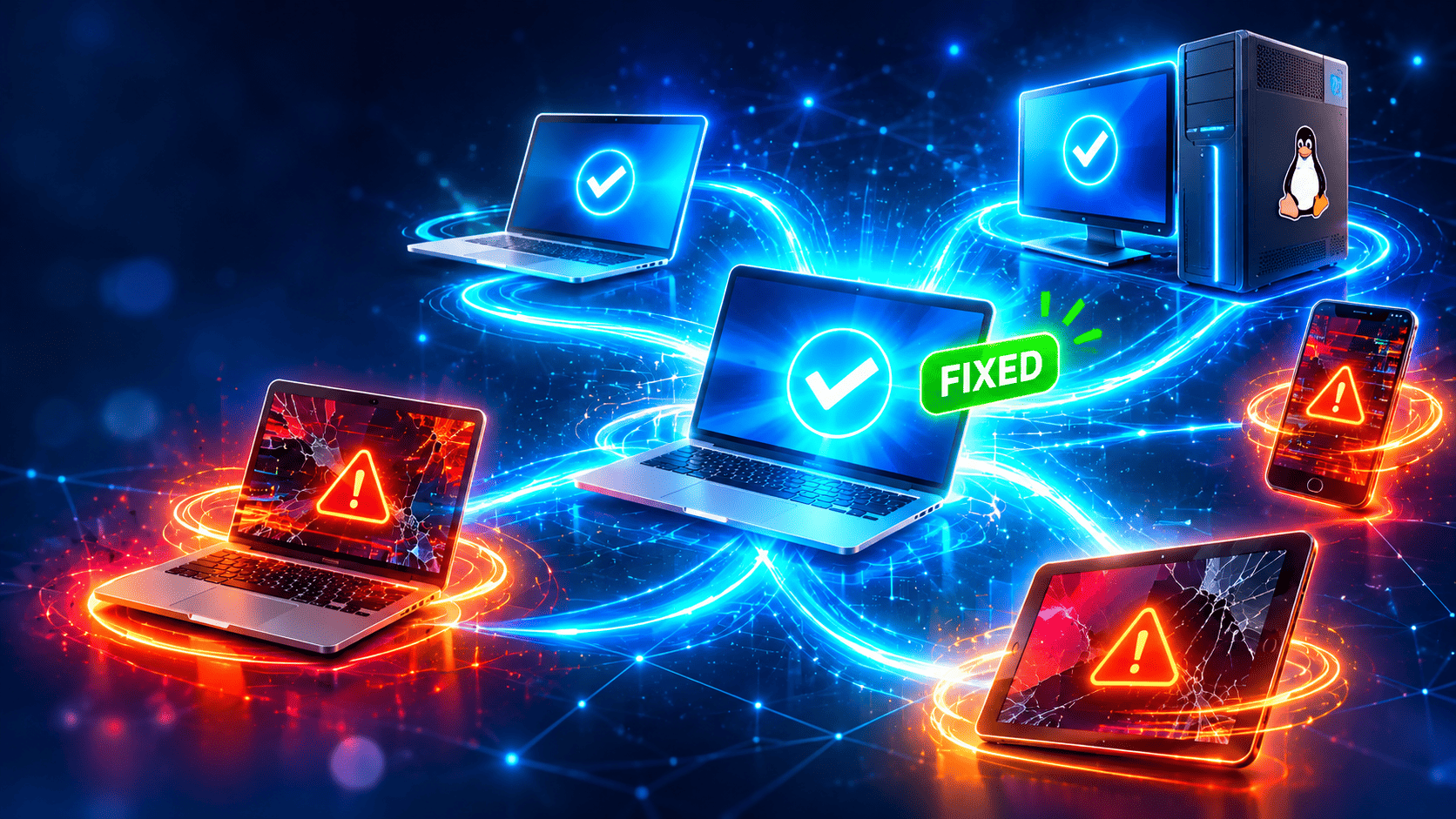
Every support team knows the problem. A user reports that “the computer is slow” or “the app does not open,” and the technician has to guess what happens on the other side of the screen. Add different operating systems, remote locations, and personal phones into the mix, and a simple fix can take hours.
Remote troubleshooting software removes much of this guesswork. In this guide, you will learn how ZOHO Assist – Remote Access Software helps support teams solve problems on Windows, Mac, Linux, and mobile devices. You will also find step-by-step workflows, security advice, and a practical table of common issues and fixes.
Table of contents
Quick Summary
In short, Zoho Assist lets a technician see and, with permission, control a remote device over the internet. The technician diagnoses the issue on the real screen, applies the fix, and confirms the result with the user, all in one session. Because the tool covers several operating systems, one team can support a mixed environment from a single place.
| Topic | Key Point |
|---|---|
| What it is | Cloud-based remote support and remote access software |
| Supported device types | Windows, Mac, Linux, Android, and iOS (features vary by platform) |
| Main use | Fast diagnosis and repair of software and configuration problems |
| Session types | On-demand (attended) and unattended access |
| Main advantage | One tool for a mixed device environment |
| Main limitation | Cannot repair broken hardware; mobile features depend on the device |
| Best practice | Get consent, follow a workflow, and log every session |
The sections below explain each point in detail.
What Is Remote Troubleshooting and Why Does It Matter?

What Does Remote Troubleshooting Mean?
Remote troubleshooting means a technician diagnoses and fixes a device without being physically present. The technician connects through the internet, views the screen, and works with the user or controls the device directly. Common tasks include fixing software errors, changing settings, installing updates, removing malware, and guiding users through unfamiliar steps.
This approach differs from a simple phone call. On a call, the technician depends on the user’s description. In a remote session, the technician can see the problem and act on it right away.
Why Do Companies Rely on Remote Support?
Businesses use remote support for three main reasons: speed, cost, and reach. A technician can start a session within minutes, so users lose less working time. Companies also save on travel and on-site visits. Finally, a remote team can support employees and customers in other cities or countries without opening new offices.
The shift toward remote and hybrid work has made these advantages more important. Employees now use home networks and personal devices, and IT teams cannot visit every location.
What Problems Can Support Teams Solve Remotely?
Most everyday support requests fall into categories that a remote session handles well:
- Slow performance and frozen applications
- Software installation and update failures
- Network, VPN, and email configuration errors
- Printer and peripheral setup issues
- Account, login, and permission problems
- Malware cleanup and security settings
- User questions about how to complete a task
Hardware failures, such as a dead battery or a broken screen, still require physical repair. Even then, a remote session helps the technician confirm the diagnosis first.
What Is Zoho Assist?

What Is Zoho Assist and How Does It Work?
ZOHO Assist – Remote Access Software is a cloud-based tool for remote support and remote access. The technician starts a session and shares a link or a code. The user joins through a browser or a small application, and the technician then views the screen and requests control.
Because the service runs in the cloud, teams do not need to build their own server infrastructure to support remote users. This design makes the tool practical for small teams, managed service providers, and larger IT departments.
How Is It Related to Remote Troubleshooting?
Remote troubleshooting is the core use case for this kind of software. Zoho Assist gives technicians the connection, the communication channels, and the control they need to find and fix problems. It also records session details, so the team can review how it solved earlier cases.
In practice, the software turns a vague description into a visible problem. The technician sees the error message, checks the settings, and tests the fix in real time. As a result, the first-contact resolution rate tends to improve.
Which Features Help Most During Troubleshooting?
Features vary by plan and platform, so confirm the current list in the vendor’s documentation. The following capabilities usually matter most:
- Attended sessions: The user joins and approves the connection, which works well for live support.
- Unattended access: The technician connects to a configured device without the user present.
- Chat and voice: The technician explains each step while working.
- File transfer: Staff send patches, scripts, and log files between devices.
- Multi-monitor and screen switching: The technician can view each screen of a multi-display setup.
- Session recording and reports: Teams can review what happened and track performance.
- Mobile support: Technicians can assist users on supported Android and iOS devices.
How Does Zoho Assist Work Across Different Operating Systems?
A mixed environment creates a common challenge: each operating system behaves differently and handles remote access in its own way. The table below gives a general overview. Because vendors update their products often, verify the exact capabilities for your version before you plan your support process.
| Platform | Typical use in troubleshooting | Points to check |
|---|---|---|
 | Full remote control, software repair, settings, updates | Administrator rights for some actions |
 | Remote control, app and settings support | Screen recording and accessibility permissions |
 | Desktop and server support | Display server type and distribution support |
 | Screen viewing and, on supported devices, remote control | Device make, model, and Android version |
 | Screen sharing and guided support | Remote control is limited by Apple’s rules |
In every case, the technician should confirm the platform and version at the start of the session. That simple step prevents wasted time later.
How Do You Troubleshoot Windows Devices Remotely?
Why Is Windows Support So Common?
Windows remains the most common desktop operating system in many businesses, so most support teams spend much of their day on it. Typical requests include slow startup, failed updates, driver conflicts, printer errors, and broken network connections. Microsoft documents many of these issues and their fixes on Microsoft Learn, which makes a useful reference for technicians.
How Do You Handle Typical Windows Problems?
Start with the basics, and then move to deeper checks. In a Zoho Assist session, the technician can follow a routine like this:
- Ask the user to describe the problem and when it started.
- Open Task Manager and check CPU, memory, and disk usage.
- Review startup programs and recent software changes.
- Check Windows Update history and pending updates.
- Inspect network settings and test the connection.
- Run built-in tools, such as the System File Checker, when needed.
- Restart the device, reconnect to the session, and confirm that the problem is gone.
The reconnect step matters. Many fixes require a restart, and a good remote tool lets the technician rejoin the session without asking the user to start over.
What Tips Make Windows Sessions Faster?
Prepare scripts and installers in advance, and keep them in a shared folder so you can transfer them quickly. Use unattended access for devices that need after-hours maintenance. Also ask the user to save their work before you begin, because some repairs trigger a restart.
How Do You Troubleshoot Mac Computers Remotely?

What Makes Mac Support Different?
macOS protects privacy and security with strict permission controls. Remote access tools need permission to record the screen and control input, and the user usually grants these permissions in System Settings. Apple explains these controls on its official support site, so share the relevant steps with the user before the session.
Because of these rules, technicians should plan a few extra minutes for the first session on a Mac. After the user grants the permissions once, later sessions run more smoothly.
Which Mac Problems Can You Fix Remotely?
Remote sessions handle many common Mac issues well:
- Application crashes and installation errors
- Wi-Fi, VPN, and email configuration
- Storage cleanup and system updates
- Printer and shared drive connections
- Settings for security software and device management tools
When a problem involves a failing disk or battery, the technician can still collect diagnostic details and then arrange a physical repair.
How Do You Guide Mac Users Through Permissions?
Send a short instruction with screenshots before the session. Explain that the system will ask for permission, and tell the user that this request is normal and safe when they trust the technician. During the session, wait patiently and describe each step. This approach also builds trust, which matters for any remote connection.
How Do You Troubleshoot Linux Systems Remotely?
Why Is Linux Support Unique?
Linux appears in developer workstations, servers, and specialized devices. Many Linux users work comfortably in the command line, and many servers run without a graphical interface. Support requirements therefore vary widely, depending on the distribution, the desktop environment, and the display server.
Because of this variety, check the vendor’s list of supported Linux distributions before you roll out the tool. Display server differences can also affect how well screen sharing and control work.
What Can You Fix on Linux Remotely?
Technicians typically use remote sessions on Linux to resolve package conflicts, configuration errors, service failures, and network problems. On desktop systems, the technician can share the screen and guide the user. On headless systems, the team may combine remote access with command-line tools and logs.
A clear checklist helps here. Ask for the distribution name and version first. Then review system logs, check disk space and memory, and confirm that critical services are running. Finally, test the fix and document what you changed.
How Should You Prepare Linux Devices for Support?
Prepare devices in advance. Install the access agent, document the environment, and record the administrator contact. This preparation saves time during urgent incidents, especially on servers where downtime costs money.
How Do You Troubleshoot Mobile Devices Remotely?

Why Does Mobile Support Matter Now?
Mobile devices have become work tools. Employees read email, approve requests, and use business apps on phones and tablets every day. When an app fails or a setting blocks access, work stops, so support teams must handle mobile issues as seriously as desktop ones.
How Does Support Differ on Android and iOS?
The two platforms follow different rules. Android devices often allow deeper remote assistance, though available features depend on the manufacturer, model, and system version. iOS applies stricter limits, so technicians usually view the screen and guide the user, but they cannot take full control as they can on a computer.
The following comparison helps set expectations:
| Aspect | Android | iOS |
|---|---|---|
| Screen viewing | Generally supported | Generally supported through screen sharing |
| Remote control | Depends on device and version | Limited by platform rules |
| Typical help | App settings, Wi-Fi, email setup | Guided steps, app and account setup |
| User involvement | Required to approve the session | Required to start screen sharing |
What Mobile Problems Can You Solve Remotely?
Technicians commonly solve email setup errors, Wi-Fi and VPN problems, app configuration issues, and account sign-in trouble. They also guide users through updates and security settings. Since the user often holds the device, clear spoken instructions matter more than on a desktop.
Always confirm that your policies allow support on personal devices. Employees may worry about privacy, so explain exactly what you can see and what you will not touch.
What Is a Step-by-Step Remote Troubleshooting Workflow?
What Steps Should Every Technician Follow?
A consistent workflow reduces mistakes and speeds up resolution. Use this process for any platform:
- Collect the basic facts: device, operating system, version, and symptoms.
- Ask for consent and explain what you plan to do.
- Start the session and confirm you’re on the correct device.
- Reproduce the problem, or watch the user trigger it.
- Check the most likely causes first, such as recent changes and updates.
- Apply one fix at a time, and test after each change.
- Confirm the result with the user.
- Document the cause, the fix, and the time spent.
- Close the session and remove temporary access.
Why Does Documentation Matter?
Good notes turn a single fix into reusable knowledge. When another user reports the same issue, a technician can find the earlier case and apply the solution in minutes. Over time, these records also reveal patterns, such as a faulty update that affects many devices.
How Do You Communicate During a Session?
Speak clearly and avoid jargon. Describe each action before you perform it, and pause often. Users feel more comfortable when they understand what happens on their screen. Moreover, calm communication helps in stressful situations, such as a blocked login before an important meeting.
What Are Common Problems and Their Remote Fixes?
The table below lists typical issues and a practical remote approach for each.
| Problem | Likely cause | Remote approach |
|---|---|---|
| Slow computer | Too many startup apps, low memory, malware | Review resource usage, remove unneeded startup items, scan for threats |
| App will not open | Corrupted install or missing update | Reinstall or repair the app, apply updates |
| No internet connection | Wrong settings or driver problem | Check adapter settings, reset the connection, update drivers |
| Email not syncing | Account or server settings changed | Reconfigure the account, test sending and receiving |
| Printer not working | Missing driver or wrong port | Reinstall the driver, set the default printer |
| VPN fails to connect | Expired credentials or blocked port | Verify credentials and settings; test on another network |
| Phone app crashes | Old version or low storage | Update the app, free storage, restart the device |
How Can You Keep Remote Troubleshooting Secure?
Why Is Security Essential?
Remote access gives a technician strong control over a device. That power helps legitimate support work, but criminals also try to misuse remote tools, for example, through fake support calls. The Cybersecurity and Infrastructure Security Agency (CISA) guides on avoiding tech support scams and securing remote access, so review them with your team.
Treat security as part of the troubleshooting process, not an extra step.
Which Practices Protect Users and Companies?
The NIST Cybersecurity Framework gives a helpful structure for managing cyber risk. Combined with common industry practice, it suggests these measures:
- Use multi-factor authentication for all technician accounts
- Give each technician only the permissions the role requires
- Ask for user consent before every attended session
- Verify the identity of the person who requests help
- Keep session logs and review them regularly
- Update the software and the operating systems promptly
- Remove unattended access from devices that no longer need it
- Train staff to recognize phishing and social engineering
Also review the vendor’s security documentation, and make sure it matches your internal policies and legal obligations.
How Do You Respect User Privacy?
Tell users what the technician can see, what the tool records, and how long the company keeps logs. Put this information in a short policy and share it in advance. Technicians should close or avoid personal files and stop immediately if the user asks. Clear rules protect both the user and your organization.
How Can You Measure Troubleshooting Performance?
Teams improve what they measure. Track a few simple metrics, and review them regularly.
| Metric | What it shows | Why it matters |
|---|---|---|
| First-contact resolution | Share of issues fixed in the first session | Shows efficiency and skill |
| Average session time | How long a typical fix takes | Highlights slow processes |
| Time to start a session | Delay between the request and the connection | Shows how fast users get help |
| User satisfaction | Feedback after the session | Reflects the user’s experience |
| Repeat issues | Same problem returning | Points to root causes |
Use session reports from ZOHO Assist – Remote Access Software and your help desk data to collect these numbers. Then update your workflows, scripts, and training based on what you learn.
What Best Practices Make Remote Troubleshooting Succeed?
Strong results come from a mix of tools, process, and people. Keep these principles in mind:
- Standardize: Use the same workflow and documentation template for every case.
- Prepare: Keep scripts, installers, and guides ready for common problems.
- Segment: Create separate playbooks for Windows, Mac, Linux, and mobile.
- Train: Teach technicians the differences between platforms and the security rules.
- Test: Try new versions and settings in a small group before a full rollout.
- Review: Analyze recurring issues each month and fix the root cause.
These habits turn a good tool into a reliable support service.
Key takeaways
What Should You Remember About Zoho Assist and Remote Troubleshooting?
Remote troubleshooting saves time, reduces costs, and keeps people productive. It works best when technicians follow a clear workflow, respect user privacy, and apply strong security practices. Each platform brings its own rules, so Windows, Mac, Linux, and mobile devices all need their own playbooks.
ZOHO Assist – Remote Access Software supports this approach by giving technicians one tool for a mixed device environment. They can view the problem, fix it, and document the result without leaving their desk.
What Is the Next Step?
Start with an audit of your devices and your most common support requests. Then build a simple workflow for each platform, run a pilot with a small group, and measure the results. If you want expert guidance on planning, security, or rollout, consider working with Solution for Guru, so your support team grows on a solid foundation.
Frequently Asked Questions
It covers these device types, but the available features differ by platform and version. Windows and macOS usually offer full remote control, Linux support depends on the distribution, and iOS has stricter limits than Android. Check the vendor’s current documentation before you choose a plan.
Remote access is safe when you work with a trusted technician and follow good practice. Verify who requests access, give consent only for the session you expect, and ask the company about its logging and security policies. Never share session codes with unknown callers.
No. In most cases, you open a link or enter a code, and the technician handles the rest. If you feel unsure, ask the technician to explain each step, or request a short test session first.
What Are the Benefits of Cooperating With Solution for Guru?
A remote support tool works best when the team configures it carefully and uses it consistently. Planning the workflow, setting up security, and training technicians take time and experience. A consulting partner like Solution for Guru can help you get there faster.
How Can Solution for Guru Support Your Support Team?
Solution for Guru reviews your current support process, device landscape, and security needs. The team can then recommend tools, including ZOHO Assist, and design a setup that fits your size and budget. Instead of testing options by trial and error, you benefit from practical experience.
What Practical Benefits Can You Expect?
Cooperation with the company typically brings these advantages:
- Clear planning: A support workflow that covers every operating system you use.
- Faster rollout: Help with configuration, testing, and user communication.
- Stronger security: A review of access rules, consent steps, and logging.
- Skilled technicians: Training that builds confidence on every platform.
- Continuous improvement: Regular reviews that adjust the setup as your company grows.
These benefits matter most for companies without a large internal IT department. Learn more on the Solution for Guru website.
Recommended:
- How Does Zoho Assist Improve First-Call Resolution?
- Zoho Assist for Cross-Border Support: Cloud-Based Access Without Network Restrictions
- How Does Zoho Assist Help Reduce Support Costs?
- Supporting Hybrid Employees Using Zoho Assist
- What Are the Best Use Cases for ManageEngine Remote Access Plus in Enterprise IT?
- How Does Zoho Assist Support Android Endpoints Remotely for Mobile Device Support?
- How Does Zoho Assist Help Remote Customer Support Teams Run Attended Sessions Without Installations?
- What Are the Best Practices for MSPs Using ManageEngine Remote Access Plus?
- Why Businesses Choose ManageEngine Remote Access Plus Instead of Traditional Remote Desktop
- ManageEngine Remote Access Plus Review
- Why Businesses Choose Zoho Assist for Remote Support
- Zoho Assist – Review, Feedback, Price, Pros and Cons
- 12 Jobs You Wouldn’t Have Without Remote Access Software
- What Are the Use Cases of Remote Access Software Across Different Industries?
- ManageEngine Remote Access Plus: Is This the Best Enterprise Remote Support Tool in 2026?
- Remote Access Security Model: Encryption and Compliance — What Does Every Enterprise Need to Know?
- Remote Access Software for Enterprise IT Support