Email Integration in Bigin: Gmail and Outlook for Small Business Sales
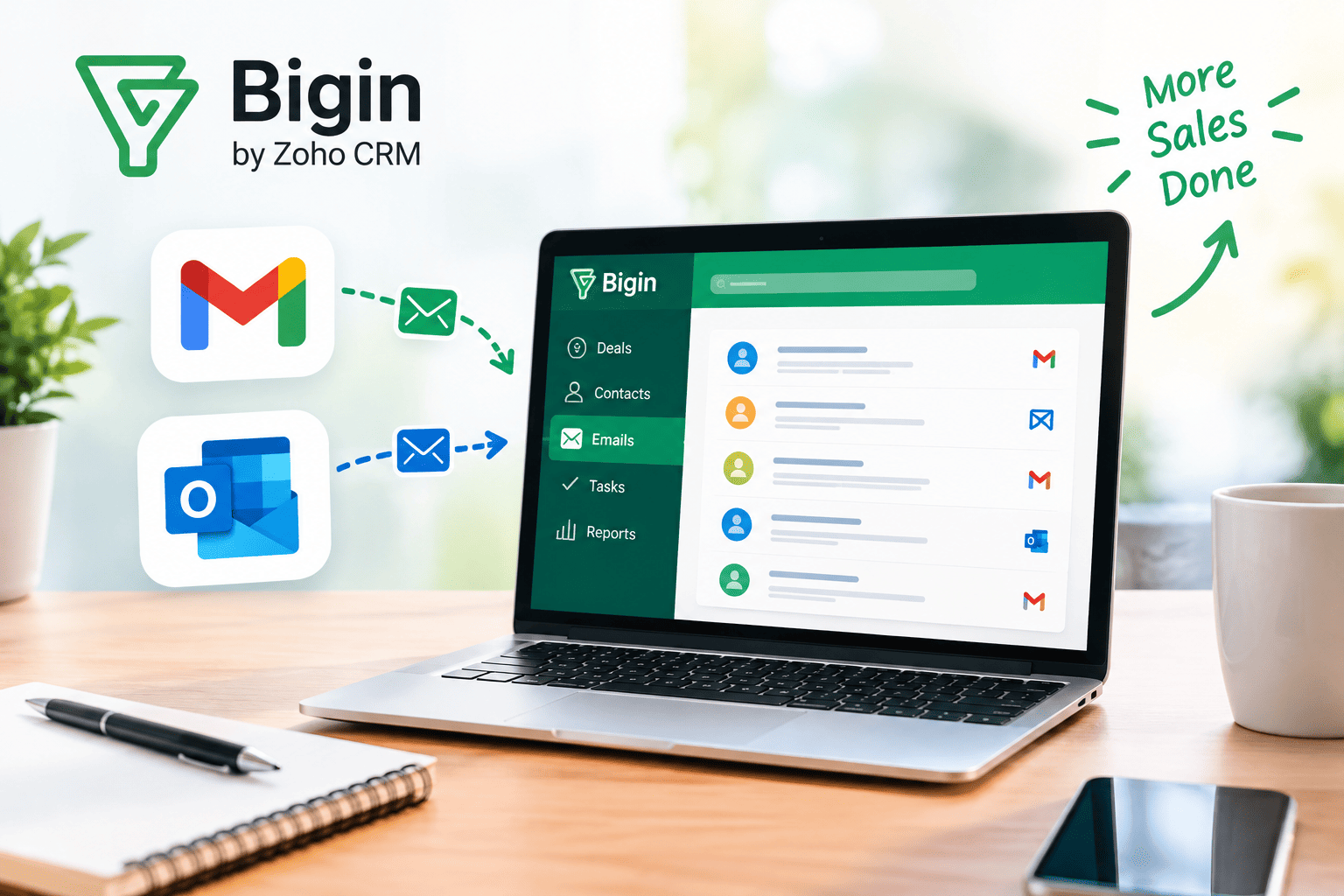
Small business owners send, read, and chase emails all day. A salesperson often loses a deal because the conversation lives in a personal inbox while the pipeline lives somewhere else. Email integration closes that gap. It connects your mailbox to your customer records, so every message, reply, and follow-up lands where your team can see it.
This guide explains how Bigin by Zoho CRM connects with Gmail and Outlook, what the integration does for a small sales team, and how to set it up without friction. You will also find comparison tables, best practices, and answers to common questions.
Table of contents
What Should You Know at a Glance?
- Bigin connects to Gmail, Outlook, and other mailboxes. You link your account once and manage customer email inside the CRM.
- Two-way email sync keeps conversations in one place. Messages you send and receive appear on the matching contact or company record.
- Templates, scheduling, and tracking save time. Your team sends consistent messages and sees who opens them.
- Pipelines turn email into revenue. Each reply moves a deal forward, and the CRM shows exactly where it stands.
- Setup takes minutes, but planning pays off. A clear process, permissions, and naming rules prevent messy data later.
- A consultancy can speed up the rollout. Solution for Guru configures Bigin around your real sales process.
How Does Bigin by Zoho CRM Relate to Email Integration?

Bigin by Zoho CRM is a lightweight CRM that Zoho designed for small businesses and teams that outgrow spreadsheets. It focuses on simple pipelines, contact management, and communication channels instead of the complex modules that enterprise tools carry. Email sits at the center of that design, because most small businesses still close deals through inboxes.
The main topic of this article, email integration, describes the link between Bigin and your Gmail or Outlook account. Once you authorize that link, Bigin reads and sends email on your behalf. It then attaches each message to the right contact, company, or deal. Your salespeople keep using the mailbox they already know, and your manager gets a complete record without chasing screenshots or forwarded threads.
This approach matters because small teams rarely have time for heavy training. Bigin gives them a familiar email workflow plus the structure of a CRM. Consequently, adoption tends to stay high, and data quality improves on its own.
Why Does Email Integration Matter for Small Business Sales?
Email remains the most reliable business channel. Radicati Group, a technology research firm, has projected that the number of email users worldwide would pass 4.5 billion by 2025. Litmus, an email marketing platform, reports a commonly cited average return of about $36 for every $1 spent on email marketing. These figures show why sales teams cannot ignore the channel.
What Problems Does Disconnected Email Create?
When email and CRM stay separate, small teams run into the same issues again and again:
- Lost context. A colleague takes over a lead and cannot see earlier conversations.
- Duplicate outreach. Two people contact the same prospect with different offers.
- Manual data entry. Reps copy and paste messages into records, then skip it when they get busy.
- Weak forecasting. Managers cannot tell which deals are active because the evidence sits in private inboxes.
- Slow follow-up. Nobody gets a reminder when a prospect goes quiet.
How Does Integration Solve These Problems?
An integrated mailbox fixes each issue directly. Bigin logs conversations automatically, so any teammate can open a record and read the history. Likewise, the CRM can remind a rep to follow up when a deal stalls. As a result, managers see real activity, not guesses.
Furthermore, integration shortens the sales cycle. Reps respond faster because customer details, previous messages, and deal stages appear next to the email they are writing.
How Does Bigin Connect With Gmail?

Gmail serves a huge audience of freelancers, startups, and Google Workspace companies. Google has said that Gmail has more than 1.8 billion active users, so most small businesses already have someone on the team who uses it daily. Bigin supports this setup in two ways: a direct account connection and a Gmail extension.
How Do You Link a Gmail Account to Bigin?
The process follows a standard authorization flow:
- Open Bigin and go to the email settings for your user profile.
- Choose to add a new email account and select Gmail.
- Sign in with your Google account.
- Review the permissions that Google displays, then allow access.
- Confirm the sync preferences, such as which folders and contacts Bigin should track.
Always check the current steps in the official Bigin help documentation, because Zoho updates menus from time to time. If your company uses Google Workspace, your administrator may need to approve third-party app access first.
What Does Bigin Sync From Gmail?
After the connection, Bigin pulls in messages that involve people in your CRM. It matches the sender or recipient address with a contact record and files the email on that record. You can also send messages from Bigin, and they leave through your Gmail account, so recipients see your normal address.
Can You Work Inside Gmail Itself?
Yes. Bigin offers a Gmail extension that adds a CRM sidebar next to your inbox. When you open a message, the sidebar shows the contact details and related deals. You can also add the sender as a new contact, create a deal, or log a note without leaving Gmail. This option suits reps who prefer to stay in their inbox all day.
How Does Bigin Connect With Outlook?
Outlook dominates many offices, especially those that run Microsoft 365. Microsoft has reported that more than 400 million paid Microsoft 365 commercial seats exist worldwide, which explains why Outlook compatibility matters for small business software. Bigin covers this need with an account connection and an Outlook add-in.
How Do You Link an Outlook Account to Bigin?
The steps mirror the Gmail process:
- Open the email configuration section in Bigin.
- Add a new account and select Outlook or Microsoft 365.
- Sign in with your Microsoft credentials.
- Approve the permission request.
- Select your sync preferences and save.
Business tenants sometimes restrict third-party apps. Therefore, ask your Microsoft 365 administrator to allow the connection before you start. Microsoft Learn documents how admins manage app consent, and that page helps your IT contact make the right choice.
What Does the Outlook Add-In Do?
The add-in places a Bigin panel inside Outlook. From there, a rep can view contact history, create a deal, attach an email to a record, or schedule a task. Because the panel appears next to the message, the rep keeps the full context while writing a reply. Zoho lists the supported Outlook versions in its help center, so confirm that your version qualifies.
Does Bigin Work With Other Mailboxes?
Bigin also supports Zoho Mail and IMAP-based accounts. If your team uses a custom domain through another provider, you can often connect it with IMAP and SMTP details. This flexibility helps businesses that do not use Google or Microsoft.
How Do Gmail and Outlook Integrations Compare in Bigin?
Both options deliver the same core value, yet small differences affect which one fits your team. The table below summarizes the practical points. Verify details in Zoho’s current documentation before you decide.
| Feature | Gmail Integration | Outlook Integration |
|---|---|---|
| Account connection | Google sign-in with permission approval | Microsoft sign-in with permission approval |
| Inbox sidebar | Gmail extension | Outlook add-in |
| Two-way email sync | Yes | Yes |
| Best fit | Google Workspace and free Gmail users | Microsoft 365 and Exchange users |
| Admin approval | May apply in Workspace | May apply in Microsoft 365 |
| Send from CRM | Yes, through your Gmail address | Yes, through your Outlook address |
| Typical user | Startups, freelancers, agencies | Offices, service firms, finance teams |
Which One Should Your Team Choose?
Choose the platform your team already uses. Switching mail providers just for a CRM adds cost and confusion. If half your staff uses Gmail and the other half uses Outlook, Bigin can still handle both, because each user connects an individual account.
What Email Features Does Bigin Add on Top of Your Mailbox?
Syncing messages is only the start. Bigin layers several sales tools over your email so that your team works faster and more consistently.
How Do Email Templates Help?
Templates let you save common messages, such as introductions, quotes, and follow-ups. Reps insert them with one click, and merge fields fill in the name and company. Consequently, every customer receives a polished message, and new hires learn the right tone quickly.
Can You Schedule Emails in Bigin?
Yes. Scheduling lets a rep write a message now and send it at the best time later. This feature helps when you contact clients in different time zones or want a follow-up to arrive on a weekday morning.
How Does Bulk Email Work?
Bigin supports sending the same message to a group of contacts. You can target a segment, such as everyone in a certain pipeline stage. Keep in mind that your email provider sets sending limits, and your messages must follow anti-spam laws like CAN-SPAM in the United States and GDPR in Europe. The Federal Trade Commission publishes a plain-language CAN-SPAM guide for small businesses.
What Can You Learn From Email Tracking?
Tracking shows whether a recipient opened a message or clicked a link. Treat these signals as hints, not proof. For example, privacy features in some email apps can inflate open counts. Even so, a click on a pricing link tells a rep that the prospect has real interest, and the rep can call at the right moment.
How Does Automation Fit In?
Bigin can run workflows that react to events. A new lead might trigger a welcome email, and a stalled deal might create a follow-up task for the owner. These small automations remove repetitive work and keep deals moving.
How Do You Turn Email Conversations Into Pipeline Progress?
Email integration works best when it connects to a clear pipeline. Bigin organizes deals into stages that you define, such as New Lead, Contacted, Proposal Sent, Negotiation, and Won. Each email you send or receive gives you a reason to update a stage.
What Does a Simple Email-Driven Workflow Look Like?
Consider a small web design agency. A prospect fills out a contact form, and Bigin creates a lead. The owner sends a template introduction from Gmail, and the system logs it on the record. When the prospect replies, the owner moves the deal to Proposal Sent and attaches the quote. Two days later, an automation reminds the owner to follow up. The entire history stays in one place from first contact to signed contract.
Which Stages Need Which Emails?
The table below shows a practical mapping between pipeline stages and email actions.
| Pipeline Stage | Email Action | Goal |
|---|---|---|
| New Lead | Send a short introduction template | Start the conversation within hours |
| Contacted | Share helpful resources or a case study | Build trust |
| Proposal Sent | Deliver a quote with a clear deadline | Prompt a decision |
| Negotiation | Answer objections in writing | Keep terms documented |
| Won | Send a thank-you and onboarding steps | Set expectations |
| Lost | Send a polite check-in after a few months | Reopen the door later |
This mapping gives your team a shared playbook. Moreover, it makes reporting easier, because you can measure how many emails each stage needs before a deal closes.
What Are the Best Practices for Email Integration in Bigin?
A tool delivers value only when people use it well. These habits help small teams get the most from the integration.
How Should You Prepare Before Connecting?
Start with a short plan. Decide who owns each mailbox, which folders Bigin should sync, and who can see which records. Then clean your contact list. Remove duplicates and fix obvious errors, so the first sync does not import clutter.
What Daily Habits Improve Results?
- Send from Bigin or the sidebar. This approach ensures that every message gets logged.
- Use templates for repeat messages. Edit them occasionally, so they stay fresh.
- Update the deal stage after each reply. Accurate stages make forecasts reliable.
- Create a task before you close an email. A scheduled next step prevents forgotten leads.
- Review tracking data weekly. Look for patterns in opens and clicks, then adjust your subject lines.
How Do You Keep Messages Effective?
Write short subject lines that state the purpose. Open with the recipient’s need, not your product. Add one clear call to action per email. In addition, personalize the first sentence with a detail from the CRM record, such as a recent purchase or an earlier question.
Is Email Integration in Bigin Secure and Compliant?
Sharing mailbox access raises fair questions. Trust grows when you understand how the connection works and what you control.
How Does the Authorization Process Protect You?
Both Google and Microsoft use OAuth for third-party apps. With OAuth, you grant limited permissions without giving Bigin your password. You can also revoke access at any time from your Google or Microsoft account settings. Google’s account security pages and Microsoft’s account management tools explain how to review connected apps.
What Should You Do About Privacy Rules?
Treat customer emails as personal data. If you serve clients in the European Union, GDPR requires a lawful basis for processing their information and gives them rights to access or delete it. Train your team to log only business-related conversations and to respect unsubscribe requests. Zoho publishes security and privacy information on its website, so review it and share it with your compliance contact.
How Should You Manage User Access?
Give each employee the minimum access they need. A junior rep may see only their own deals, while a manager sees the whole team. Bigin supports role-based permissions, which help you protect sensitive conversations.
What Mistakes Should You Avoid?

Even simple integrations fail when teams skip basics. Watch for these common problems:
- Connecting personal inboxes without a policy. Decide in advance which emails belong in the CRM.
- Skipping data cleanup. Duplicates split a customer’s history across several records.
- Ignoring admin approvals. Blocked authorizations cause confusing errors during setup.
- Over-relying on open tracking. Use it as one signal among many.
- Sending bulk email without consent. Spam complaints damage your sender reputation and may break the law.
- Forgetting training. A thirty-minute walkthrough prevents weeks of inconsistent habits.
Fix these early, and the integration will pay off quickly.
What Are the Key Conclusions About Bigin, Gmail, and Outlook?
Email integration turns a CRM from a database into a daily working tool. Bigin by Zoho CRM achieves this by connecting directly with Gmail and Outlook, syncing conversations in both directions, and adding templates, scheduling, tracking, and automation. Small teams gain a complete customer history without abandoning the inbox they already trust.
To summarize the main points:
- Choose the integration that matches your existing mailbox, and connect it with proper admin approval.
- Build a simple pipeline, and link each stage to a specific email action.
- Follow security and privacy rules, and give each user only the access they need.
- Review tracking and pipeline data every week to refine your approach.
If you want an affordable CRM that respects the way small businesses already work, Bigin by Zoho CRM deserves a close look. Start with a trial, connect one mailbox, and watch how quickly your sales conversations come together.
Frequently Asked Questions
Yes, you can generally connect more than one account, and each user connects their own. Check Zoho’s current help documentation for any limits on your plan, because plan features change.
Bigin syncs messages that relate to contacts and companies in your CRM, based on the settings you choose. You control the sync preferences, and you can disconnect the account at any time. Review the permissions on the authorization screen before you approve them.
No. Most users finish the connection in a few minutes by signing in and approving access. However, you may need an administrator to approve third-party apps in Google Workspace or Microsoft 365. A consultant can also handle the setup if you prefer.
What Are the Benefits of Working With Solution for Guru?
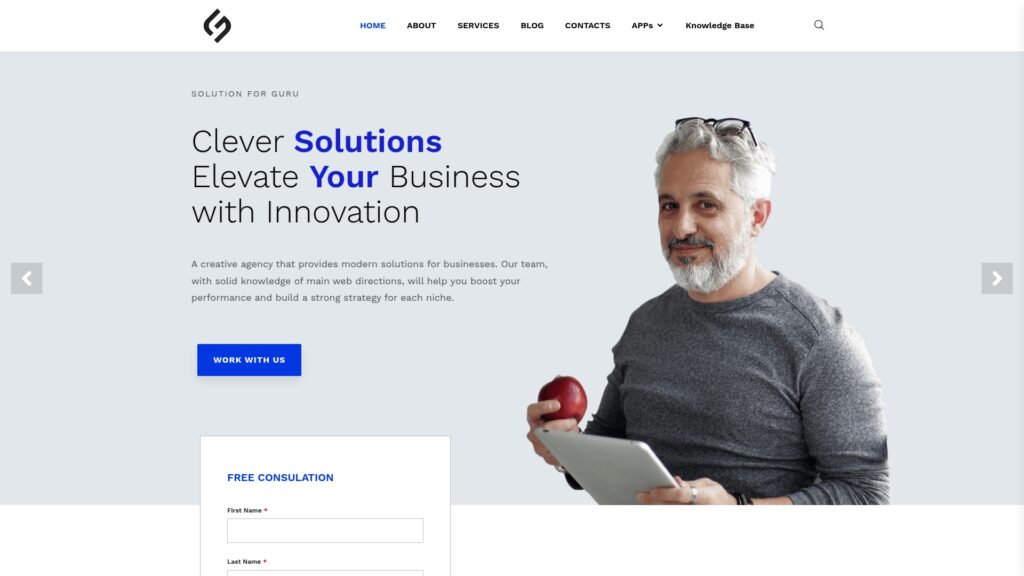
Software only creates value when it fits your process. Solution for Guru is a CRM and software implementation consultancy that helps small and mid-sized businesses configure tools like Bigin around their real workflows. Instead of leaving you with a blank system, the team designs it with you.
How Does Solution for Guru Support Your Bigin Rollout?
- Process mapping. Consultants study how your team sells today, then design pipeline stages and email steps that match.
- Mailbox integration. They connect Gmail or Outlook, handle permissions, and test the sync before launch.
- Template and automation setup. They build the messages and workflows that save your reps time.
- Data migration. They clean and import contacts from spreadsheets or older systems, which prevents duplicates.
- Training and handover. They teach your staff the daily habits that drive adoption.
- Ongoing improvement. They review results with you and adjust the setup as your business grows.
Why Does Expert Help Pay Off?
A guided implementation shortens the learning curve and reduces costly mistakes. Your team starts using the CRM with confidence, and your managers get trustworthy reports sooner. Visit the Solution for Guru website to discuss your project and find the right setup for your sales team.
Recommended:
- How Does monday CRM Work?
- How Do Bigin’s Automation Features Save Time for Growing Teams?
- What Is monday CRM? A Complete Guide to monday.com CRM
- Bigin Mobile App Review: Managing Sales on the Go
- CRM Proficiency Is the New Digital Literacy: Do You Agree?
- Bigin by Zoho CRM Pricing Explained: Is It Worth It?
- Using Creatio to Standardize Business Processes Across Departments
- Best Pipedrive Reports for Sales Managers
- Pipedrive Insights Explained: How Sales Reporting Works
- Pipedrive Automation Examples for Sales Teams
- Pipedrive Sales KPIs: 15 Metrics Every Team Should Track
- How Pipedrive AI Helps Sales Teams Save Time
- CRM Roles 101: From CRM Administrator to CRM Developer
- Pipedrive MCP Explained: How AI Assistants Connect to Your CRM
- Sales Forecasting and Pipeline Management in Creatio CRM
- Pipedrive Sales Dashboard: How to Track Performance
- Pipedrive Automation Triggers and Actions Explained
- Pipedrive AI vs Traditional CRM Automation: What’s the Difference?
- ERP and ITSM Integration: Improving Operational Visibility Across Departments
- Integrating Endpoint Management Tools with Freshservice