How Do You Manage User Access and Permission Levels in Xero?
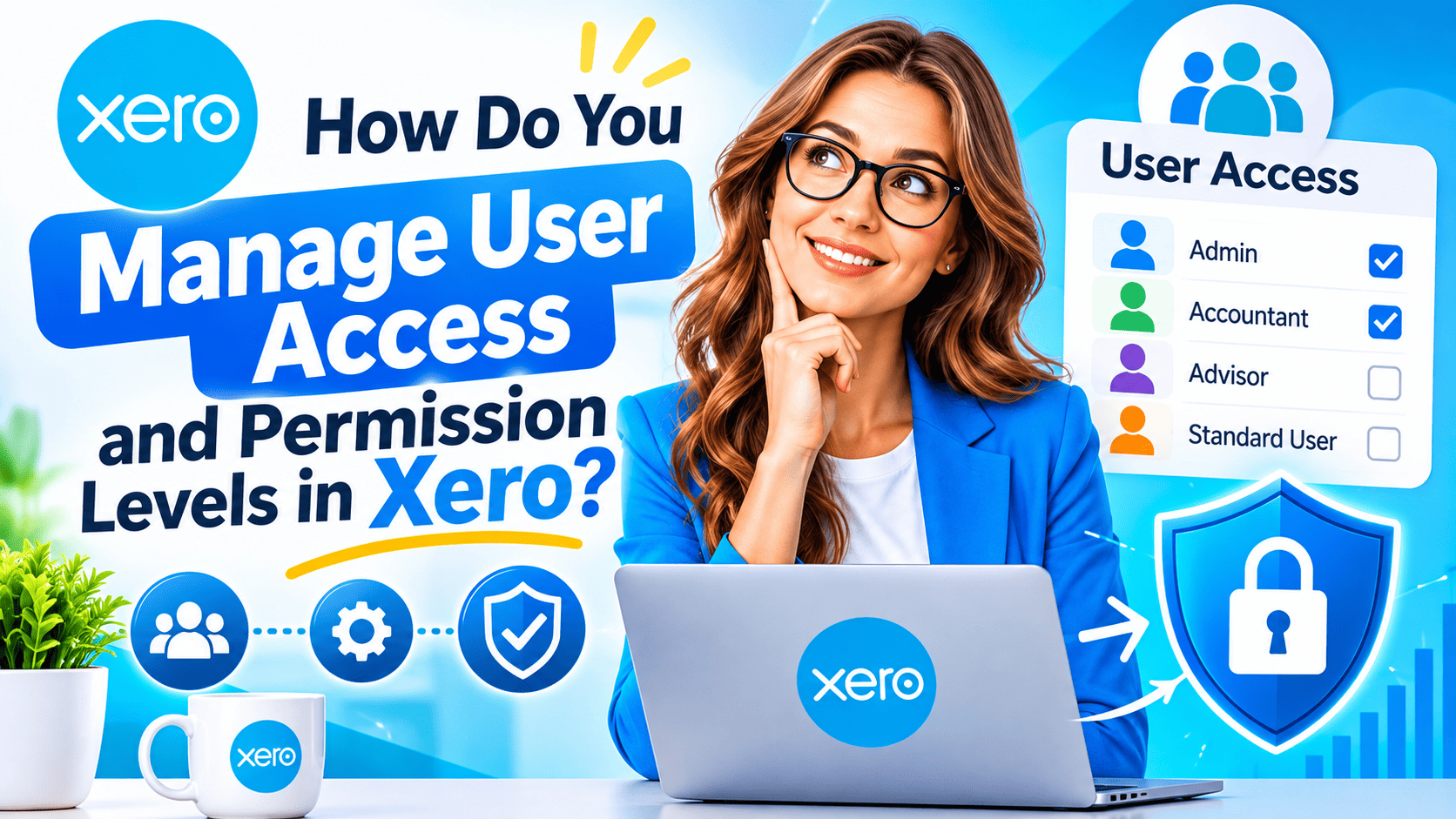
Anyone who logs in to your accounting system can view, change, or send financial data. Therefore, you need clear rules about who gets which level of access. Xero gives you a practical set of user roles that control what each person can do in your organization. This guide explains how those roles work, how to assign them, and how to keep access secure as your team grows.
Table of contents
What Is the Quick Summary?
- Xero uses predefined roles, including Adviser, Standard, Read only, and Invoice only, plus add-on permissions such as payroll access.
- You assign roles separately for each Xero organization, so one person can hold different roles in different organizations.
- Xero does not currently let you build fully custom roles, so you must choose the closest fit and add other controls around it.
- Lock dates, multi-factor authentication, and regular access reviews strengthen the basic role system.
- Remove or downgrade access as soon as someone changes jobs or leaves.
What Is Xero and How Does It Relate to User Access?
Xero is cloud-based accounting software for small and medium-sized businesses. It handles invoicing, bill payments, bank reconciliation, expense claims, inventory, payroll, and financial reporting. Because Xero runs in a web browser and on mobile devices, your team, bookkeeper, and accountant can all work in the same set of books at the same time.
That shared access is a major strength. However, it also creates a responsibility. A sales assistant who only needs to raise invoices should not see payroll data. Likewise, an external consultant who reviews reports should not be able to edit transactions.
Xero addresses this through user roles. A user role is a predefined bundle of permissions that determines which screens, reports, and actions a person can use. According to Xero’s published guidance, you assign these roles per organization, and the software does not charge per user for the standard roles. As a result, cost rarely limits how many people you can invite. Discipline about permissions matters far more.
Why Does User Access Management Matter in Xero?
Accounting data is sensitive. It contains bank details, supplier terms, customer information, and employee pay. Weak access control exposes it all.
What Risks Does Poor Access Control Create?
Over-permissioned users cause problems in three main ways:
- Fraud: A person with too much access can create fake suppliers, alter bank details, or approve their own payments. The Association of Certified Fraud Examiners (ACFE) reports in its Occupational Fraud studies that organizations lose a significant share of revenue to internal fraud. Weak internal controls are a common factor.
- Honest mistakes: A well-meaning employee might delete a contact, void an invoice, or post a journal to the wrong account. Reversing these errors takes time.
- Data exposure: Payroll figures, owner drawings, and profit margins are confidential. Not every team member needs to see them.
For example, a retail company once gave every bookkeeper Adviser access “for convenience.” When one of them left, nobody removed the account for several weeks. The former employee could still view customer and bank data. A simple offboarding step would have prevented that.
How Do Roles Support Compliance and Audits?
Auditors and tax authorities expect businesses to show that they control access to financial records. Role-based access supports the principle of least privilege, which means each person receives only the access their job requires. In addition, a documented user list helps you answer audit questions quickly. You can show who held which role and when you changed it.
On the other hand, informal sharing of one login among several people removes accountability entirely. Xero’s activity history can only identify an individual if each person uses their own account. Therefore, always create one user per person.
What User Roles Does Xero Offer?

Xero’s role names and exact permissions can change over time, so check Xero Central for the latest details before you finalize your policy. At the time of writing, the main roles follow the pattern below.
| Role | Typical purpose | Key access | Main limitation |
|---|---|---|---|
| Adviser | Accountants, senior finance staff, trusted bookkeepers | Full access to transactions, reports, bank reconciliation, settings, and user management | Billing settings need the separate subscriber or billing permission |
| Standard | Day-to-day bookkeeping and finance staff | Create and edit invoices, bills, and bank reconciliations; run most reports | Cannot manage users or change core organisation settings |
| Standard + reports | Staff who also need financial reports | Standard access plus access to a wider set of reports | Still cannot manage users |
| Invoice only | Sales staff, project managers, purchasing officers | Create and send invoices, quotes, or purchase orders, depending on the setting | No access to bank accounts or full financial reports |
| Read only | Directors, investors, external reviewers | View data and reports without editing | Sees a wide range of financial information |
| Payroll admin | Payroll officers, HR managers | Manage employees, pay runs, and payroll reports | Not a general accounting role |
What Can an Adviser Do?
The Adviser role carries the highest level of access. Advisers can work in every area of Xero, including reports, bank reconciliation, invoicing, and settings. They can also invite other users and change their roles.
Because of this power, you should limit the Adviser role to a few people. Typically, that means the business owner, the finance manager, and your external accountant. If you give Adviser access to ten people, you effectively have no restrictions.
What Can a Standard User Do?
Standard users handle the daily work. They can create invoices, enter bills, reconcile bank transactions, and run most reports. However, they cannot invite users or change organization settings. Xero also limits certain advanced actions, such as manual journals, to Advisers or Standard users with reports permission.
Most bookkeepers and accounts staff fit this role well. Payroll access is a separate setting, so a Standard user does not automatically see employee pay.
What Can an Invoice Only User Do?
The Invoice Only role suits people who need to bill customers or raise purchase orders but should not see the wider books. For example, a field technician can send a quote from a phone without seeing bank balances.
In practice, you choose whether the role covers sales invoices, purchase bills and orders, or both. Some versions of this role also allow users to approve and pay. Because Xero adjusts these options from time to time, review the on-screen descriptions when you invite the user.
Note that Xero’s product feedback forum shows users asking for finer control, such as hiding sales totals from Invoice-only users. Therefore, test what the role displays before you assign it to staff who should not see sales performance.
What Can a Read Only User Do?
Read-only users can view information but cannot create or change it. Directors and investors often receive this role. However, you should not treat it as a harmless default. Xero‘s own product team has acknowledged on its feedback forum that the current roles are intentionally broad, and that Read-only users can view a large amount of data. Consequently, give this role only to people you trust with full access to your finances.
What Do Payroll Permissions Control?
Payroll is sensitive, so Xero handles it separately. Payroll admin access lets a person manage employees, pay runs, and payroll reports. In addition, a Standard user can receive payroll permissions only when you explicitly enable them. This design prevents accidental exposure of salary information.
How Do You Add a New User in Xero?
Only users with permission to manage users, such as Advisers, can invite new people. Follow these steps:
- Log in to Xero and open the correct organization.
- Select Settings from the menu, then choose Users.
- Click Invite a user.
- Enter the person’s first name, last name, and work email address.
- Choose the role that matches their job.
- Select any additional permissions, such as payroll or the ability to manage users, only if the person needs them.
- Add an optional message, then click Send invitation.
- Ask the person to accept the invitation by email and set up multi-factor authentication.
The invitation links to a personal login. As a result, each action in Xero ties back to a named individual.
What Should You Check Before You Send the Invitation?
Before you click send, confirm three points. First, verify the email address, because an invitation to the wrong address gives a stranger a path into your books. Second, confirm that the person works for your organization or a trusted firm. Third, record the request, the approver, and the date in your internal log. This record becomes valuable during an audit or an incident review.
How Do You Change or Remove a User’s Permissions?

Roles are not permanent. People change positions, projects end, and contractors finish their work. Review and update access whenever one of these events occurs.
How Do You Change a Role?
- Open Settings, then Users.
- Click the name of the person you want to update.
- Select a new role or adjust the additional permissions.
- Save your changes.
The new permissions take effect the next time the person loads the page or logs in again.
How Do You Remove a User?
To remove someone, open the same Users list, select the person, and choose the delete or remove option. Removal stops their access to that organization but does not delete the transactions they created. Xero keeps those records and their history.
Importantly, remove access on the day a person leaves. Do not wait for the next monthly review. In addition, if the person had a role in several organizations, repeat the process in each one, because Xero manages roles per organization.
How Do You Choose the Right Role for Each Person?
The best approach starts with the job, not the person. List the tasks each position performs, then pick the lowest role that allows those tasks. The table below gives practical examples.
| Job function | Suggested role | Extra permissions to consider | Reason |
|---|---|---|---|
| Business owner | Adviser | Subscriber or billing access | Needs full oversight and control |
| External accountant | Adviser | None | Needs reports, settings, and journals |
| Bookkeeper | Standard | Reports, if they prepare statements | Processes bills, invoices, and reconciliations |
| Sales representative | Invoice only (sales) | None | Raises invoices without seeing bank data |
| Purchasing officer | Invoice only (purchases) | Approval rights, if policy allows | Raises orders without viewing sales |
| HR or payroll manager | Payroll admin | None | Manages pay runs and employee records |
| Non-executive director | Read only | None | Reviews reports without changing data |
What Is Separation of Duties and Why Does It Matter?
Separation of duties means that no single person controls an entire financial process from start to finish. For instance, one person should not create a supplier, enter the bill, and approve the payment. Instead, split these tasks between at least two people.
Xero’s roles support this idea in a basic way. A purchasing officer with Invoice-only access can raise a purchase order, while a Standard user approves and pays the bill. In small teams, you may not have enough staff for a full split. In that case, the owner can review a weekly payment list as a compensating control.
How Do You Handle Temporary Access?
Seasonal workers and project contractors need access for a limited period. Assign them the narrowest role available, and write the end date in your access log. Then set a calendar reminder to remove them. Temporary accounts often remain active long after the work ends, so a reminder helps prevent this.
What Additional Controls Protect Your Xero Organization?
Roles alone do not secure your data. Xero offers several other features that work alongside them.
How Does Multi-Factor Authentication Help?
Multi-factor authentication (MFA) requires a second proof of identity, such as a code from a mobile app, in addition to a password. Xero requires MFA for its users, which blocks most attacks that rely on stolen passwords. Encourage your team to use an authenticator app and to keep backup methods in a safe place.
How Do Lock Dates Protect Past Periods?
A lock date prevents anyone from changing transactions before a chosen date. Xero lets you set a lock date for users other than Advisers, as well as a separate lock date that applies to everyone. After you file a tax return or close a month, you can lock that period. As a result, a Standard user cannot alter figures that you have already reported.
To set a lock date, go to Settings, open Advanced settings, and select Financial settings. Only users with the right level of access can change these dates.
How Do You Control Connected Apps?
Many businesses connect Xero to CRM tools, expense apps, payment gateways, and inventory systems. Each connection receives its own permission to read or write data through an authorization process called OAuth 2.0. This process lets an app act on your behalf without storing your password.
However, a connected app can often access large amounts of data. Review the Connected apps list regularly and disconnect anything you no longer use. Moreover, check what each app can read or change before you approve it.
How Can You Track What Users Did?
Xero records history and notes on many transactions, showing who created or changed them and when. Therefore, you can investigate unexpected changes without guessing. This feature only works well when each person uses an individual login, which is another reason never to share credentials.
How Often Should You Review User Access?

An access review compares the current user list with the people who should have access. Regular reviews catch problems that day-to-day management misses.
What Does a Practical Review Process Look Like?
Use this checklist every quarter, and more often if your team changes frequently:
- Export or list every user in Settings > Users for each organization.
- Compare the list against your current employee, contractor, and adviser records.
- Remove anyone who no longer needs access.
- Downgrade anyone whose role is higher than their duties require.
- Confirm that only the right people hold Adviser or user-management permissions.
- Review the connected apps list and revoke unused connections.
- Record the date, the reviewer, and any changes you made.
How Do You Prepare for Staff Changes?
Link Xero access to your standard HR processes. When HR records a new hire, finance receives a request to create a user. When HR records a resignation or transfer, finance receives a request to update or remove it. In small businesses, a short shared checklist can do the same job. This link ensures that access changes follow people changes without delay.
What Are the Limits of Xero’s Role System?
Xero’s roles are simple, which makes them easy to understand. However, they also have limits that you should plan for.
- No fully custom roles: You cannot build a role from scratch. You choose from the predefined list and add the available permissions.
- Broad Read-only access: The Read-only role shows more information than some businesses want to share.
- Limited control inside Invoice only: Users have asked Xero for options to hide totals or other users’ invoices, and these requests remain on the product feedback forum.
- Per-organization management: If you run several entities, you must update each one separately.
To work around these limits, combine roles with other controls. For example, give sensitive reports to a trusted Adviser who shares only the required figures with a director. In addition, use lock dates, approval policies, and regular reviews. If your needs go beyond what Xero offers natively, consider a connected app that adds approval workflows or finer reporting permissions.
What Are the Key Conclusions About Managing Access in Xero?
Effective access management in Xero follows a few clear principles. First, assign each person the lowest role that lets them do their job. Second, keep the Adviser role limited to a small group of trusted people. Third, create one named login for every user, and require multi-factor authentication.
Furthermore, support the role system with lock dates, careful control of connected apps, and quarterly reviews. These steps address the real limits of Xero’s predefined roles. Remove access promptly when people leave, and document every change.
Xero makes collaboration easy, and its flexible, per-organization roles let you protect sensitive data without slowing your team down. With a clear policy and regular maintenance, you keep your books accurate, your data private, and your business ready for any audit. If you need help designing or automating that policy, a specialist partner such as Solution for Guru can shorten the process.
Frequently Asked Questions
How Many Users Can You Add to Xero?
Xero does not charge per user for its standard roles, and published guidance indicates that all plans include unlimited users. Payroll costs depend on the number of employees you pay, not on how many people log in. However, a large user list increases your security workload, so invite only the people who need access.
Can You Create Custom Roles in Xero?
No. Xero offers a fixed set of predefined roles with a limited number of add-on permissions, such as payroll access. Xero’s product team has said on its feedback forum that it hopes to offer more configurable roles in the future, but it has not committed to a timeline. In the meantime, choose the closest role and add lock dates, approval processes, and regular reviews.
Who Can Manage Users in Xero?
Advisers can invite, edit, and remove users by default. You can also grant the manage-users permission to other trusted people. Because this permission lets someone change anyone else’s access, assign it carefully and review it every quarter.
How Can Solution for Guru Help With Xero Access Management?
Solution for Guru is a technology consultancy that provides web development, CRM and SaaS integration, AI and automation, cybersecurity and data protection, and technical strategy. These services align closely with the challenges that arise once a business outgrows basic Xero settings.
The company can support your team in several practical ways:
- Integration planning: Specialists can connect Xero with your CRM, payroll, or project tools and define what data each connection may read or write.
- Security and data protection: A review of your access model, authentication practices, and connected apps can reveal risks before they become incidents.
- Automation: Automated onboarding and offboarding workflows can create, change, and remove access based on HR events, so nobody relies on memory.
- Strategic guidance: Consultants can help you design an access policy that scales from five users to fifty without constant rework.
- Custom tooling: When Xero‘s native roles fall short, a custom or third-party layer can add approvals, dashboards, or reporting limits.
In addition, working with an outside specialist gives you an independent perspective. Internal teams often overlook the permissions they have used for years. A fresh review frequently uncovers inactive accounts, shared logins, and apps with more access than they need.
You can contact Solution for Guru through its website to discuss your requirements and request a consultation.
Recommended:
- How Does Xero Work for Specific Industries Such as Construction, Retail, Real Estate and Agencies?
- How Does Switching from Excel or Paper-Based Bookkeeping to Xero Change Your Team’s Daily Work?
- FreshBooks for Multi-Project Environments: What Are the Strengths and Weaknesses?
- Using FreshBooks to Track Project Profitability: How Can You See Which Projects Actually Make Money?
- Square and Xero Integration
- Contactless Payments and NFC Processing in Square
- Understanding Square Credit Card Processing Fees
- Customer Loyalty Programs in Square
- How Secure Is Square for Payment Processing?
- Square for Restaurants and Cafes
- How Businesses Use Square to Accept Payments Online and In-Store
- What Is Square Credit Card Processing and How Does It Work?
- Xero for Small Business: Is It the Right Accounting Software for You?
- What Is Xero — Overview of the Cloud Accounting Platform’s Features
- How Does FreshBooks Integrate with CRM, Payroll, and Project Management Tools?
- Financial Reporting Architecture in Zoho Books
- Zoho Books Architecture: Cloud Accounting Explained — How Does It All Work?
- FreshBooks for IT Consulting Firms: Managing Projects, Invoices, and Client Billing
- FreshBooks Review: Features, Pricing, Pros, and Cons